Overview
The Forecast Note configuration screen is used to manage production forecast notes. These notes can be seen from the Production Forecast Schedule Report (see Refer & Figure 4 below)
Refer: Production Forecast Schedule Report
Accessing Forecast Note Screen
To access the Forecast Note screen, use the Configuration tab on the main menu at the top of the screen, then click on Production Setup > Forecast Note (see Figure 1 below).
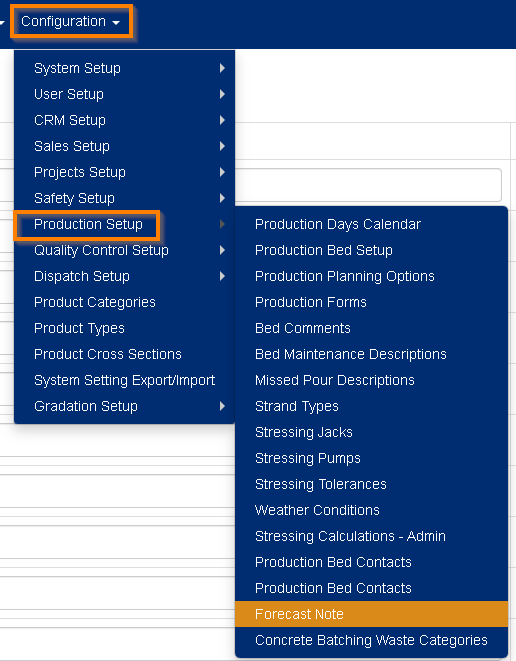 Figure 1
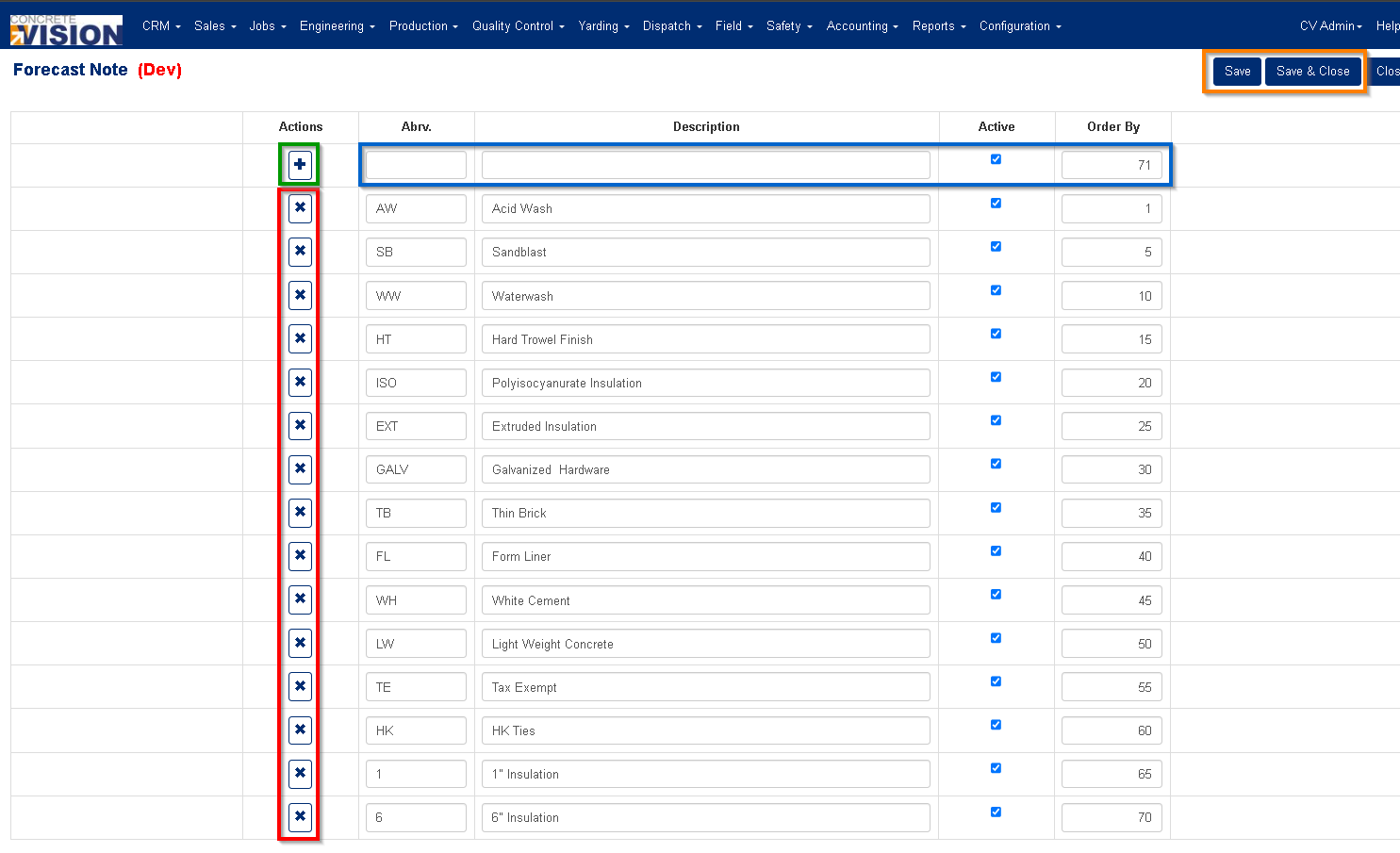
Figure 2
Adding a new Forecast Note
Using the top row on the screen (Blue box, Figure 2)
- Enter a 1 - 4-character Abvr for the new Forecast Note. (Required. Max length 5)
- Enter the Description for the new Forecast Note. (Required. Max length 25)
- Set the new Forecast Note as Active or Inactive.
- Set the Order By number for the new Forecast Note. (Required)
- Click on the [ + ] (Plus) icon to the left to save the new Forecast Note (Green box, Figure 2).
Editing a current Forecast Note
- Modify the 1 - 4-character Abvr for the Forecast Note . (Required. Max length 5)
- Modify the Description for the new Forecast Note . (Required. Max length 25)
- Set the Forecast Note as Active or Inactive.
- Set the Order By number for the new Forecast Note . (Required)
- Click on either the [ Save ] or the [ Save & Close ] buttons (Orange box, Figure 2) to save your changes.
Note: Leaving the page without clicking on one of the Save buttons will result in losing your changes.
Deleting a Forecast Note
- Click on the [ X ] delete button (Red box, Figure 2) to the left of the corresponding Forecast Note.
- This will open a confirmation window where you will be asked "Are you sure you want to delete this record?" click [OK] to allow the deletion.
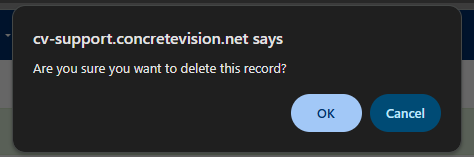
Figure 3
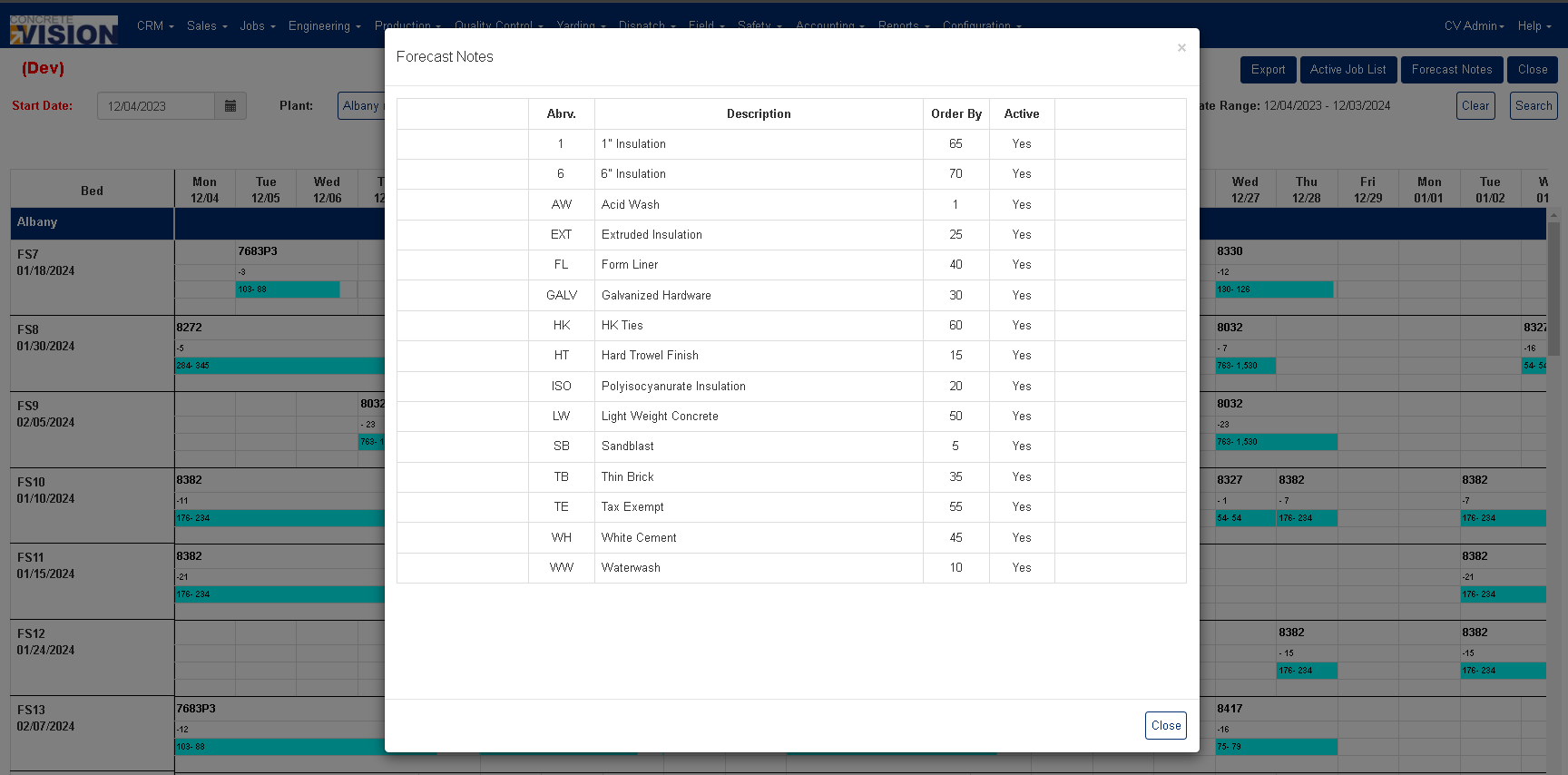 Figure 4
Was this article helpful?
That’s Great!
Thank you for your feedback
Sorry! We couldn't be helpful
Thank you for your feedback
Feedback sent
We appreciate your effort and will try to fix the article