You access the Production Days Calendar from the Configuration > Production Setup menu (Figure 1).
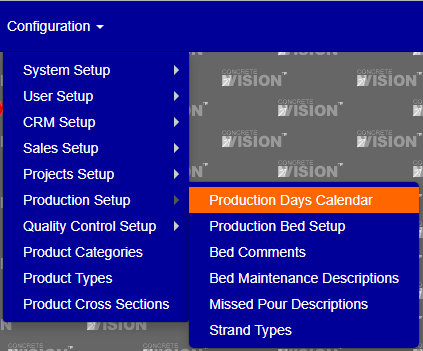
Figure 1
The Production Days Calendar screen is where you can view and edit a location's production calendar for the year.
View Calendar
To View a locations production calendar, click the "view" button on the left of the corresponding locations row in the table. (see Figure 2)
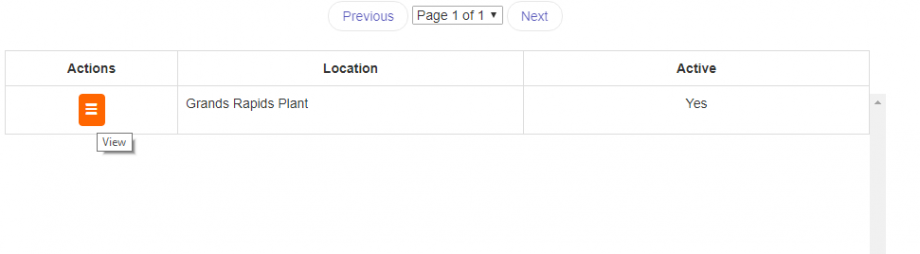
Figure 2
Mark Non-Production Days
After Entering the "view" screen, where the monthly calendars for the current year are displayed,
- Click on a specific day within a month to mark it as a "non-production" day. (Below are 2 images, Figure 3 is before marking the 1st or 8th of march as non-production days. The bottom image (Figure 4) is after clicking on those days to select them as non-production days.)
- You can distinguish the non-production day as being selected because a blue box will appear around the selected day.
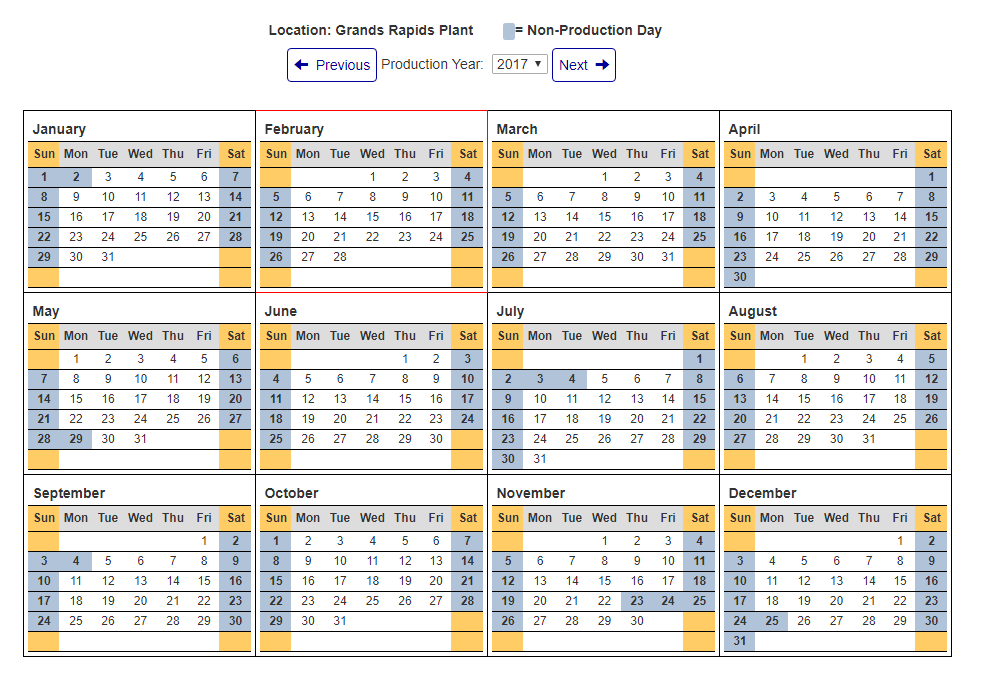
Figure 3
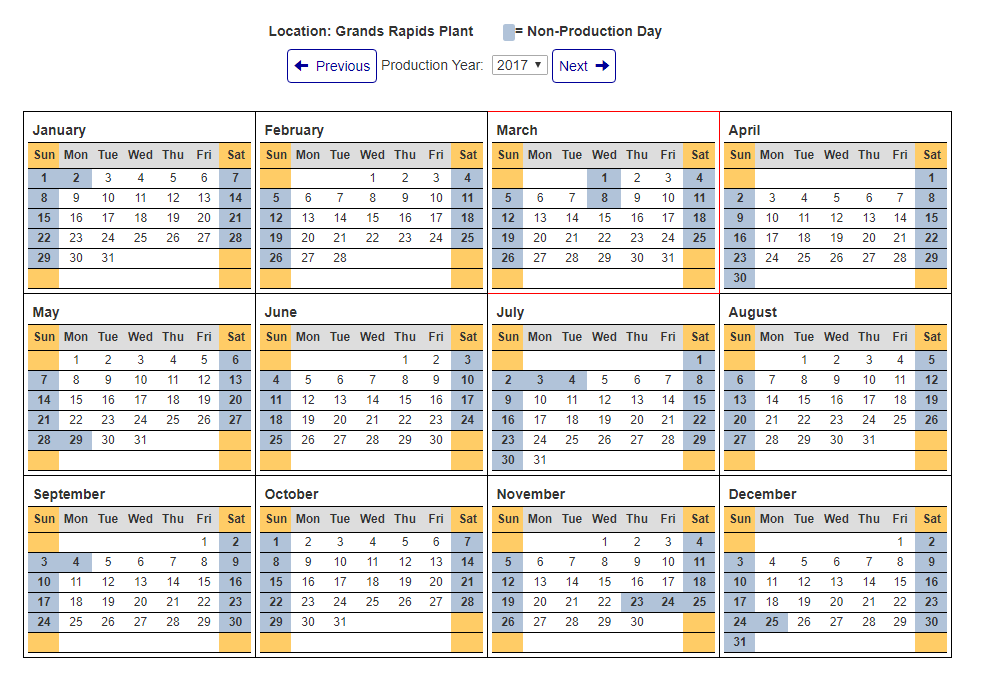
Figure 4
Viewing/Editing Different Calendar Years
- Click the "previous" button above the calendar to view the production calendar of 1 year before the current calendar year being viewed, up to 4 years before the current year.
- Click the "Next" button above the calendar to view the production calendar of 1 year after the current calendar year being viewed, up to 5 years after the current year.
- By using the "Production Year" selector above the calendar, you can select a specific year from a list ranging from 4 years prior to the current year to 5 years after the current year to view. Upon clicking on the desired year to view, the screen should re-load to display the chosen years production calendar.
Was this article helpful?
That’s Great!
Thank you for your feedback
Sorry! We couldn't be helpful
Thank you for your feedback
Feedback sent
We appreciate your effort and will try to fix the article