Location: CRM (Customer Relationship Module)
How to Use the Activities Calendar in Concrete Vision
The Activities Calendar screen:
- Tracks client visits, marketing, sales, industry, and project-specific events.
- Filters by user activities and customized activity codes.
- Provides Month, Week, and Day calendar views.
Switch between months either by using the Previous/Next buttons or by selecting a date in the date picker. (Figure 1)
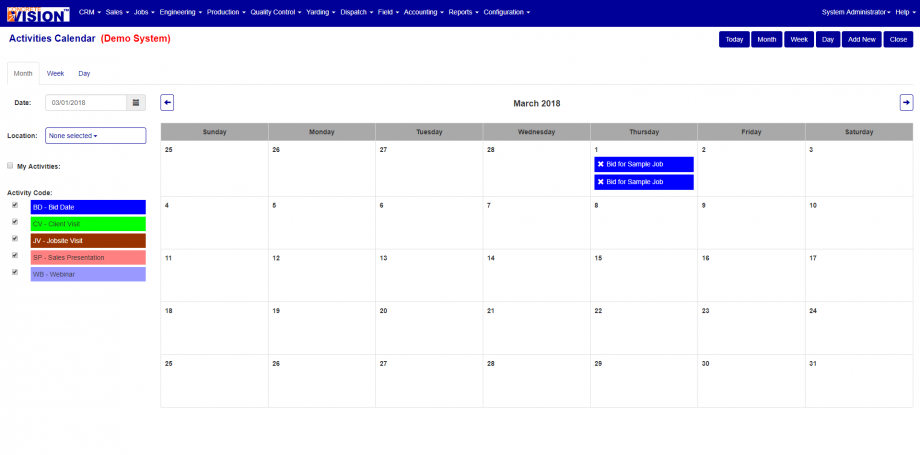
Figure 1
Adding an Activity
- Navigate to the CRM menu > Activities Calendar.
- Click on the Add New button in the upper right of the Activities Calendar screen.
- Enter details for the new activity.
- Click the Save button to save changes or click the Save & Close button to save changes and close the window.
Activity Details Tab
The Details tab displays the activity's:
- title
- start and end dates
- start and end times
- location
- activity code
- opportunity or project
- recurrence
- description (Figure 2)
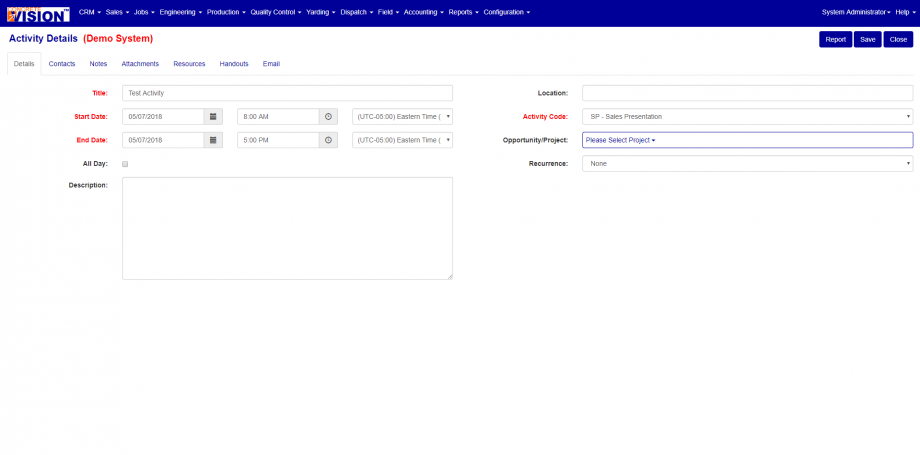
Figure 2
Activity Details Screen Buttons
The Activity Details screen also provides the following buttons in the upper right:
- Open Job: opens Job Information screen for the associated job
- Report: creates a pdf of the activity's details
- Delete: removes the activity and its details from the job and calendar
- Add New: opens a blank, new Activity Details screen
Activity Contacts Tab
The Contacts tab allows you to define the people invited to the activity. (Figure 3)
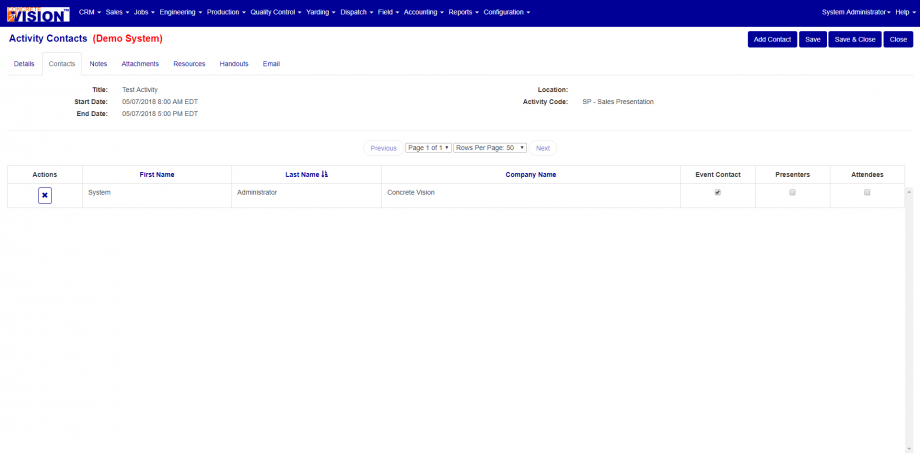
Figure 3
Activity Notes Tab
The Notes tab allows you to define notes for the activity. (Figure 4)
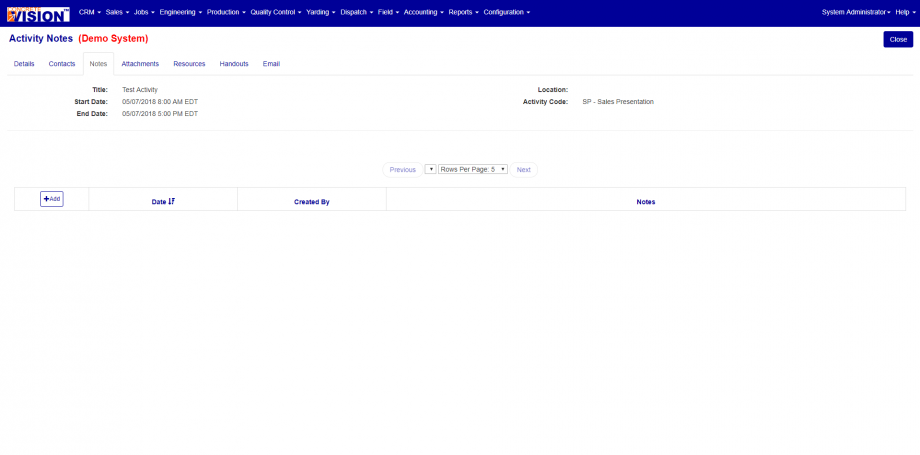
Figure 4
Activity Attachments Tab
The Attachments tab allows you to define attachments for the activity. (Figure 5)
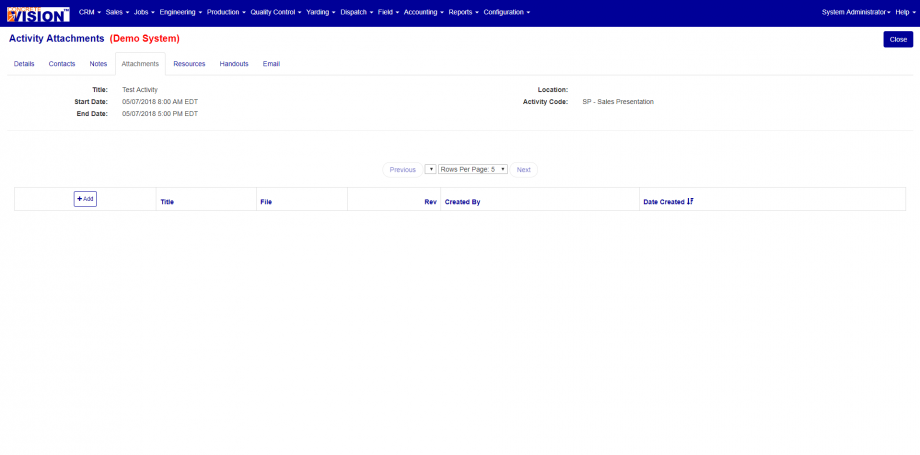
Figure 5
Activity Resources Tab
The Resources tab allows you to define resources for the activity. (Figure 6)
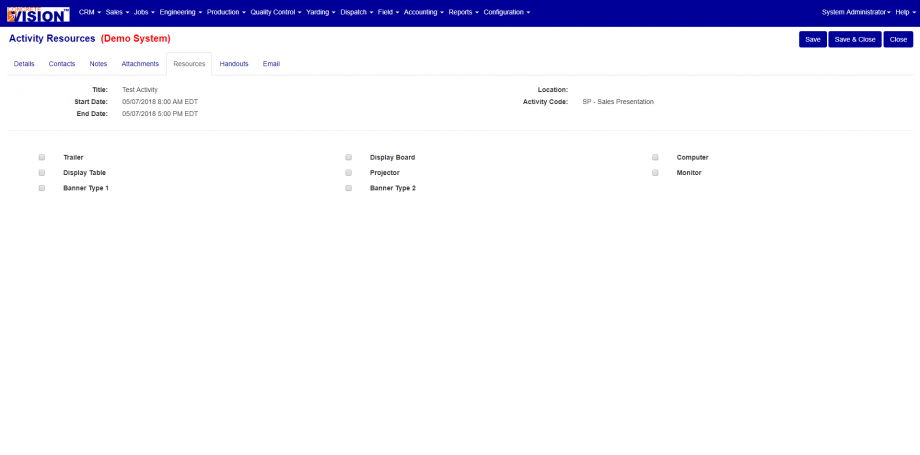
Figure 6
Activity Handouts Tab
The Handouts tab allows you to define handouts for the activity. (Figure 7)
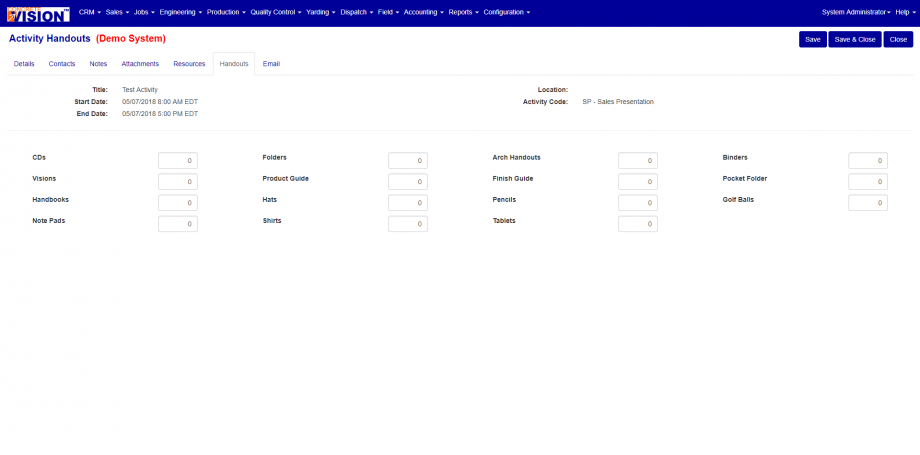
Figure 7
Activity Reminder Tab
The Reminder tab allows you to set different email reminders for the activity. (Figure 8)
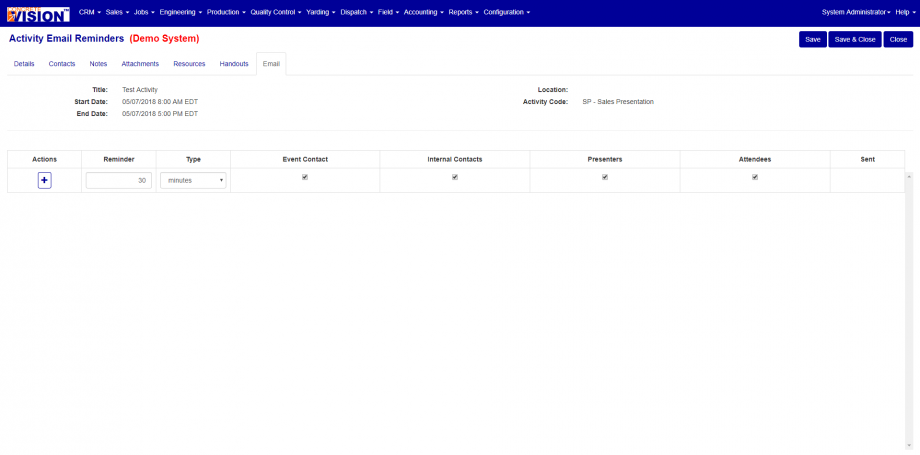
Figure 8
Editing an Activity
- Navigate to the CRM menu > Activities Calendar.
- Click on an existing activity in the calendar.
- Click on the Edit button in the pop-up window.
- Make needed revisions to the activity.
- Click the Save button to save changes or click the Save & Close button to save changes and close the window.
Was this article helpful?
That’s Great!
Thank you for your feedback
Sorry! We couldn't be helpful
Thank you for your feedback
Feedback sent
We appreciate your effort and will try to fix the article