Overview
The Activity Handouts configuration screen allows you to manage predefined handout items for scheduled calendar activities. These handouts are located in the Handouts tab of the Activity Calendar edit screen.
Accessing Activity Handouts
To access the Activity Handouts screen:
- Click on the Configuration menu
- Select CRM Setup
- Click on Activity Handouts
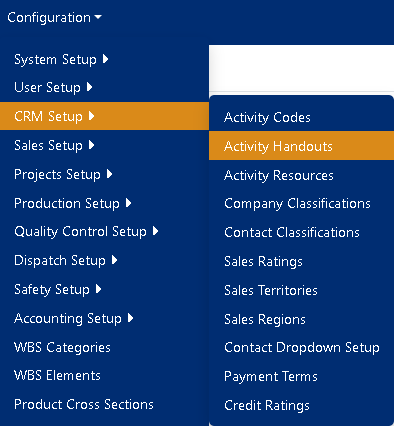
Figure 1
Finding Activity Handouts
You can easily locate specific Activity Handouts using the grid header tools:
- Sort: Click on any column header to sort by that field
- Filter: Use the filter boxes in the grid header to search for specific criteria (Red outline - Figure 2)
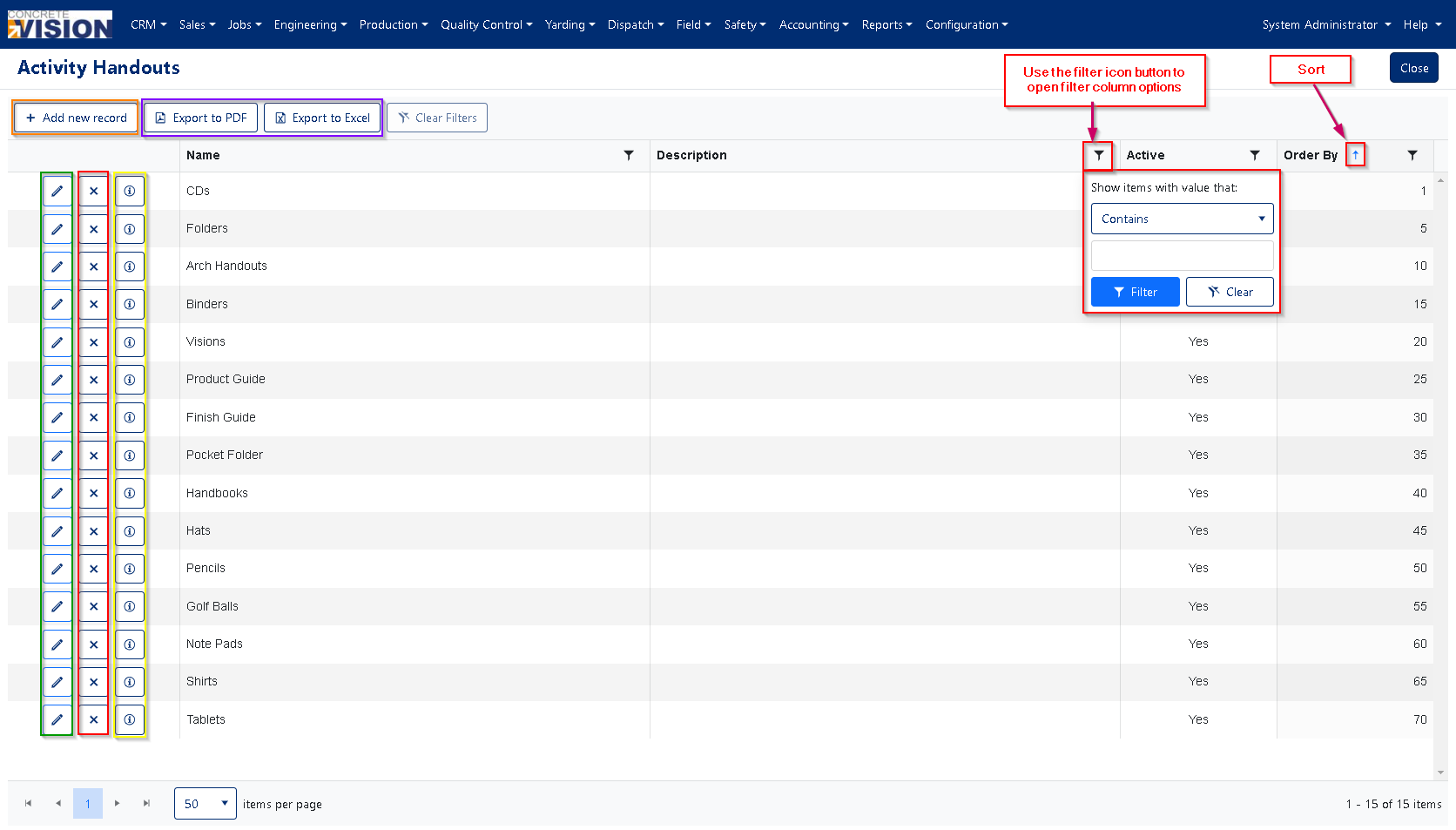
Figure 2
Managing Activity Handouts
Creating a New Activity Handout
To add a new Activity Handout:
- Click the [+ Add new record] button (orange outline in Figure 2)
- In the Add New window, complete the following fields:
- Name: Enter a name (Required, maximum 50 characters)
- Description: Enter a description (Required, maximum 250 characters)
- Order By: Enter a numeric value to determine display order
- Active: Check this box to make the handout active
- Click the [Save] button to create the new Activity Handout (Figure 3 - orange outline)
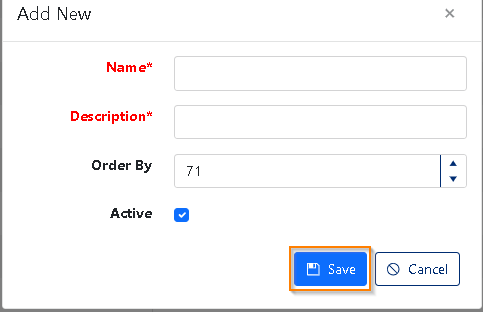
Figure 3
Editing an Activity Handout
To modify an existing Activity Handout:
- Click the edit icon (green outline in Figure 2) to the left of the Activity Handout you want to edit
- In the Edit window, update any of the following fields:
- Name: Edit the name (maximum 50 characters)
- Description: Edit the description (Required, maximum 250 characters)
- Order By: Change the numeric display order
- Active: Toggle the active state
- Click the [Save] button to apply your changes. (Figure 3 - orange outline)
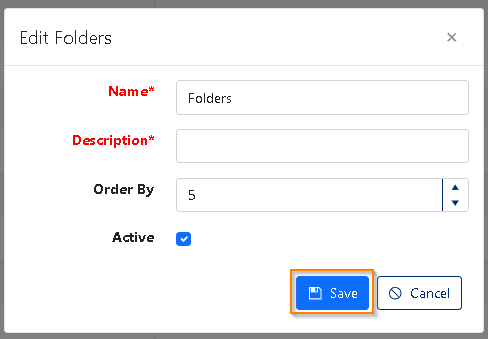
Figure 4
Deleting an Activity Handout
To remove an Activity Handout:
- Click the [X] button (red outline in Figure 2) next to the Activity Handout you want to delete
- In the confirmation dialog box, click [OK] to confirm deletion
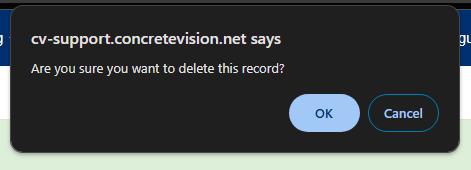
Figure 5
Exporting Activity Handouts
You can export your Activity Handouts in two formats:
Export to PDF:
- Click the [Export to PDF] button (purple outline in Figure 2)
- A PDF containing the full list of Activity Handouts will be generated
Export to Excel:
- Click the [Export to Excel] button (purple outline in Figure 2)
- An Excel spreadsheet containing the full list of Activity Handouts will be generated
Was this article helpful?
That’s Great!
Thank you for your feedback
Sorry! We couldn't be helpful
Thank you for your feedback
Feedback sent
We appreciate your effort and will try to fix the article