Overview
Activity Resources are predefined items that can be assigned to scheduled calendar activities in your CRM system. These resources.
Refer: Helpdesk : Activities Calendar
Accessing Activity Resources
To access the Activity Resources configuration screen:
- Navigate to Configuration > CRM Setup > Activity Resources (see Figure 1)
- The Activity Resources management screen will appear, displaying all currently configured resources
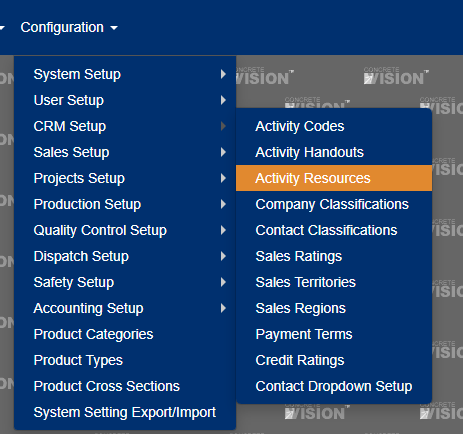
Figure 1
Managing Activity Resources
Finding Specific Resources
The Activity Resources screen provides powerful tools to help you quickly locate specific resources:
- Sorting: Click on any column header to sort the list alphabetically or numerically
- Filtering: Use the filter tools in the grid header to search for specific text in any column
- Pagination: Navigate between pages using the controls at the bottom of the screen. (see Figure 2)
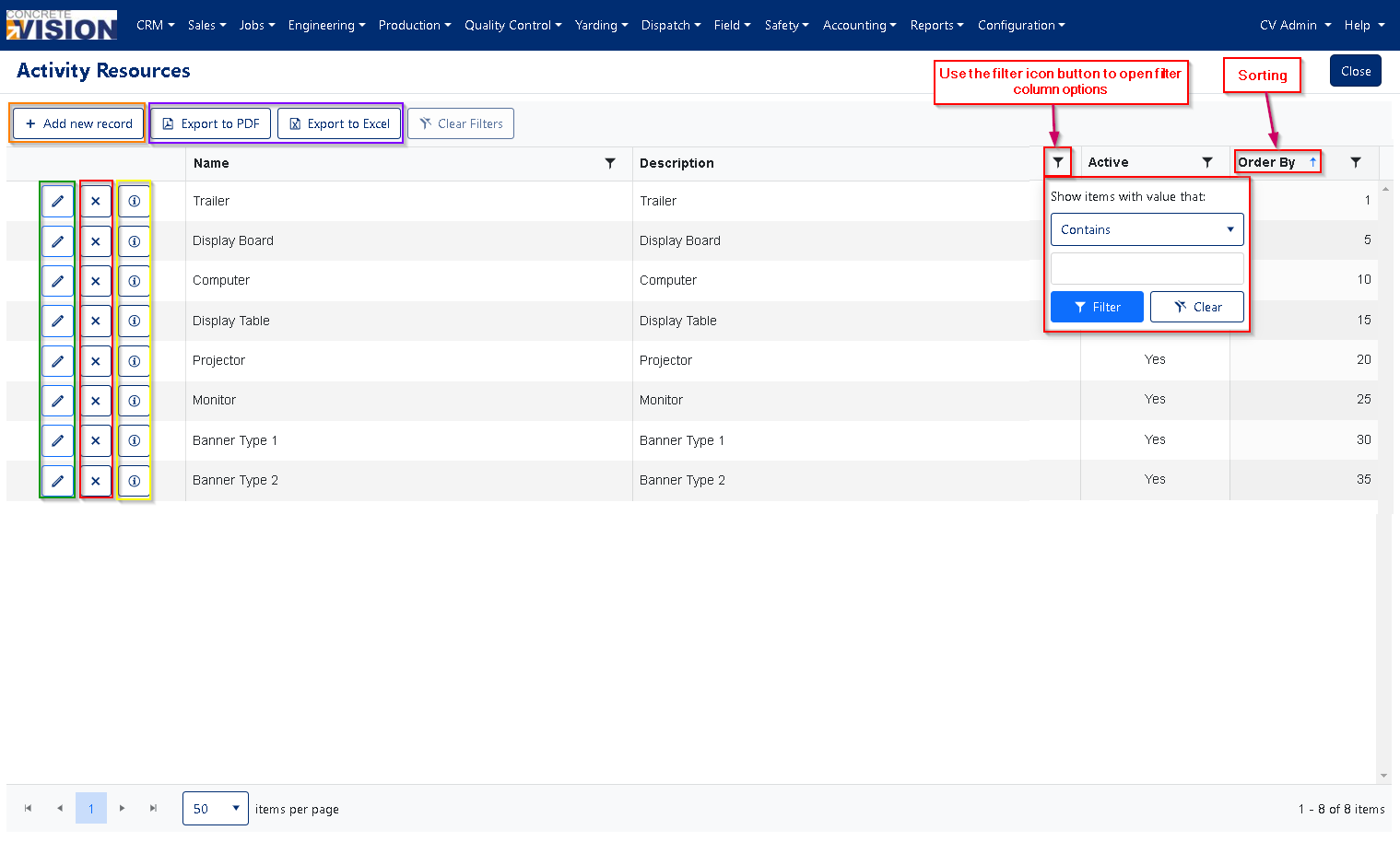
Figure 2
Creating a New Activity Resource
To add a new resource to your system:
Open the Add New Window:
- Click the [+ Add new record] button at the top of the resource list (Figure 2 - orange outline)
- The Add New window will appear
Enter Resource Details:
- Name: Enter a clear, descriptive name (Required, max 50 characters)
- Description: Provide details about the resource (Required, max 250 characters)
- Order By: Assign a number to control where this resource appears in lists
- Active: Check this box to make the resource available for selection
Save the Resource:
- Click the [Save] button to create the new Activity Resource (Figure 3 - orange outline)
- The resource will immediately appear in the list and be available for selection in the Activity Calendar
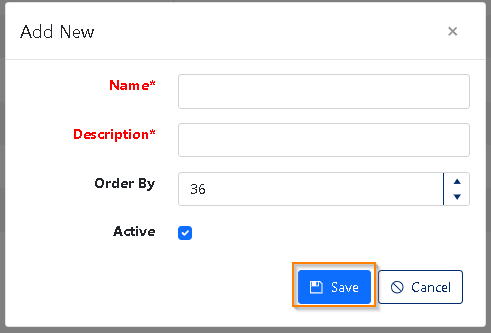
Figure 3
Editing an Activity Resource
To modify an existing resource:
Open the Edit Window:
- Click the pencil icon (✏️) to the left of the Activity Resource you want to edit (Figure 2 - green outline)
- The Edit window will open with the current resource details
Update Resource Details:
- Modify the Name as needed (max 50 characters)
- Update the Description as needed (max 250 characters)
- Adjust the Order By number to change its position in lists
- Toggle the Active state as needed
Save Your Changes:
- Click the [Save] button to update the Activity Resource. (Figure 4 - orange outline)
- Your changes will be immediately reflected throughout the system
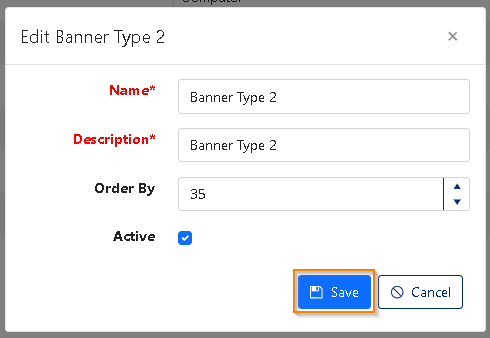
Figure 4
Deleting an Activity Resource
To remove a resource that is no longer needed:
- Click the [X] button next to the corresponding Activity Resource (Figure 2 - red outline)
- A confirmation dialog will appear asking "Are you sure you want to delete this record?"
- Click [OK] to confirm the deletion

Figure 5
Note: Deleting an Activity Resource will remove it from the selection options in all future calendar activities. Any existing activities that have this resource assigned will not be affected.
Exporting Activity Resources
You can export your complete list of Activity Resources for reporting or backup purposes in two formats:
PDF Export
- Click the [Export to PDF] button to generate a complete list in PDF format (Figure 2 - purple outline)
- The PDF will maintain the current sort order and include all visible columns
Excel Export
- Click the [Export to Excel] button to generate a spreadsheet with all resources (Figure 2 - purple outline)
- The Excel export includes all data fields and can be further manipulated for analysis
Was this article helpful?
That’s Great!
Thank you for your feedback
Sorry! We couldn't be helpful
Thank you for your feedback
Feedback sent
We appreciate your effort and will try to fix the article