Overview
Company Classifications allow you to categorize and organize companies in your CRM based on their business characteristics. This feature helps you group companies by the services they provide, making it easier to search, filter, and manage your business relationships.
What You Can Classify
Each company classification can specify whether a company:
- Supplies Equipment - Provides machinery, tools, or hardware
- Supplies Material - Provides raw materials, components, or consumables
- Is a Flag Carrier - Offers load escort services for transportation
- Is an Erector - Provides installation or construction services
Accessing Company Classifications
Navigate to Configuration → CRM Setup → Company Classifications
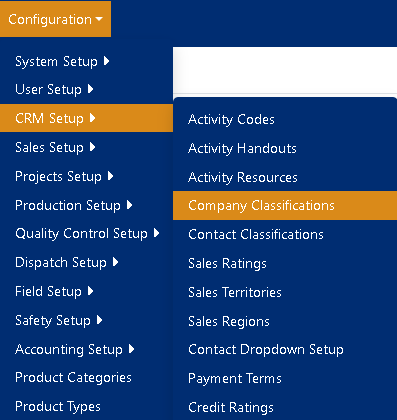
Figure 1
The Company Classifications screen displays all existing classifications in a searchable grid format. You can sort or filter classifications using the grid header tools. (Figure 2)
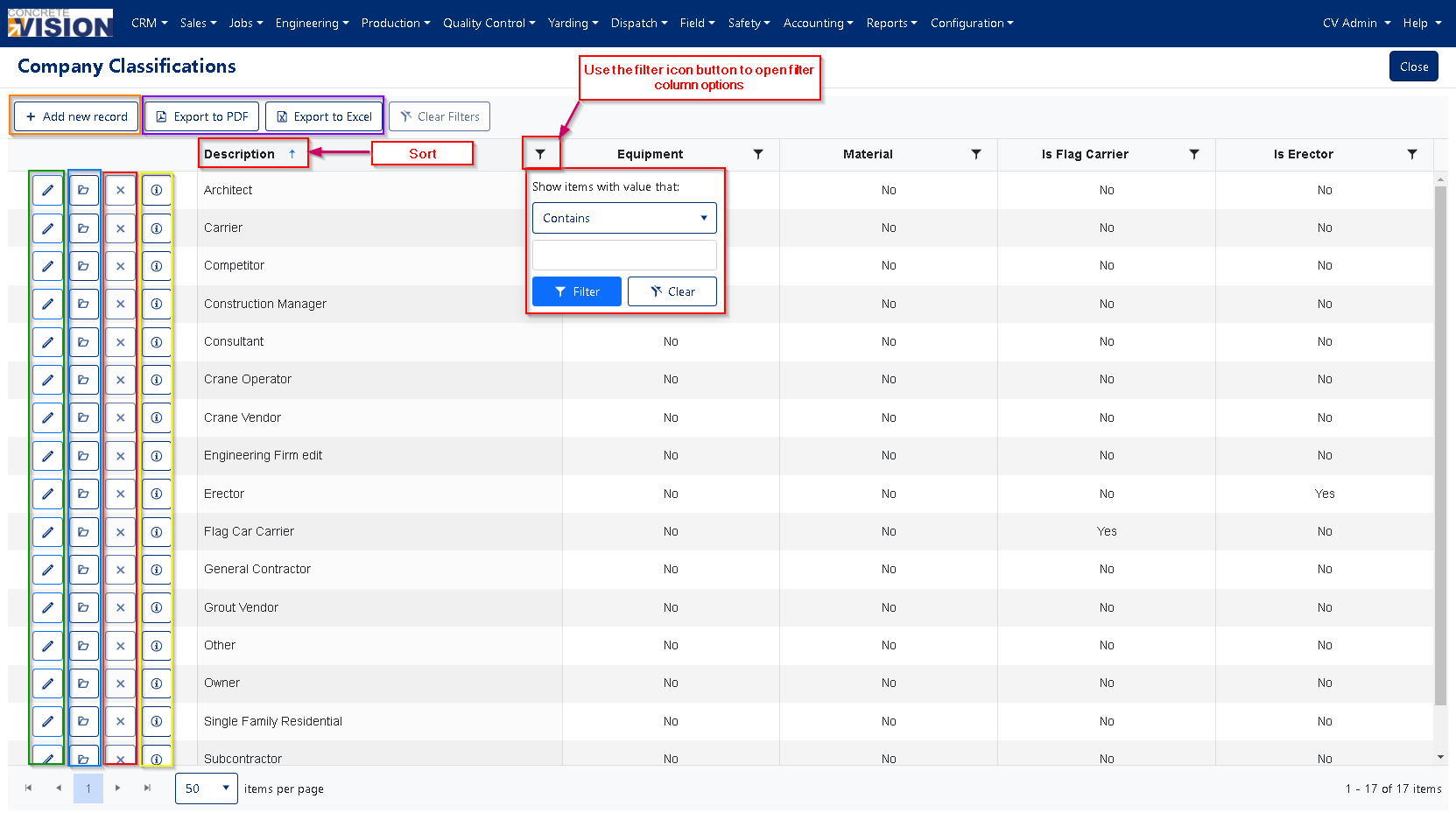
Figure 2
Creating a New Classification
Open the Add Dialog
- Click the [+ Add new record] button (Orange box, Figure 2)
- The "Add New" dialog window will appear (Figure 3)
Enter Classification Details
- Description: Enter a descriptive name (required, max 100 characters)
- Equipment: Check if this company supplies equipment
- Material: Check if this company supplies materials
- Is Flag Carrier: Check if this company provides load escort services
- Is Erector: Check if this company provides installation services
Save the Classification
- Click [Save] to create the new classification(Orange box, Figure 3)
- Click [Cancel] to discard changes
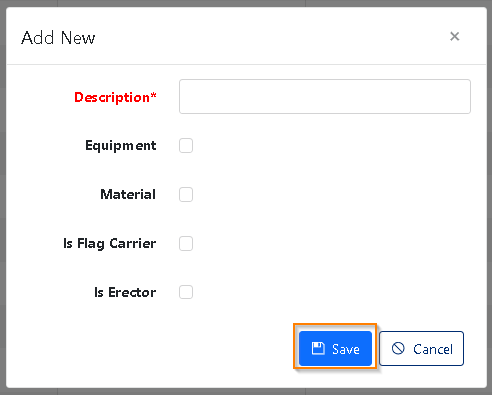
Figure 3
Editing an Existing Classification
Open the Edit Dialog
- Click the edit icon (first icon) next to the classification you want to modify (Green box, Figure 2)
Update Details
- Modify the description or checkbox settings as needed
- All the same fields are available as when creating a new classification
Save Changes
- Click [Save] to apply your changes (Orange box, Figure 4)
- Click [Cancel] to discard changes
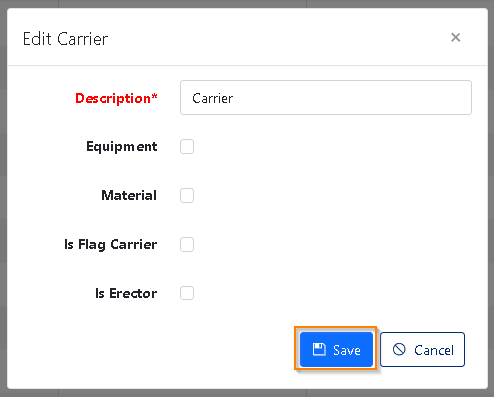
Figure 4
Deleting a Classification
⚠️ Note: Classifications that are currently in use cannot be deleted.
- Click the [X] button next to the classification you want to remove (Red box, Figure 2)
- Confirm the deletion by clicking [OK] in the confirmation dialog (Figure 5)
- Click [Cancel] if you change your mind

Figure 5
Managing Company Assignments
Viewing Companies in a Classification
- Click the Edit Detail button next to any classification (Blue box, Figure 2)
- This opens the Company Classification Details screen showing all companies assigned to this classification (Figure 6)
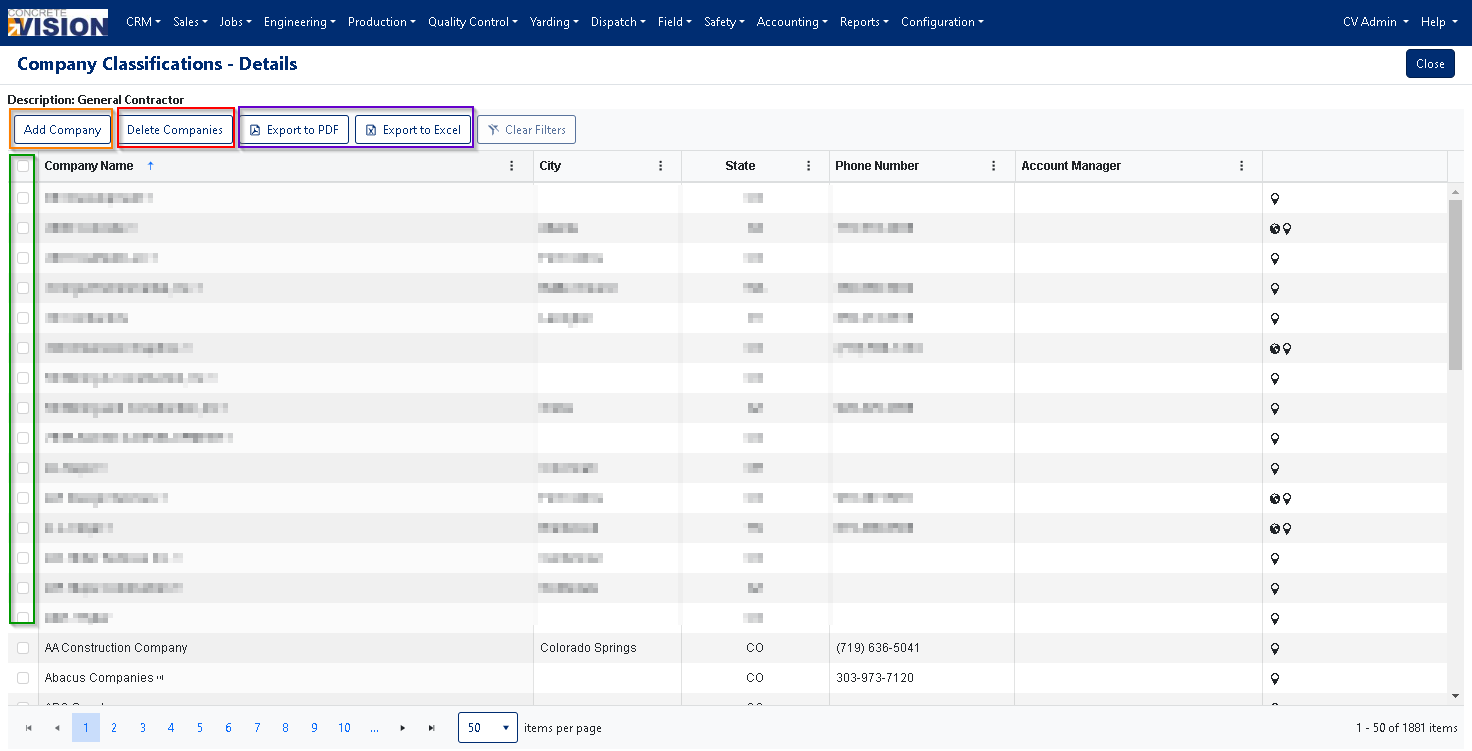
Figure 6
Removing Companies from a Classification
Select Companies to Remove
- Check the boxes next to the companies you want to unassign (Green box, Figure 6)
- You can select multiple companies at once
Delete the Assignments
- Click [Delete Companies] (Red box, Figure 6)
- Confirm by clicking [OK] in the confirmation dialog (Figure 7)
 Figure 7
Adding Companies to a Classification
Open Company Search
- Click the Add Company to open the Company Search window (Orange box, Figure 6)
Select Companies
- Select All: Check the header checkbox to select all visible companies (Green box, Figure 8)
- Select Individual: Check boxes next to specific companies you want to add (Red box, Figure 8)
Add Selected Companies
- Click [Add] to assign the selected companies to this classification (Orange box, Figure 8)
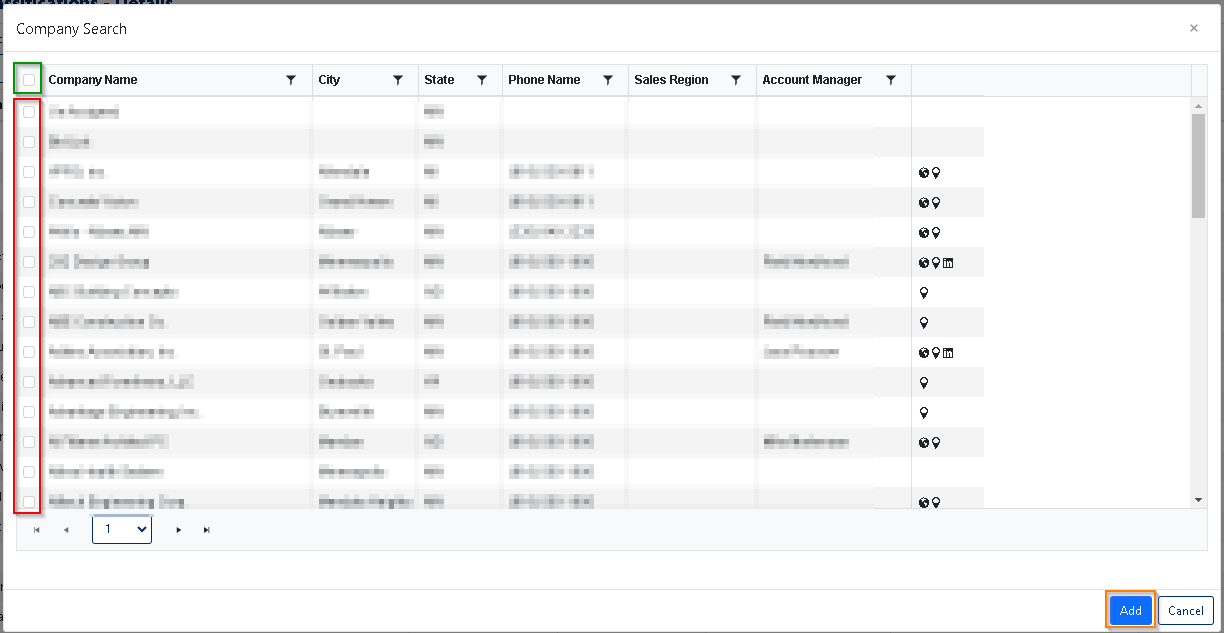
Figure 8
Export and Reporting
Export Classification List
From the main Company Classifications screen:
- PDF Export: Click [Export to PDF] for a formatted document (Purple box, Figure 2)
- Excel Export: Click [Export to Excel] for a spreadsheet you can edit (Purple box, Figure 2)
Export Company Assignments
From the Company Classification Details screen:
- PDF Export: Click [Export to PDF] to export the list of assigned companies (Purple box, Figure 6)
- Excel Export: Click [Export to Excel] for a spreadsheet of assigned companies (Purple box, Figure 6)
Audit Information
Tracking Changes
Click the info icon (i) next to any classification to view: (Yellow box, Figure 2)
- Who created the record and when
- Who last modified the record and when
- Complete change history for accountability
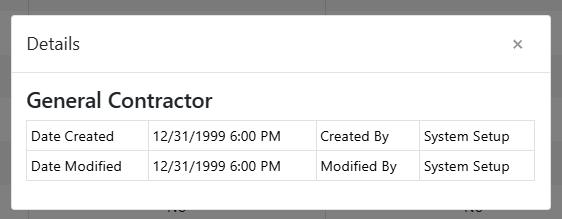
Figure 9
Was this article helpful?
That’s Great!
Thank you for your feedback
Sorry! We couldn't be helpful
Thank you for your feedback
Feedback sent
We appreciate your effort and will try to fix the article