The Contact List screen can be sorted by clicking on any column heading. You can also add or edit contacts from this screen. There also is an Export feature to send the list of companies to Microsoft® Excel®.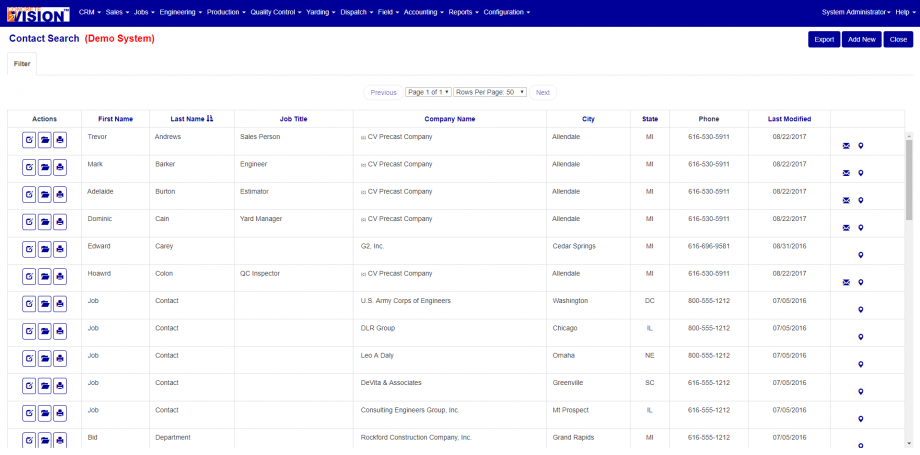
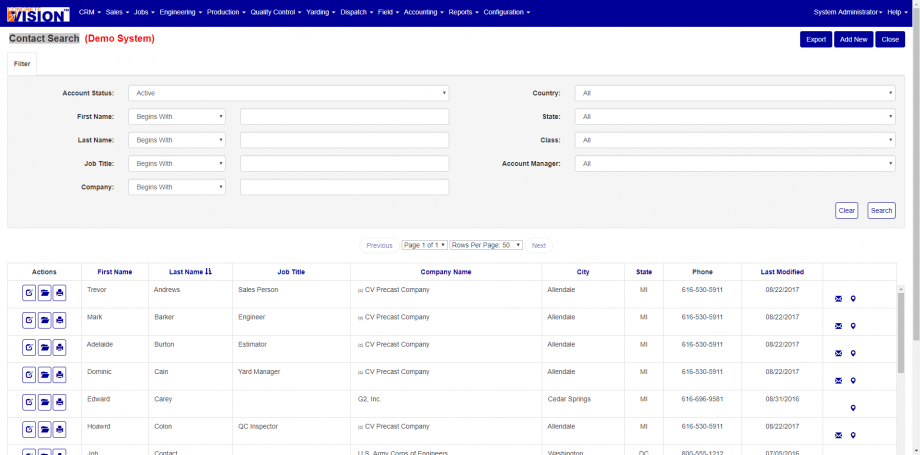
The Contact Search screen is used to search for certain companies based on the criteria you enter. You can search based on any combination of the criteria fields shown on the screen. This allows you narrow the list to the lowest number of possibilities when looking for specific contact records.
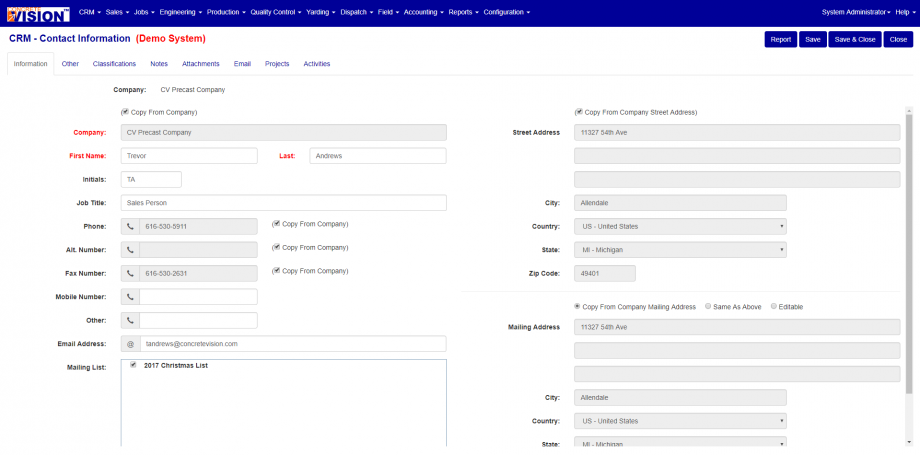
The Contact tab is where you find the phone and fax numbers. From this tab you can also enter the street and mailing address. By using the tabs across the top of the screen, you can also access the classifications, notes, attachments, activities and projects associated with this contact.
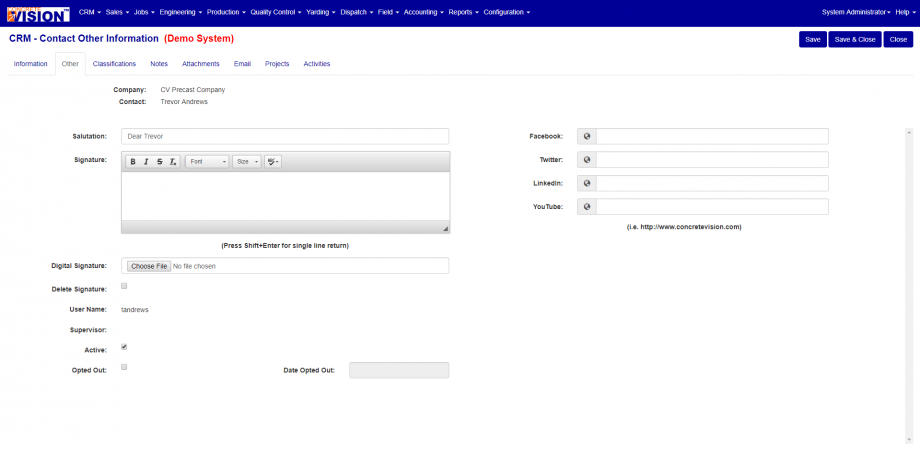
The Other tab displays the salutation, signature, digital signature, delete signature, active, opted out, facebook, twitter, linkedin, and youtube.
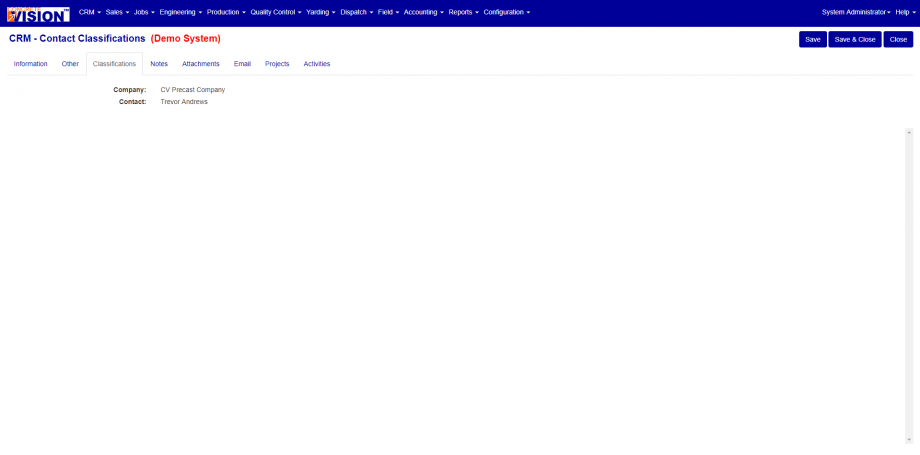
The Classification tab is where you can select which classification(s) the company belongs too. These classifications are used to create project resource drop-down list of values. You can maintain the Contact Classifications list on the Configuration menu.
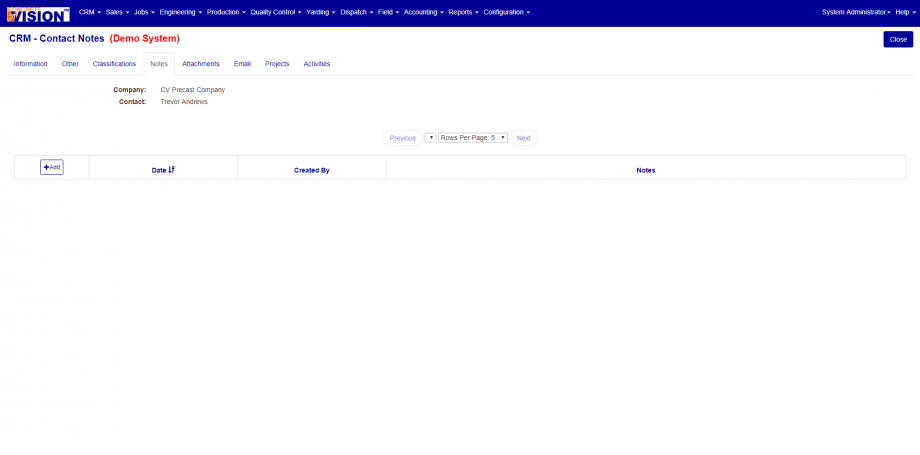
The Notes tab displays all the notes entered for the specified contacts. You can also create a new activity from this screen. Once a note is added into the system, it is stamped with the date, time and employee that entered the note. All notes entered into Concrete Vision cannot be edited once they are saved. This allows for a complete and accurate history of information.
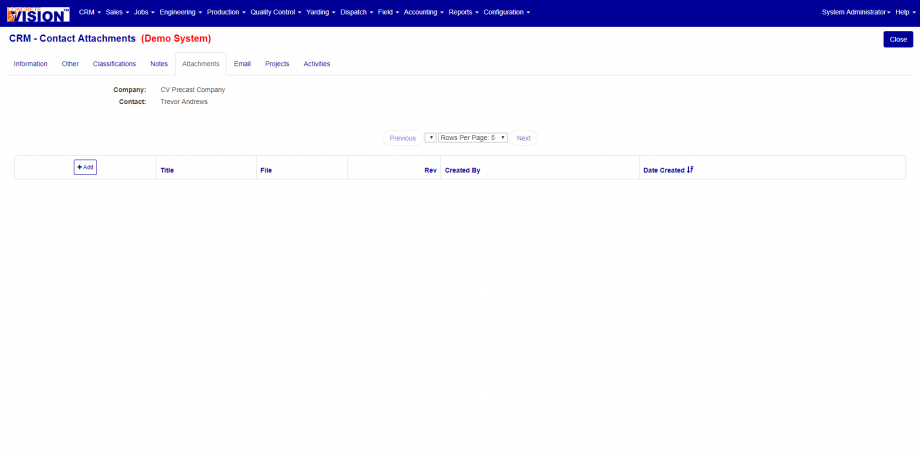
The Attachment tab displays all the attachments for which the contacts is associated.
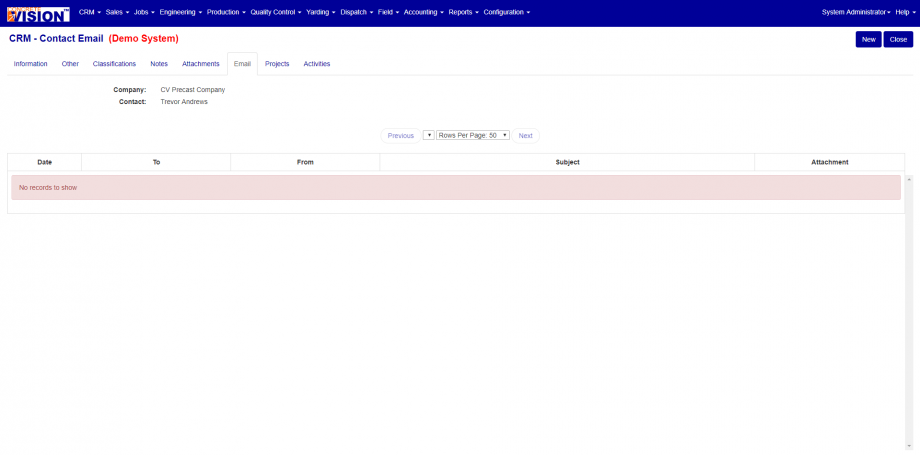
The email tab displays all the email for which the contacts has been send out.
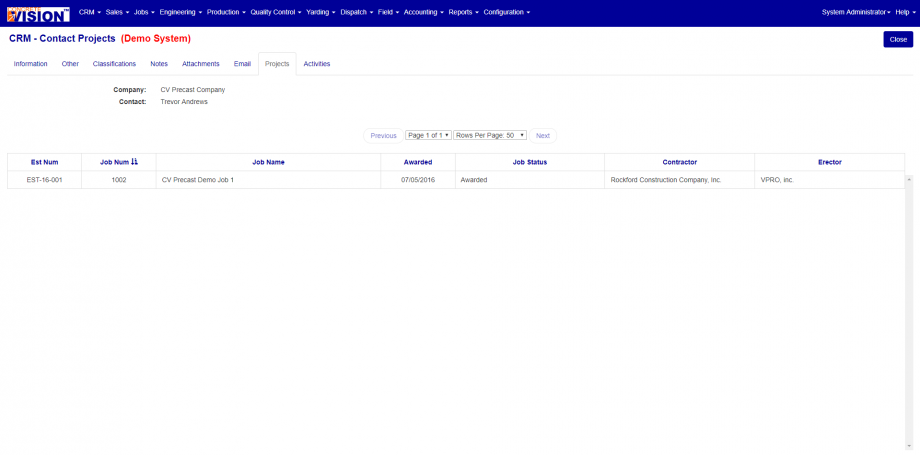
The Projects tab displays all the projects for which the contacts is associated.
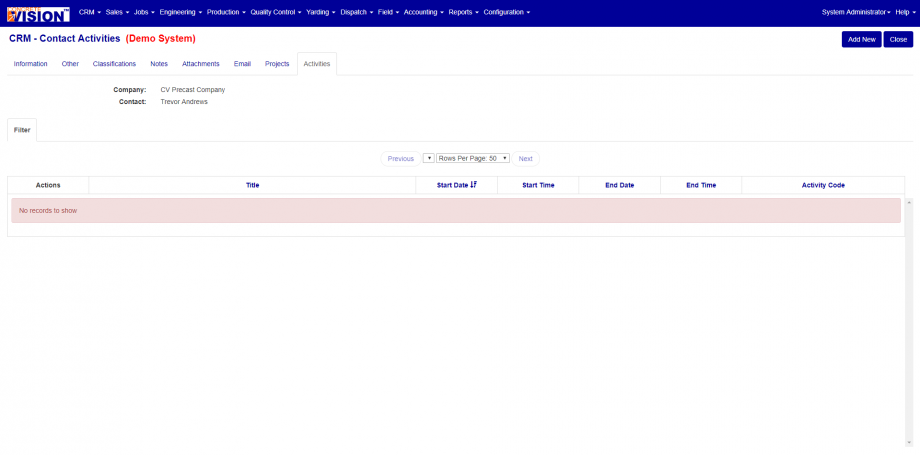
The Activities tab displays all the activities for which the contacts is associated.
Was this article helpful?
That’s Great!
Thank you for your feedback
Sorry! We couldn't be helpful
Thank you for your feedback
Feedback sent
We appreciate your effort and will try to fix the article