Overview
This guide shows how to add a new company record in the Concrete Vision CRM system.
Accessing the Screen
Navigate to CRM > Company Search from the main menu (Figure 1) to access the Company Search screen (Figure 2).
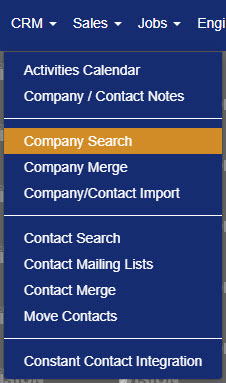
Figure 1
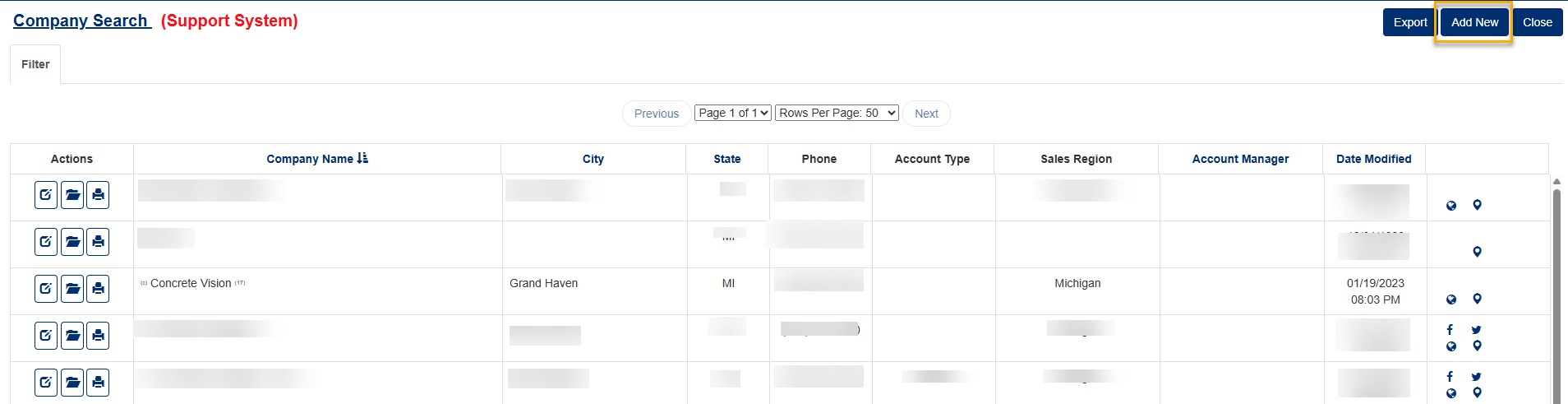
Figure 2
Adding a New Company Record
From the Company Search screen:
- Click the Add New button at the top right of the screen (Orange box, Figure 2).
- In the pop-up window, type the new company's name in the Company field (Figure 3).
- Click the Add New button in the pop-up window (Orange box, Figure 3).
- Enter in the new company's information on the blank CRM - Company Information screen (Figure 4). Required fields have red labels (Green box, Figure 4).
- Click the Save & Close button (Orange box, Figure 4) to save the new company information and return to the Company Search screen.
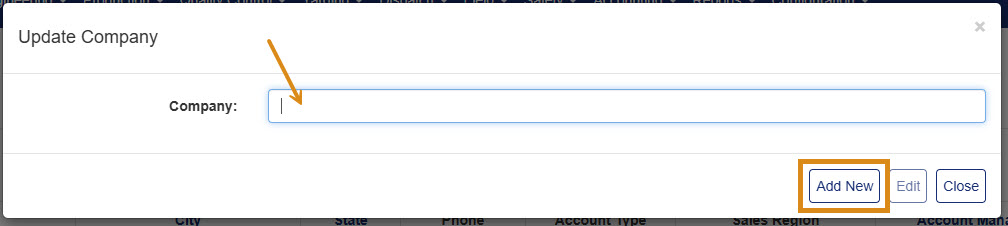
Figure 3
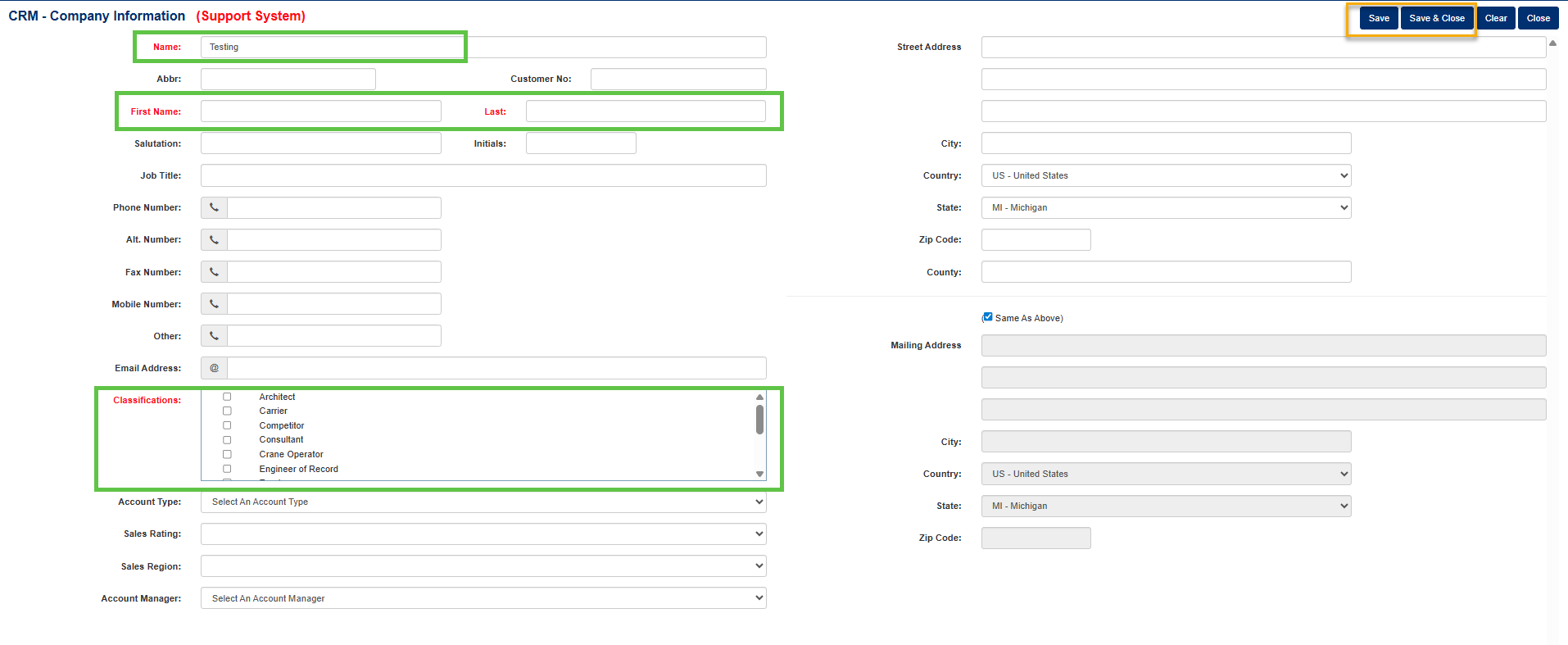
Figure 4
Was this article helpful?
That’s Great!
Thank you for your feedback
Sorry! We couldn't be helpful
Thank you for your feedback
Feedback sent
We appreciate your effort and will try to fix the article