Accessing the Add New Contact Function
Navigate to CRM > Contact Search from the main menu (Figure 1).
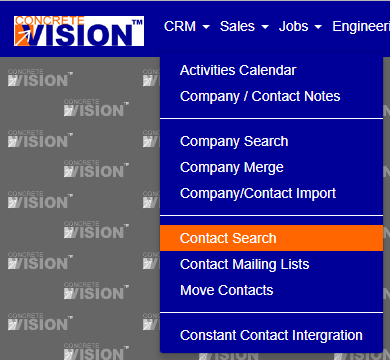
Figure 1

Figure 2
Adding a New Contact
- Click the Add New button at the top right of the Contact Search screen (Figure 2).
- Enter a valid company or create a new one from the pop-up window (Figure 3). The field will auto-fill once you start typing in the company name.
- Select the correct company to enable the New Contact button.
- Click on the New Contact button to get to the Contact Information screen (Figure 4).
- Enter the new contact's information.
- Click the Save button to save all info, or the Save & Close button to save all info and exit the screen.
NOTE: Required fields are denoted by an asterix.
Any non-required information can be added to the Contact Information Screen at any time by navigating back to the Contact Search screen.
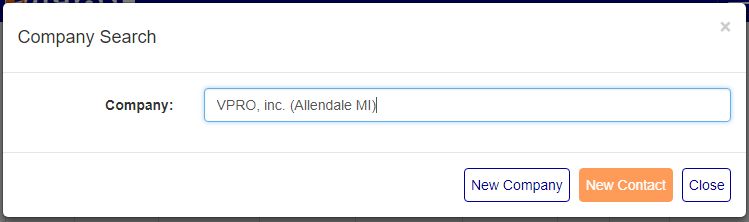
Figure 3
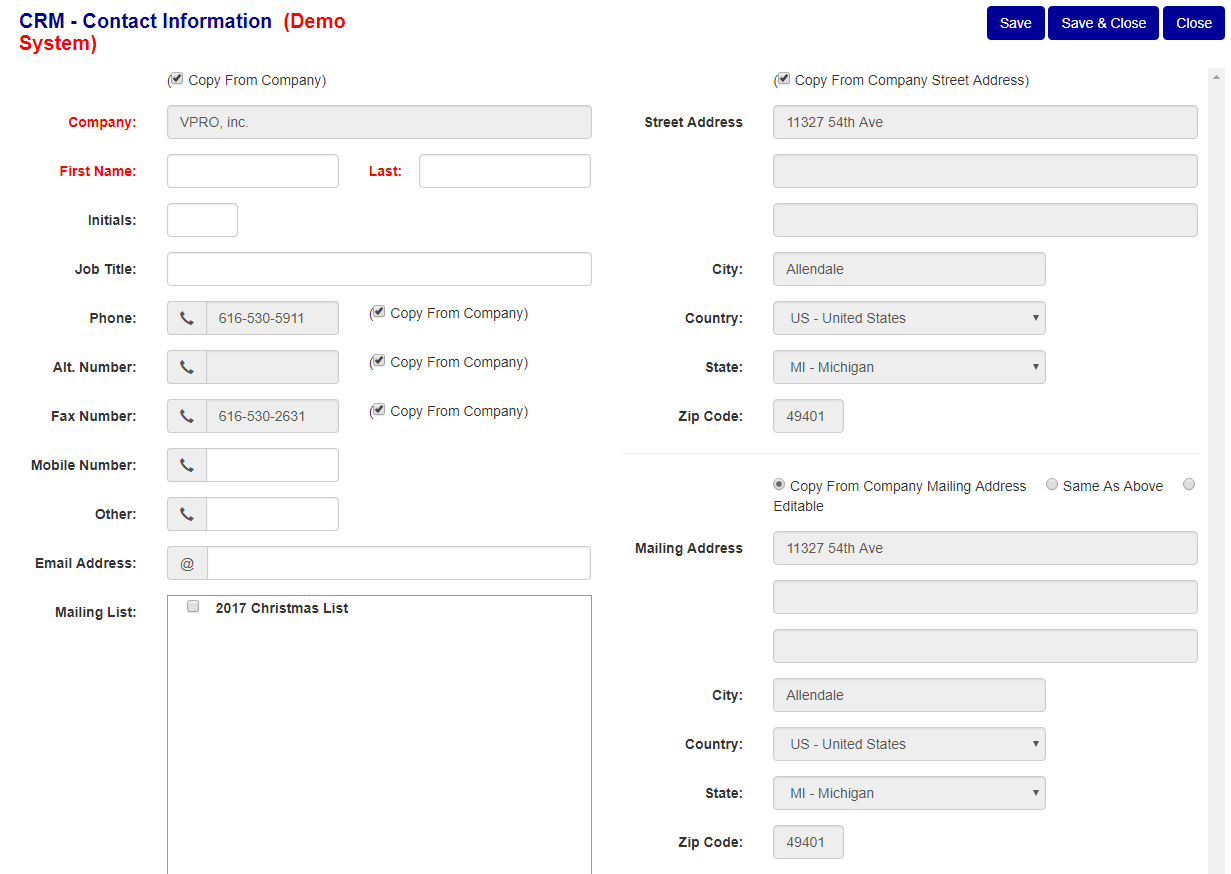
Figure 4
Was this article helpful?
That’s Great!
Thank you for your feedback
Sorry! We couldn't be helpful
Thank you for your feedback
Feedback sent
We appreciate your effort and will try to fix the article