Overview
The Contact Dropdown Setup feature allows you to create organized groups of contacts that appear as dropdown lists throughout Concrete Vision. These predefined contact groups streamline data entry and ensure consistency when selecting contacts in various forms and screens.
Accessing Contact Dropdown Setup
- Navigate to the Configuration tab in the main menu
- Select CRM Setup → Contact Dropdown Setup
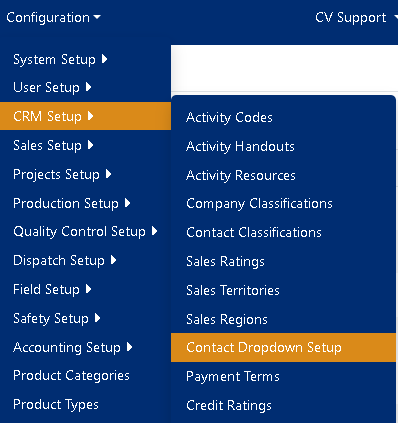
Figure 1
Managing Contact Dropdown Groups
Viewing and Organizing Groups
The main Contact Dropdown Setup screen displays all existing contact groups in a sortable, filterable table:
- Sort: Click any column header to sort by that field
- Filter: Click the funnel icon next to column headers to filter results (Blue box, Figure 2)
- Export: Use the Export buttons to generate PDF or Excel reports (Purple box, Figure 2)

Figure 2
Creating a New Contact Dropdown Group
Open the Add Dialog
- Click the [+ Add new record] button
Enter Group Details
- Large Description: Enter a descriptive name (Required, max 100 characters)
- Small Description: Enter a short name for compact displays (Required, max 20 characters)
- Active: Check to make this group available for use
- Order By: Enter a number to control the display order (lower numbers appear first)
Save
- Click Save to create the contact group (Green box, Figure 2)
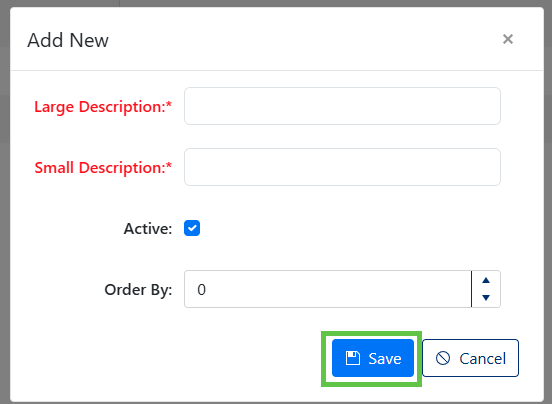
Figure 2
Editing an Existing Group
- Click the Edit button (pencil icon) next to the desired group
- Modify any of the group details:
- Large Description
- Small Description
- Active status
- Order By number
- Click Save to apply changes (Green box, Figure 4)
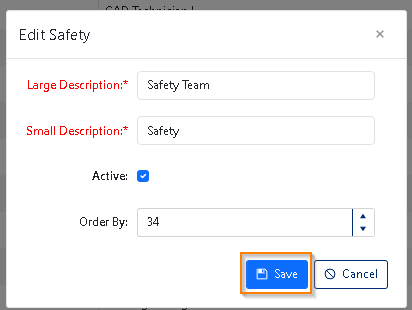
Figure 4
Managing Contacts Within Groups
Viewing Group Contacts
Click the folder icon next to any contact group to view and manage the contacts assigned to that group (Orange box, Figure 2)
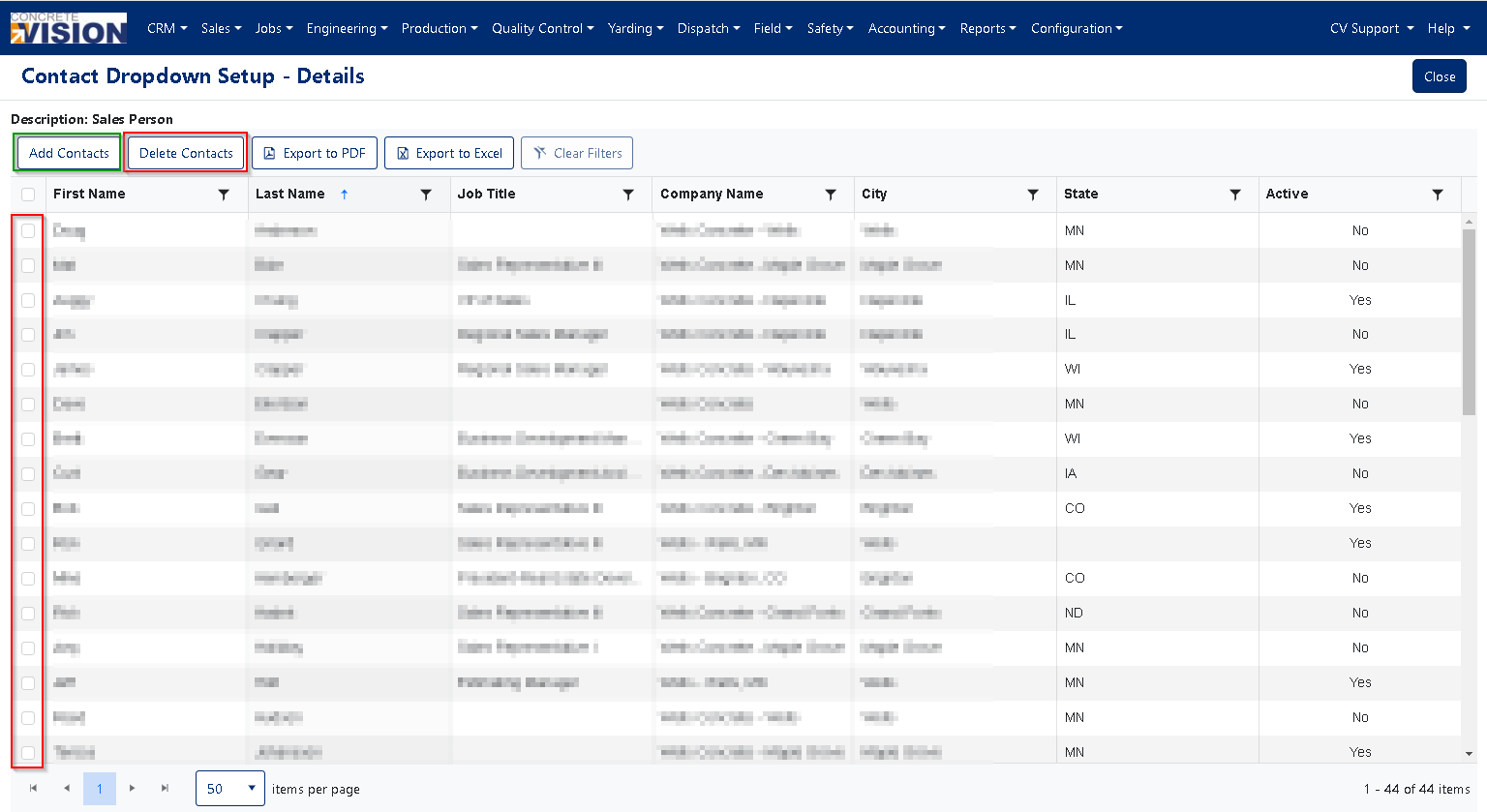
Figure 5
Adding Contacts to a Group
- From the group details screen, click Add Contacts (Green box, Figure 5)
- Use the contact search dialog to: (Figure 6)
- Browse available contacts
- Search by name, company, or other criteria
- Select multiple contacts using checkboxes.
- Click Add to assign the selected contacts to the group. (Green box, Figure 6)
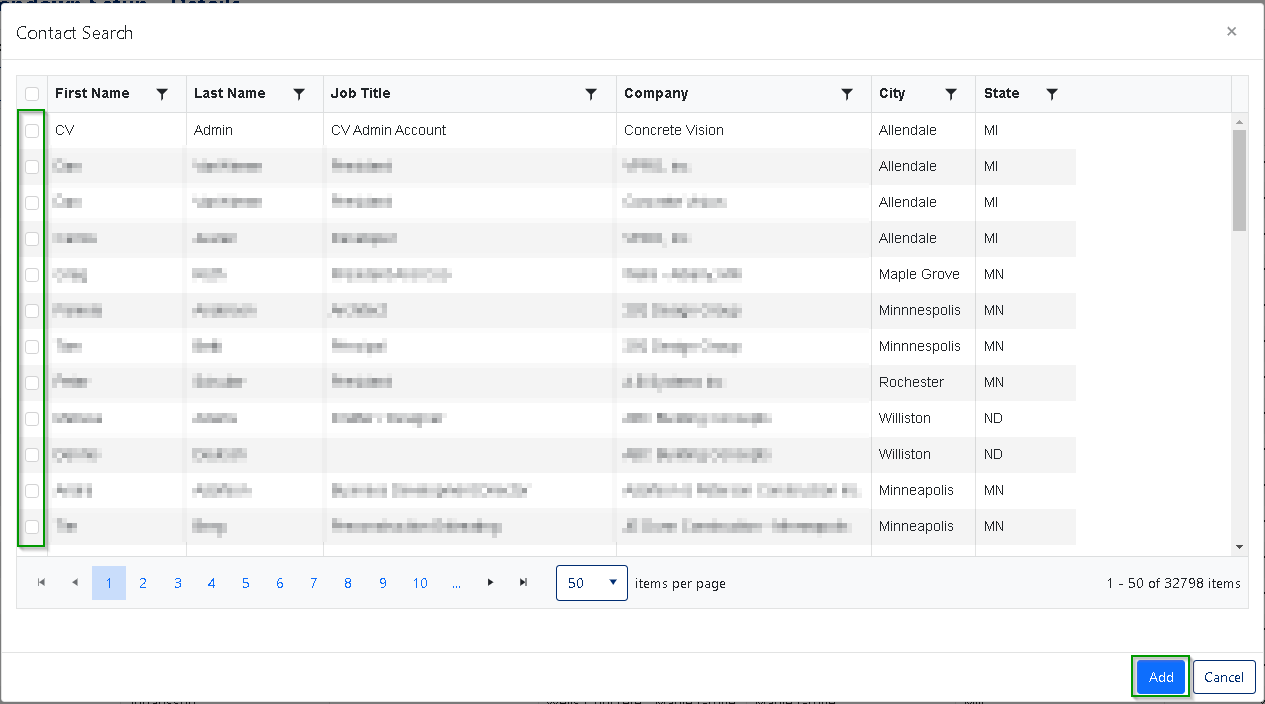
Figure 6
Removing Contacts from a Group
- In the group details screen, select the contacts you want to remove
- Click Delete Contacts to remove them from the group (Red box, Figure 5)
Note: Removing contacts from a group does not delete the contact records themselves - it only removes them from this specific dropdown group.
Was this article helpful?
That’s Great!
Thank you for your feedback
Sorry! We couldn't be helpful
Thank you for your feedback
Feedback sent
We appreciate your effort and will try to fix the article