Create Mobilization Status as options for your company’s projects mobilization progress. Those active Mobilization Statuses will be shown within the “Jobs > Job Lookup” menu. From the Job Lookup screen search and select the job you’d like to define a mobilization event for. From the “Project Information” screen, click on the “Mobilizations” tab. The mobilization statuses activated from the “Configuration -> Project Setup -> Mobilization Status” screen will be found as drop list options contained within the “Status” column for each mobilization detail row.
Refer to: https://support.concretevision.com/documentation/job-lookup/
You access Mobilization Status from the Configuration menu under Project Setup (Figure 1).
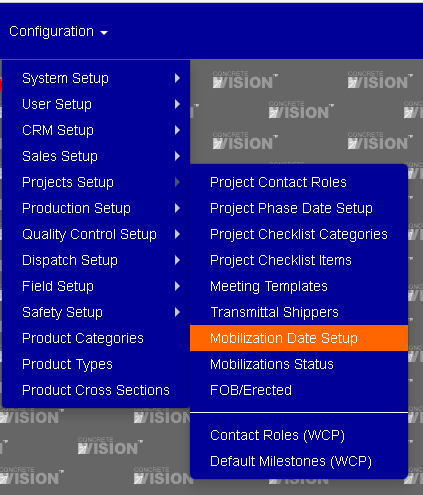
Figure 1
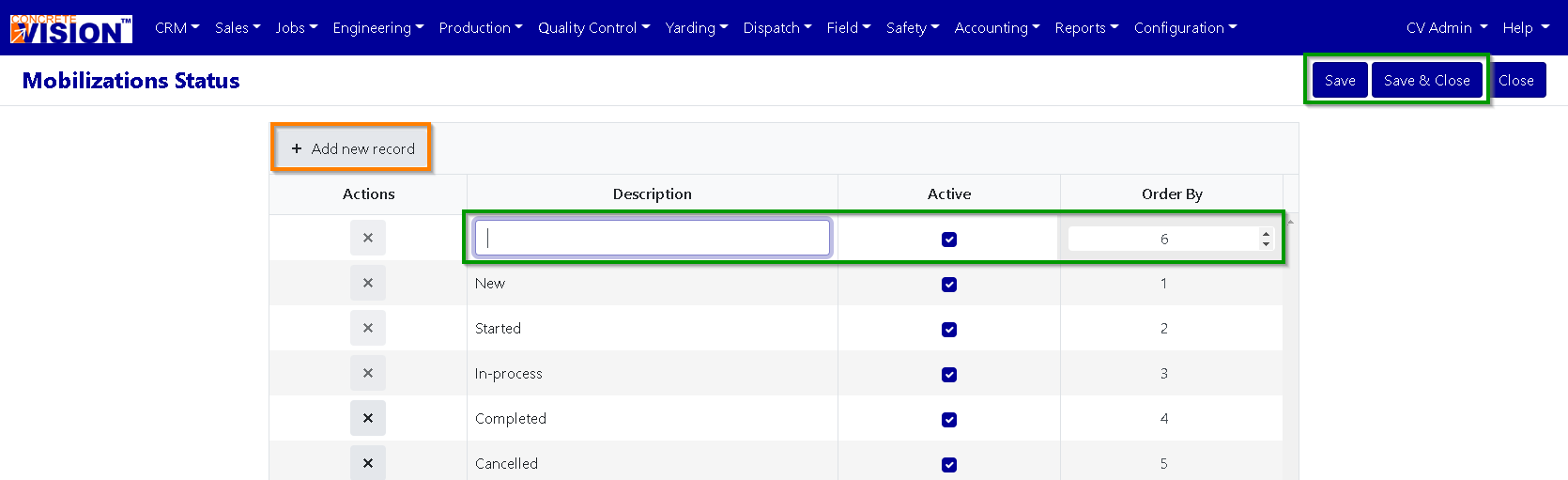
Figure 2
Add Mobilization Status
- Click on the [Add new Record] (Orange Box see Figure 2) The Add field will open.
- Enter the status’ description. [Required to have text]
- Set the Active state.
- Enter an Order by if needed.
- Click the [Save] (Green Box top right of Figure 2) to save this information.
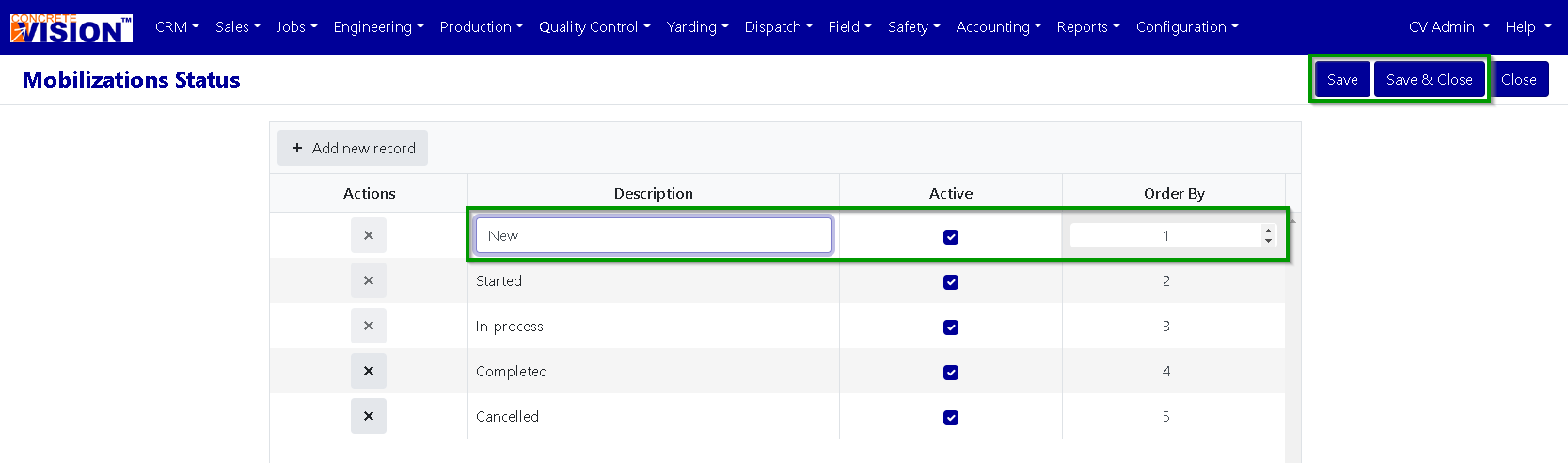
Figure 3
Edit Mobilization Status
- Click on the item you need to edit. (Green Boxes see Figure 3).
- You can modify the description.
- You can modify the active state.
- You can modify the order by.
- Click the [Save] (Green Box top right of Figure 3) to save the updated information.
Note: If you don’t click on either the Save or Save and Close button and navigate off this screen, your changes will be lost.
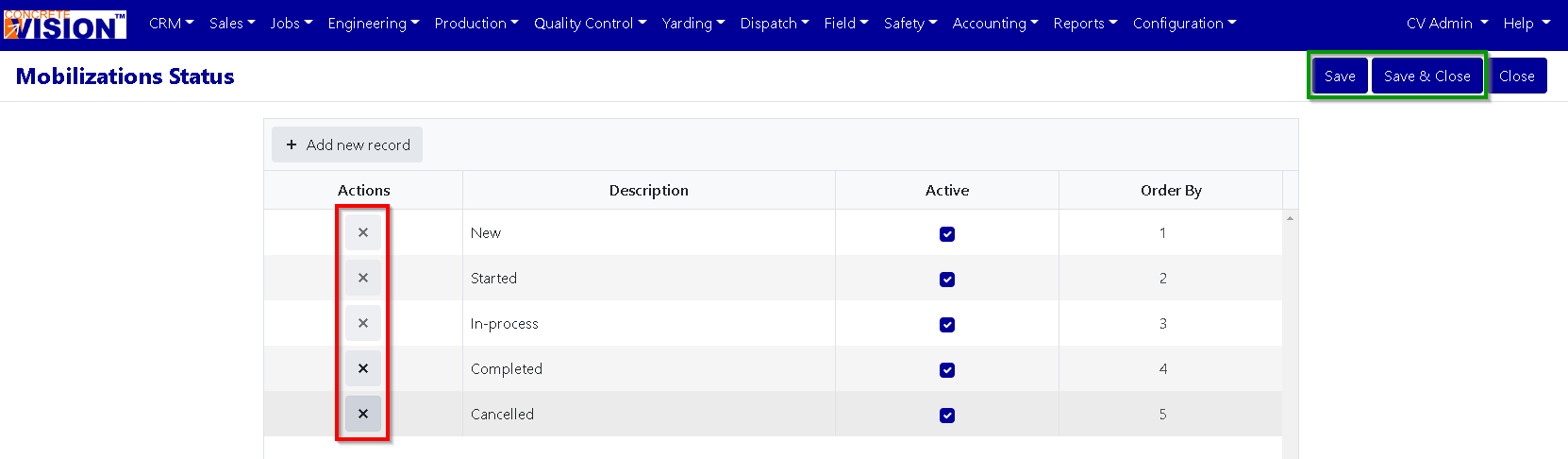
Figure 4
Delete Mobilization Status
To delete a Mobilization Status, just click on the Delete button of the Mobilization Status (Red Box to the left of the Mobilization Status’s name (Red Box) in Figure 4) you wish to delete. Click the [Save] (Green Box top right of Figure 4) to save the deletion.
Please note: You can only delete a Mobilization Status that does not currently have any details assigned to it. If the Mobilization Status has items assigned to it, the delete button will be disabled.
Was this article helpful?
That’s Great!
Thank you for your feedback
Sorry! We couldn't be helpful
Thank you for your feedback
Feedback sent
We appreciate your effort and will try to fix the article