Overview
The Project Management Update Screen is a comprehensive dashboard that allows project managers to view, filter, and update multiple projects from a single interface. This screen provides quick access to project details, milestone tracking, and team assignments while enabling real-time updates to project information.
Accessing the Screen
Navigate to Jobs > PM Update Screen through the main menu (Figure 1).
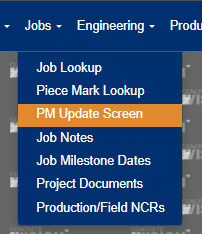
Figure 1
PM Update Screen Layout
Main Features
- Project List: Displays all active projects with key information
- Filter Panel: Advanced search and filtering options
- Inline Editing: Edit project details directly in the grid
- Expandable Details: View phases and mobilizations for each project
- Export Functionality: Generate Excel reports
Search and Filter Options
Opening the Filter Panel
- Click the Filter tab at the top of the screen (Yellow box, Figure 2).
- The filter panel will expand, showing all available search options.
Filter Options
- Status: Select one or multiple project statuses
- Plant: Choose specific plant locations
- Job Number: Search by job number with various match types (begins with, contains, equals, ends with)
- Job Name: Search by project name with various match types
- Country/State: Filter by geographic location
- Project Contact: Filter by assigned team members
Using Filters
- Select your desired filter criteria
- Click Search to apply filters
- Click Clear to reset all filters to default values
- Click My Projects to show only projects assigned to you (Green box, Figure 2)
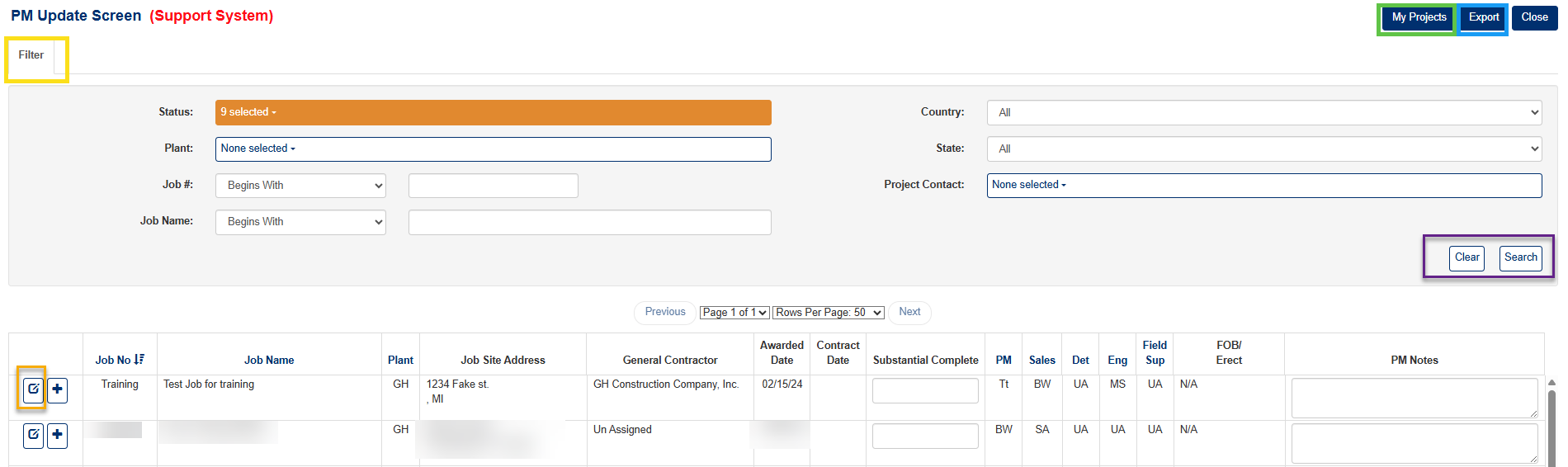
Figure 2
Viewing Project Information
Main Project Grid
The grid displays the following columns:
- Actions: Edit and expand/collapse buttons
- Job Number: Project identifier
- Job Name: Project title
- Plant: Manufacturing location
- Job Site Address: Project location
- General Contractor: Primary contractor information
- Key Dates: Awarded Date, Contract Date, Substantial Complete
- Team Members: PM, Sales, Detailer, Engineer, Field Supervisor
- FOB/Erected: Shipping terms
- PM Notes: Project manager notes
Navigation Controls
- Pagination: Use the page selector to navigate through multiple pages
- Rows Per Page: Adjust how many projects display per page (50-200)
- Previous/Next: Navigate between pages
Editing Project Information
Inline Editing
- Substantial Complete Date: Click in the date field and select a new date
- PM Notes: Click in the notes field and type your updates
- Changes are automatically saved when you click outside the field
Detailed Project Information
- Click the Edit button (pencil icon) in the Actions column (Orange box, Figure 2)
- This opens the detailed project information screen (Figure 3)
- Make your changes and save (Red box, Figure 3)
- Return to the update screen using the Close button (Green box, Figure 3)
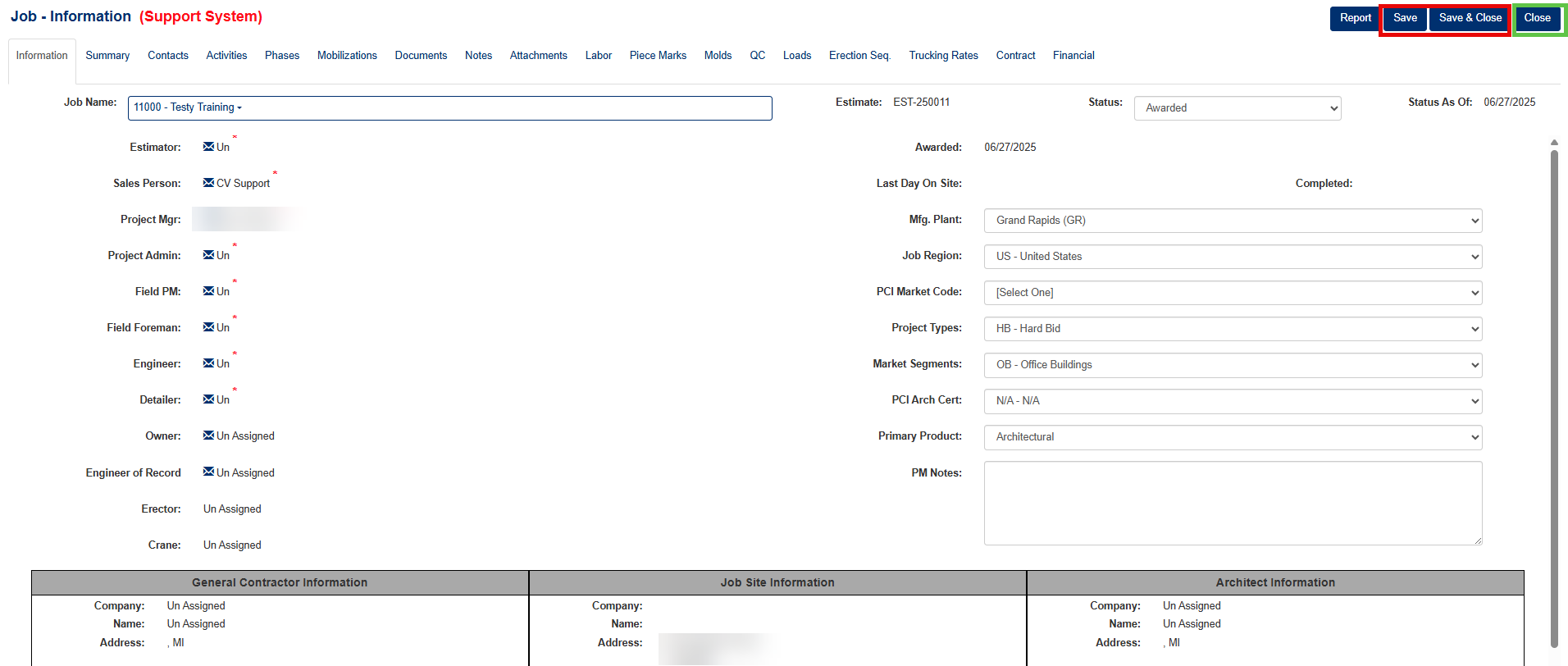
Figure 3
Export Project Information
Generating Excel Reports
- Click the Export button at the top of the screen (Blue box, Figure 2)
- The system will generate a comprehensive Excel file containing:
- All visible project information
- Phase details with milestone dates
- Mobilization information
- Properly formatted columns and headers
Excel Report Features
- Multiple Sheets: Data organized across multiple worksheets if needed
- Formatted Columns: Proper column widths and formatting
- Filter-Aware: Only exports projects matching your current filter criteria
Was this article helpful?
That’s Great!
Thank you for your feedback
Sorry! We couldn't be helpful
Thank you for your feedback
Feedback sent
We appreciate your effort and will try to fix the article