Overview
The Production/Field NCRs - Drafting screen provides the following functions:
- View a list of NCRs filtered by Plant, NCR Status, Job Name, Project Contact, NCR Item and NCR problem.
- Review NCRs in Draft status and make limited edits as needed.
- Add a new Field NCR.
- Generate a pdf report of filtered NCRs.
- Export a list of filtered NCRs to Excel.
Accessing the Screen
Navigate to Engineering > Production/Field NCRs - Drafting from the main menu (Figure 1).
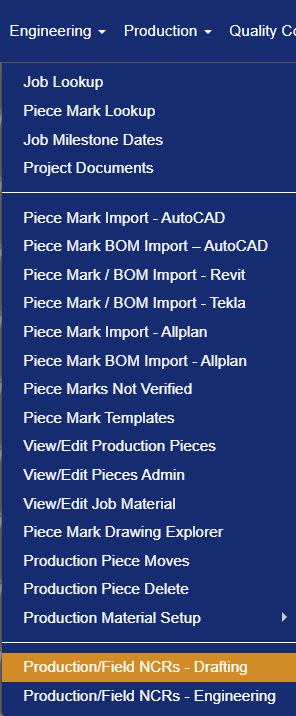
Figure 1
The Production NCRs - Drafting screen (Figure 2) table lists NCRs that are under the Drafting status and can be filtered to refine the displayed list.
 Figure 2
NCR Table Column Descriptions
| Column | Description |
|---|---|
| NCR # | NCR Number |
| Date | Date the NCR was created |
| Status | Current status of the NCR (e.g., Drafting Review). |
| Status Date | Date of most recent status update |
| Plant ID | Plant where Piece Mark was produced. |
| Job Num | Job number the NCR is assigned to. |
| PM | Initials of the Project Manager assigned to the job. |
| Eng | Initials of the Engineer assigned to the job. |
| Det | Initials of the Detailer assigned to the job. |
| Piece Mark | Piece Mark name and drawing. Click the PDF icon to view the drawing. |
| CTRL Number | Control number associated with the Piece. |
| Piece S/N | Piece Mark serial number. |
| Cast Date | Date the piece is poured. |
| Pour | Pour number of piece mark. |
| Bed Pos | Bed position where piece mark was poured. |
| Yard Location | Where piece mark is located in the yard. |
| Est Erect Date | Estimated erection date for the piece. |
| Load | Load number for the piece. |
| Load Date | Load date of the piece. |
| Item - Problem | Specific issue for the NCR. Configurable in the Configuration module. |
Switching between Production NCRs and Field NCRs
To toggle between Production NCRs and Field NCRs, navigate to the top left of the Production NCRs - Engineering screen and select the appropriate tab corresponding to the desired NCR type. (Green box, Figure 2).
Filtering the Production NCR List
Use the Filter tab (yellow arrow, Figure 2) to locate specific NCRs
- Click on the Filter tab.
- Select the filter criterial such as Plant, Status, Job Name, Project Contact, NCR Item, and NCR Problem.
- Click the Search to apply filter.
NOTE: The filter default of NCR status on the Production NCRs - Drafting screen has Drafting Review selected. Use the filter's Clear button to view NCRs with additional statuses.
Sorting the Production NCRs List
Sort the list of NCRs using the blue headings in the NCR table.
- Click the heading of the column you wish to sort by.
- Click the same heading again to change the direction of the sort (ascending vs. descending).
Viewing Piece Mark Drawings
To view the piece mark drawing attached to an NCR, click the PDF icon in the Piece Mark column of the table (Green arrow, Figure 2).
Editing a Production NCR
With the Production NCR tab selected:
- Locate and click on the Edit icon of the existing Production NCR you wish to edit from the list on the Production/Field NCRs - Drafting screen (Purple box in Figure 2).
- On the Production/Field NCRs - Add/Edit screen, navigate to the NCR details section, modify the Status associated with the NCR as needed.
- In the Action Required text field, update the corrective action and modify the Work Order Required, Requires Further Review, and Work Performed By fields as needed (Purple box, Figure 3).
- In the Attachments section, add pictures/attachments as needed (Green box, Figure 3).
- Click Save to save changes or the Save & Close button to save changes and close the screen (Red box, Figure 3)
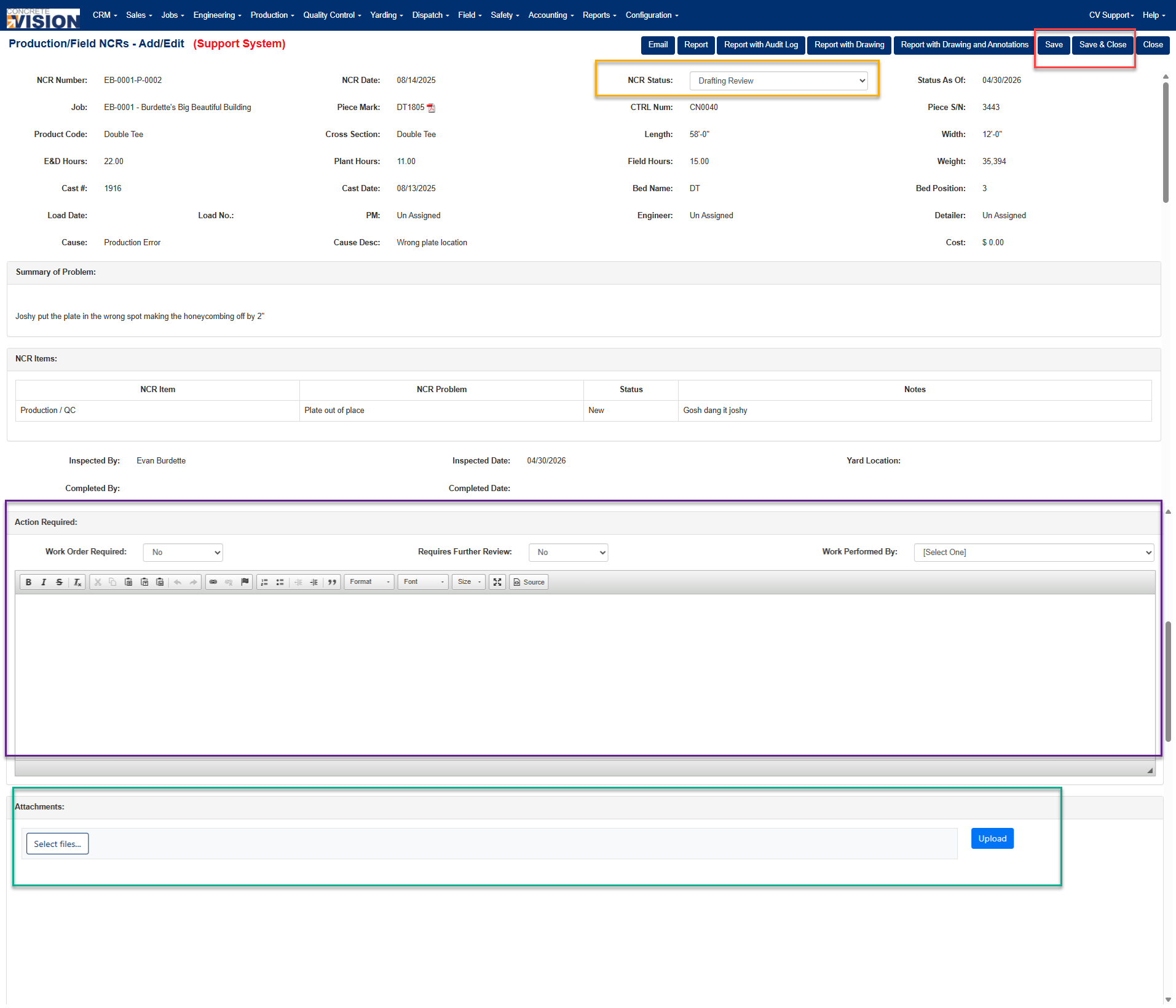
Figure 3
NCR Statuses
An NCR moves through a defined set of statuses that control workflow routing. The table below describes each status and the transitions it allows
| Status | Workflow Notes |
| New NCR | Starting status. Can be moved to any other status. |
| Drafting Review | Can only move to Engineering Review, PM Review, or QC Review. |
| Engineering Review | Can only move to Drafting Review, PM Review, or QC Review. |
| PM Review | Can only move to Drafting Review, Engineering Review, or QC Review.. |
| QC Review | NCR has been reviewed and is awaiting assignment to a repair department. |
| Production Repair | Can only move to QC Review or Final QC Review. |
| Steel Shop Repair | Can only move to QC Review or Final QC Review. |
| Finishing Repair | Can only move to QC Review or Final QC Review. |
| Final QC Review | NCR is back from repair and ready for final review. |
| Repair Complete | Repair has been completed. |
| Recast - Scrap | Piece mark has been scrapped and will be recast. |
| Recast - Stock | Only applies to product categories marked as Hollowcore. |
| Repair Not Needed | NCR is closed without requiring repair. |
| Complete Without Repair | NCR is marked complete without any repair being performed. |
Adding a New Field NCR
With the Field NCR tab (Green box, Figure 2) selected:
- Click Add New (Red box, Figure 4) from the top right of the screen.
- On the Field NCR – Add screen (Figure 5), select the Job from the dropdown menu 1.
- Select the Piece S/N from the dropdown menu 2, then click Add 3.
- In the NCR details section 4, fill in Cause, Cause Description, Cost, E&D Hours, Plant Hours, and Field Hours.
- In the Summary of Problem text field 5, describe the issue.
- In the NCR Items section 6, click + Add to add applicable NCR items.
- In the Action Required text field 7, describe the required corrective action.
- Click Save to save the record, or Save & Close to save and return to the Field NCR list.
NOTE: To save the Field NCR, a job and a piece mark must be selected or an error will display (Figure 5).
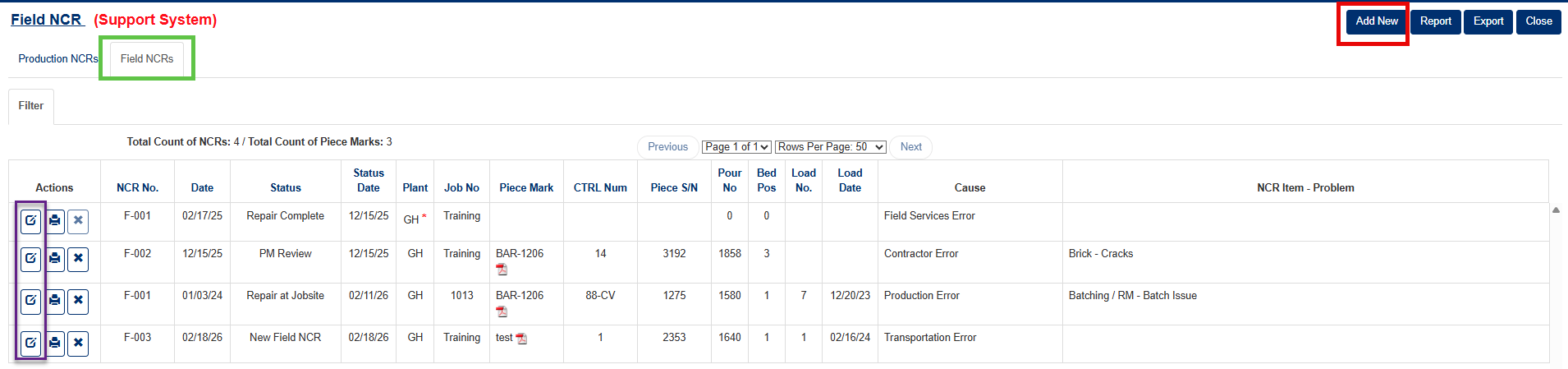
Figure 4
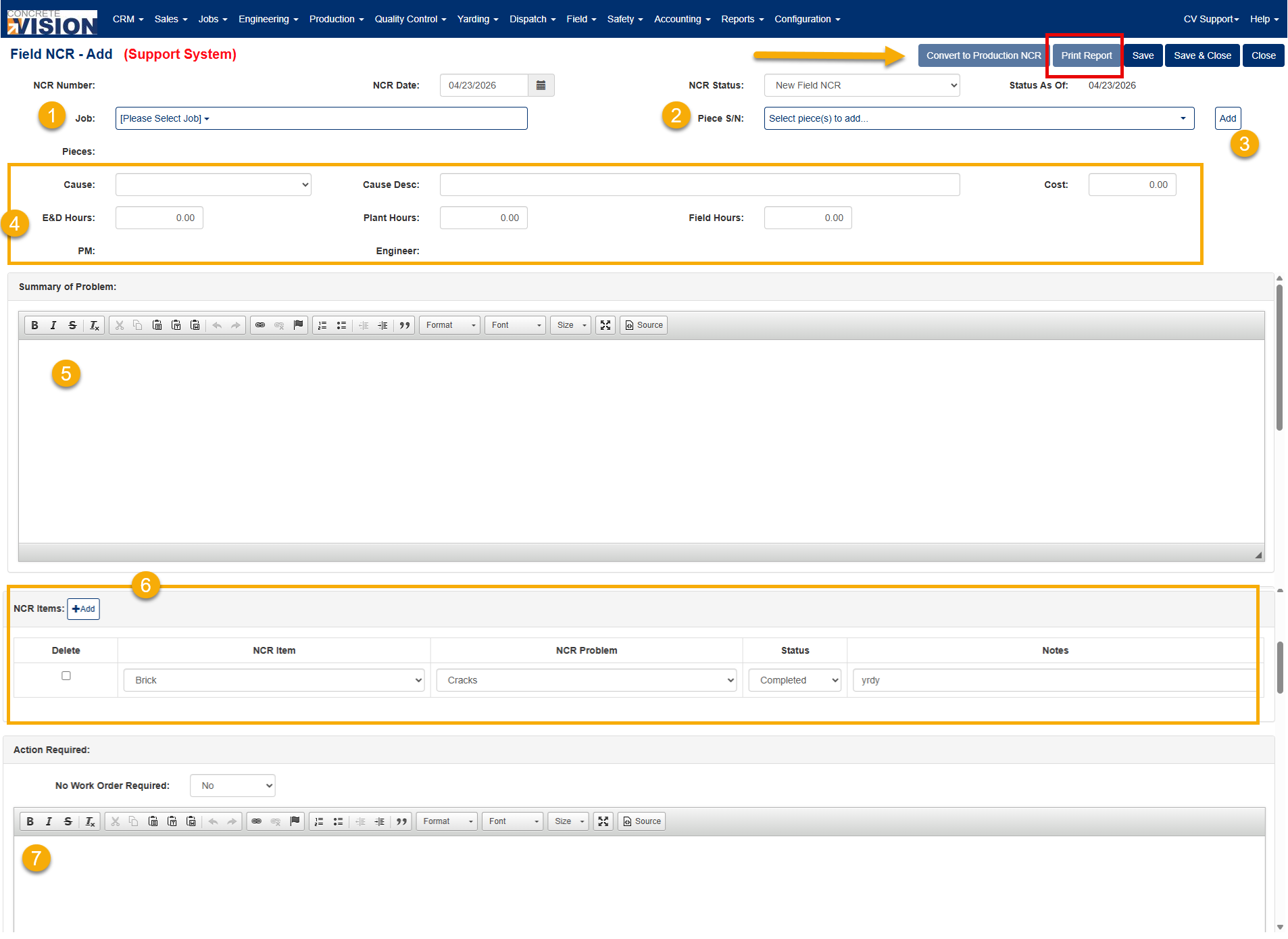 Figure 5
Editing a Field NCR
With the Field NCR tab selected:
- Locate and click on Edit icon of the existing Field NCR you wish to edit from the list on the Field NCR screen (Purple box, Figure 4).
- On the Field NCR – Add/Edit screen (Figure 5), update/add the Piece S/N from the dropdown menu 2 if applicable, then click Add 3.
- In the NCR details section 4, modify the Cause, Cause Description, Cost, E&D Hours, Plant Hours, and Field Hours as needed.
- In the Summary of Problem text field 5, update the issue description if applicable.
- In the NCR Items section 6, click + Add to add or remove applicable NCR items as needed.
- In the Action Required text field 7, update the corrective action description as needed.
- In the Attachments section, add pictures/attachments as needed.
- Click Save to save the changes, or Save & Close to save and return to the Field NCR list.
Printing Report of Filtered Production & Field NCR List
- Use the Filter tab (Yellow arrow, Figure 2) to adjust the displayed NCR list as needed.
- Click the Report button (Green box, Figure 2) in the top right of the screen.
Note: A report can be generated for a single NCR by clicking the Printer icon beside the specific NCR number.
Exporting Filtered Production NCR & Field List
- Use the Filter tab (Yellow arrow, Figure 2) to adjust the displayed NCR list as needed.
- Click the Export button (Orange box, Figure 2) in the top right of the screen.
Was this article helpful?
That’s Great!
Thank you for your feedback
Sorry! We couldn't be helpful
Thank you for your feedback
Feedback sent
We appreciate your effort and will try to fix the article