Overview
This guide explains how to import piece marks into CV using Excel templates. Piece marks are used to identify and track individual concrete pieces throughout the production process.
Accessing the Import Screen
Navigate to the import screen through the main menu: Engineering > Piece Mark Import - AutoCAD
Note: In some systems, this may be Engineering > Piece Mark Import - Excel
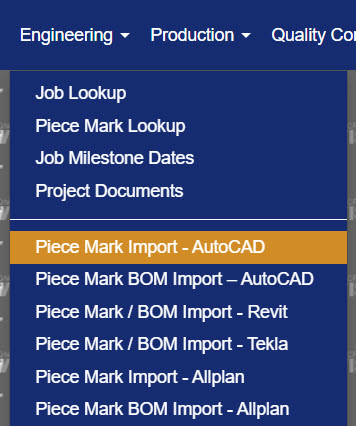
Figure 1
Choosing the Right Template
Concrete Vision provides two Excel templates for importing piece marks. Choose the template that matches your measurement preference:
Template Options
| Template Type | Best For | Measurement Format | Download Link |
|---|---|---|---|
| Decimal Import | Users who work with decimal measurements | Length, width, depth in decimal format (e.g., 10.5, 12.75) | Excel Template (Decimal) Download |
| Feet/Inches | Users who work with imperial measurements | Feet/Inches/8ths format (e.g., 10'-6-4/8") | Excel Template (Feet/Inches/8ths) Download |
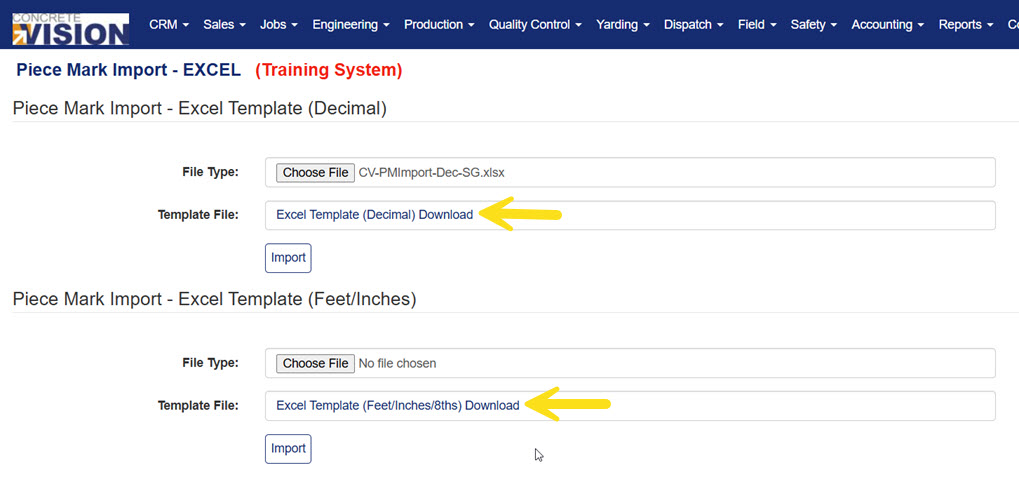
Figure 2
How to Download Templates
- Click on the download link for your preferred template (yellow arrows in Figure 2).
- Save the Excel file to your computer.
- Open the template and begin entering your piece mark data on the Pieces worksheet (yellow box in Figure 3).
Understanding Field Definitions
The Excel template contains two worksheets (tabs):
- Pieces - Where you enter your piece mark data (Yellow box, Figure 3)
- Pieces Definition - Reference sheet explaining each field (Blue box, Figure 3)
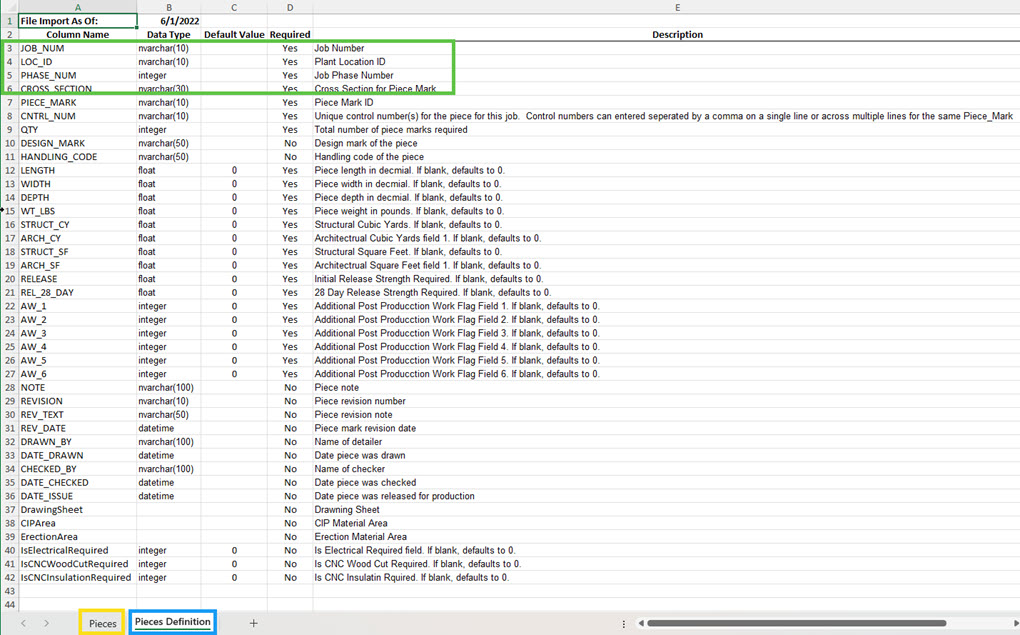
Figure 3
Note: The "Default Value" column shows what value will be used if you leave a field blank.
Required Fields (Must be completed)
| Field Name | Data Type | Description | Example |
|---|---|---|---|
| JOB_NUM | Text (10 chars) | Job identifier | "J-2023-045" |
| LOC_ID | Text (10 chars) | Plant location ID | "PLANT-A" |
| PHASE_NUM | Integer | Job phase number | 1, 2, 3 |
| CROSS_SECTION | Text (30 chars) | Cross section identifier | "12x24-BEAM" |
| PIECE_MARK | Text (10 chars) | Unique piece mark ID | "B1-A" |
| CNTRL_NUM | Text (10 chars) | Control numbers (see Section 5) | "100,101,102" |
| QTY | Integer | Total quantity needed | 10 |
| LENGTH | Float | Piece length (defaults to 0) | 120.5 or 10'-0-4/8" |
| WIDTH | Float | Piece width (defaults to 0) | 24.0 or 2'-0-0/8" |
| DEPTH | Float | Piece depth (defaults to 0) | 12.0 or 1'-0-0/8" |
Note: The JOB_NUM, LOC_ID, PHASE_NUM, and CROSS_SECTION (green box in Figure 3) values in your imported spreadsheet must match existing Job Number, Location ID, Phase Number, and Cross Section values in Concrete Vision.
Optional Fields (Enhance tracking but not required)
| Field Name | Description |
|---|---|
| DESIGN_MARK | Design reference mark |
| HANDLING_CODE | Special handling instructions |
| WT_LBS | Piece weight in pounds |
| STRUCT_CY / ARCH_CY | Cubic yard calculations |
| RELEASE / REL_28_DAY | Release strength requirements |
| AW_1 through AW_6 | Additional production work flags |
| NOTE | General notes about the piece |
| REVISION | Piece mark revision number |
| REV_TEXT | Piece mark revision note |
| REV_DATE | Date piece mark was revised* |
| DRAWN_BY | Name of detailer |
| DATE_DRAWN | Date piece mark was drawn |
| CHECKED_BY | Name of checker |
| DATE_CHECKED | Date piece mark was checked |
| DATE_ISSUE | Date piece mark was released for production |
| DrawingSheet | Drawing sheet |
| CIPArea | CIP material area |
| ErectionArea | Erection material area |
| IsElectricalRequire | Is electrical required. 1=box checked, 0=box unchecked |
| IsCNCWoodCutRequired | Is CNC wood cut required. 1=box checked, 0=box unchecked |
| IsCNCInsulationRequired | Is CNC insulation required. 1=box checked, 0=box unchecked |
Note: Date fields are formatted as YYYY-MM-DD HH:MI:SS (ex. 2026-01-22 12:15:00 for January 22, 2026 at 12:15pm).
Import Process
Step-by-Step Instructions
Download the appropriate template (Decimal or Feet/Inches)
Open the Excel file and navigate to the "Pieces" worksheet
Enter your piece mark data, starting at row 2:
- Each row represents one piece mark
- Fill in all required fields (marked "Yes" in the Pieces Definition tab)
- Leave optional fields blank if not needed
Save your completed Excel file
Return to Concrete Vision and access Engineering menu > Piece Mark Import - Excel
Click Choose File button (Figure 4: Decimal - yellow box; Feet/Inches - green box)
Browse to select your completed Excel file
Select the matching template type (Decimal or Feet/Inches)
Click the "Import" button (Figure 4: Decimal - yellow arrow; Feet/Inches - green arrow)
Review any import messages or errors
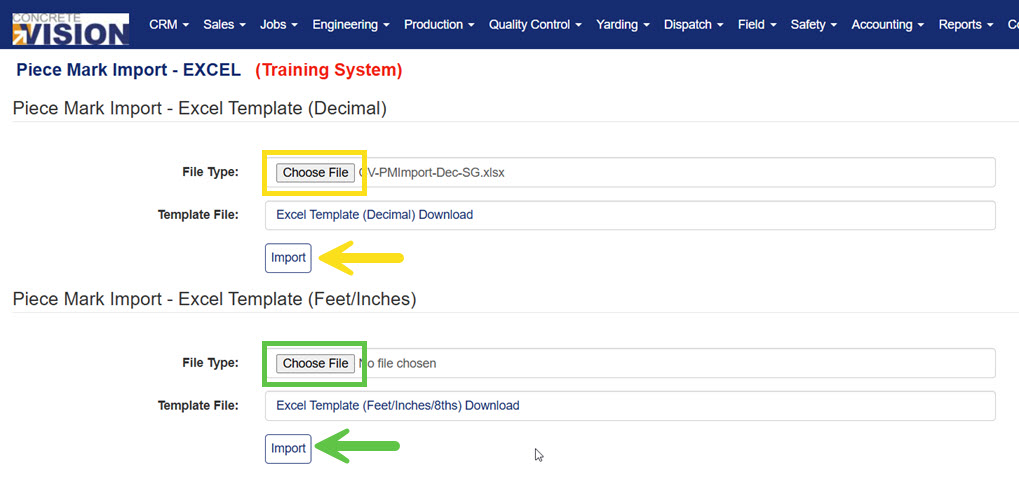
Figure 4
Control Numbers vs. Quantity
Understanding how to handle control numbers and quantities is crucial for successful imports.
Control Numbers (Manually Entered)
If the job is configured to use control numbers entered manually in the Excel Template, the quantity (QTY) field is ignored. Instead the quantity is determined by the number of control numbers provided. For example, if piece mark "ABC" has control numbers 100, 200, and 300, the imported quantity for that piece mark will be 3 (i.e. 3 control numbers).
Control Numbers (Automatically Generated)
If the job is configured for automatic control number generation, the control numbers field can be left blank and the quantity (QTY) field must be filled in.
Verification and Next Steps
After Successful Import
Once a green "Success" message displays because the import completed successfully, your pieces will appear in:
Engineering men > Piece Marks Not Verified
This staging area allows you to:
- ✓ Review all imported piece marks
- ✓ Verify data accuracy
- ✓ Make any necessary corrections
- ✓ Approve & Move pieces to production
Note: Pieces must be verified before they can move into production. The move button will be greyed out if the pieces have not been released to production in the job's Contract tab.
Was this article helpful?
That’s Great!
Thank you for your feedback
Sorry! We couldn't be helpful
Thank you for your feedback
Feedback sent
We appreciate your effort and will try to fix the article