You can access the screen from the "Engineering > Piece Mark Import - AllPlan" menu, as shown in Figure 1. This screen allows you to import pieces into the Concrete Vision Engineering module, where they are maintained for final review, before they are moved to Production (see end of the article for more information).
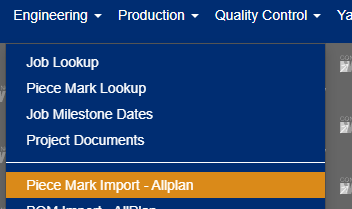
Figure 1
Import Options
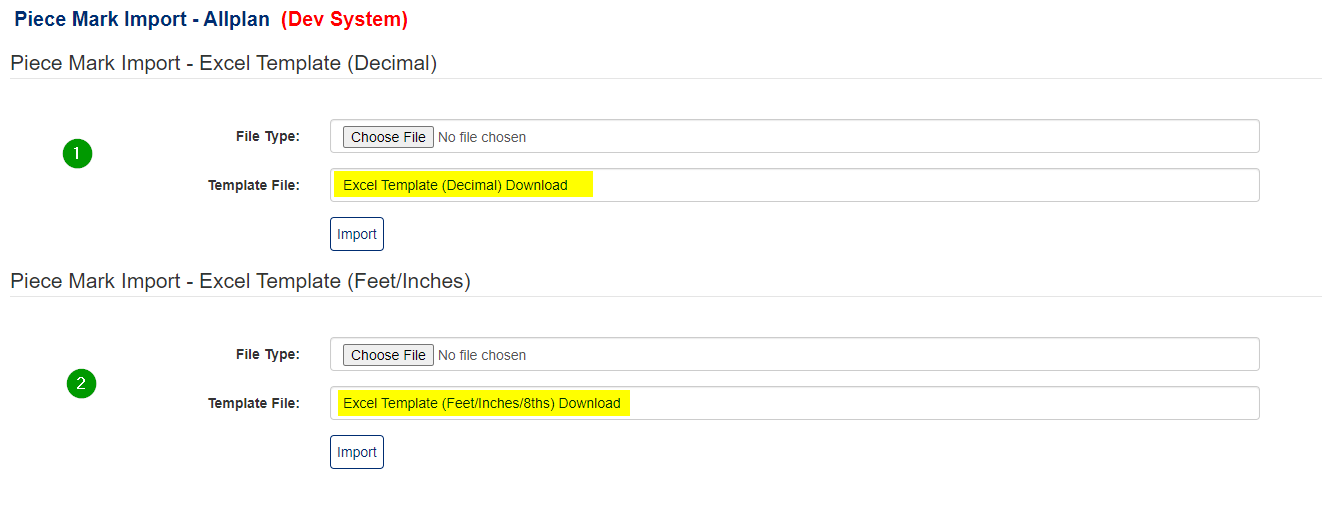 Figure 2
This screen allows you to import piece marks into CV using an excel file. You have a choice of using two different templates (described below). You can download these templates using the links below the file input field, highlighted in yellow as shown in Figure 2.
The two template options are the following:
- Decimal Import – The first option uses a template where you enter the length, width, and depth piece attributes in decimal format.
- Feet/Inches – This template allows you to enter the length, width and depth piece attributes in Feet/Inches/8th's format.
Import Field Definition
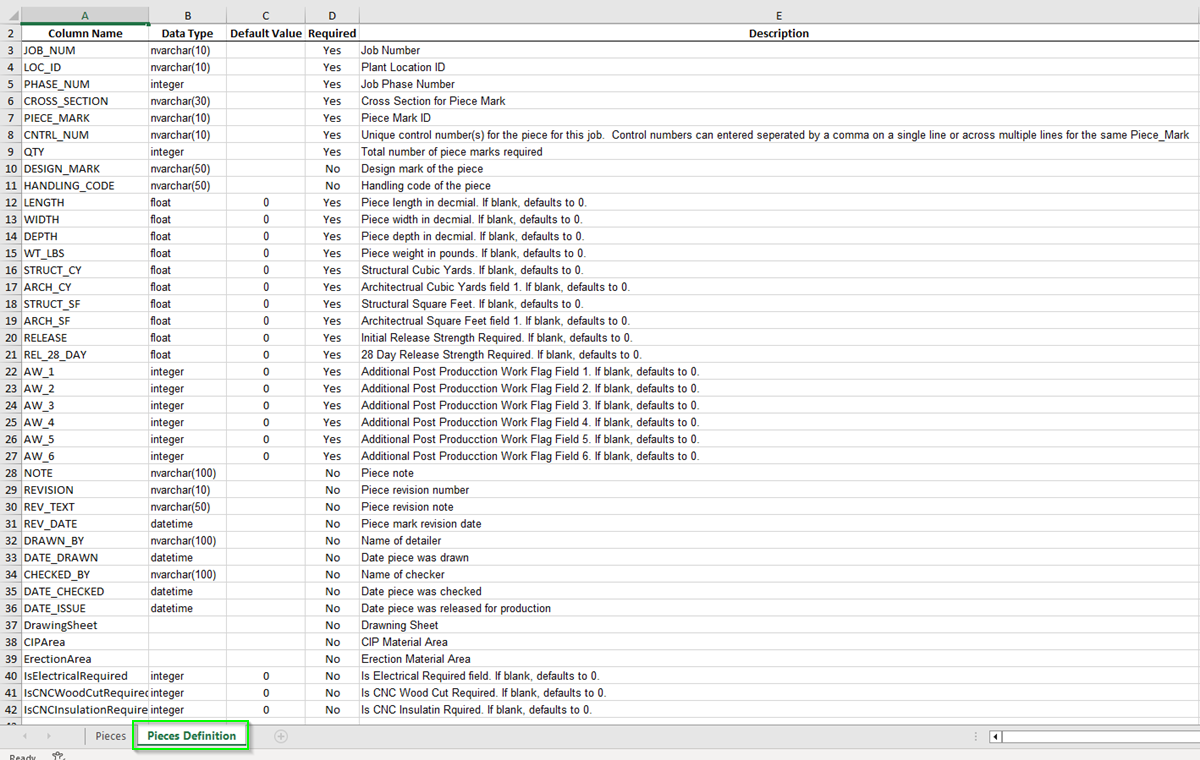
Figure 3
The field definitions are specified in the “Pieces Definition” Excel Sheet of each of the Excel templates (see Figure 3).
Note: The quantity (QTY) field is ignored if the job is setup to use control numbers (i.e. Control numbers need to be entered in the excel template), in which case, the quantity is determined by the number of control numbers entered for each piece mark. For example, if you have the following control numbers for piece mark “ABC”: 100,200,300 – the imported quantity for that piece mark will be 3, corresponding to the 3 different control numbers. If the job is setup for automatically control number generation, the control numbers field can be left blank and the quantity needed (QTY), needs to be filled in.
Importing Pieces
- To Import pieces, click on the "Select File" (See Figure 2) under the corresponding section, based on the template you're using (Decimal or Feet/Inches).
- Click on the "Import" button for that section.
- If the import ran successfully, you should see a green success message at the top of the page.
- If there were validation issues, you should see a red import error message at the top of the screen.
Once the import is run successfully, the pieces go into the “Engineering > Piece Marks Not Verified” screen for final review, where they can be moved to Production after they are successfully verified.
Was this article helpful?
That’s Great!
Thank you for your feedback
Sorry! We couldn't be helpful
Thank you for your feedback
Feedback sent
We appreciate your effort and will try to fix the article