Overview
The View/Edit Job Material screen allows a user to enter and maintain estimated job material, view (import) actual material (to compare against estimated), and create job-specific material items and assemblies to utilize from the View/Edit Production Material screen.
Accessing the Screen
Navigate to Engineering >View/Edit Job Material from the main menu (Figure 1).
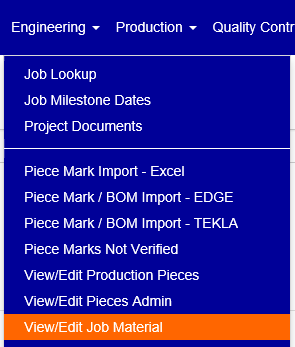
Figure 1
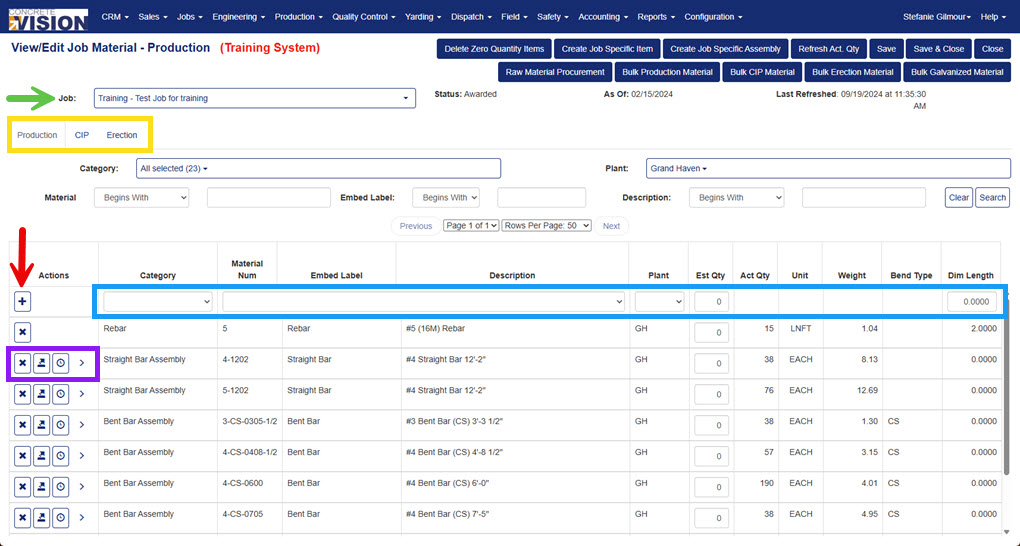
Figure 2
Using the View/Edit Job Material Screen
The View/Edit Job Material screen is separated into 3 different tabs, based on material type (Production, CIP and Erection - yellow box in Figure 2).
Add Standard Estimated Material
To add standard estimated material at a job level:
- Select a job from the dropdown menu (green arrow in Figure 2).
- Click the material type tab(yellow box in Figure 2) for the material being added.
- Fill fields in the top row of the grid (blue box in Figure 2) for the standard estimated material's:
- Category
- Material Number / Embed Label / Description
- Plant
- Estimated Quantity
- Dim Length
- Click on the Add icon (red arrow in Figure 2).
Note: The plant is used to filter out the actual quantities coming in from production (imported via the Refresh Act. Qty button described at the bottom of this article).

Figure 3
Add Custom Estimated Material for a Job Specific Item
To add custom estimated material at a job level for a material item:
- Click on the Create Job Specific Item button (Figure 3).
- On the Create Job Specific Item popup (Figure 4), complete the fields to create the job specific item. Reference the table below for field descriptions.
- Click the Create button (Figure 4). The popup will close and save the entered material to the job.
Note: Any custom production material added will also be available to be selected from the piece marks material screen.
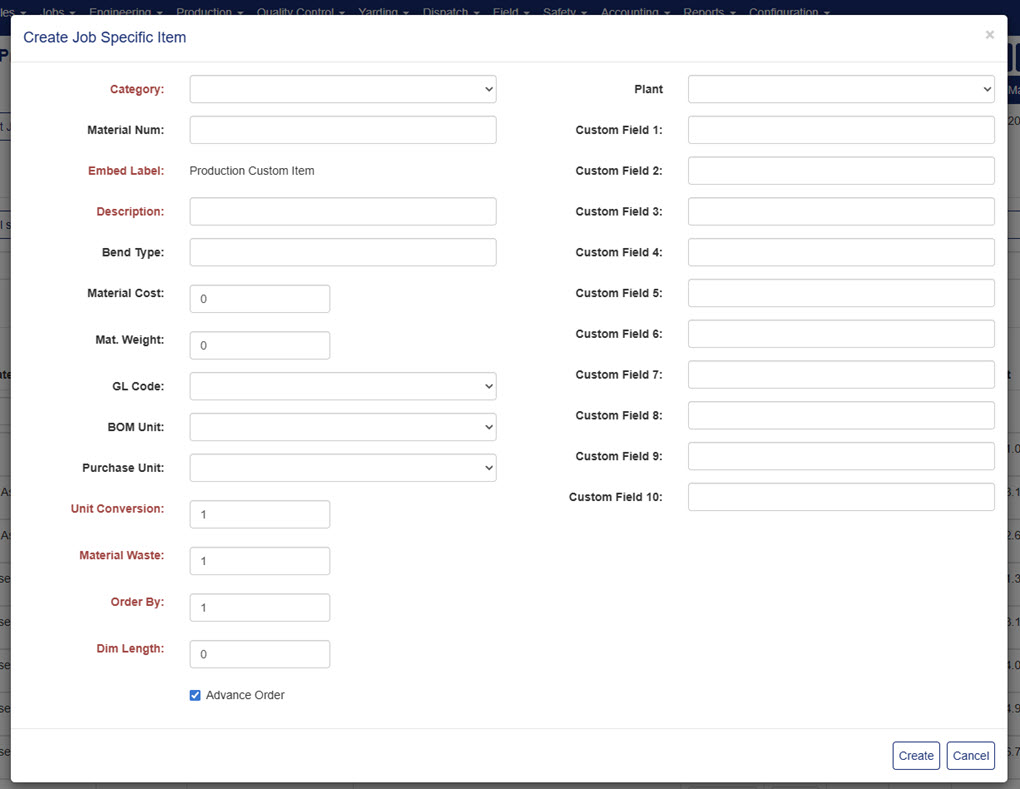
Figure 4
| Field Label | Description |
|---|---|
| Category (required) | The material category this material item belongs to. |
| Material Num | Value that uniquely identifies this material item. In the production material imports, the material ID is used to map an imported material item to this standard material. Must be unique across the job. |
| Embed Label | Material embed value. |
| Description (required) | Description of the material item. In the edge import, this value is used to try and map imported material to standard material IF no match is found using the "Material ID" field. |
| Bend Type | Material bend type (if applicable). |
| Material Cost | Dollar cost of the material. |
| Material Weight | Total material weight. |
| GL Code | Accounting general ledger classification. |
| BOM Unit | Material unit code (i.e. SQFT, Each, LNFT, etc.) |
| Purchase Unit | Unit the material item is purchased as. |
| Unit Conversion (required) | How many BOM units of an item are in a purchased unit. For example: If a box of 100 nails had a BOM of "each," the unit conversion would be 100. |
| Material Waste (required) | Material waste factor. |
| Order By (required) | Value specifying material item's display order in material reports and list screens. |
| Dim Length (required) | Dimensional length. |
| Advance Order | Specifies whether this material item has a long lead time for purchase and delivery. |
| Plant | Appropriate plant if material is plant specific. |
| Custom Field(s) 1-10 | Fields used for custom (customer specific) values. Fields can only be altered through custom programing per customer. |
Add Custom Estimated Material for a Job Specific Assembly
To add custom estimated material at a job level for a material assembly:
- Click on the Create Job Specific Assembly button (Figure 3).
- On the Create Job Specific Assembly popup (Figure 5), complete the fields to create the job specific assembly.
- Click the Add Sub Assembly Item button (#1 in Figure 5) to add assembly sub items to an assembly.
- Click the Create button (#2 in Figure 5). The popup will close and save the entered material to the job.
Note: Any custom production material added will also be available to be selected from the piece marks material screen.
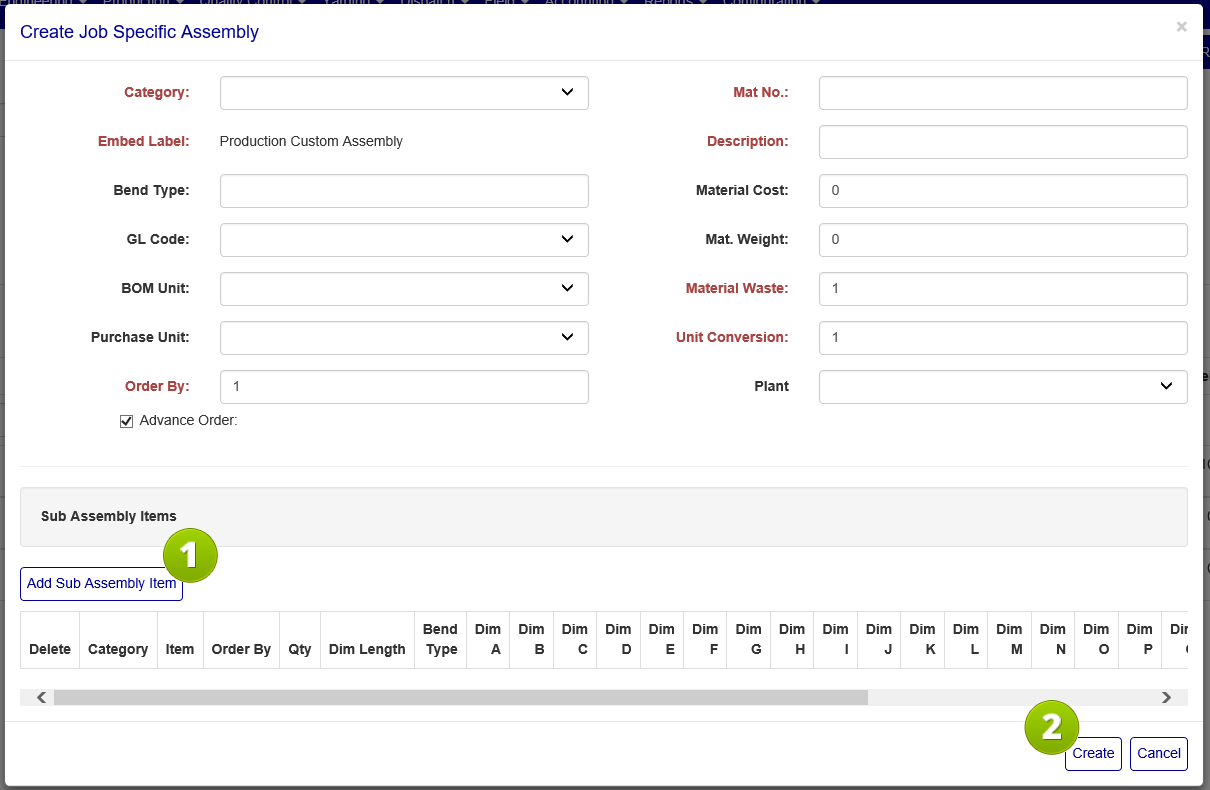
Figure 5
Material List Commands
The following is a brief description of the material-level (list) screen commands, from left to right (purple box in Figure 2).
- Delete icon: Click to delete a specific material item/assembly.
- Edit icon: Click to edit the corresponding job specific material item or assembly.
- Export icon: Click to export the corresponding job specific material assembly into Excel.
- Expand icon: Click to expand and view the components that make up a material assembly.
Update Quantities from Actual Production Material
The View/Edit Job Materials screen can update the actual material quantities from production and add any standard material from production that does not currently exist under the job estimated material list.
- Select a job from the dropdown menu (green arrow in Figure 2).
- Click the Production material tab (tab 1, yellow box in Figure 2).
- Click on the Refresh Act. Qty button (Figure 3).
Delete Material with Zero Quantities
Click the Delete Zero Quantity Items button (Figure 3) to delete all material items on the job that have a zero estimated AND actual quantity.
Was this article helpful?
That’s Great!
Thank you for your feedback
Sorry! We couldn't be helpful
Thank you for your feedback
Feedback sent
We appreciate your effort and will try to fix the article