Access to the View/Edit Admin screen is restricted and must be requested through our support team. Approval is required from your company’s Concrete Vision administrator. This screen can only be enabled by our team through direct changes to the database.
NOTE: We do not recommend granting access to this screen to most users due to the powerful capabilities it provides. It is intended for emergency use only.
If you find yourself needing to use this screen on a regular basis, we strongly encourage reviewing your internal processes. Frequent use typically indicates an underlying issue that should be addressed at the process level rather than through manual intervention.
Screen Functions:
The View/Edit Pieces Admin screen is where you can edit piece information for any piece in the system.
You can access View/Edit Pieces Admin screen from the Engineering menu > View/Edit Pieces Admin. (See Figure 1 below).
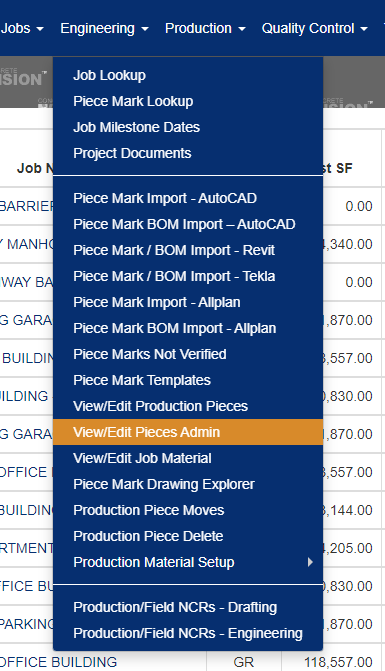
Figure 1
Select the Job Name from the drop down to view pieces for that job. (Green Box in Figure 2)
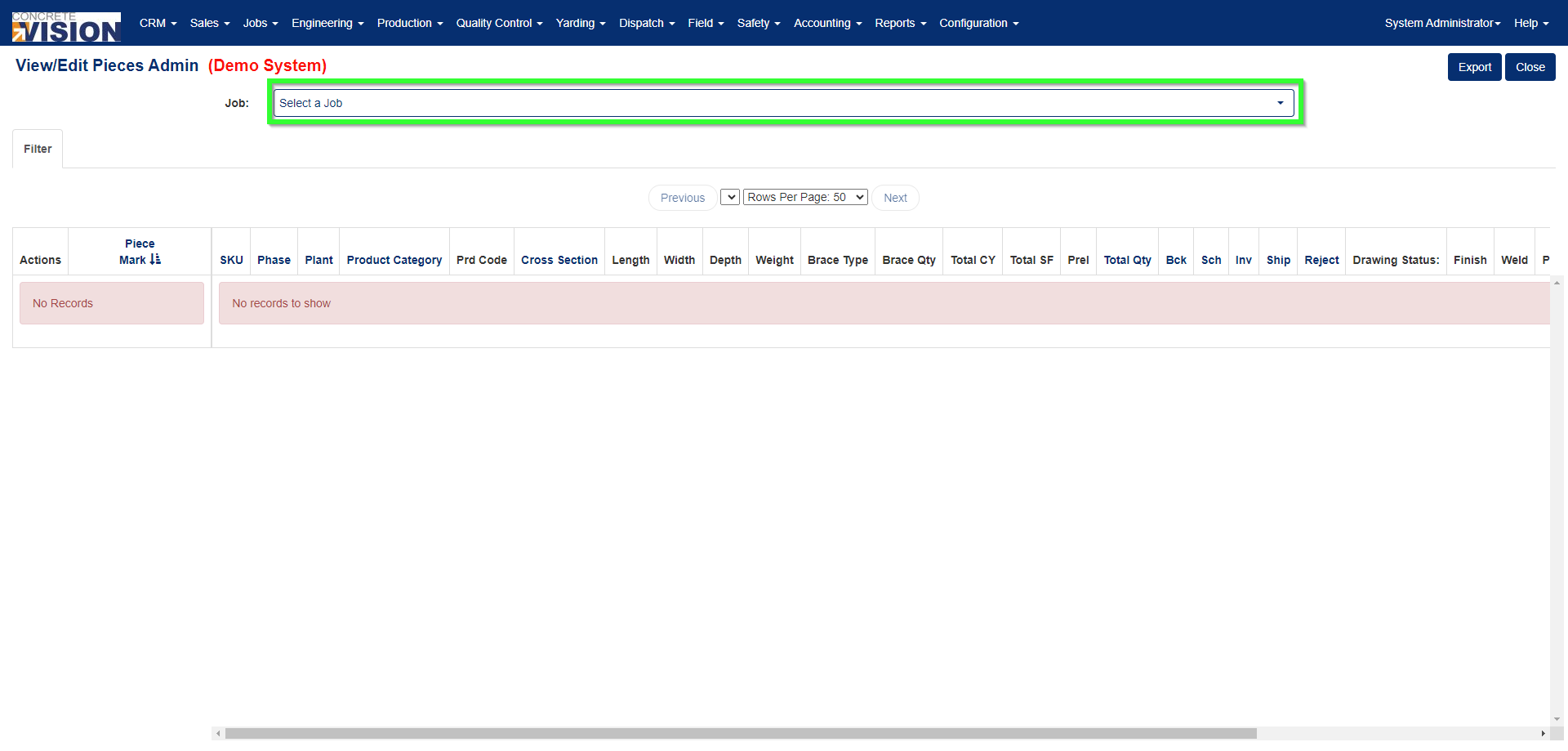
Figure 2
Click on the Edit button (Green box in Figure 3) to view details of the piece, to create a copy of the Piece button (Red button in Figure 3) and to delete the piece click on the Delete button (Blue button in Figure 3)
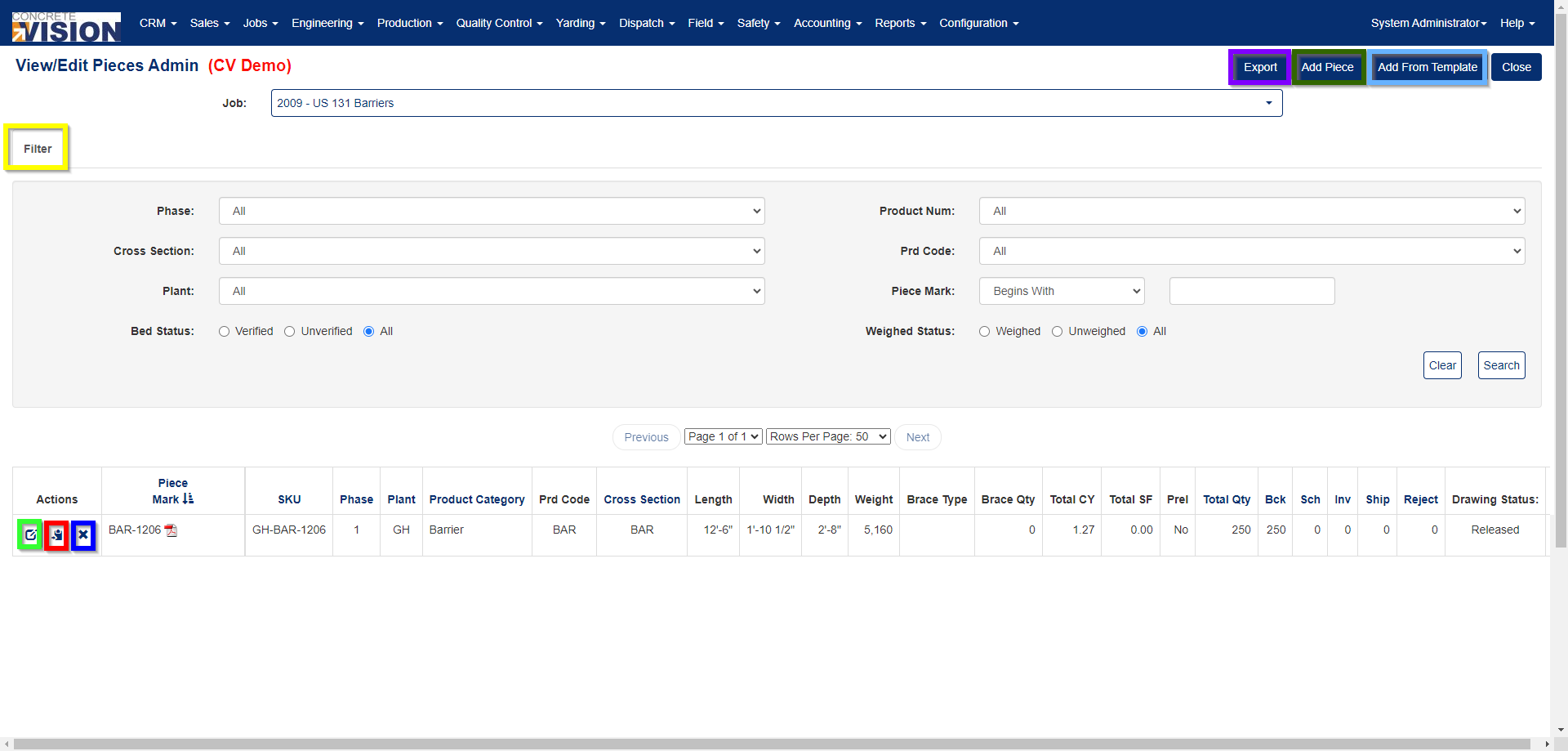
Figure 3
Create a Copy of a Piece
- Click on the Copy button (Red button in Figure 3).
- This will open a modal which allows you to put in the Piece Mark for the new piece(s) copied.
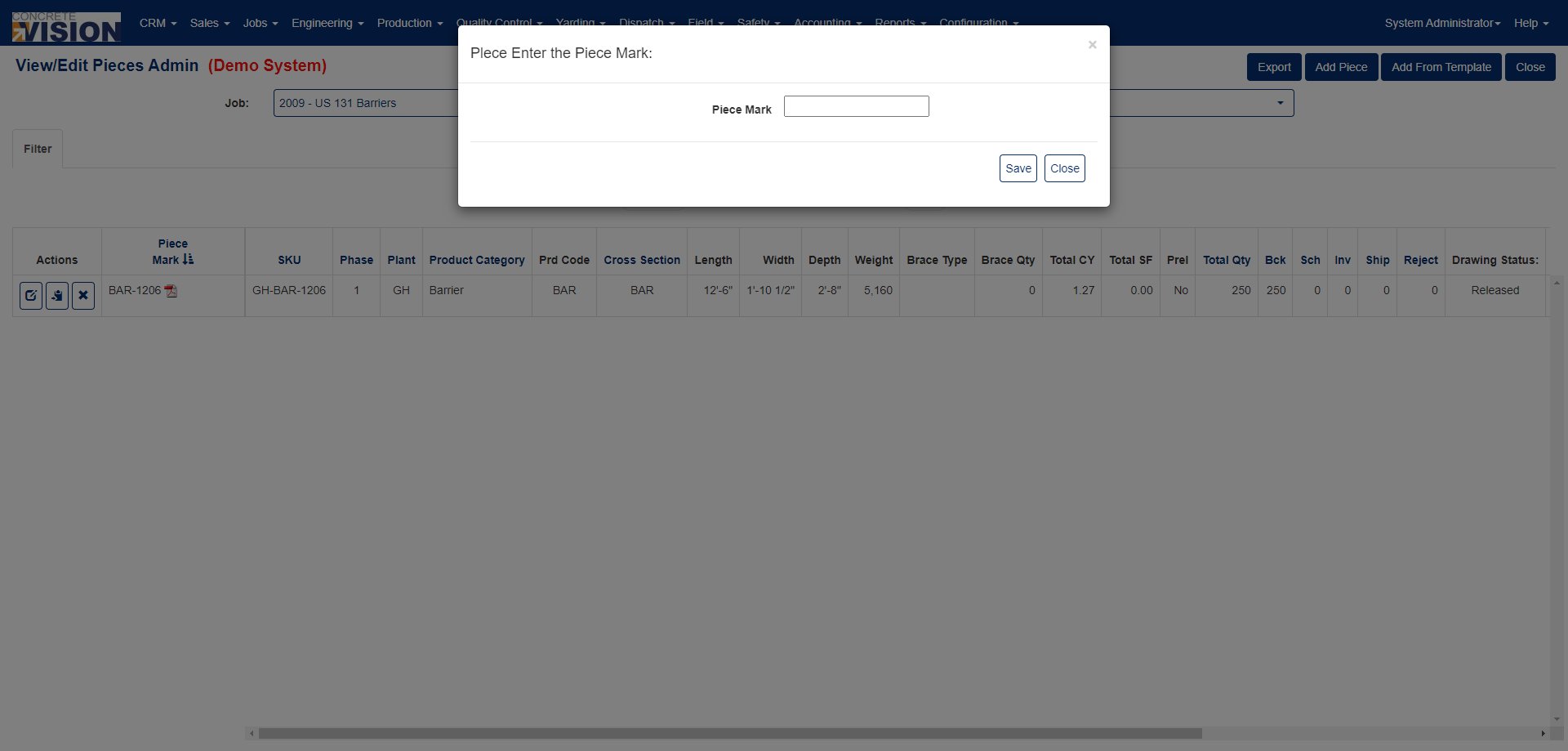
Figure 4
Delete a Piece Mark
- Click on the 'x' button (Dark Blue box in Figure 3)
- This will open a confirmation window where you will be asked "Are you sure you want to delete this record?" click [OK] to allow the deletion. (see Figure 5)
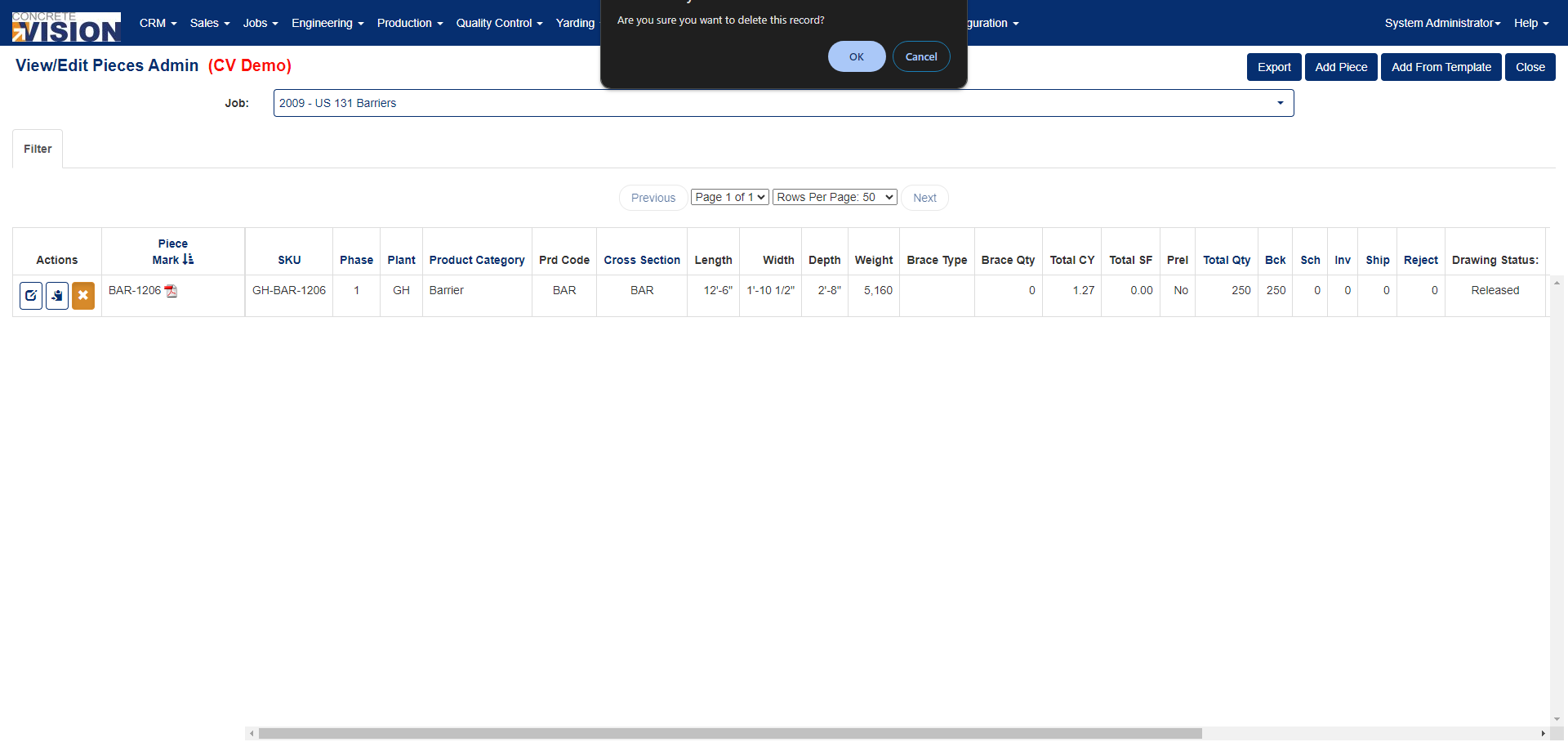
Figure 5
Export a Piece(s)
- Click on the Export button (Purple box in Figure 3), this allows you export a list of pieces shown on the screen to Excel.
- An Export modal opens with Available & Selected columns
- Select the Columns to include/exclude from the report.
- Select 'Report' button to export the data.
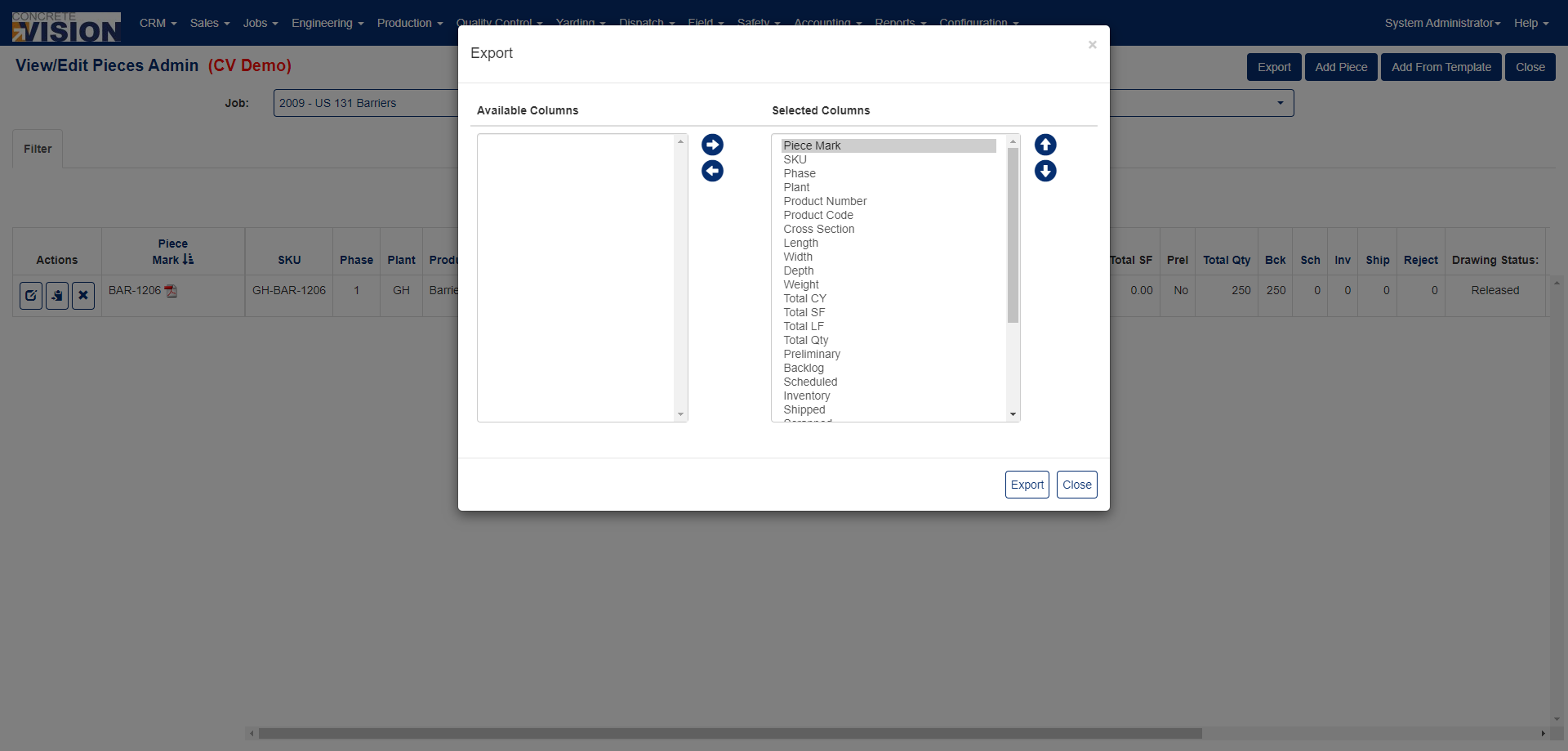
Figure 6
Add New Piece
- To create a new Piece Mark for a Job, click on the Add Piece button (Dark Green box Figure 3), this takes you to the View/Edit Pieces Admin - Edit screen (see Figure 7)
- File out the required fields.
- Click on “Save” or “Save & Close” to save the new Piece mark. (top right in Figure 7)
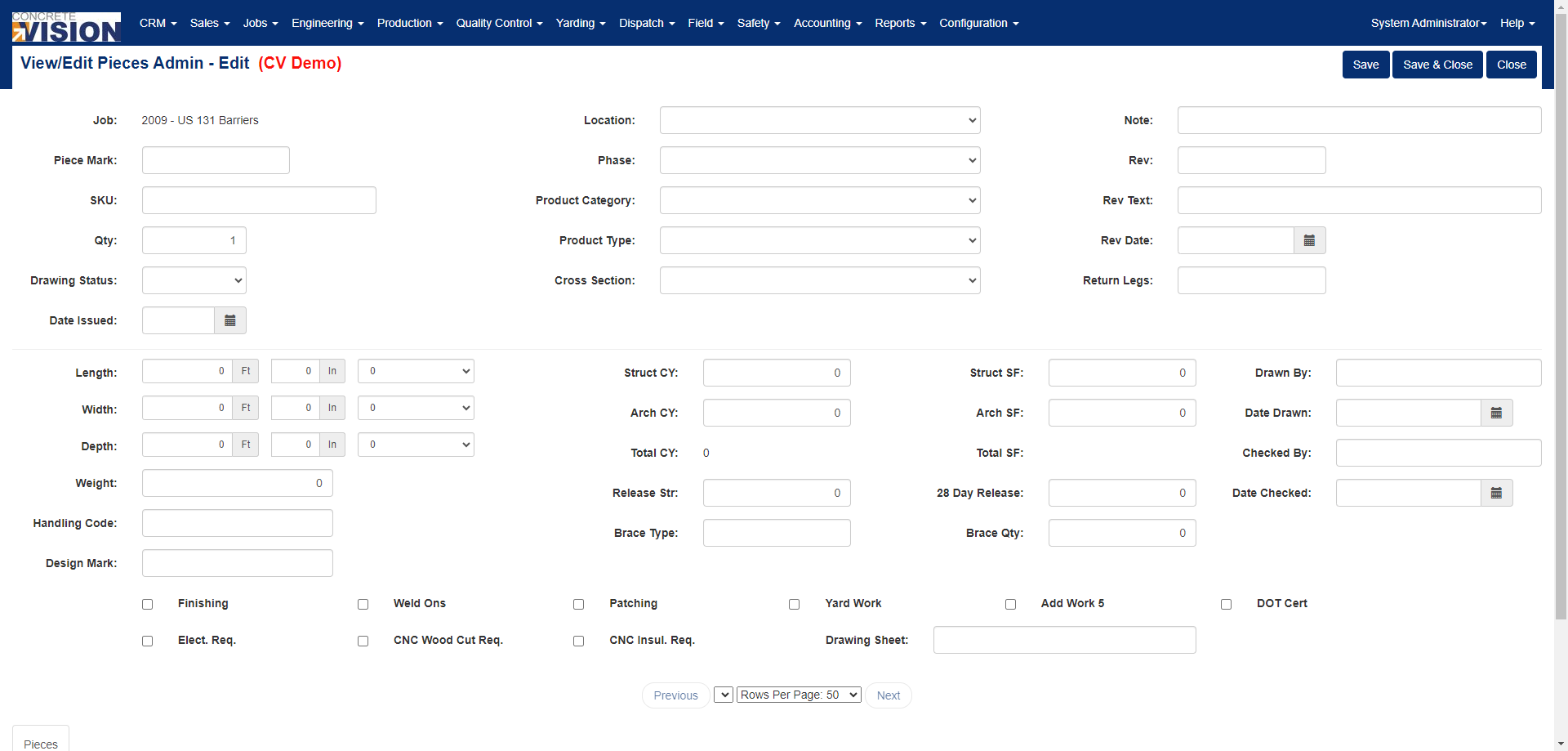
Figure 7
Add New Piece from Template
- To Add a new piece from Template, click on 'Add From Template' (Light Blue box Figure 3).
- A 'Add New Piece from Template' modal opens which allows you to create a new piece mark based on a pre-defined template (see Figure 8)
- Fill out the required fields.
- Click on 'Add' to save the new Piece mark.
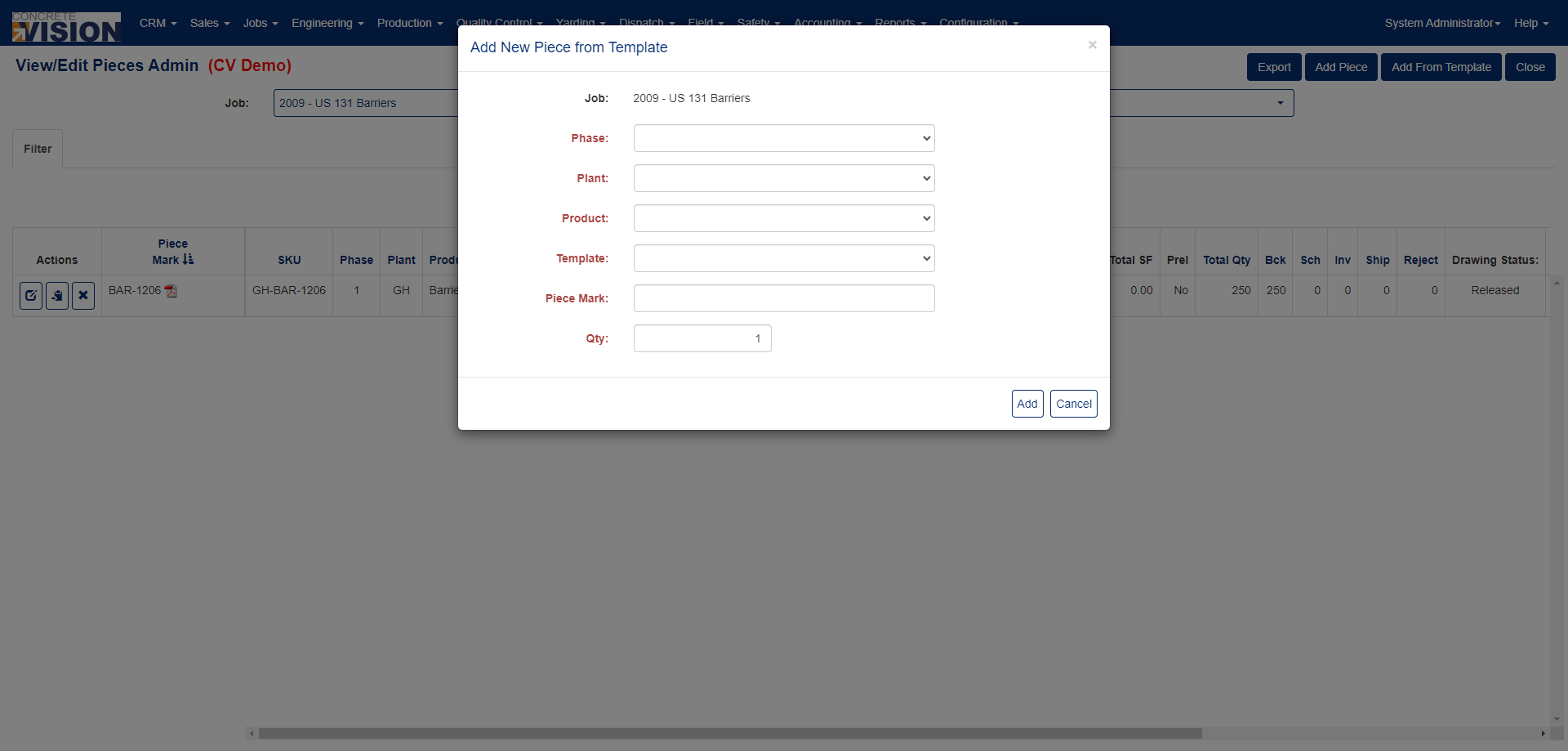
Figure 8
Edit a Piece
- Click on the Edit button (Green box in Figure 3), this will take you to the Piece Mark Edit screen, where you will be able to make changes to a piece, depending on your screen permissions and/or the piece status. (see Figure 9)
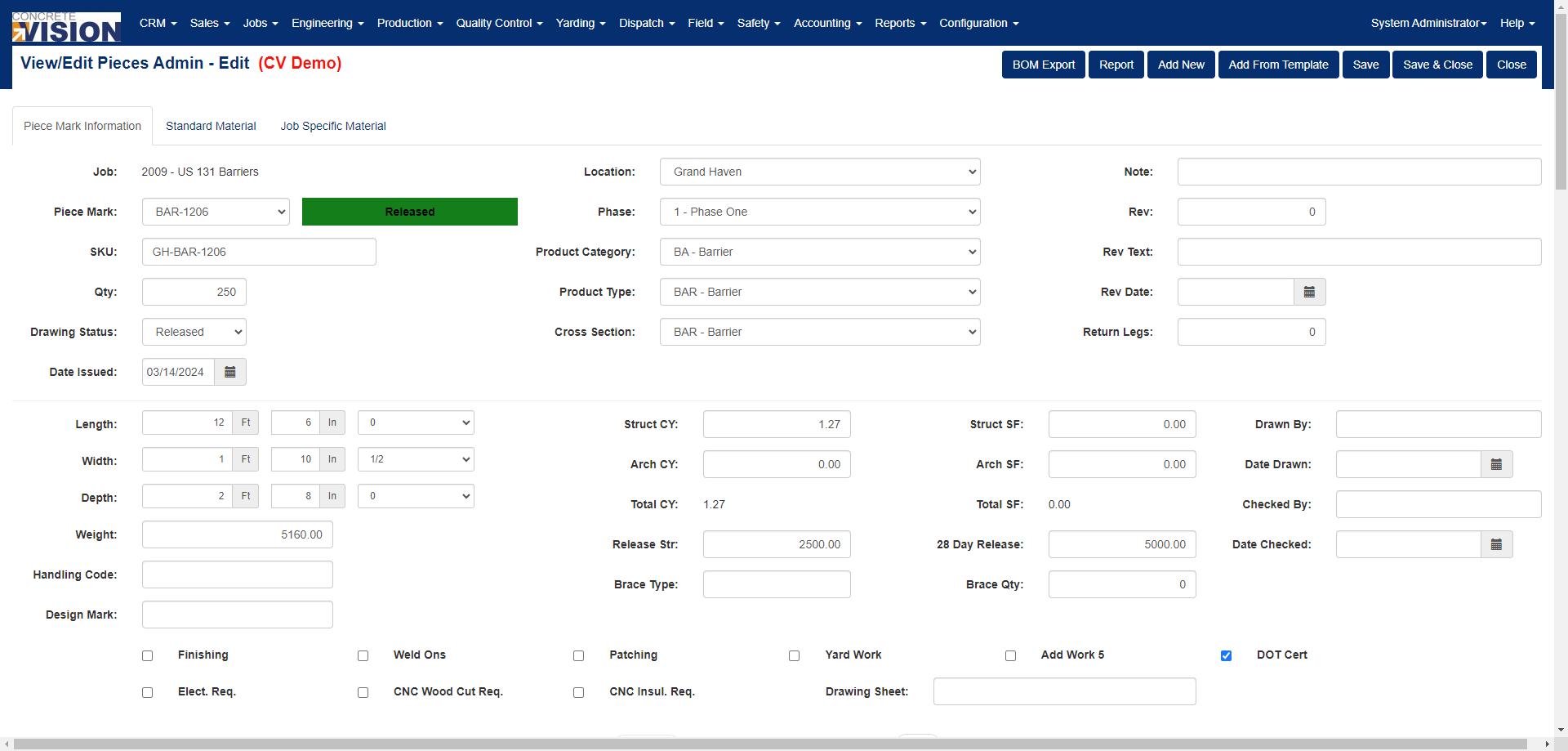
Figure 9
Was this article helpful?
That’s Great!
Thank you for your feedback
Sorry! We couldn't be helpful
Thank you for your feedback
Feedback sent
We appreciate your effort and will try to fix the article