Overview
The View/Edit Production Piece Marks Screen:
- displays all piece mark information for a specific job
- exports piece mark information to Excel
- allows for piece marks to be added to a job
Accessing the View/Edit Production Piece Marks Screen
Navigate to Engineering > View/Edit Production Pieces from the main menu (Figure 1).
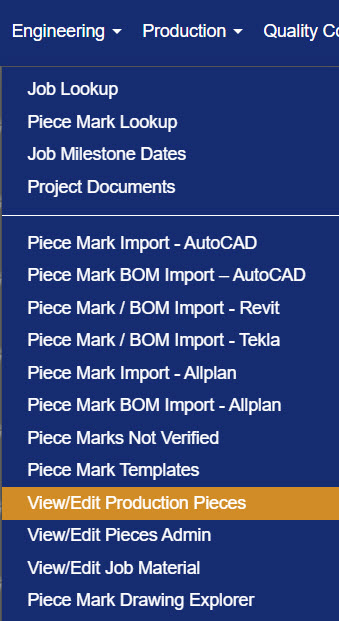
Figure 1
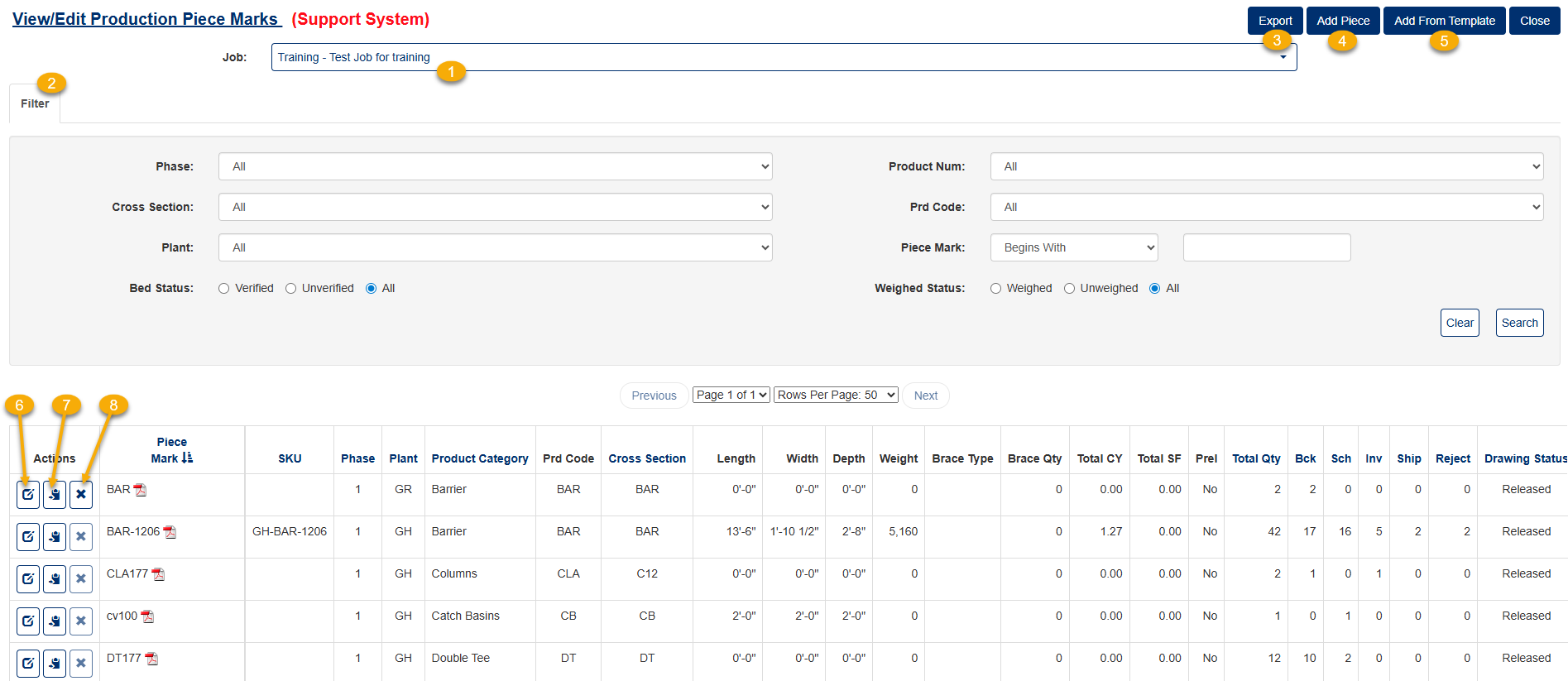 Figure 2
View/Edit Production Piece Marks Screen Layout
The list below corresponds to the numbered labels on Figure 2 and provides a detailed description of the View/Edit Production Piece Marks screen functions.
| Number | Page Item | Item Function |
|---|---|---|
| 1 | Job Dropdown Menu | Search for desired job. |
| 2 | Filter Tab | Open filter menu. Further refines the list of pieces shown for selected job. |
| 3 | Export Button | Export list of pieces to Excel. |
| 4 | Add Piece Button | Add a piece to job via the Add Piece Mark screen. |
| 5 | Add from Template Button | Add a piece to job based on a pre-defined template. |
| 6 | Edit Piece Mark Icon | Edit a piece, depending on your screen permissions and/or the piece status. |
| 7 | New Mark Number Icon | Assign a new mark number, along with any associated materials and quantities. |
| 8 | Delete Icon | Delete a piece from a job as long as all quantities are still in backlog status. |
Adding a Piece to a Job
Adding pieces to a specific job can be accessed through the View/Edit Production Piece Marks screen.
- Select a Job from the dropdown menu (#1 in Figure 2).
- Click on the Add Piece button (#4 on Figure 2) to view the Edit Production Pieces screen (Figure 3).
- Fill out required fields.
- Click the Save or Save & Close button (Green box, Figure 3) to save the piece mark and return to the View/Edit Production Piece Marks screen.
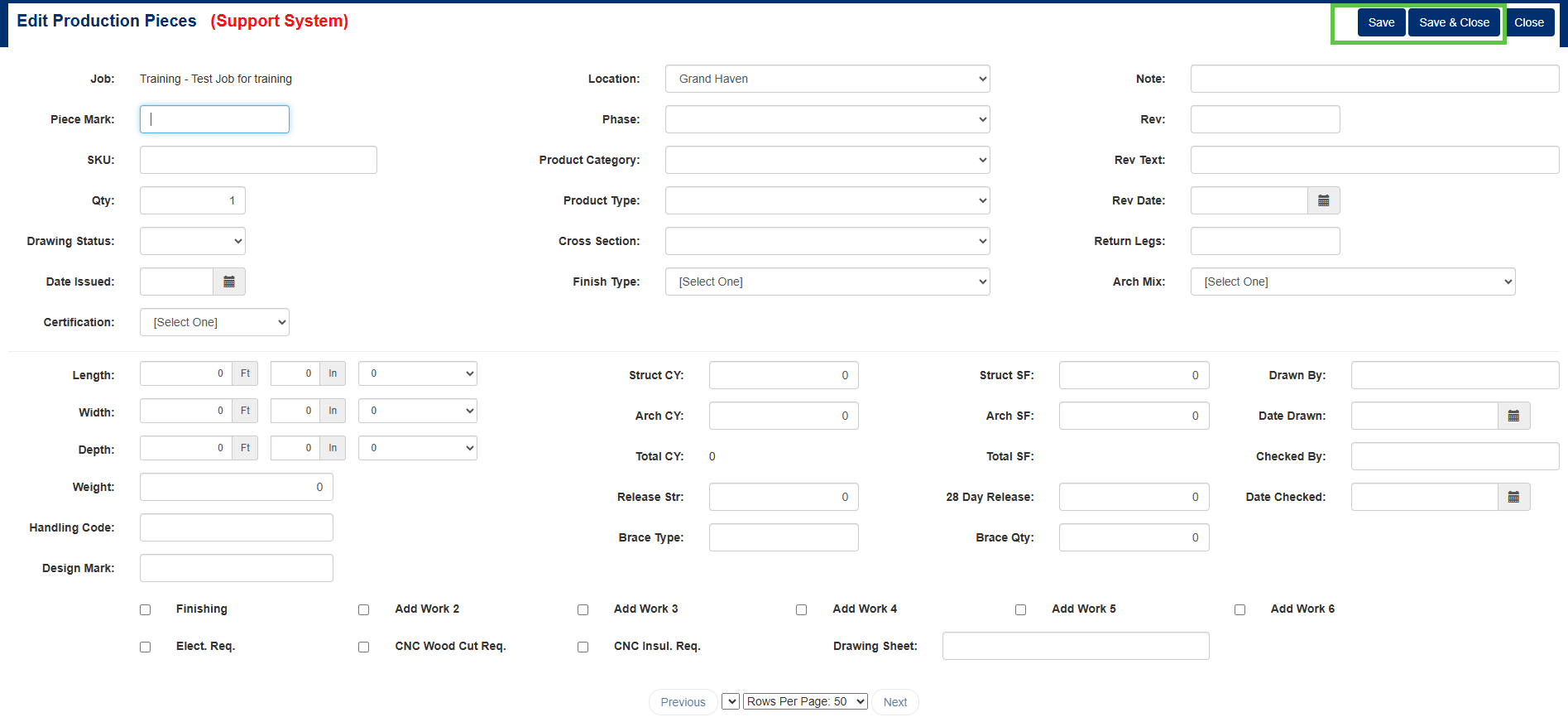
Figure 3
Adding a Piece from a Template to a Job
New pieces based on a pre-defined template can be added through the View/Edit Production Piece Marks screen.
The “Add from Template” button will open up the dialog shown below, and allow you to create a new piece mark based on a pre-defined template.
- Select a Job from the dropdown menu (#1 in Figure 2).
- Click on the Add from Template button (#5 on Figure 2).
- In the pop-up window (Figure 4), select the desired piece information from the available dropdowns and complete all required fields.
- Click the Add button (Figure 4).
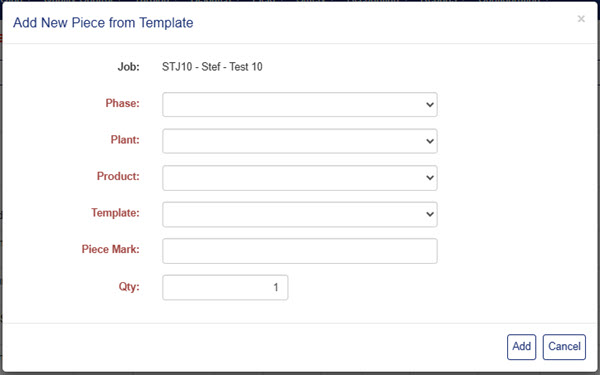
Figure 4
Export Piece Mark Information
The Export button exports the list of pieces shown on the screen to Excel.
- Select a job from the dropdown menu (#1 in Figure 2).
- If needed, use the Filter tab to refine the list of pieces (#2 in Figure 2).
- Click the Export button (#3 in Figure 2).
- Select the column titles in the pop-up window (Figure 5) to include/exclude for the export.
- Select Export button (Green box, Figure 5)
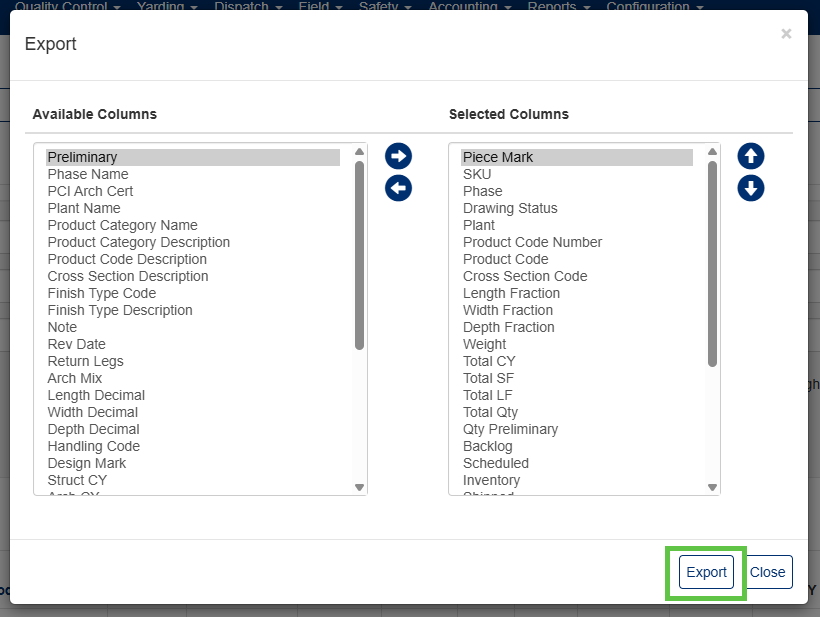
Figure 5
Was this article helpful?
That’s Great!
Thank you for your feedback
Sorry! We couldn't be helpful
Thank you for your feedback
Feedback sent
We appreciate your effort and will try to fix the article