Overview
The Pieces not Released screen (also called Piece Marks not Verified on some systems) allows you to verify and move piece marks that were imported via Excel template import from engineering to production. This is a critical step in the workflow to ensure imported piece data is accurate before it becomes part of active production.
Prerequisites
Before using this feature:
- Piece marks must have been imported via Excel template import
- You must have appropriate user permissions for Engineering functions
- Imported pieces should be reviewed for accuracy
Accessing the Screen
Navigate to the Pieces not Released screen using either path:
Option 1: Engineering menu → Pieces not Released (Figure 1)
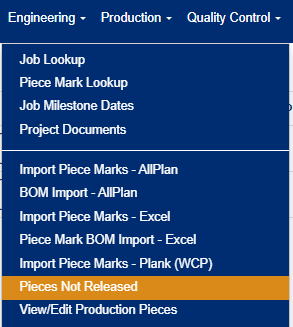
Figure 1
Option 2: Engineering menu → Piece Marks not Verified (Figure 2)
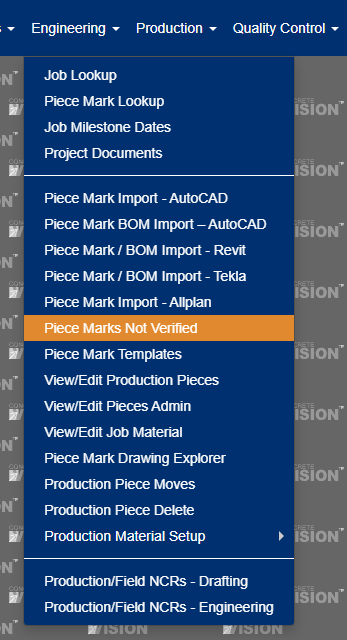
Figure 2
Note: The menu option name depends on your system configuration.
Main Screen Overview
The main screen displays imported pieces grouped by:
- User who imported them
- Job number
- Phase number
Each row shows summary information and available actions based on the current status of the pieces.

Figure 3
Available Actions
1. Edit Pieces
Purpose: Modify imported piece mark data before verification
How to access: Click the Edit button (Yellow box, Figure 3)) in the detail section
Result: Opens the detailed edit screen where you can review and modify individual piece marks
2. Verify Pieces
Purpose: Validate imported piece data for errors or issues
How to access: Click the Verify button (Purple box, Figure 3)
Result: System checks data integrity and updates the "Results" column with verification status
3. Move Pieces
Purpose: Transfer verified pieces to production
How to access: Click the Move button (Green box, Figure 3)
Prerequisites: Pieces must be successfully verified first
Result: Opens Move Confirmation screen for final review
Note: The Move button is disabled if no pieces have been verified or if the pieces have not been released for production through the job's Contract tab.
4. Delete Pieces
Purpose: Remove imported pieces entirely
How to access: Click the Delete button (Red box, Figure 3)
Result: Permanently removes the selected imported pieces
5. Generate Report
Purpose: Print detailed report of imported pieces
How to access: Click the Report button (Blue box, Figure 3)
Result: Generates comprehensive report for documentation
Working with Individual Pieces
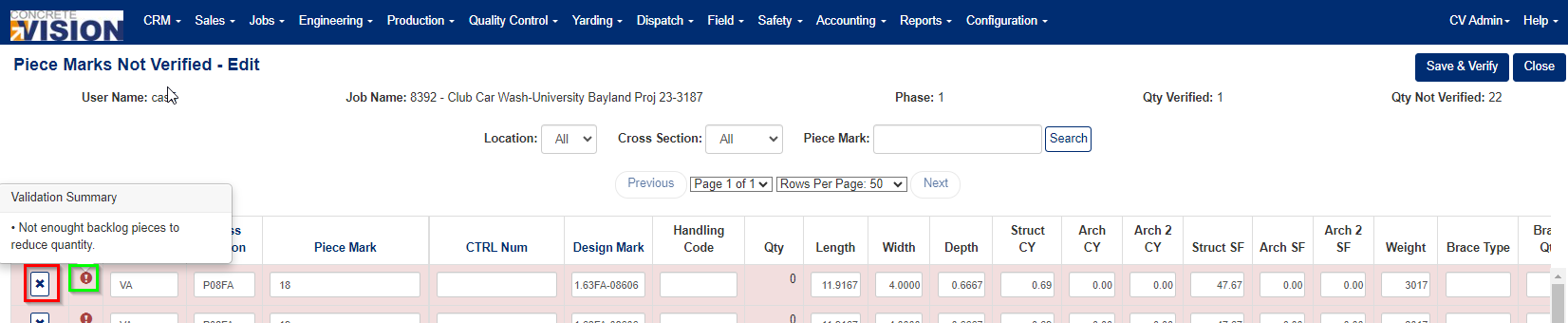
Figure 4
Edit Screen Functions
When you access the Edit screen, you can:
View Validation Issues
- Look for red exclamation icons next to piece marks
- Click the icon to view specific validation errors (Green box, Figure 4)
- Piece marks with issues will be highlighted in red after verification
Delete Individual Piece Marks
- From the main Pieces not Released screen, click Edit for the desired record
- In the edit screen, click the red "X" icon next to the piece mark you want to delete (Red box, Figure 4)
- Confirm deletion when prompted with "Are you sure you want to delete this record?"
- Click OK to complete the deletion (Figure 5)
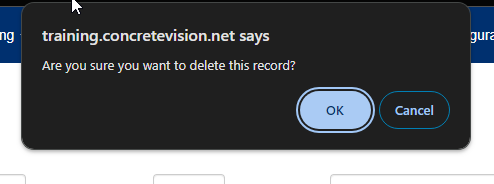
Figure 5
Moving Pieces to Production
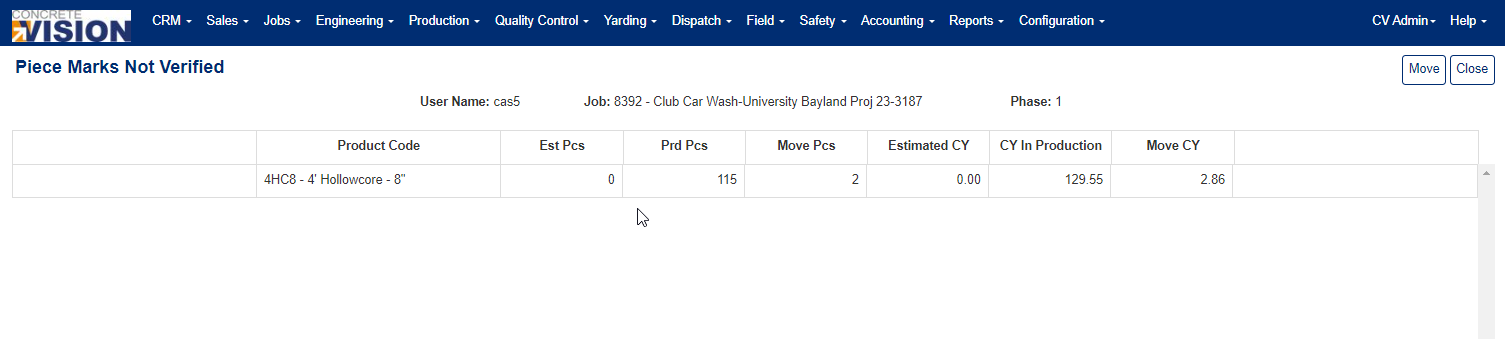 Figure 6
Move Confirmation Process
- Verify pieces first - Ensure all pieces have been successfully verified
- Click Move - Access the Move Confirmation screen
- Review summary- The screen displays:
- Pieces broken down by product code
- Total quantities estimated vs. currently in production
- Quantities to be moved
- Finalize move - Click the Move button in the header to complete the transfer (Figure 6)
Important: Once pieces are moved to production, this action cannot be easily undone.
Was this article helpful?
That’s Great!
Thank you for your feedback
Sorry! We couldn't be helpful
Thank you for your feedback
Feedback sent
We appreciate your effort and will try to fix the article