Overview
Using the Piece Mark Loading Verification screen, verify piece marks while/for loading based on the Plant Location, Project Name, and Load Number.
Accessing the Screen
Navigate to Yarding > Piece Mark Loading Verification from the main menu (Figure 1).
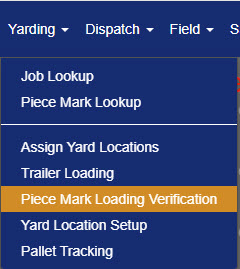
Figure 1
Using the Piece Mark Loading Verification Screen
The Piece Mark Loading Verification Screen filter dropdowns (purple box in Figure 2) must be completed from left to right.
- Select the plant location from the Location dropdown.
- Select the project name from the Project dropdown.
- Select the load number from the Loads dropdown.
- Click the Search button (green box in Figure 2) to search for all piece marks for loading.

Figure 2
NOTE: To remove all selected filters, use the Clear button (red box Figure 2).
Verify Piece Marks for Loading
The Piece Mark Loading Verification screen will populate with a listing of piece marks (Figure 3). Piece mark drawing files can be viewed by clicking on the file icon next to a piece (purple box in Figure 3).
To verify a specific piece for loading:
- Select the unique number(s) from the Piece S/N, CTRL. No., or Bed Date/Name/Pos dropdowns. The corresponding information in the other columns will be automatically updated.
- If multiple pieces of the same piece mark are available (orange box in Figure 3), you can use any of the unique identifiers to select the correct one
- Once all pieces have been verified, click the Save button or Save & Close button (green box in Figure 3) to save the information.
NOTE: Only pieces in Inventory status and not already verified via this screen will be shown in the dropdowns (orange box in Figure 3). If loading a piece causes a conflict, such as the piece being assigned to another load, a message will explain any changes or attempted changes that occurred (yellow box Figure 3).

Figure 3
Un-Verify Piece Marks for Loading
Any changes to other loads that have occurred, like those noted in a message at the top of the screen, will remain in effect even after a piece is un-verified.
To remove/Un-Verify a piece:
- Click the corresponding Delete icon (red box in Figure 3).
- Click the Okay button in the popup window to confirm Un-Verifying the piece for the load.
Scanning to Verify Piece Marks for Loading
- Click the Scan button next to each piece mark being loaded (yellow box in Figure 4).
- Scan the serial number on the physical piece mark with a scanning device.
- If the scanned piece serial number is in the list of manually select-able pieces in the drop downs, the piece mark will automatically be selected.
NOTE: If the piece is not valid, you will be notified to select a different piece.
 Figure 4
Load Any Valid Serial Number for a SKU
When validating piece marks on the Piece Mark Loading Verification screen, SKU's are included in the table of piece marks (green box in Figure 4). Any valid serial number that is tied to a piece with the same SKU as the piece currently assigned to the load can be loaded instead.
If a piece mark contains a SKU number, the job number is added to the beginning of the data (blue arrows in Figure 4) under the Piece S/N, CTRL Num, and Bed Date/Name/Pos" columns.
Was this article helpful?
That’s Great!
Thank you for your feedback
Sorry! We couldn't be helpful
Thank you for your feedback
Feedback sent
We appreciate your effort and will try to fix the article