Accessing the Trailer Loading Screen
Navigate to Yarding > Trailer Loading from the main menu (Figure 1).
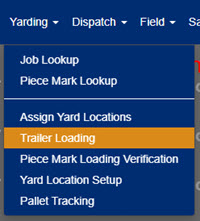
Figure 1
Using the Trailer Loading Screen
The Trailer Loading screen will be blank except for three dropdowns at the top of the screen (Figure 2).

Figure 2
Search for Pieces to
- Select an option for the Location (the plant the job is at) dropdown.
- Select an option from the Project dropdown.
- Select an option from the Loads (available for the job) dropdown.
- Click the Search button (green box in Figure 2).
Note: The dropdown MUST BE SELECTED FROM LEFT TO RIGHT because each dropdown will be populated by the previous dropdown's selection. (Example: Project will be blank until an option is selected for Location.)
Understanding the Trailer Loading Screen
After clicking the Search button, the Trailer Loading screen will populate with information (Figure 3).
- Left side (yellow box in Figure 3): a list of all the pieces needed to be loaded for the job.
- Right side of the screen: the pieces (yellow arrows in Figure 3) mapped out by location, IF they were assigned yard locations.
Note: If the pieces cannot be found on the map, the piece marks were not assigned to yard locations.
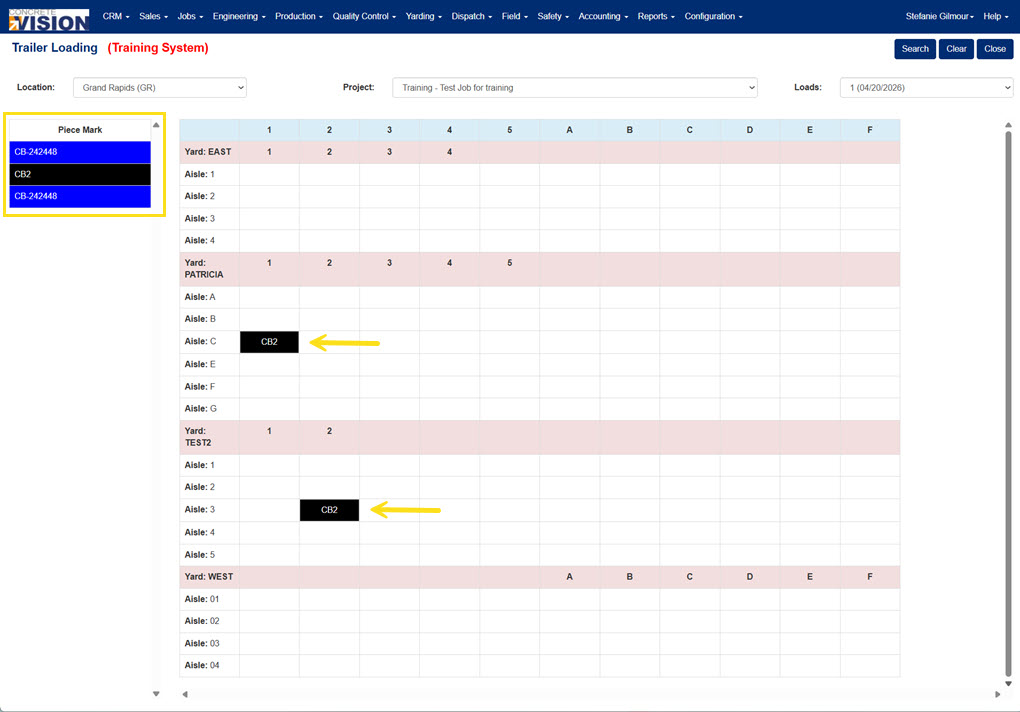
Figure 3
Was this article helpful?
That’s Great!
Thank you for your feedback
Sorry! We couldn't be helpful
Thank you for your feedback
Feedback sent
We appreciate your effort and will try to fix the article