The load piece verification screen can be accessed from the "Yarding > Load Piece Verification" menu option in the main menu (see Figure 1 below).
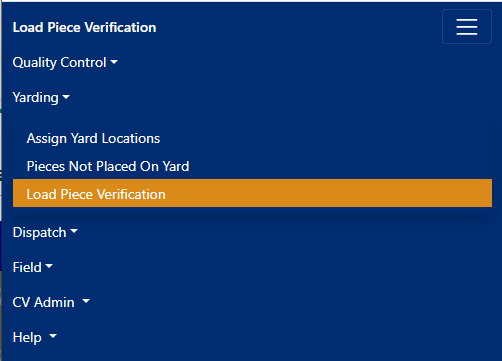
Figure 1
Selecting a Load
To start loading pieces, first select a plant, a job, and a load, and then click on "Load Piece(s)" (as shown in Figure 2 below).
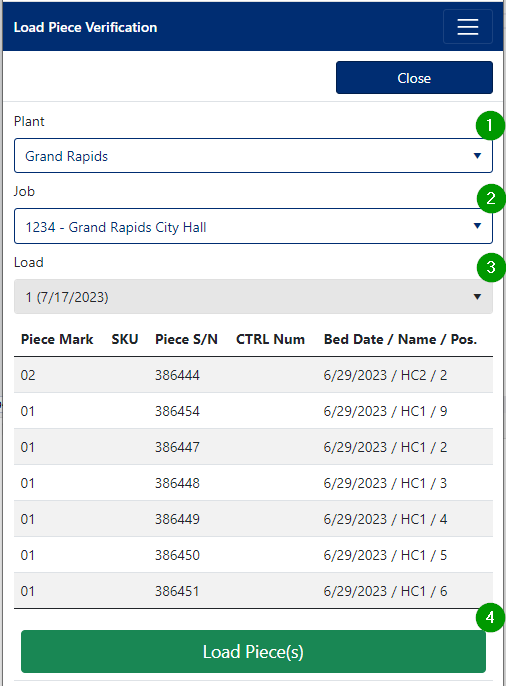
Figure 2
Load Pieces Detail Screen
The load pieces detail screen, shown below in Figure 3, shows an individual piece on a load.
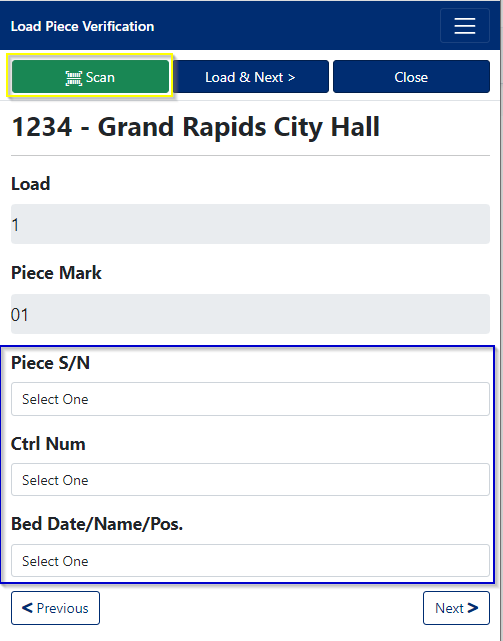 Figure 3
Loading a piece
To load the currently displayed piece on the load, you can either:
- Scan the piece, buy using the "Scan" button at the top of the page, to scan the piece's serial number.
- Manually select the piece serial number from either one of the 3 drop down boxes (shown in the blue rectangle in Figure 3)
Once a valid serial number has been scanned, or selected, the next step is to click on the "Load & Next >" button. Clicking this button will verify the piece as loaded on the trailer and take you to the next piece to verify.
Un-Loading a Piece
If you accidently load-verified a piece, you can "un-load" it, but clicking on the "Un-Load Piece" button in the header, as shown in Figure 4, below.
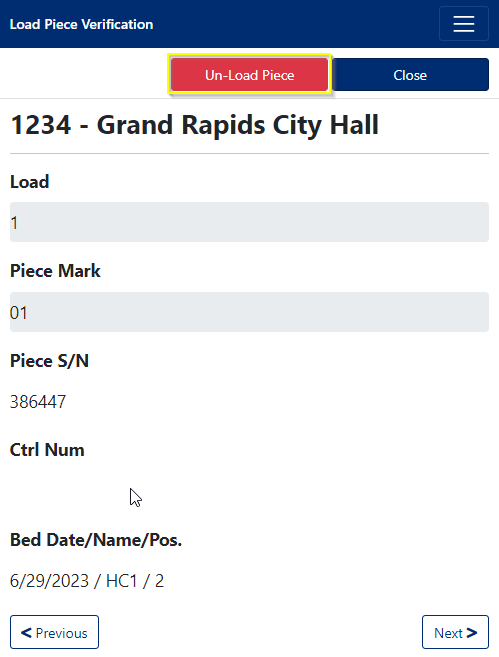
Figure 4
Navigating Pieces on a Load
You can navigate back and forth between pieces on the currently selected load, by clicking on the "Next" or "Previous" buttons (shown in Figure 3 and Figure 4) in the load pieces detail screen.
Was this article helpful?
That’s Great!
Thank you for your feedback
Sorry! We couldn't be helpful
Thank you for your feedback
Feedback sent
We appreciate your effort and will try to fix the article