Overview
The incorporated barcode scanner in Concrete Vision utilizes a device with a camera, like a tablet or phone, to scan a piece's barcode and quickly enter the barcode into a field on the device's screen.
Accessing the Barcode Scanner
The barcode scanner is located on several screens throughout Concrete Vision and is distinguished by a barcode icon (Figure 1).

Figure 1
Using the Barcode Scanner
To use the scanner, ensure at least one camera is available on the scanning device (compatible with most non IOS devices).
- Click the Scan button (green box in Figure 1). A window will open and the live feed will start (Figure 2).
- Align the barcode to be as close to horizontal as possible on the camera feed. Try to fill most of the window with the barcode like (Figure 2).
- Once a barcode is recognized, the window will automatically close and insert the data retrieved from the barcode into the appropriate input field.
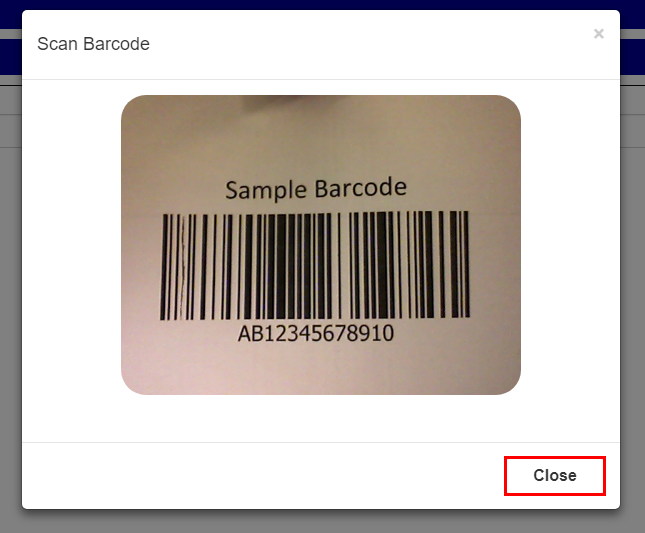
Figure 2
Additional Barcode Scanner Tips
- If the scan window is accidentally opened, click the Close button (red box in Figure 2) to stop the camera and close the window.
- To clear the input field and restore it to null, click the Reset button (red box in Figure 1).
- If a device has more than one camera available, a selector will appear with a list of all cameras (Figure 3). By default the scanner will select the first option. To switch to a different camera, select a different option from the list. The new camera feed should automatically switch.
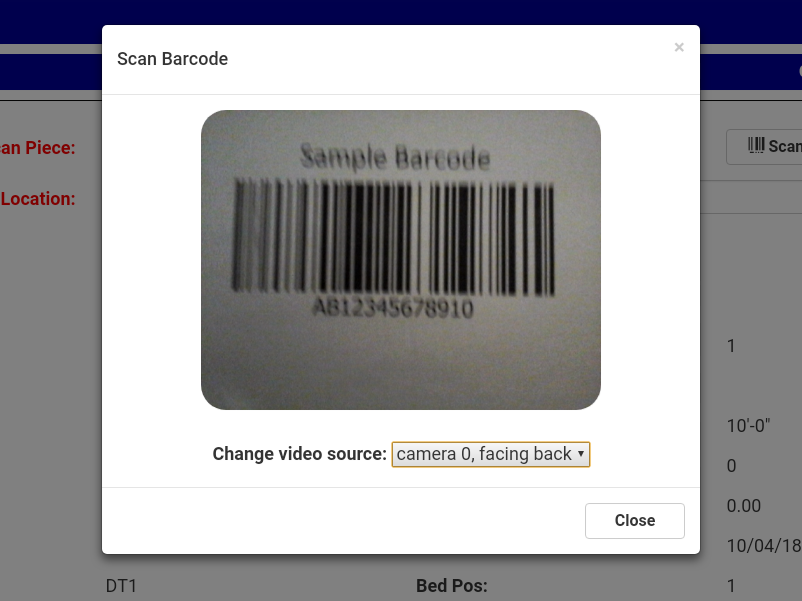
Figure 3
Was this article helpful?
That’s Great!
Thank you for your feedback
Sorry! We couldn't be helpful
Thank you for your feedback
Feedback sent
We appreciate your effort and will try to fix the article