Overview
The Bed Labels Report allows you to view, generate, and print labels for casting beds in your production system. This guide walks you through all the features available in the Bed Labels interface.
Getting Started
Accessing the Bed Labels Report
- Navigate to Reports in the main menu
- Select Production from the dropdown
- Click Bed Labels (Figure 1)
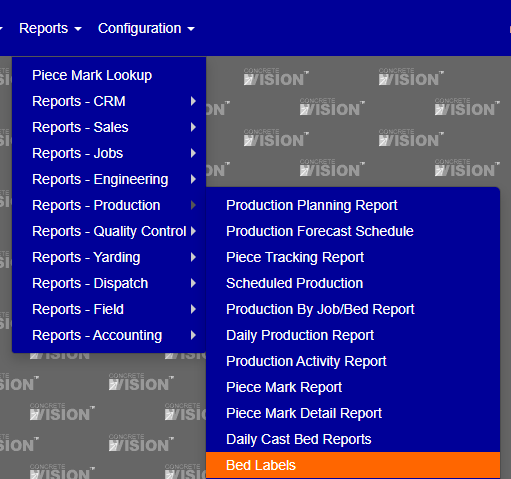
Figure 1
The Bed Labels Report screen will open, showing a table of all available casting beds for the selected time period.
Using Filters to Find Beds
Default Filter Settings
By default, the system automatically displays beds from the start of the current week to the end of the week. You can customize this range and other criteria using the filter options at the top of the screen (Purple box, Figure 2).

Figure 2
Customizing Your View
The filter panel (Purple box, Figure 2) contains several options:
- Cast Date Range: Set "From" and "To" dates to show beds from a specific period
- Location: Filter by specific plant locations
- Bed: Search for specific bed numbers or names
Applying and Clearing Filters
- Search: Click the green "Search" button to apply your filter settings
- Clear: Click the red "Clear" button to reset all filters to default values
Working with Bed Labels
Understanding the Results Table
The main table displays important information about each bed:
- Actions: Quick action buttons for individual beds
- Date: When the bed was cast
- Bed ID: Unique identifier for the bed
- Bed Name: Descriptive name of the bed
- Location: Where the bed is located
- Quantity: Number of pieces in the bed
- Total CY: Total cubic yards of concrete
- Total SF: Total square feet
- Total LF: Total linear feet
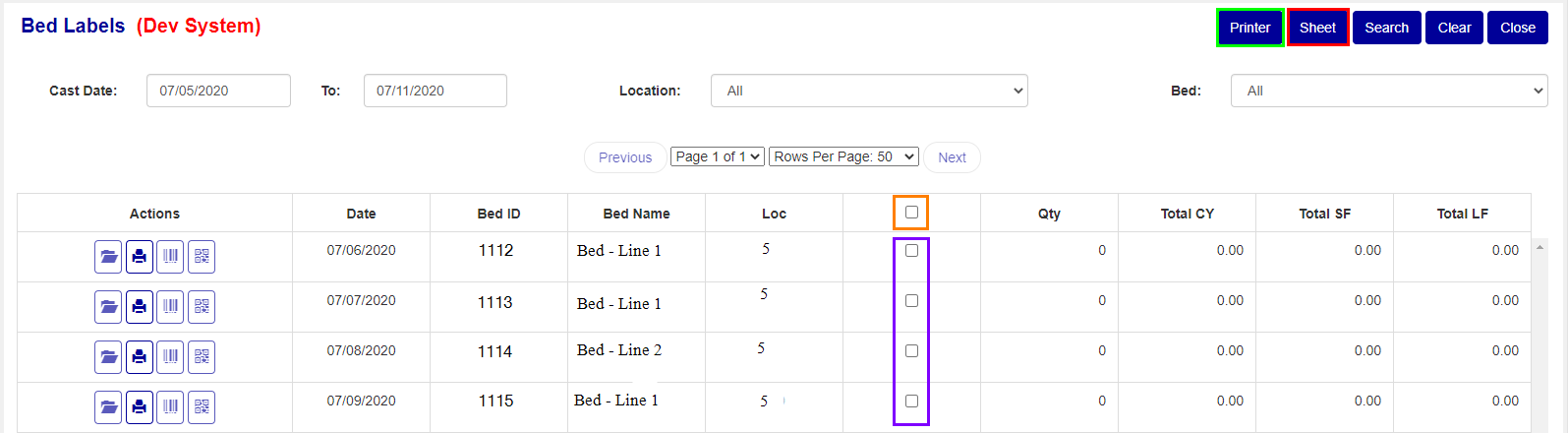
Figure 3
Generating Reports
Bulk Report Generation
To create labels for multiple beds at once:
Select beds:
- Check individual beds using the checkbox in each row (Purple boxes, Figure 3)
- OR select all visible beds by checking the box in the table header (Orange box, Figure 3)
Choose output format:
- Printer (Green button, Figure 3): Sends directly to your default printer
- Sheet (Red button, Figure 3): Generates a downloadable file
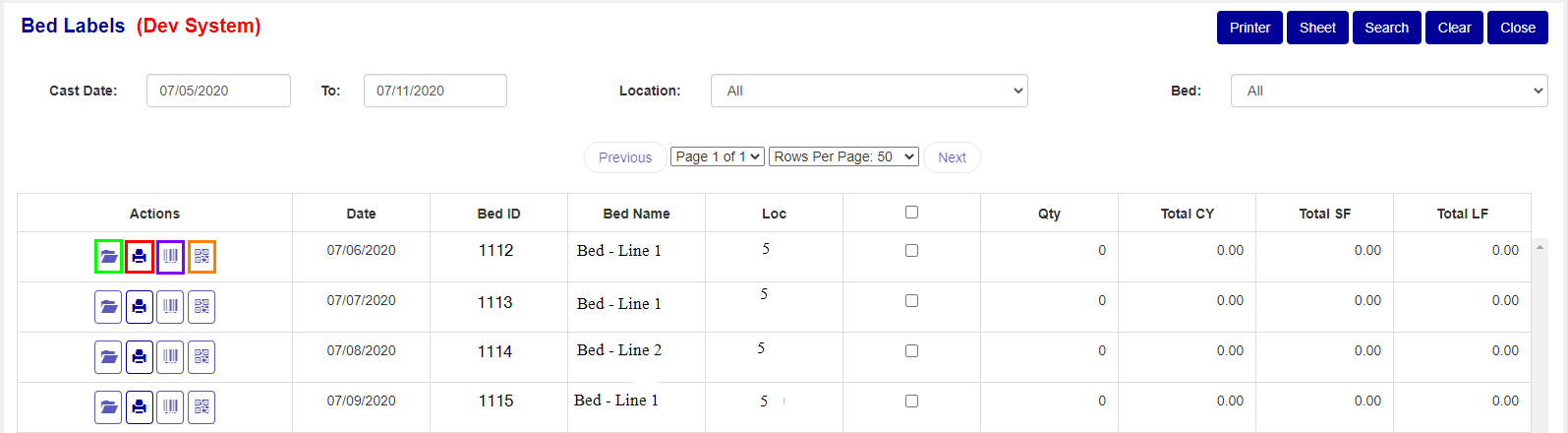
Figure 4
Individual Bed Reports
Each bed row includes quick-action buttons (Figure 4) for immediate report generation:
| Icon | Purpose | Description |
|---|---|---|
| ? Folder | View Details | Opens detailed view of the bed contents |
| ?️ Printer | Print Sheet | Prints the casting bed sheet |
| ▬ Barcode | Barcode Labels | Generates barcode version of labels |
| ⬜ QR Code | QR Labels | Creates QR code labels for digital scanning |
Detailed Bed View
Accessing Bed Details
Click the folder icon (Green box in Figure 4) next to any bed to open the detailed view. This screen shows:
Bed Information Summary:
- Cast date and details
- Bed dimensions and specifications
- Location and supervisor information
- Total quantities and measurements
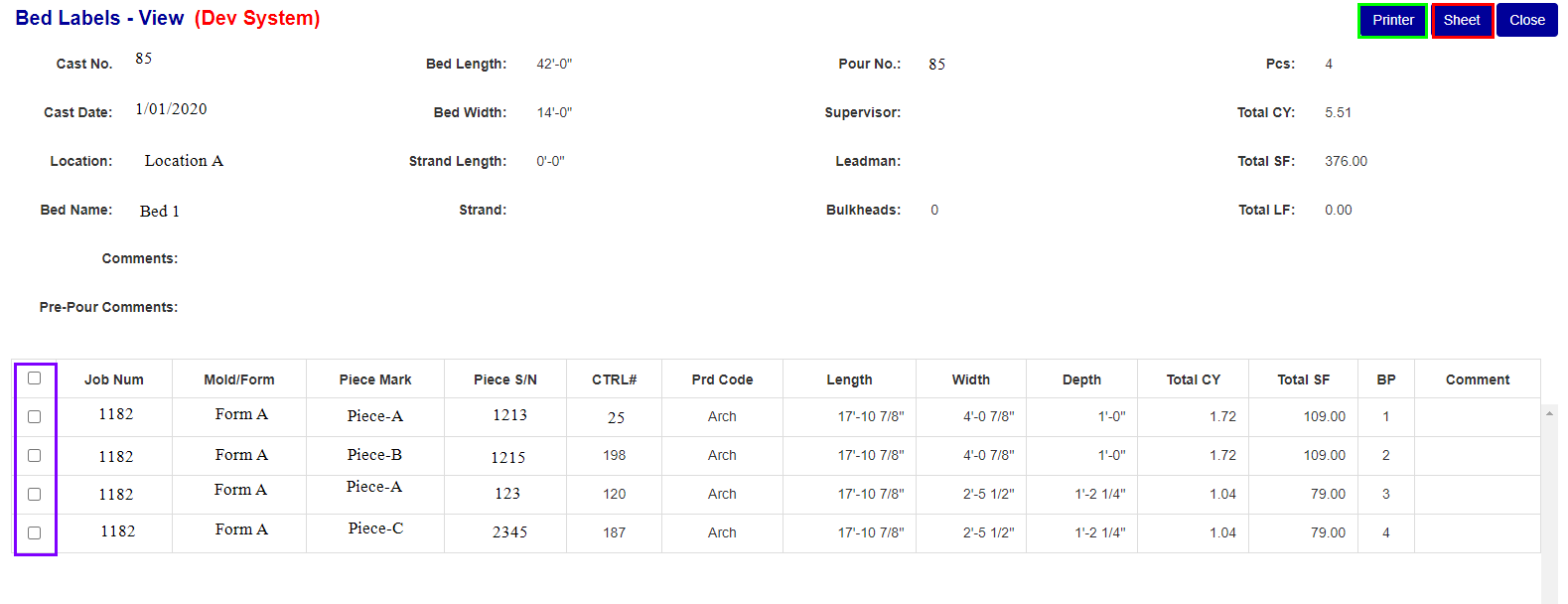
Figure 5
Note: The folder, barcode, and QR code buttons will be disabled when no pieces are on this bed.
Individual Pieces Table: Below the summary, you'll see a detailed breakdown of every piece in the bed, including:
- Job number and piece information
- Dimensions (length, width, depth)
- Concrete volume and surface area
- Production codes and specifications
Printing from Detail View
From the detailed view, you can:
- Select specific pieces using the checkboxes
- Use the same Printer/Sheet buttons to generate reports for only the selected items
- This gives you precise control over which pieces to include in your labels
Was this article helpful?
That’s Great!
Thank you for your feedback
Sorry! We couldn't be helpful
Thank you for your feedback
Feedback sent
We appreciate your effort and will try to fix the article