Overview
The Production Bed Setup screen is used to manage production beds across factory locations. From this screen, users can:
- Add and configure new production beds
- Edit existing bed configuration details
- Assign or remove cross sections from production beds
Accessing the Screen
Navigate to Configuration > Production Setup > Production Bed Setup from the main menu (Figure 1).
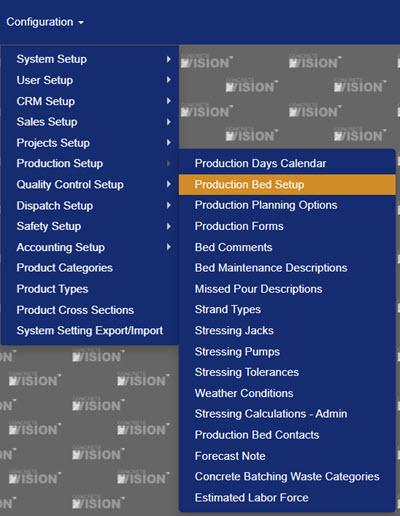
Figure 1
The Production Bed Setup screen displays a list of plant locations. Click the Edit icon in the Actions column next to the desired plant to view and manage that plant's production beds (Figure 2).
 Figure 2
The Production Bed Setup Screen
After selecting a plant, the screen displays all beds configured for that location, along with key details such as bed length, strand length, bed width, bulkheads, max weight, and active status (Figure 3). From this screen, you can add new beds, edit existing beds, or delete beds.
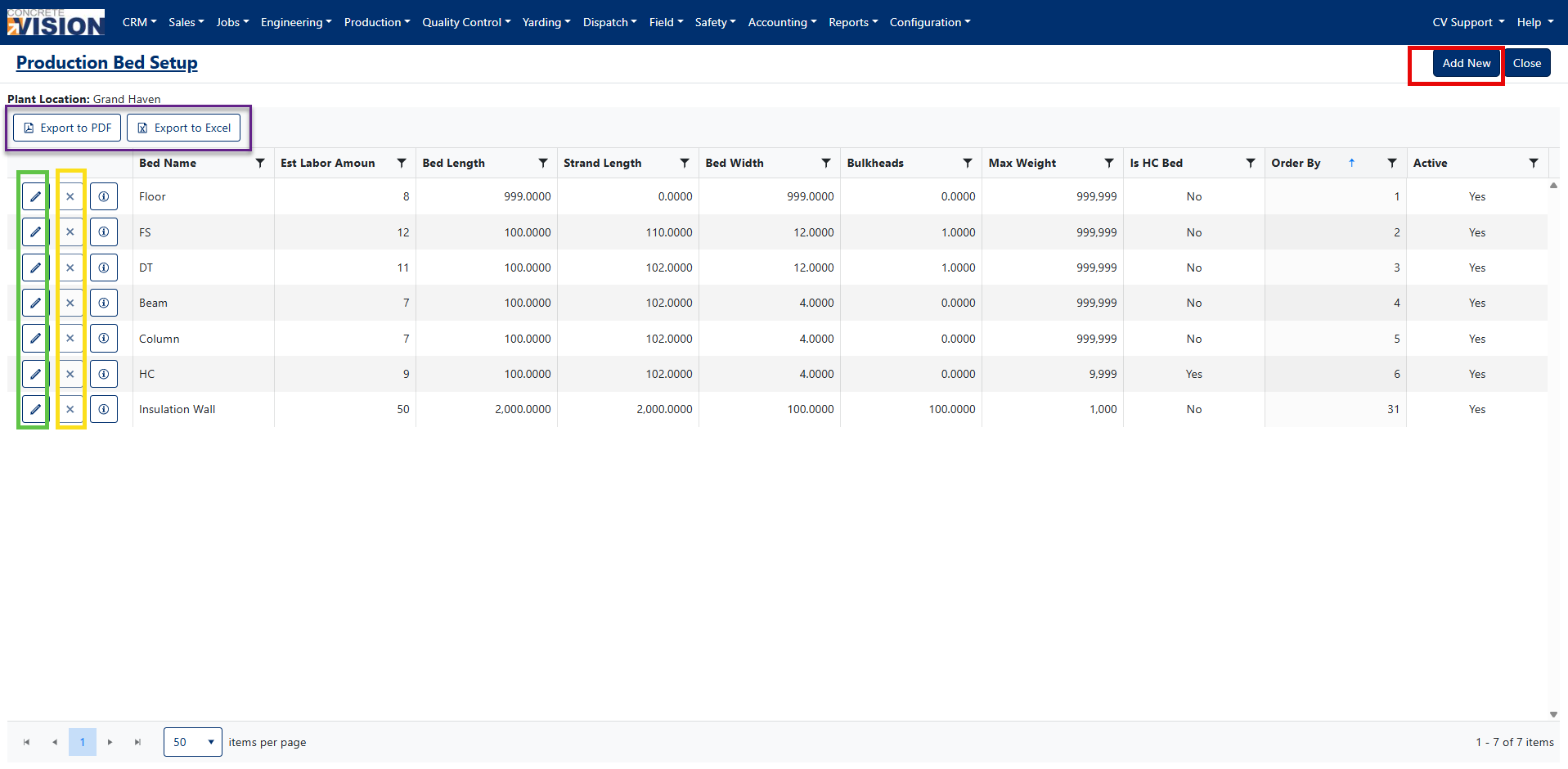
Figure 3
Adding a New Bed
To add and configure a new production bed:
- Click the Add New button in the top-right corner of the Production Bed Setup screen (Red box, Figure 3).
- Complete the applicable fields and checkboxes on the Add New Production Bed screen (Figure 4). See the Field Reference table below for descriptions of each field.
- Add any applicable cross sections to the bed (see Manage Cross Sections below).
- Click Save button to save the new bed, or Save & Close button to save and return to the production beds list (Green box, Figure 4).
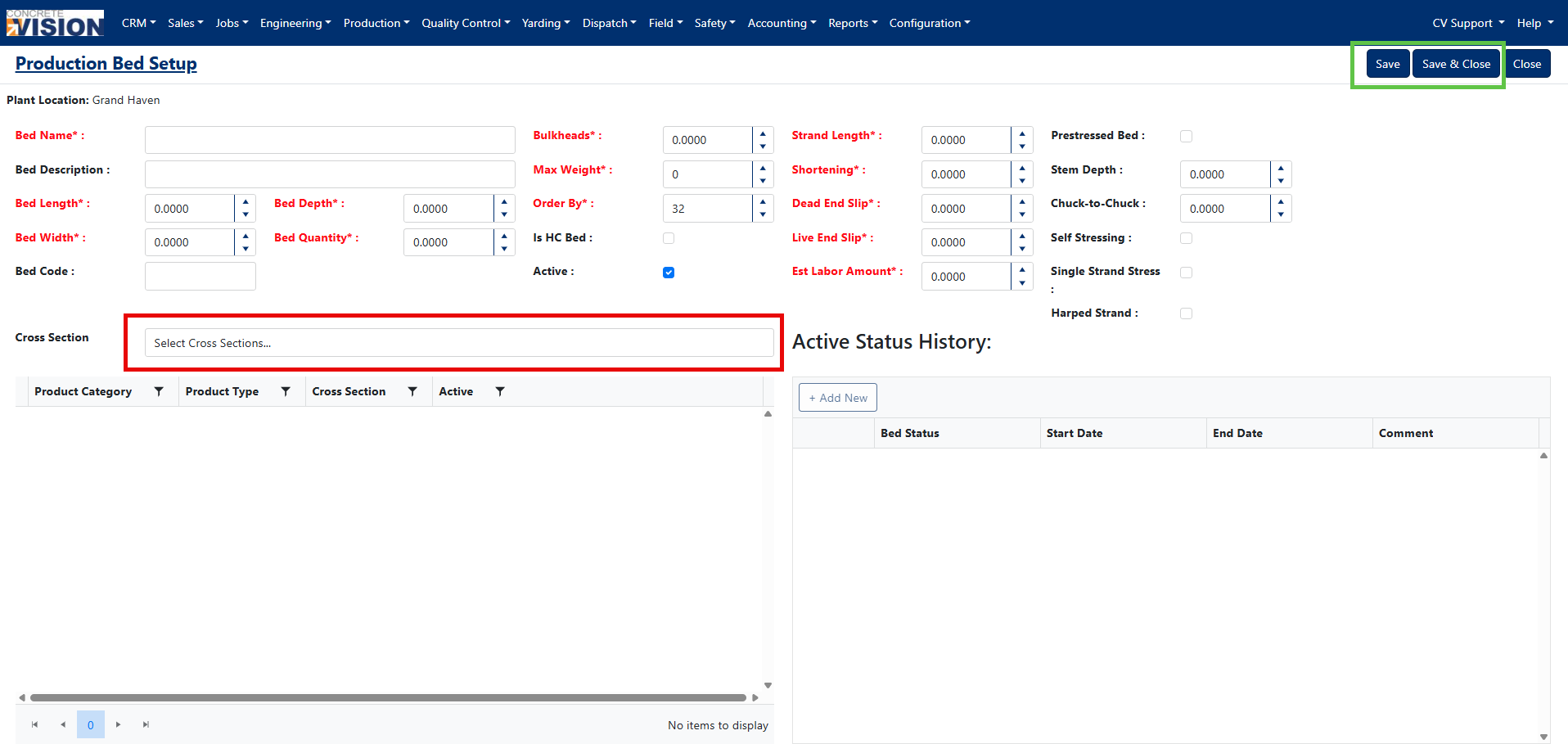
Figure 4
Field Reference
NOTE: All length and depth measurements are in decimal feet. Exceeding the Max Weight value will generate a warning flag but will not prevent the pour from being scheduled. Fields marked "Required" must be completed before saving.
| Field Name | Description |
|---|---|
| Bed Name | Required: The name displayed on the Production Planning screen. |
| Bed Description | The description displayed on the casting bed report. |
| Bed Length | Required: Total length of product, in decimal feet, that can be poured on the bed. |
| Bed Depth | Required: Maximum product depth, in decimal feet, that can be poured on the bed. |
| Bed Width | Required: Maximum product width, in decimal feet, that can be poured on the bed. |
| Quantity | Required: Maximum number of pieces on bed. "0" means there is no cap. |
| Bed Code | Number assigned to the bed for use in reporting. |
| Bulkheads | Required: Total length, in decimal feet, of a standard bulkhead on every pour on the bed. |
| Max Weight | Required: Maximum weight of a piece that can be poured on the bed and lifted by the crane. |
| Order By | Required: Determines the sorts order of beds displayed on the Production Planning screen. |
| HC Bed | A checkbox that indicates if the bed is used for hollowcore production. |
| Active | A checkbox that indicates if the bed is active or not. Inactive beds do not appear on the Production Planning screen. |
| Strand Length | Required: Standard strand length, in decimal feet, for the bed. Used for CV stressing calculations. |
| Shortening | Required: Total strand shortening, in decimal feet, for the bed. |
| Dead End Slip | Required: Total dead end slip, in decimal feet, for the bed. |
| Live End Slip | Required: Total live end slip, in decimal feet, for the bed. |
| Est. Labor Amount | Required: Standard number of employees assigned to the bed per pour. |
| Prestressed Bed | A checkbox that indicates the bed is prestressed. |
| Stem Depth | Standard stem depth, in decimal feet, allowed on the bed. |
| Chuck-to-Chuck | Standard chuck-to-chuck strand length, in decimal feet, for the bed. |
| Self Stressing | A checkbox that indicates the bed is self stressing. |
| Single Strand Stress | A checkbox that indicates the bed is single strand stressed. |
| Harped Strand | N/A: This is a possible future feature for Concrete Vision. |
Managing Cross Sections
Cross sections define the product code (types) that can be poured on a bed. They can only be added or removed from the individual bed setup screen.
Add Cross Sections
- On an individual bed setup screen, click the Cross Section select box (Red box, Figure 4).
- A dropdown list of available cross sections will appear (Figure 5). Click one or more cross sections to select them.
- Click the Save or Save & Close to apply changes (Green box, Figure 4)
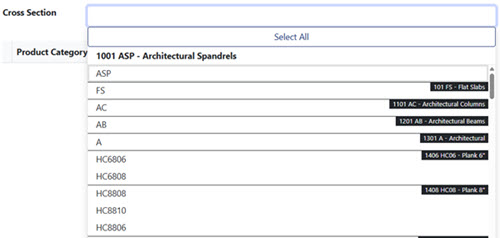
Figure 5
Remove Cross Sections
- On the individual bed setup screen, click the Trash icon to the left of the cross section you want to remove (Yellow box, Figure 6).
- Confirm the removal when prompted.
- Click the Save or Save & Close to apply changes (Green box, Figure 6).
NOTE: Cross sections can only be added or removed under the individual bed setup screen.
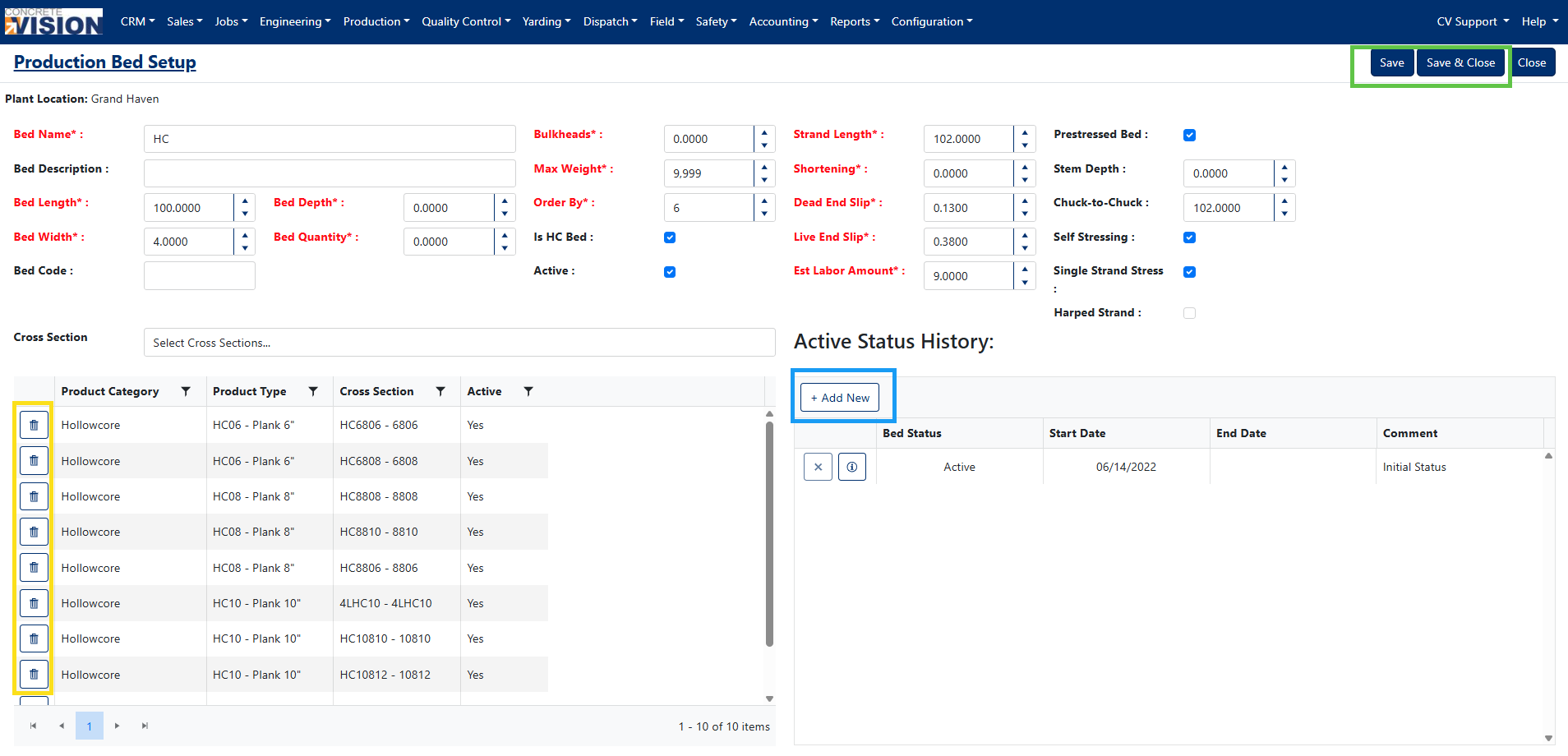
Figure 6
Active Status History
The Active Status History panel tracks changes to a bed's operational status over time. Scheduled status changes can be set in advance to automatically update the bed's status on a specified date.
Add a Status Record
- On the individual bed setup screen, click the + Add New button in the Active Status History panel (Blue box, Figure 6).
- In the Add Bed Status Record popup (Figure 7), complete the following:
- Start Date – The date on which the new status takes effect.
- Bed Status – Select the new status from the dropdown. Options include: Active, Inactive, Storage, Moved, and Disposed.
- Comment – Enter a note explaining the reason for the status change.
- Click Schedule to save the status record.
- Click Save or Save & Close button to save and return to the the production beds by location screen.
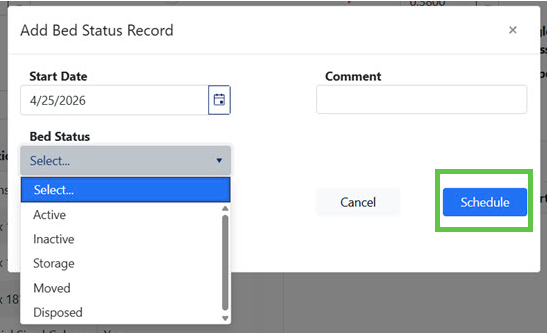
Figure 7
Editing a Bed
To modify the configuration of an existing production bed:
- On the Production Bed Setup screen, click the Pencil icon (Green box, Figure 3) in the row of the bed you want to update. The individual bed setup screen will open.
- Adjust the bed details as needed.
- Click Save or Save & Close to apply the changes (Green box, Figure 6).
Deleting a Bed
To permanently remove a production bed:
- On the Production Bed Setup screen, click the X icon in the row of the bed you want to remove (Yellow box, Figure 3).
- Click OK in the confirmation dialog to confirm the deletion (Figure 8).
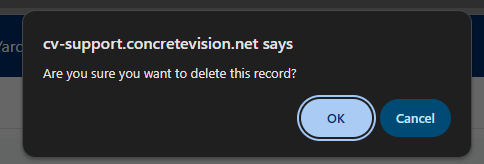
Figure 8
NOTE: A bed must have all cross sections removed before it can be deleted.
Exporting Production Bed Setup
Export to PDF
Click the [Export to PDF] button to generate a complete list of Production Beds in PDF format (Purple box, Figure 3).
Export to Excel
Click the [Export to Excel] button to export all Production Beds to an Excel spreadsheet (Purple box, Figure 3).
Was this article helpful?
That’s Great!
Thank you for your feedback
Sorry! We couldn't be helpful
Thank you for your feedback
Feedback sent
We appreciate your effort and will try to fix the article