Create pre-established Bed Comment options to help guide bed production. Those active Bed Comments will be shown within the "Production-> Production Planning - Edit" menu. From the Production Planning screen find the bed you'd like to schedule by double clicking on the blue + plus icon (See Below Figure 1).. A dialog box will pop-up. From the "Schedule Bed" dialog box, edit the specifications for the new schedule then click on the "Schedule & Edit" button. The Bed Comments activated from the "Configuration -> Production Setup -> Bed Comments" screen will be found as a drop list option box labelled Comments (See Below Figure 2).
Figure 1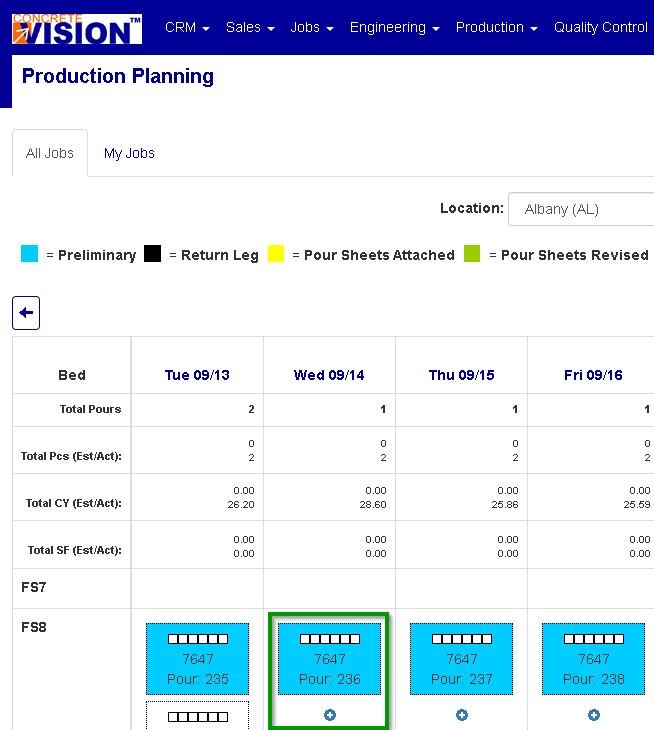
Figure 2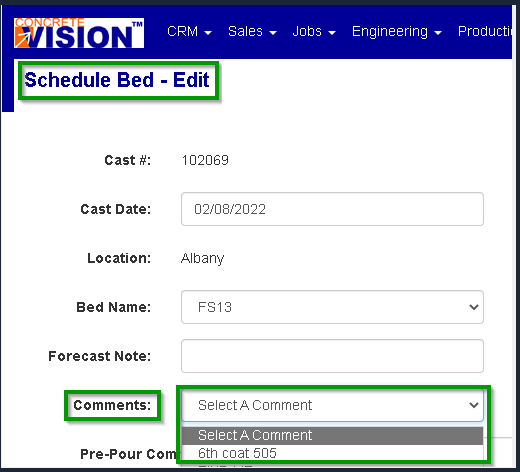
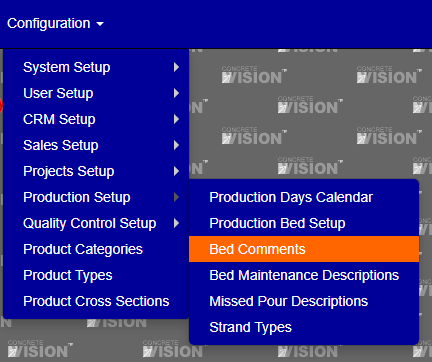
You access the Bed Comments from the Configuration > Production Setup menu (Figure 3).
Figure 3
Add Bed Comment
Figure 4
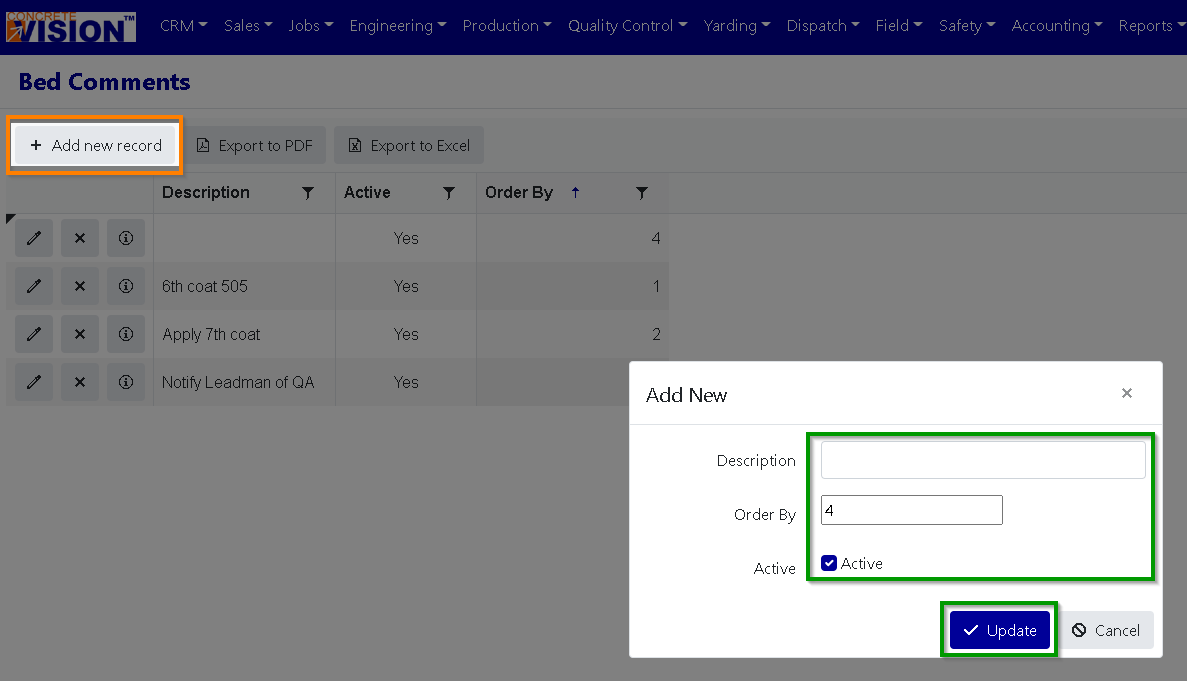
Click the "add" button from the main Bed Comments screen (see Green box in Figure 4) to enter the Bed Comments Add screen (see Figure 4).
- Enter a comment description.
- Enter or change the order by.
- You can mark the comment as active or inactive.
- To add the Bed Comment click the "Update" button on the Add New dialog (see the Green box in Figure 5).
Edit Bed Comment
Figure 5
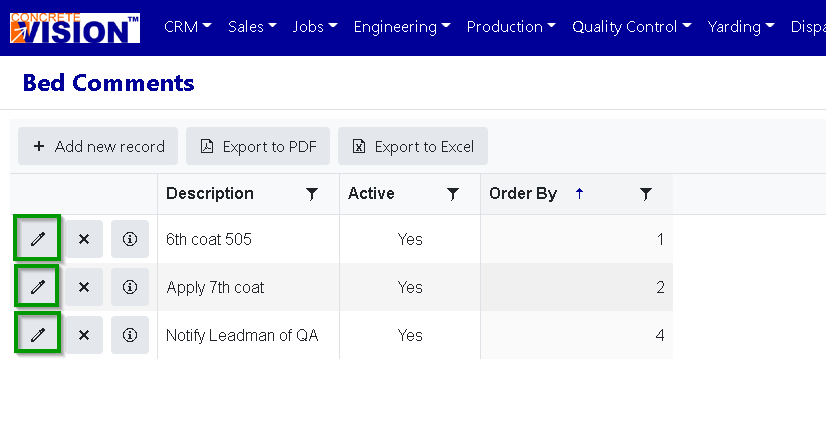
Figure 6
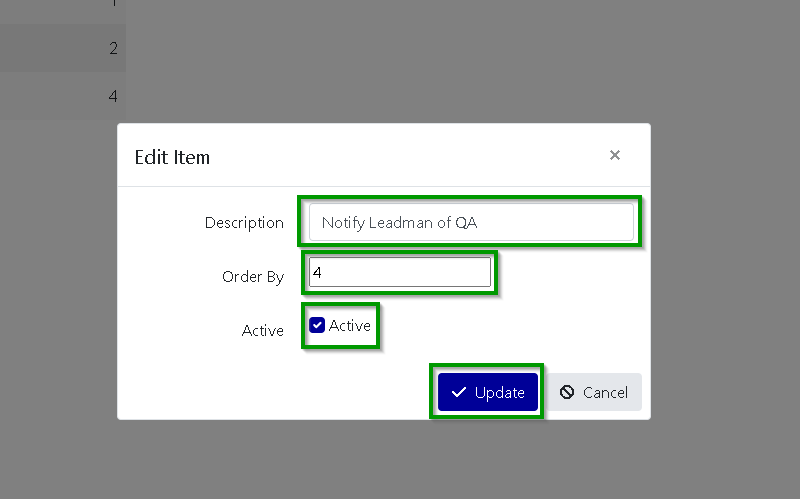
Click on the "edit" button to the left the Bed Comment you'd like to edit (see the Green boxes in Figure 5) this will bring up the Edit Item window (see Figure 6).
- You can change the description.
- You can change the order by.
- You set the comment's status as active or inactive.
- Click on the "Update" button to Save your changes (see the Green box in Figure 6).
Delete Bed Comment
Figure 7
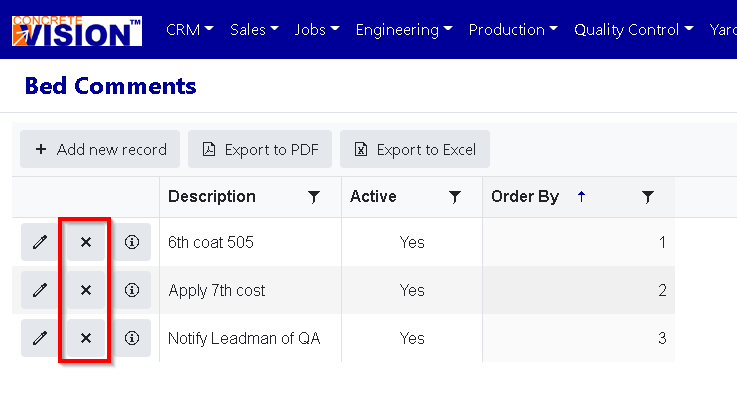
- Click the "delete" button to the left the Bed Comment you'd like to delete (see Red box in Figure 7).
Was this article helpful?
That’s Great!
Thank you for your feedback
Sorry! We couldn't be helpful
Thank you for your feedback
Feedback sent
We appreciate your effort and will try to fix the article