Overview
The Production Forecast Schedule shows a year-long forecast of which jobs are planned on each production bed. Beds are grouped by plant down the left side, and dates run across the top. Use this screen to see bed availability, spot gaps or conflicts in the forecast, and track how far along each job is.
Note: This screen shows forecast information entered on bed records (forecast job, forecast product code, and forecast note). It does not show actual pours. Internal jobs and stock jobs are always excluded.
The schedule always covers 365 days from the start date you choose. You can view it on screen or export it to Excel for printing.
Accessing the Screen
Navigate to Production menu > Reports - Production > Production Scheduing > Production Forecast Schedule.
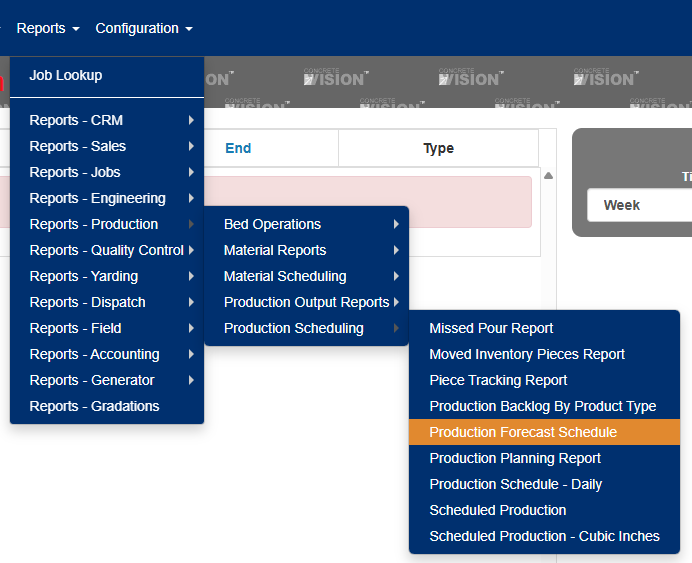
Figure 1

Figure 2
Running the Schedule
- In Start Date, enter or select the first date to show. It defaults to today (Figure 2).
- In Plant, select one or more plants. If you select none, all active plants are included.
- Under Beds, choose one of the following:
- All Beds – shows every active bed at the selected plants.
- Schedule Beds – shows only beds that have bed records within the date range.
- Under Show Weekends, select Yes to include Saturdays and Sundays, or No to show weekdays only.
- Click Search.
The schedule loads below the filters, and the Date Range appears next to the filters. The Export, Active Job List, and Forecast Notes buttons become available (Figure 3).
Note: The schedule is built for your user only. Other users running the screen at the same time will not affect your results.
To reset all filters and clear the results, click Clear.
Reading the Schedule
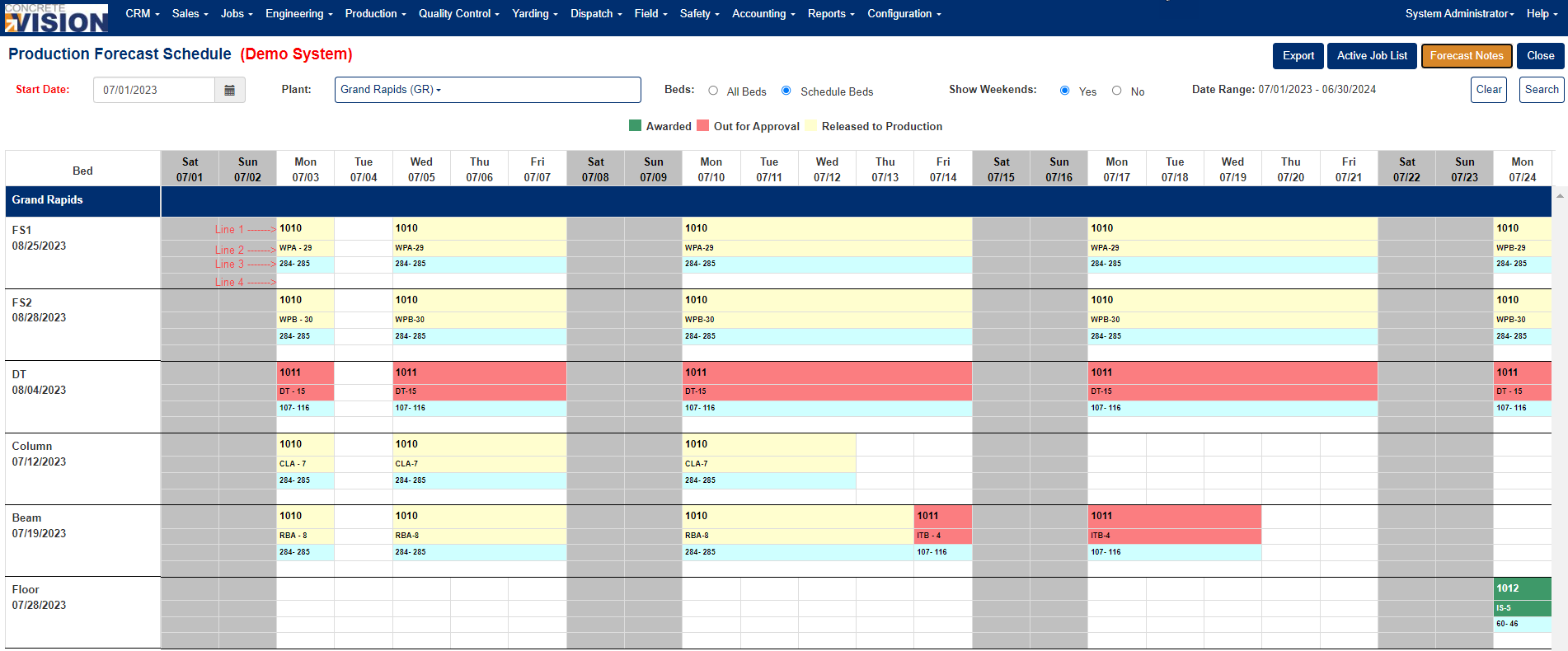
Figure 3
Status Legend
A color legend appears above the grid. Each color represents a project status. Only statuses for jobs on the current schedule are shown.
- Green (Awarded): Jobs that have been awarded and are confirmed for production
- Red (Out for Approval): Jobs pending approval or requiring attention
- Yellow (Released to Production): Jobs that have been released and are ready for production
- Light Blue: Jobs that have Estimated pieces
Plants and Beds
Each plant has a dark blue header row. Under it, each bed is listed with its name and, below the name, the last date that bed has a forecast in the selected range.
Job Blocks
When the same job and product code are forecast on the same bed on back-to-back days, those days are combined into one block that spans the date columns. Each block has four lines:
Line 1: Job Number
The unique identifier for the production job (e.g., 1010, 1011, 1012)
Line 2: Product Code - Consecutive Pour Days
- Product Code: Abbreviated product identifier (e.g., WPB-28, CLA-7, RBA-8)
- Consecutive Pour Days: Number of consecutive days this product has been or will be poured (indicated after the dash)
Line 3: Estimate Pieces - Actual Pieces
- Estimate: The planned number of pieces to produce
- Actual: The actual number of pieces produced (displayed after production)
- Format: "284-285" indicates 284 estimated and 285 actual pieces
Line 4: Bed Comment
Additional notes or identifiers related to the specific bed or production run (e.g., DT-15, ITB-4)
Weekends
When weekends are shown, Saturday and Sunday columns are shaded gray. When weekends are hidden, a heavy border marks the start of each week (Monday).
Note: If you hide weekends, a job forecast from Friday through Monday appears as two separate blocks.
Active Job List
Click Active Job List to see every job on the current schedule (Blue box, Figure 2).
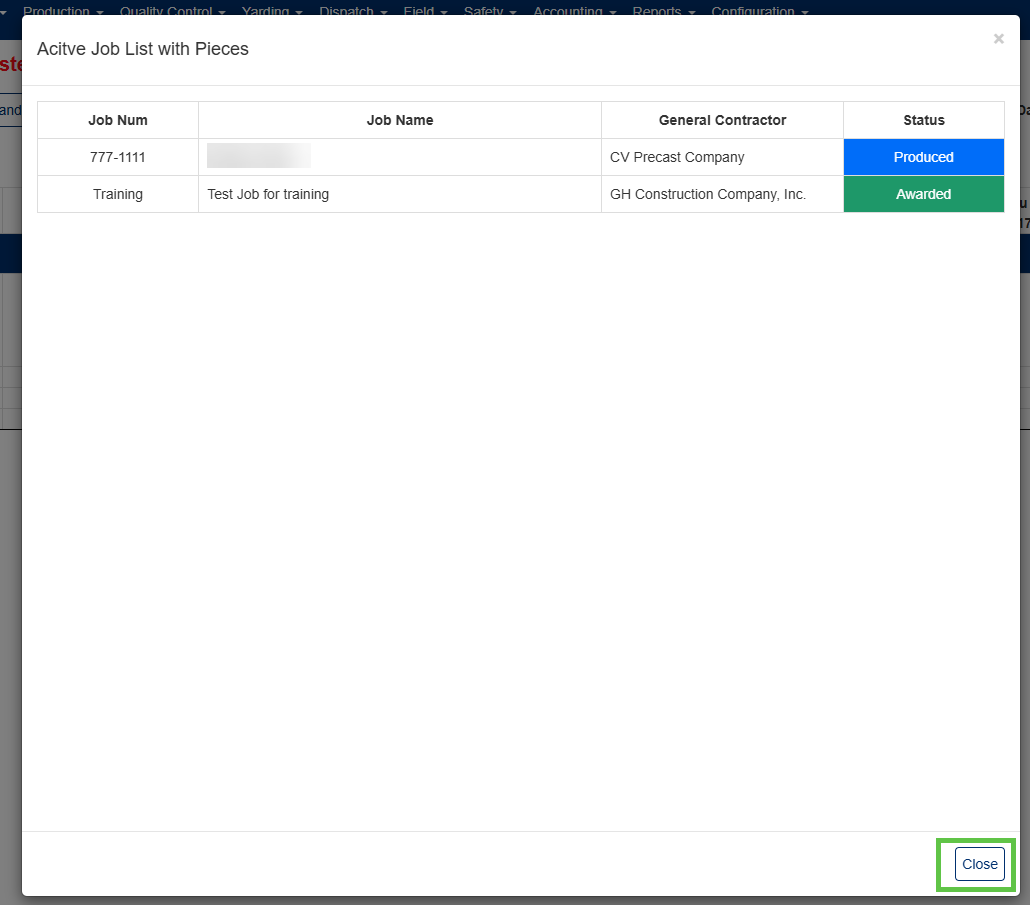
| Column | Description |
|---|---|
| Job Num | The job number. |
| Job Name | The job name. |
| General Contractor | The lead general contractor assigned to the job. |
| Status | The job's current status, shown in its status color. |
Click Close to return to the schedule.
Forecast Notes
Click Forecast Notes to see the forecast note abbreviations used in the schedule and what each one means (Blue box, Figure 2).
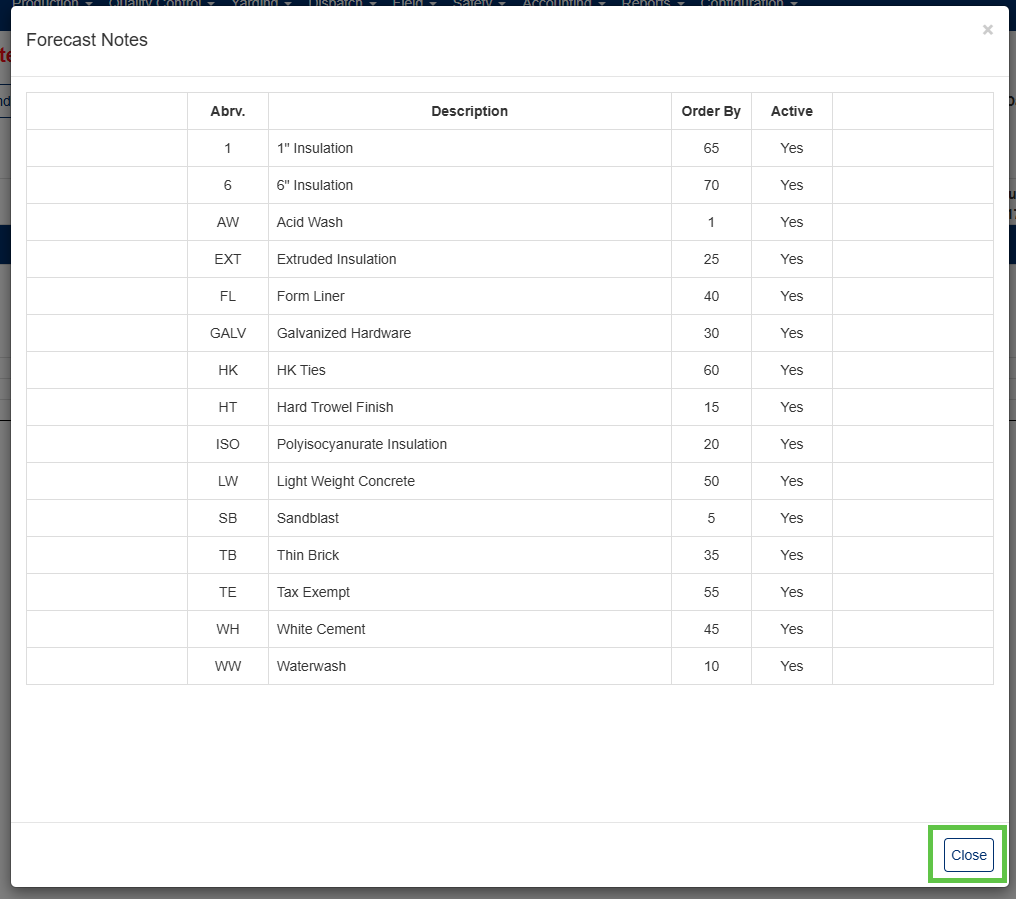
| Column | Description |
|---|---|
| Abrv | The note abbreviation. |
| Description | What the abbreviation means. |
| Order By | The note's sort order. |
| Active | Whether the note is active. |
Click Close to return to the schedule.
Exporting to Excel
Click Export to download the schedule as an excel spreadsheet (Blue box, Figure 2). The workbook contains four sheets:
| Sheet | Contents |
|---|---|
| Prd Sch | The schedule grid. Line 3 also shows the percentage complete as text, and comments appear in full. Set up to print landscape on legal paper. |
| Project Status | The status color legend. |
| Job List | The same information as the Active Job List window. |
| Forecast Notes | The same information as the Forecast Notes window. |
Note: Each sheet prints with a header showing the date it was printed.
Button Reference
| Button | Action |
|---|---|
| Search | Builds the schedule using the selected filters. |
| Clear | Resets the filters and clears the results. |
| Export | Downloads the schedule to Excel. Available after a search. |
| Active Job List | Opens the list of jobs on the schedule. Available after a search. |
| Forecast Notes | Opens the list of forecast note abbreviations. Available after a search. |
| Close | Returns to the main menu. |
Was this article helpful?
That’s Great!
Thank you for your feedback
Sorry! We couldn't be helpful
Thank you for your feedback
Feedback sent
We appreciate your effort and will try to fix the article