The Move Inventory Pieces is located under the Production menu (Figure 1).
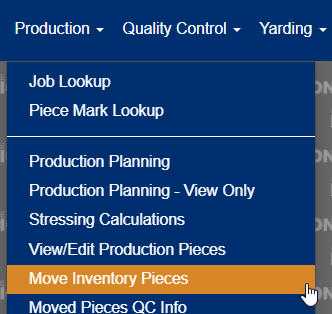
Figure 1
On the Move Inventory Pieces screen, shown in Figure 2, select the plant where the pieces are located and the date of the transfer. Then select the Next button.

Figure 2
On the Move Inventory Pieces detail page, shown in Figure 3, the left side is where you will select the job where the piece mark is being transferred from. The right side is where you will select which job the select piece mark is being transferred to. In the example below, I have selected a job and piece mark on the left and a job on the right. The job on the right currently does not have this piece mark so you can use the button Copy Select Mark Number and Move. This will move the select piece mark on the left side to the job selected on the right side. If you need additional backlog pieces created when copying the piece to the job on the right, select "Yes" in the screen prompt shown in Figure 4, and enter the amount of additional backlog pieces to create.
NOTE: The Piece S/N will move to the job on the right. If neither move button is active after selecting a job on the right, that means that the piece mark select on the left already exists on the job you selected on the right. If you need to transfer move pieces to the selected job on the right, please see the next step.
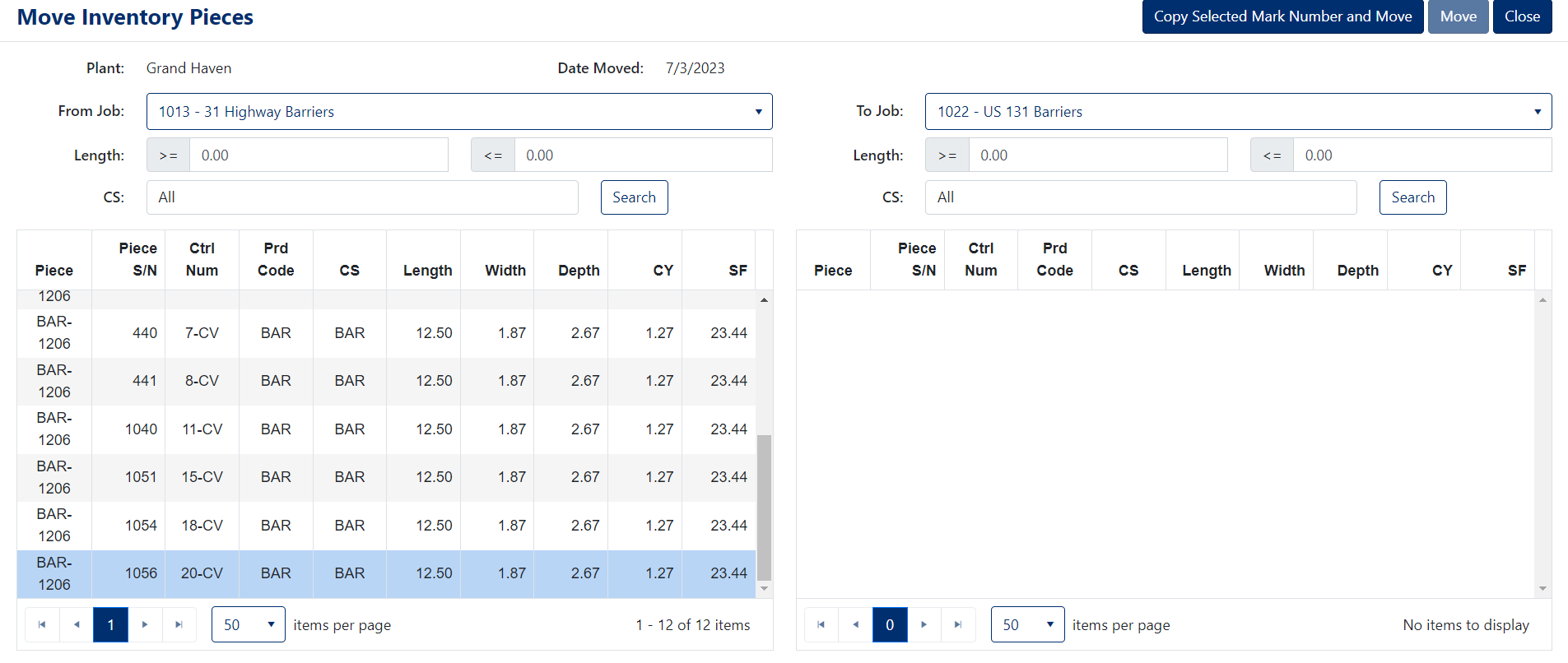
Figure 3
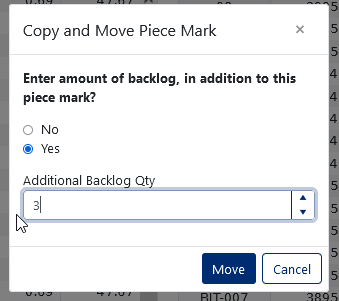
Figure 4
If a piece has validation issues, the row on that piece will have an exclamation icon, shown in Figure 5. Hovering over the icon will show why the piece can't be moved.
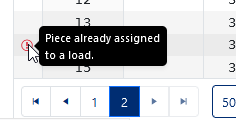
Figure 5
To transfer a piece mark to a job where the piece mark already exists, you need to go to the Engineering > View / Edit Production Pieces screen, shown in Figure 6, and increase the quantity to the number of total piece marks required.
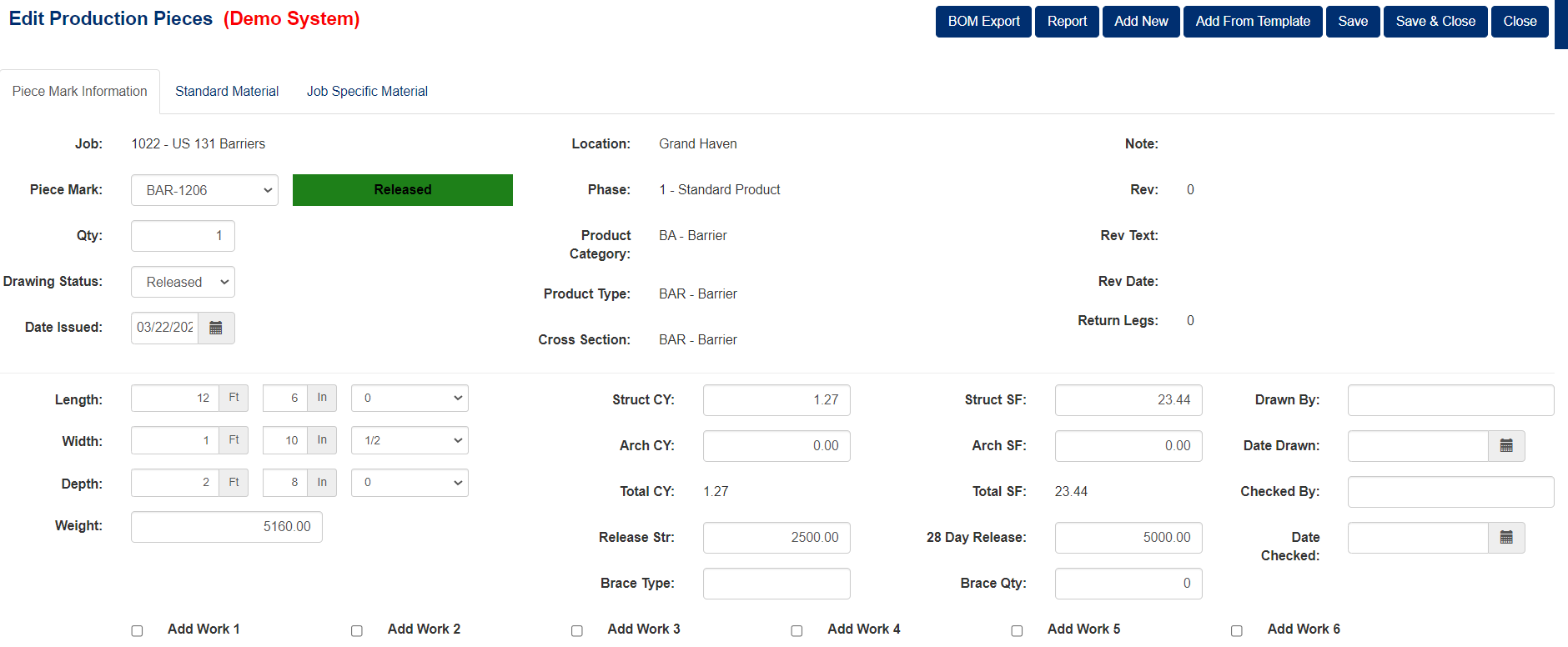
Figure 6
Then go back to the Production > Move Inventory Pieces screen, shown in Figure 7, and when you select the job to copy to on the right side, it will show additional piece marks in backlog. You can then select a piece mark on the left side and the right. Then select the Move button to move the piece mark to the new job. After clicking "Move", you will be prompted if you would like to create a replacement backlog, for the piece you are moving, as shown in Figure 8. Selecting "Yes" will create a backlog piece for the piece mark on the source/from job. NOTE: The Piece S/N will be moved to the new job.
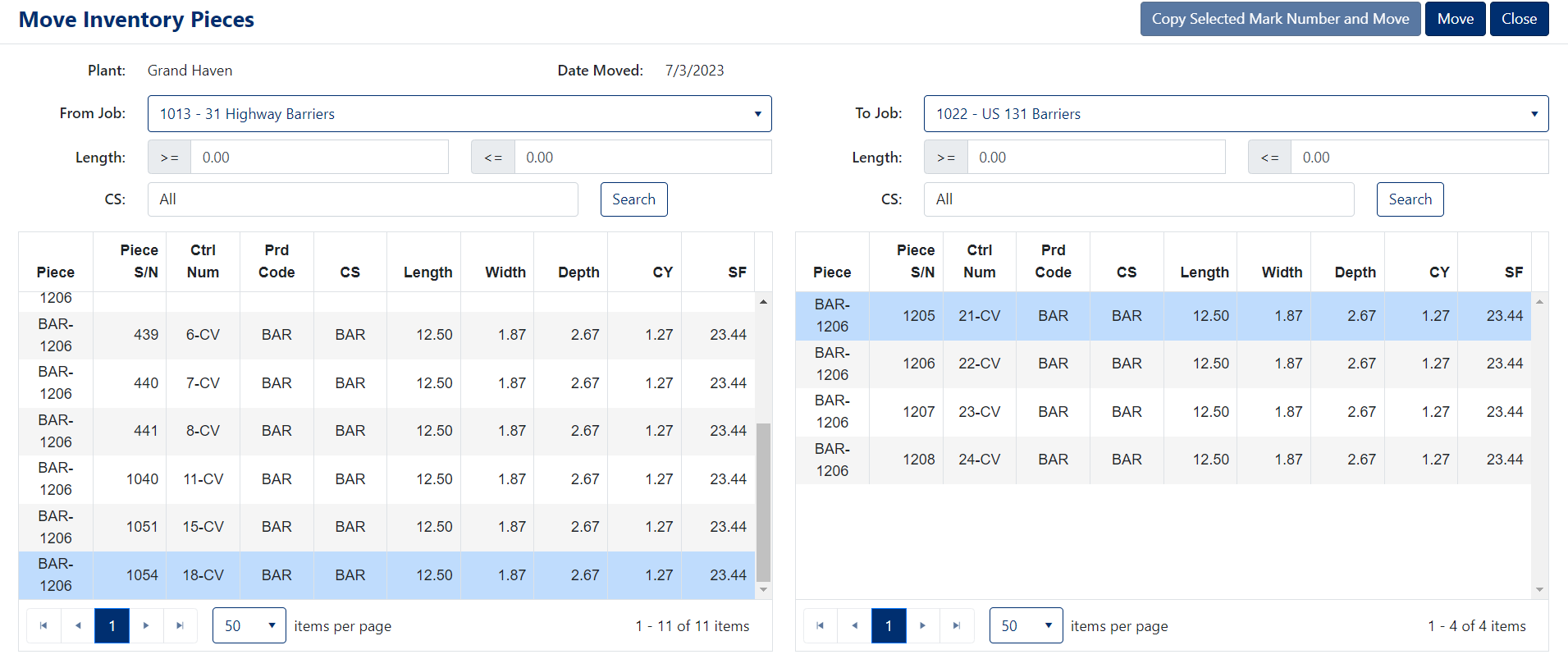
Figure 7
Note: The screen on the right only shows pieces on the job that have pieces in backlog.
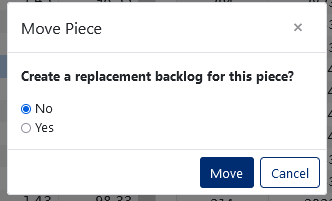
Figure 8
Note: The “Use Strict Inventory Piece Move Validation” is a flag used in the production piece move screen (Production > Move Inventory Pieces). If checked, the system will validate that the source piece (piece being moved) attributes that are equal or greater than the backlog piece being replace/moved to. For example, you can’t move an inventory piece with a width of 20” feet to a backlog piece with a width of 21 feet. The attributes it affects are Length, Width, Depth, Total SF, and Total CY.
If the flag is not set, the system will only validate that the source/destination piece marks have the same product code.
Was this article helpful?
That’s Great!
Thank you for your feedback
Sorry! We couldn't be helpful
Thank you for your feedback
Feedback sent
We appreciate your effort and will try to fix the article