Overview
The Plant Transfer process allows you to move a piece mark with its inventory from one plant to another, including any associated backlog inventory.
Prerequisites
Before initiating a plant transfer, ensure all of the following conditions are met:
| Requirement | Description |
|---|---|
| ✓ Piece Mark Status | Must have an "INVENTORY" status |
| ✓ Product Code Setup | The piece mark's product type (Product Code) must be configured under phases at the destination location |
| ✓ Scheduling Status | Pieces cannot have a "scheduled" status. Remove them from the bed before selecting them for transfer |
| ✓ Shipped Status | No pieces within the piece mark can be in shipped status. They will need to be removed from the load before they can be transferred. |
| ✓ Inventory Selection | All relevant inventory and backlog items must be selected |
| ✓ Quantity and Status | Piece mark should have quantity of 1 in inventory; all pieces within that mark must only be in either "BACKLOG" or "INVENTORY" status only. None should be marked as "shipped" |
| ✓ Job-Level Limitation | A piece mark is at the Job level, meaning the same piece mark cannot exist in multiple plants within the same job. |
Important Note: If any pieces are in "shipped" status, create a new piece mark for the inventory to be transferred.
Step-by-Step Transfer Process
1. Access the Plant Transfer Screen
Navigate to: Dispatch menu > Plant Transfer
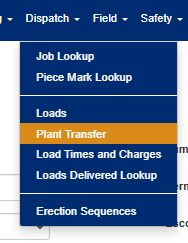
Figure 1
2. Select Transfer Details
Choose the source location i:e where you're transferring from (Green box, Figure 2)
Select the job (Green box, Figure 2)
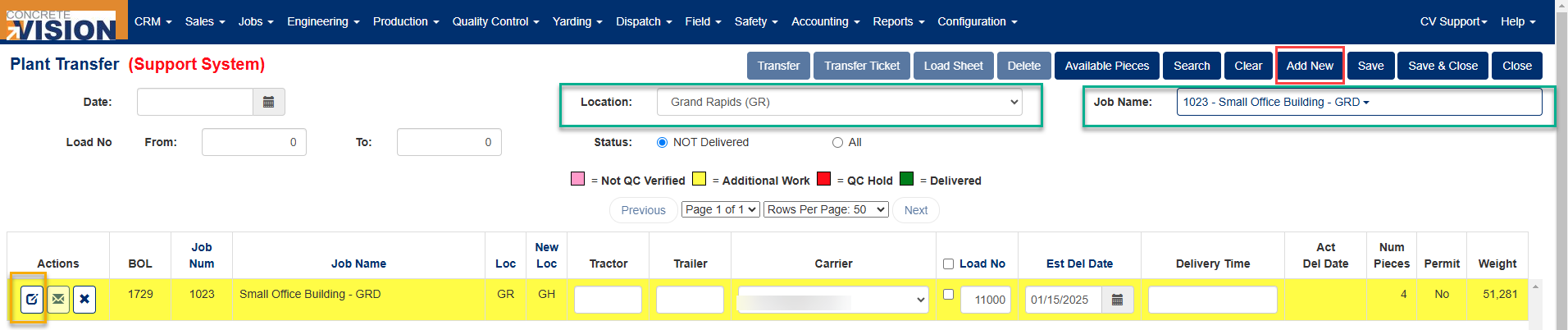 Figure 2
3. Create a New Transfer
- Click "Add New" to initiate a new load (Red box, Figure 2)
- Select the Edit icon to enter transfer details (Orange box, Figure 2)
4. Enter Required Information
Choose a Carrier (Required)
Input Tractor and Trailer numbers (Required)
Set the Estimated Delivery Date (Required)
Click "Save" or "Save & Close" to confirm details (Green box, Figure 3)
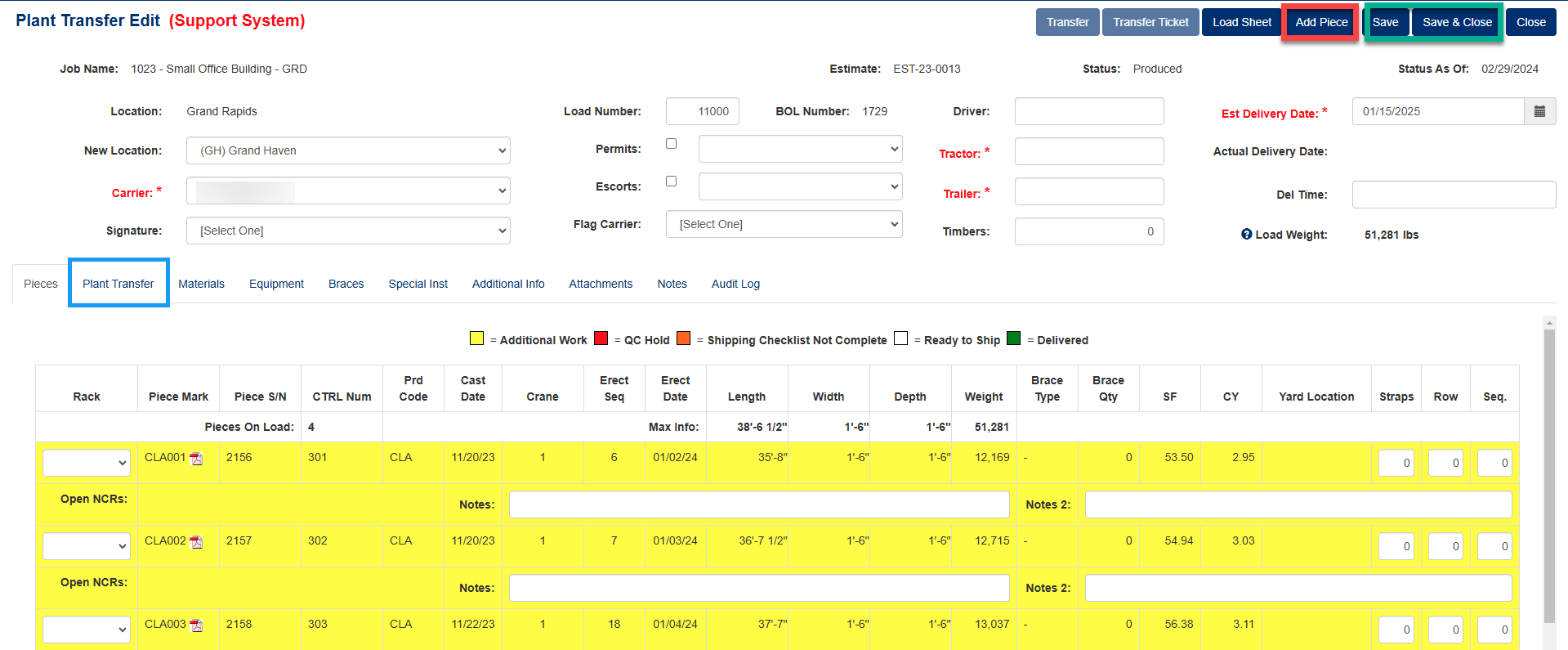 Figure 3
5. Add Pieces to the Load
Select "Add Piece" and Check the pieces (both Backlog and inventory) to include (Red box, Figure 3)
Click "Save" or "Save & Close" to finalize piece selection
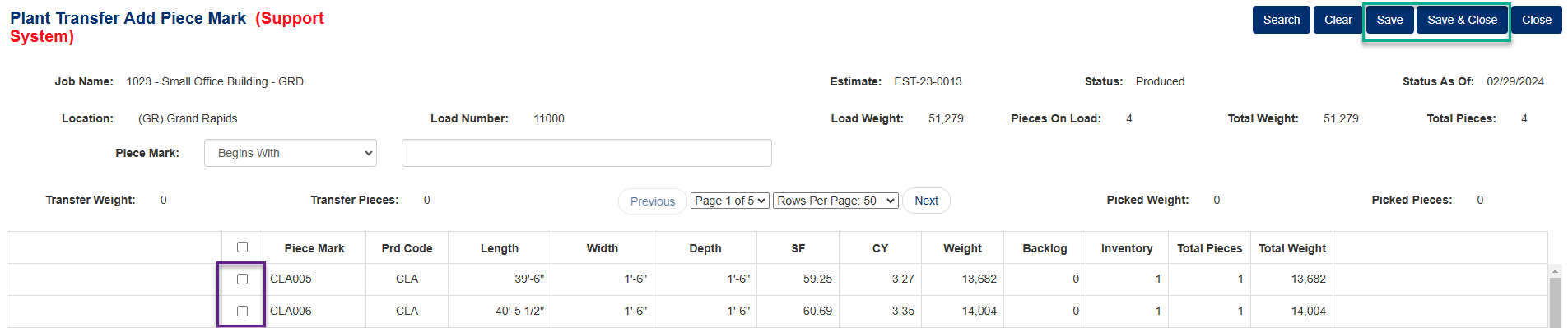 Figure 4
6. Assign the New Location
On the Transfer Edit screen, go to the "Plant Transfer" tab (Blue box, Figure 3)
Select the new destination location for the load
Specify the "Move To" field for each piece mark (Yellow box, Figure 5)
Save changes and close the page to return to the Loads screen (Green box, Figure 5)
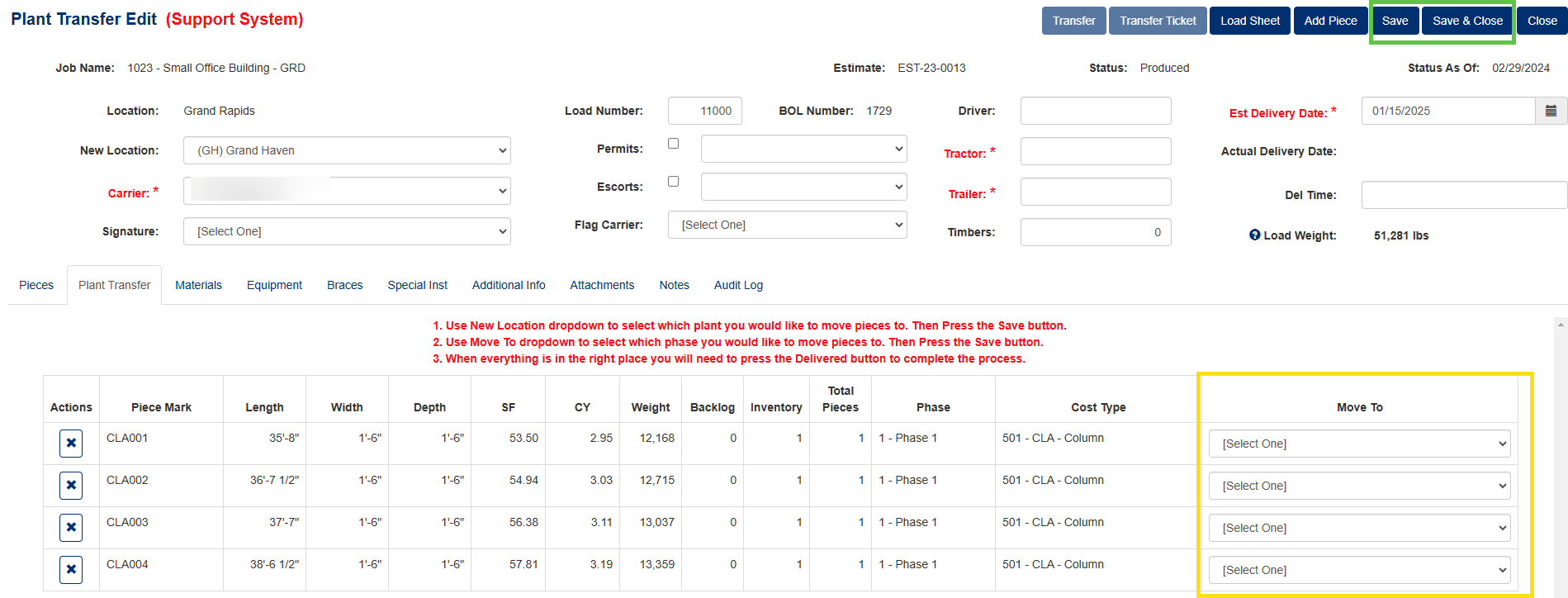 Figure 5
7. Finalize Transfer
You have two options to complete the transfer:
Option 1:
- Select the "Transfer No" checkbox of the load
- Click the "Transfer" tab at the top right of the screen
Option 2:
- Click the Edit icon of the Transfer
- Check the desired pieces
- Click "Transfer" at the top of the screen to confirm delivery
Once completed, the pieces will be transferred to the destination plant, allowing production to continue.
Was this article helpful?
That’s Great!
Thank you for your feedback
Sorry! We couldn't be helpful
Thank you for your feedback
Feedback sent
We appreciate your effort and will try to fix the article