Accessing the Loads Screen
Navigate to Dispatch > Loads from the main menu (Figure 1).
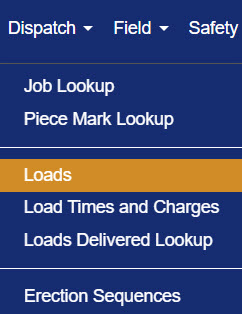
Figure 1
Understanding the Loads Screen
The Loads screen (Figure 2) is used to view, create, and manage delivery loads for jobs in Concrete Vision. Loads organize which pieces are being delivered, when, and by which carrier.
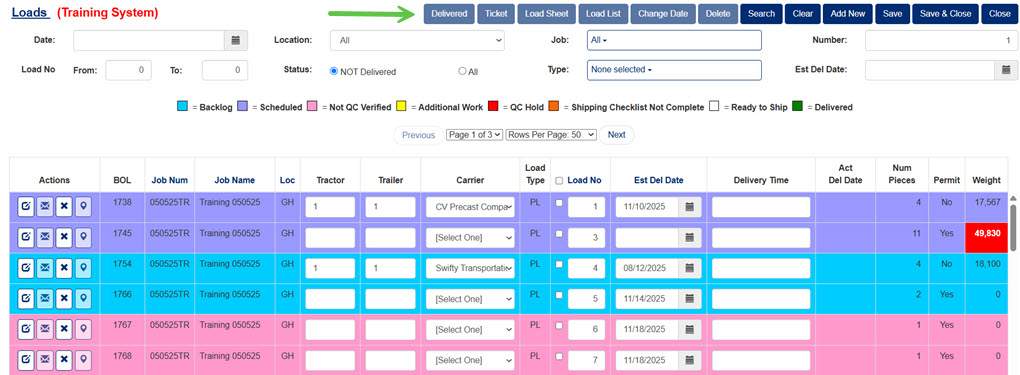 Figure 2
Loads Screen Button Key
Across the top right of the Loads screen is a row of blue buttons (green arrow in Figure 2):
- Delivered: This button marks selected loads as delivered.
- Delivery Ticket: This button generates the Bill of Lading issued by a carrier to a shipper.
- Load Sheet: This button generates a report / pick list of delivery details, pieces & their yard locations, loose materials to include, and special instructions for selected loads.
- Load List
- Change Date
- Delete: This button removes selected loads.
- Search: This button uses the selected filter parameters to search loads.
- Clear: This button clears selected filter parameters.
- Add New: This button adds a new load to the load table
- Save: This button saves any changes made on the Loads screen.
- Save & Close: This button saves any changes and closes the Loads screen.
- Close: This button closes the Loads screen.
Note: In order to use the following buttons, applicable loads must be selected by checking the loads' check boxes in the loads column. Only loads with pieces on them can be selected for these actions.
- Delivered
- Delivery Ticket
- Load Sheet
- Load List
- Change Date
- Delete
View & Sort Loads
On the Loads screen, a list of all jobs and their corresponding loads displays by default. A color key above the table headings provides further information about a load, such as any issues preventing it from being delivered.
The currently selected heading to sort by will have the sort by icon next to it ( ).
).
- Click any of the headings (orange box in Figure 3) to sort the table by that headings category.
- Click the same heading again to change the sort by function to be descending instead of the default ascending.
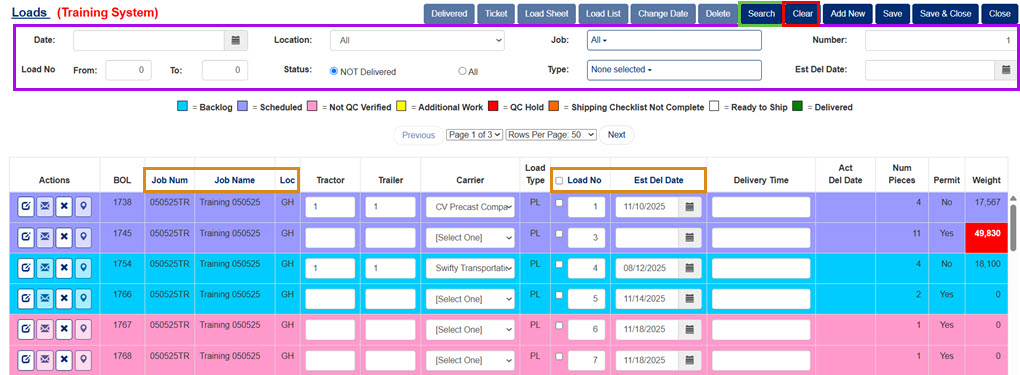
Figure 3
Filter to Find Specific Loads
Note: Searching and clearing the filter leaves the current screen, so save all changes before completing one of these actions.
- Use any of the input fields for the filter at the top of the screen (purple box in Figure 3).
- Enter, change, and select any of the inputs/items to obtain specific results or fewer.
- To clear/reset a current filter, click the Clear button (red box in Figure 3).
- To re-generate the table using the filter, click the Search button (green box in Figure 3)
Using the Loads Screen
Edit Information in Loads Table
To edit information in the loads table displayed on the Loads screen:
- Adjust any of the editable input fields.
- Click the Save button (green arrow in Figure 4) to save changes, or click the Save & Close button (red arrow in Figure 4) to save changes and return to the main menu.
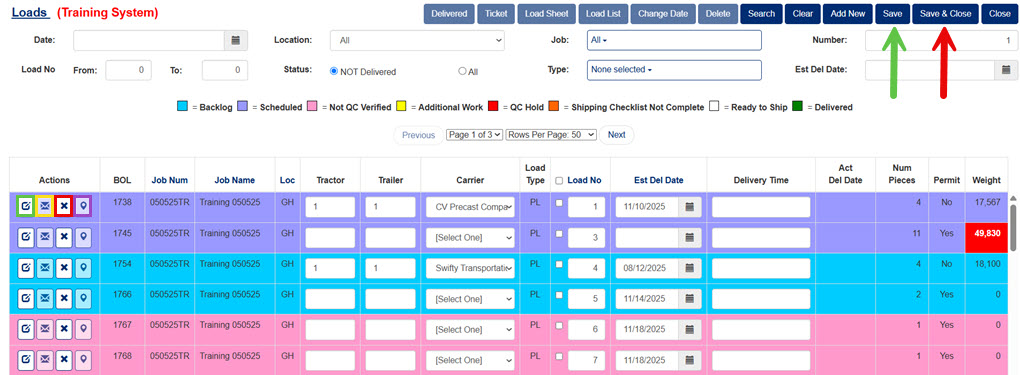
Figure 4
View Load Location
Click the Places icon (purple box in Figure 4) beside a scheduled load to view the location of a load in google maps.
Delete a Load
Click the Delete icon (red box in Figure 4) beside a scheduled load to delete the load.
Mark a Load as Delivered.
Click the Envelope icon (yellow box in Figure 4) beside a load to mark it as delivered. Only loads that have no piece problems listed in key may be marked as delivered and emails sent. If the Envelope icon is greyed out, the load does not meet all the qualifications needed to be marked as delivered.
Add a New Load / Create a Load
To add a new load from the Loads screen:
- Choose a location, job, and type in the filter (purple box in Figure 3).
- Click the Add New button.
Click Here for a detailed article on How to Create a Load.
Edit a Load
From the Loads screen, click the Edit button (green box in Figure 4) to edit an individual load's details and pieces. The Loads - Edit screen will appear (Figure 5).
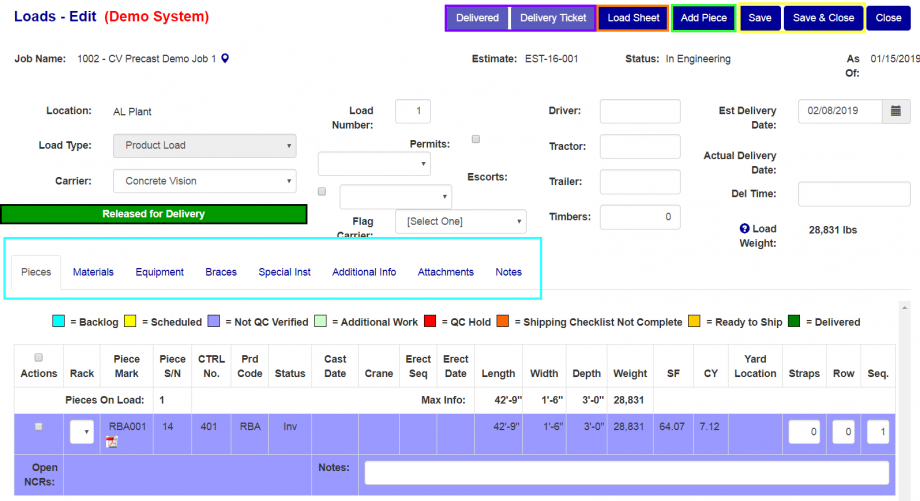
Figure 5
Loads - Edit Screen Button Key
Across the top right of the Loads -Edit screen is a row of blue buttons:
- Delivered: This button marks the load as delivered.
- Delivery Ticket: This button generates the Bill of Lading issued by a carrier to a shipper.
- Load Sheet: This button generates a report of delivery details, pieces & their yard locations, loose materials to include, and special instructions for the load.
- Add Piece: This button adds a new piece to the load.
- Save: This button saves any changes made on the Loads - Edit screen.
- Save & Close: This button saves any changes and returns to the Loads screen.
Remove Piece(s) from a Load
To remove pieces from the Loads - Edit screen:
- Check the box of all the pieces on the Pieces tab to remove from the load.
- Click the Save button or Save & Close button. The pieces will drop from the Pieces tab.
Add Piece(s) to a Load
To add pieces to the load from the Loads - Edit screen:
- Click on the Add Piece button (green box in Figure 5). The Add piece(s) screen (Figure 6) will appear.
- Check the box(es) beside the piece(s) to be added to the load (pink box in Figure 6).
- Click the Save button or Save & Close button (green box in Figure 6).
- Click the Okay button in the popup box to confirm adding the piece(s).
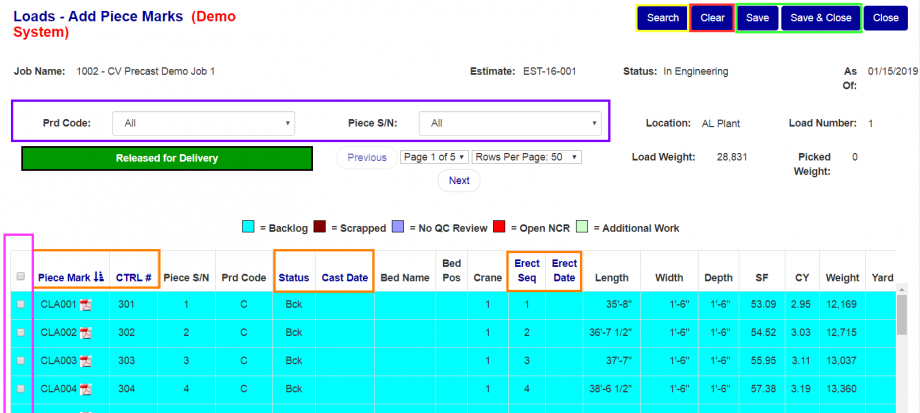
Figure 6
Sorting & Filtering the Loads - Add Piece Marks Screen
On the Loads - Add Piece Marks screen:
- Sort the pieces table by clicking on the column headings (orange boxes in Figure 6).
- Filter the pieces table by using the top field inputs (purple box in Figure 6) and the Search button (yellow box in Figure 6) and Clear button (red box in Figure 6).

Figure 7
Materials Tab
On the Materials tab (Figure 7), add, edit, and delete material pertaining to the load.
- Add Material: Fill out the top fields of the table. Click the "+" button (green box in Figure 7).
- Edit Materials: Adjust the fields in the row of details to edit. Click the Save button or Save & Close button.
- Delete Materials: Click the "X" button (red box in Figure 7) beside the material to delete. Click the Okay button in the popup window to confirm the deletion.
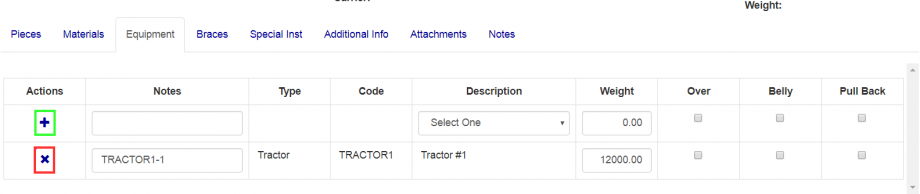
Figure 8
Equipment Tab
On the Equipment tab (Figure 8), add, edit, and delete equipment pertaining to the load.
- Add Equipment: Fill out the top fields of the table. Click the "+" button (green box in Figure 8).
- Edit Equipment: Adjust the fields in the row of details to edit. Click the Save button or Save & Close button.
- Delete Equipment: Click the "X" button (red box in Figure 8) beside the equipment to delete. Click the Okay button in the popup window to confirm the deletion.

Figure 9
Braces Tab
On the Braces tab (Figure 9), add, edit, and delete braces pertaining to the load.
- Add Braces: Fill out the top fields of the table. Click the "+" button (green box in Figure 9).
- Edit Braces: Adjust the fields in the row of details to edit. Click the Save button or Save & Close button.
- Delete Braces: Click the "X" button (red box in Figure 9) beside the braces to delete. Click the Okay button in the popup window to confirm the deletion.
Note: The weight will be automatically filled by choosing the braces selector but can be adjusted manually afterwards.
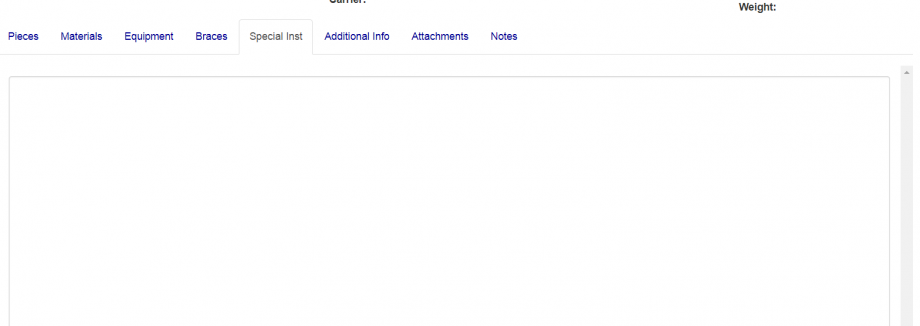
Figure 10
Special Instructions Tab
The special instructions tab (Figure 10) includes a large text box to input any special instructions for the load.
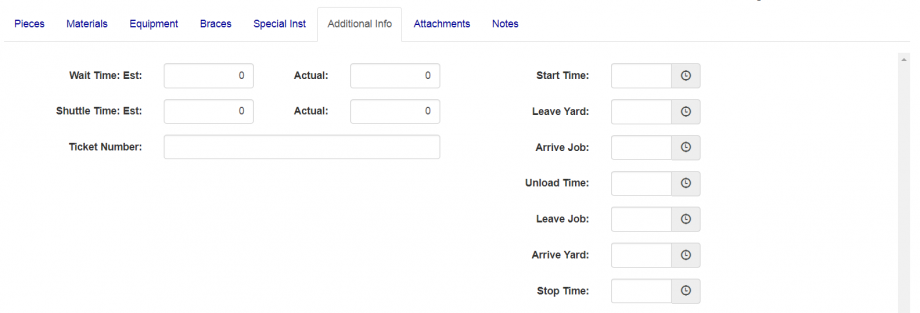
Figure 11
Additional Info Tab
To add any additional information for the load, fill out any of the available fields (Figure 11). Click the Save button or the Save & Close button to save changes.
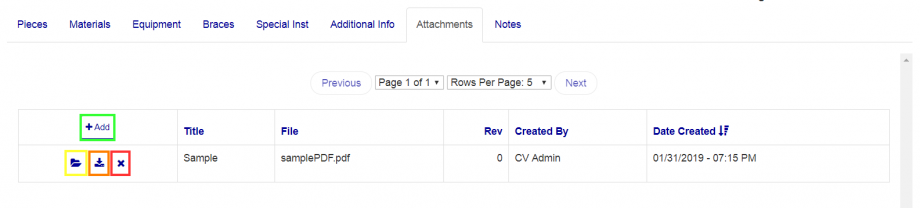
Figure 12
Attachments
On the Attachments tab (Figure 12), add, view, download, and delete attachments pertaining to the load.
- Add Attachments: Click the +Add button (green box in Figure 12). Fill out the information on the modal window that opens. Confirm the upload on the modal to add the attachment.
- View Attachments: Click the corresponding Folder icon (yellow box in Figure 12) of the attachment.
- Download Attachments: Click the corresponding Download icon (orange box of Figure 12) of the attacment.
- Delete Attachments: Click the "X" button (red box in Figure 12) beside the attachment to delete. Click the Okay button in the popup window to confirm the deletion.
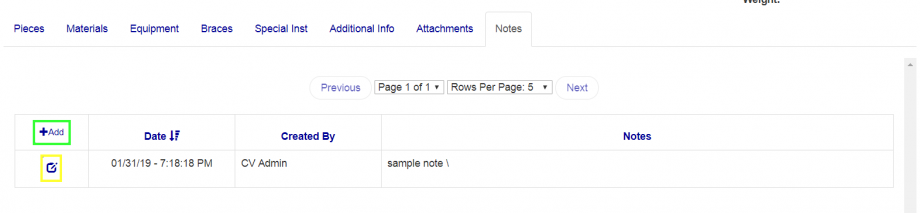
Figure 13
Notes
On the Notes tab (Figure 13), add and edit notes pertaining to the load.
- Add Note: Click the +Add button (green box in Figure 13). Enter text in the popup text window. Click the Save button in the popup window.
- Edit Note: Click the Edit icon (yellow box in Figure 13) beside the note to edit. Make changes. Click the Save button in the popup window.
Note: Notes cannot be deleted.
Was this article helpful?
That’s Great!
Thank you for your feedback
Sorry! We couldn't be helpful
Thank you for your feedback
Feedback sent
We appreciate your effort and will try to fix the article