Overview
The Load Time and Charges screen is used to review and update the trip times and trucking charges for the loads on a job. From a single grid, you can enter invoice numbers, driver and equipment details, permit, escort, toll, detention, and other charges for many loads at once, and you can recalculate rates and fuel surcharges based on the job's trucking PO or the carrier's rate setup.
Each load can also be opened in the Load Time and Charges – Edit screen, where you can enter the full set of trip time stamps, review detention time against the carrier's allowance, and add attachments and notes to the load.
Note: A job must be selected before any loads are displayed. The Update, Save, and Save & Close buttons remain disabled until a job is selected.
Accessing the Screen
From the main menu, navigate to Dispatch > Load Time and Charges (Figure 1). The Load Time and Charges screen will open (Figure 2).
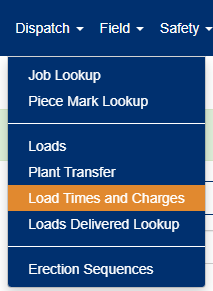
Figure 1
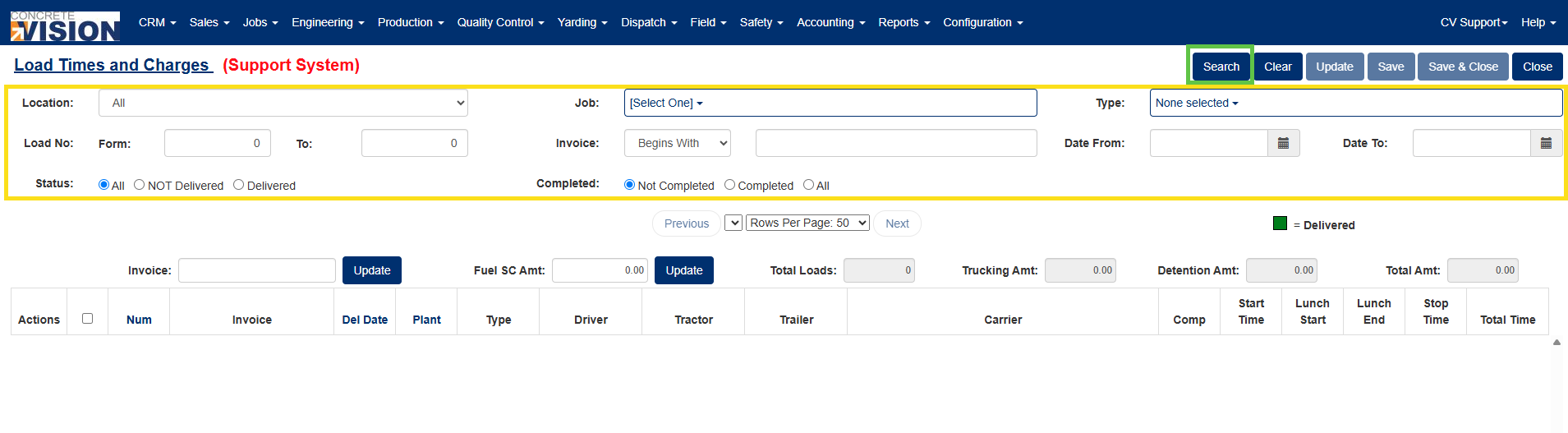
Figure 2
Searching for Loads
Use the filter fields at the top of the screen to find the loads you want to work with (Yellow box, Figure 2).
- Select a Location from the dropdown. Select All to include every location.
- Select a Job from the dropdown. The job list displays the jobs for the selected location. You can type in the dropdown to filter the list.
- Enter any additional filter criteria as needed (see the Filter Reference table below).
- Click the Search button (green box, Figure 2).
The loads matching your criteria will display in the grid.
Tip: Click Clear to reset all filters to their defaults.
Filter Reference
| Filter | Description |
|---|---|
| Location | The plant location the loads ship from. Select All to include every location. |
| Job | The job whose loads you want to view. Required. |
| Load No From / To | Limits results to a range of load numbers. Leave as 0 to include all load numbers. |
| Status | All, NOT Delivered, or Delivered. |
| Invoice | Searches by invoice number. Choose Begins With, Contains, Equals, or Ends With, then enter the invoice text. |
| Completed | Not Completed, Completed, or All. Defaults to Not Completed when the screen first opens. |
| Type | One or more load types. Use Select All to include every type. |
| Date From / To | Limits results to a range of delivery dates. Loads that have not been delivered are filtered by their estimated delivery date. |
Understanding the Load Grid
Each load is displayed on two rows in the grid (Figure 3).
The first row shows the load's general information, including the load number, invoice, delivery date, driver, equipment, carrier, completed status, and trip times (Blue box, Figure 3). Load numbers shaded in the Delivered color (Red arrow, Figure 3) indicate loads that have been delivered.
The second row shows the load's charges, including the rate details (when a rate type is assigned), the individual charge amounts, and the load total (Orange box, Figure 3).
Note: Loads that you are not permitted to edit display with their fields grayed out.
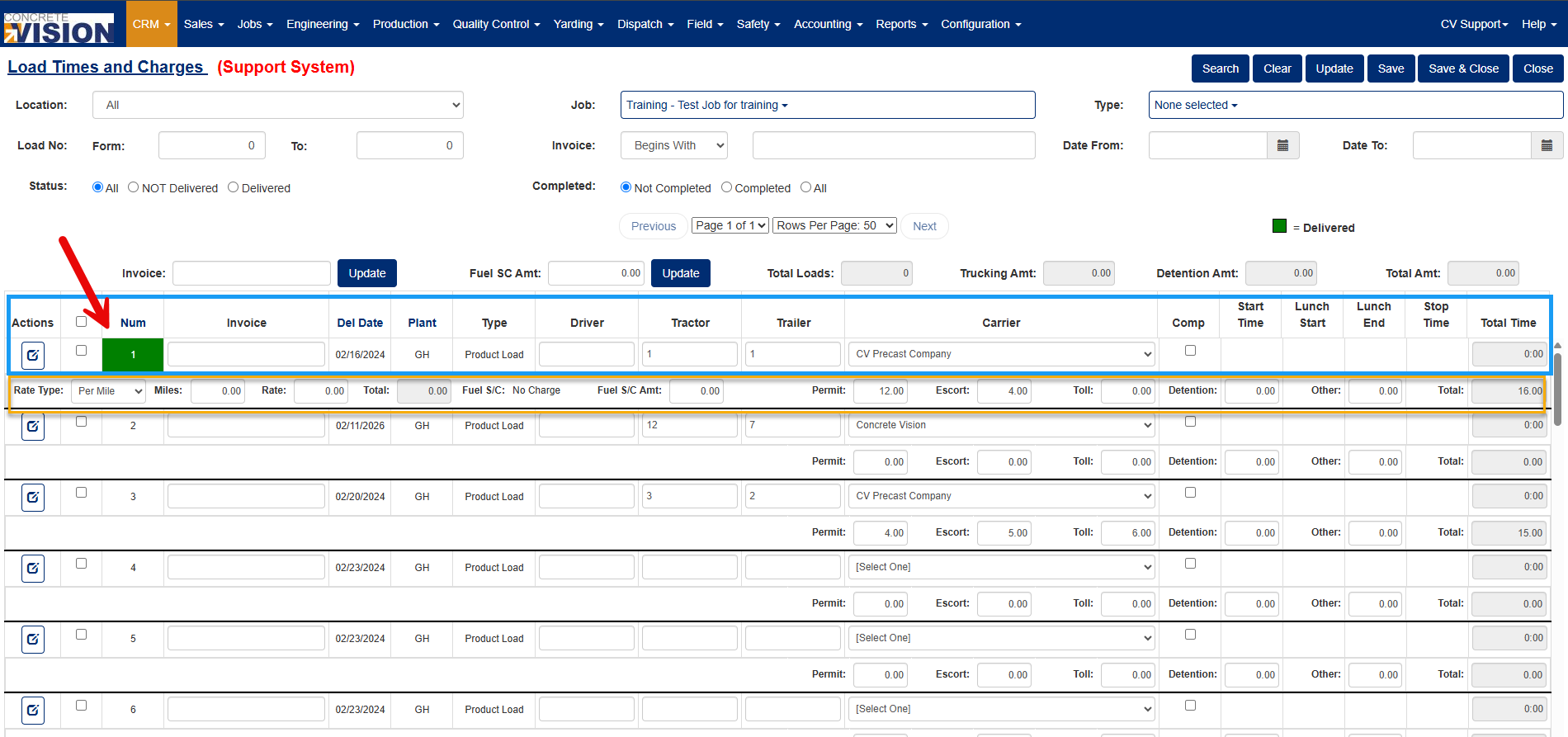
Figure 3
Load Row Columns
| Column | Description |
|---|---|
| Actions | Contains the Edit button, which opens the load in the Load Time and Charges – Edit screen. |
| Checkbox | Selects the load for bulk updates and summary totals. Use the checkbox in the column header to select all loads. |
| No | The load number. Sortable. |
| Invoice | The invoice number for the load. Editable. |
| Del Date | The actual delivery date, or the estimated delivery date if the load has not been delivered. Sortable. |
| Plant | The plant location of the load. |
| Type | The load type. |
| Driver | The driver's name. Editable. |
| Tractor | The tractor identifier. Editable. |
| Trailer | The trailer identifier. Editable. |
| Carrier | The carrier for the load. Editable. |
| Comp | Indicates the load's time and charges are complete. Editable. |
| Start Time | The date and time the trip started. |
| Lunch Start | The date and time the driver's lunch break started. |
| Lunch End | The date and time the driver's lunch break ended. |
| Stop Time | The date and time the trip ended. |
| Total Time | The trip time from start to stop, minus the lunch break, in hours and minutes. |
Charges Row Fields
| Field | Description |
|---|---|
| Rate Type | Per Mile, Flat Rate, or Hourly. Displays only when a rate type is assigned to the load. |
| Miles | The trip mileage. Used for Per Mile rates and some fuel surcharge calculations. |
| Rate | The rate amount for the selected rate type. |
| Total | The calculated trucking cost (read-only). See the Rate Calculation Reference below. |
| Fuel S/C | The fuel surcharge method assigned to the load (read-only): No Charge, Percentage, Base Differential, or Fixed Per Mile. |
| Fuel S/C Amt | The fuel surcharge amount. |
| Permit | Permit charges for the load. |
| Escort | Escort charges for the load. |
| Toll | Toll charges for the load. |
| Detention | Detention charges for the load. |
| Other | Any other charges for the load. |
| Total | The total of all charges for the load (read-only). |
Rate Calculation Reference
| Rate Type | How the Total Is Calculated |
|---|---|
| Per Mile | Miles × Rate |
| Flat Rate | Rate |
| Hourly | Rate × Total Time (in hours) |
The load Total is the rate total plus the Fuel S/C Amt, Permit, Escort, Toll, Detention, and Other amounts.
Editing Loads in the Grid
- Search for the loads you want to update (see Searching for Loads above).
- Enter or change the values in the editable fields of each load (red and orange boxes in Figure 3). Totals recalculate as you leave each field.
- Click Save to save your changes, or Save & Close to save and return to the main menu.
Note: Save saves the changes on every editable load displayed on the page, not only the loads that are checked.
Updating Multiple Loads at Once
The summary bar above the grid (blue box in Figure 3) lets you apply an invoice number or fuel surcharge amount to several loads at once and shows running totals for the selected loads.
Applying an Invoice Number
- Check the boxes next to the loads to update.
- Enter the invoice number in the Invoice field in the summary bar.
- Click the Update button next to the Invoice field. The invoice number is copied to each selected load.
- Click Save to save the changes.
Applying a Fuel Surcharge Amount
- Check the boxes next to the loads to update.
- Enter the amount in the Fuel SC Amt field in the summary bar.
- Click the Update button next to the Fuel SC Amt field. The amount is applied to each selected load that has a rate type assigned.
- Click Save to save the changes.
Note: The summary bar Update buttons change the values on screen only. The changes are not saved until you click Save or Save & Close.
Summary Totals
The summary totals update as you check and uncheck loads.
| Field | Description |
|---|---|
| Total Loads | The number of loads selected. |
| Trucking Amt | The total of the rate total, fuel surcharge, permit, escort, and toll amounts for the selected loads. |
| Detention Amt | The total of the detention and other amounts for the selected loads. |
| Total Amt | The total of all charges for the selected loads. |
Recalculating Rates and Fuel Surcharges
The Update button at the top of the screen recalculates the rate type, miles, rate, fuel surcharge type, and fuel surcharge amount for the selected loads.
- Check the boxes next to the loads to recalculate.
- Click the Update button at the top of the screen.
- A confirmation dialog will display: "The selected loads will have the following information updated: rate type, miles, rate, fuel surcharge type and fuel surcharge amount. Do you wish to continue?" Click OK to continue, or Cancel to stop.
The rates are applied using the first match found in the following order:
- The job's trucking PO for the load's location and carrier.
- The carrier's rate for the load's location.
- The carrier's rate for all locations.
The fuel surcharge is applied using the fuel surcharge in effect on the load's delivery date, using the first match found in the following order:
- The fuel surcharge for the load's location and carrier.
- The fuel surcharge for the load's location and all carriers.
- The fuel surcharge for all locations and all carriers.
Warning: Save any other changes before clicking Update. Unsaved changes to invoice numbers, drivers, equipment, or charges will be lost when the rates are recalculated.
Editing a Single Load
Click the Edit button in the Actions column next to a load to open the Load Time and Charges – Edit screen (Figure 4).
The top of the screen displays the job information and the load's No, Delivery Date, Plant, Load Type, and Delivered status. Below this, you can edit the load's Invoice, Carrier, Driver, Tractor, Trailer, and Completed status.
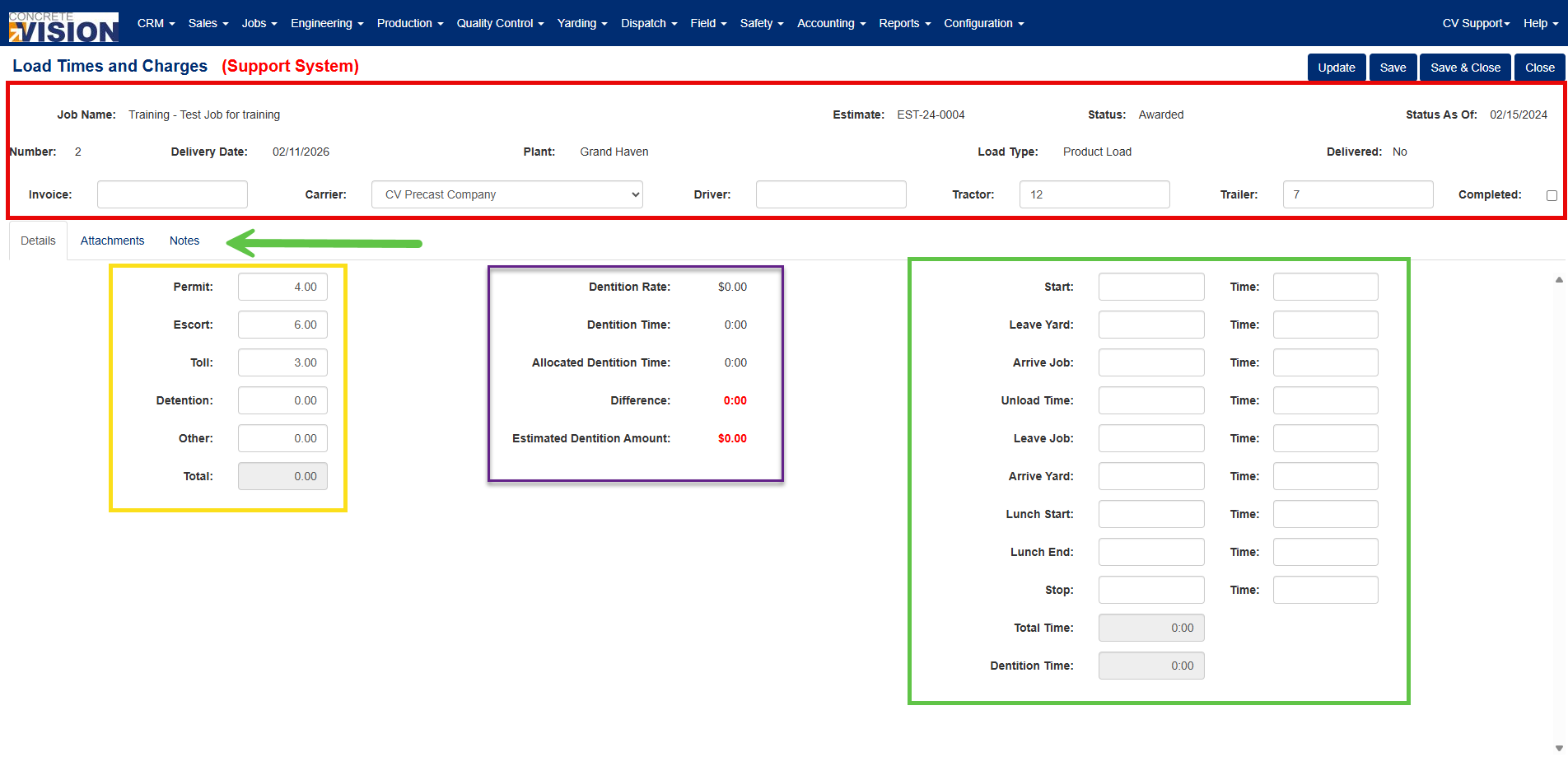
Figure 4
The screen has three tabs (Green arrow, Figure 4):
- Details – The load's charges, detention information, and trip time stamps.
- Attachments – Upload and manage files attached to the load.
- Notes – Add and review notes for the load.
Entering Trip Times
- On the Details tab, select the Start date and enter the start time.
- Enter the date and time for each remaining trip event (see the Trip Time Stamps table below).
- Review the Total Time and Detention Time fields.
- Click Save.
Tip: When you select the Start date, it is automatically copied to all of the other date fields. Change any individual dates as needed, such as for overnight trips.
Trip Time Stamps
| Field | Description |
|---|---|
| Start | The date and time the driver's trip started. |
| Leave Yard | The date and time the truck left the yard. |
| Arrive Job | The date and time the truck arrived at the job site. |
| Unload | The date and time unloading began. |
| Leave Job | The date and time the truck left the job site. |
| Arrive Yard | The date and time the truck returned to the yard. |
| Lunch Start | The date and time the driver's lunch break started. |
| Lunch End | The date and time the driver's lunch break ended. |
| Stop | The date and time the driver's trip ended. |
| Total Time | The time from Start to Stop, minus the lunch break (read-only). |
| Detention Time | The time from Arrive Job to Leave Job (read-only). |
Editing Charges
- On the Details tab, enter or change the rate and charge amounts (Yellow box, Figure 4). The Total fields recalculate as you leave each field.
- Click Save.
The charge fields and calculations are the same as in the grid. See the Charges Row Fields and Rate Calculation Reference tables above.
To recalculate the rate and fuel surcharge for this load from the trucking PO or carrier rate setup, click Update and click OK in the confirmation dialog. The same lookup order described in Recalculating Rates and Fuel Surcharges is used. If the load has no delivery date, the current date is used to find the fuel surcharge.
Reviewing Detention
The detention information on the Details tab (Purple box, Figure 4) helps you determine whether detention charges apply to the load. These fields are for reference only and do not update the Detention charge automatically.
| Field | Description |
|---|---|
| Detention Rate | The hourly detention rate from the job's trucking PO or the carrier's rate setup. |
| Detention Time | The actual time spent on site, from Arrive Job to Leave Job. |
| Allocated Detention Time | The amount of on-site time allowed before detention charges apply. |
| Difference | The time spent on site beyond the allocated detention time. Displays in bold red when the allowance is exceeded. |
| Estimated Detention Amount | The Detention Rate multiplied by the Difference, in hours. |
Note: If the estimated detention amount should be charged, enter it in the Detention field and click Save.
Adding Attachments and Notes
- Click the Attachments tab to upload files to the load, such as delivery tickets or receipts.
- Click the Notes tab to add notes about the load.
Button Reference
Load Time and Charges Screen
| Button | Description |
|---|---|
| Search | Displays the loads that match the filter criteria. |
| Clear | Resets all filters to their defaults. |
| Update | Recalculates the rate type, miles, rate, fuel surcharge type, and fuel surcharge amount for the selected loads. |
| Save | Saves changes to all editable loads on the page. |
| Save & Close | Saves changes and returns to the main menu. |
| Close | Returns to the main menu without saving. |
| Update (Invoice) | Copies the summary bar invoice number to the selected loads. |
| Update (Fuel SC Amt) | Copies the summary bar fuel surcharge amount to the selected loads that have a rate type. |
| Edit | Opens the load in the Load Time and Charges – Edit screen. |
Load Time and Charges – Edit Screen
| Button | Description |
|---|---|
| Update | Recalculates the rate type, miles, rate, fuel surcharge type, and fuel surcharge amount for the load. |
| Save | Saves changes to the load. |
| Save & Close | Saves changes and returns to the Load Time and Charges screen. |
| Close | Returns to the Load Time and Charges screen without saving. |
Was this article helpful?
That’s Great!
Thank you for your feedback
Sorry! We couldn't be helpful
Thank you for your feedback
Feedback sent
We appreciate your effort and will try to fix the article