The Load Type Setup screen allows you to view, modify and export Load Types (see Figure 2)
To access the Load Type Setup screen, use the Configuration tab on the main menu at the top of the screen, then click on Dispatch Setup > Load Type Setup (see Figure 1).
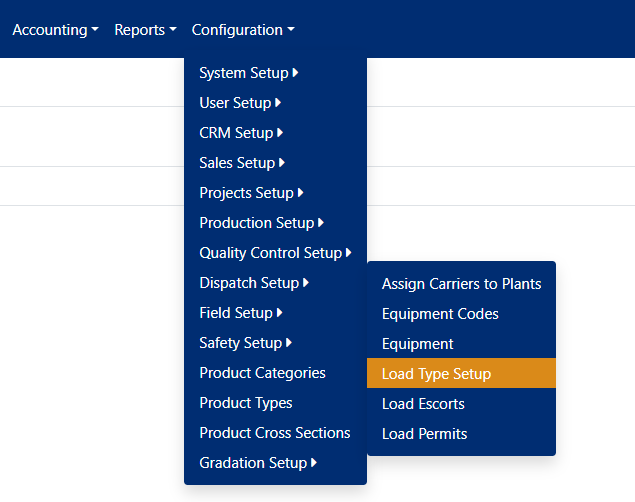 Figure 1
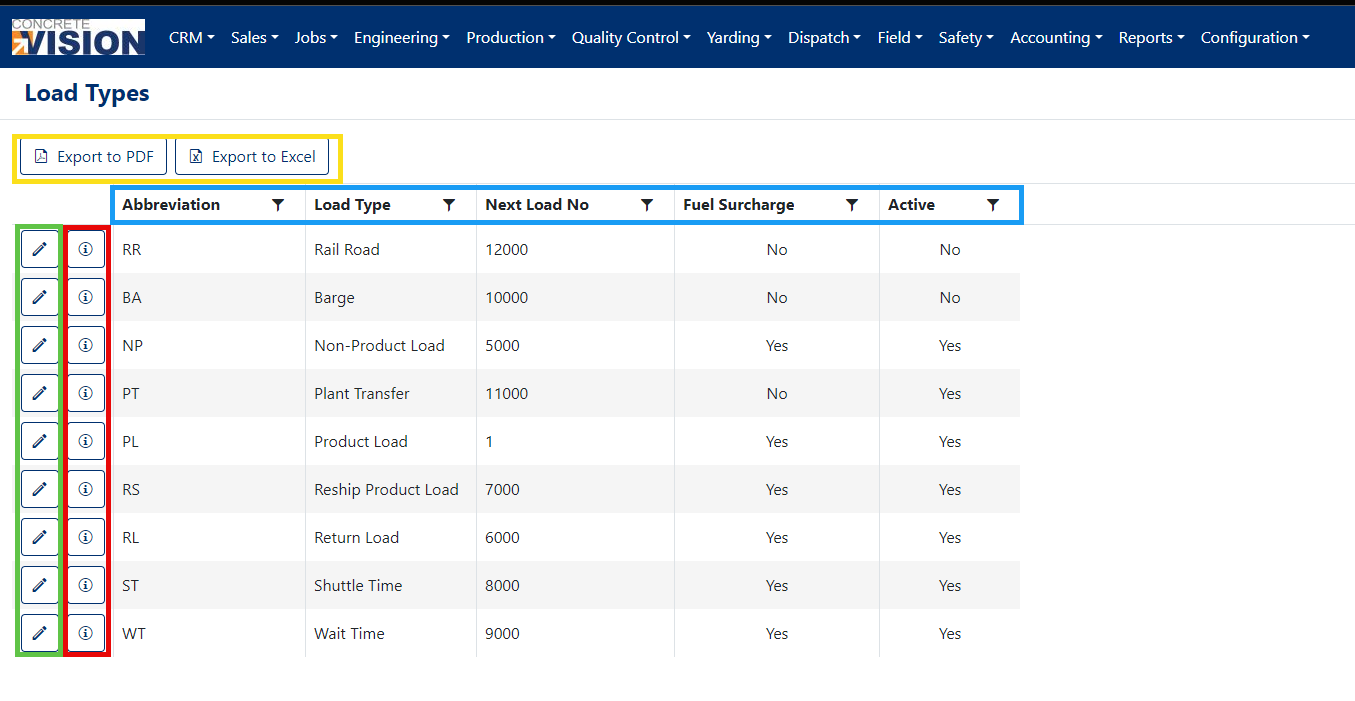
Figure 2
**Load Types are pre-loaded, so you are only able to Edit. If you wish to add a new Load Type, please submit a ticket.
Sorting and Filtering Load Types
- Click any of the headings (Blue box in Figure 2) to change the sort by that headings category.
- Click the same heading again to change the sort by function to be descending instead of the default ascending.
- To filter the results, click the filter icon next to the heading category (Blue box in Figure 2) to open the filtering options box
- Click on the filter icon on the grid column header (Green box in Figure 3) to filter Load Types by entering a searchable phrase.
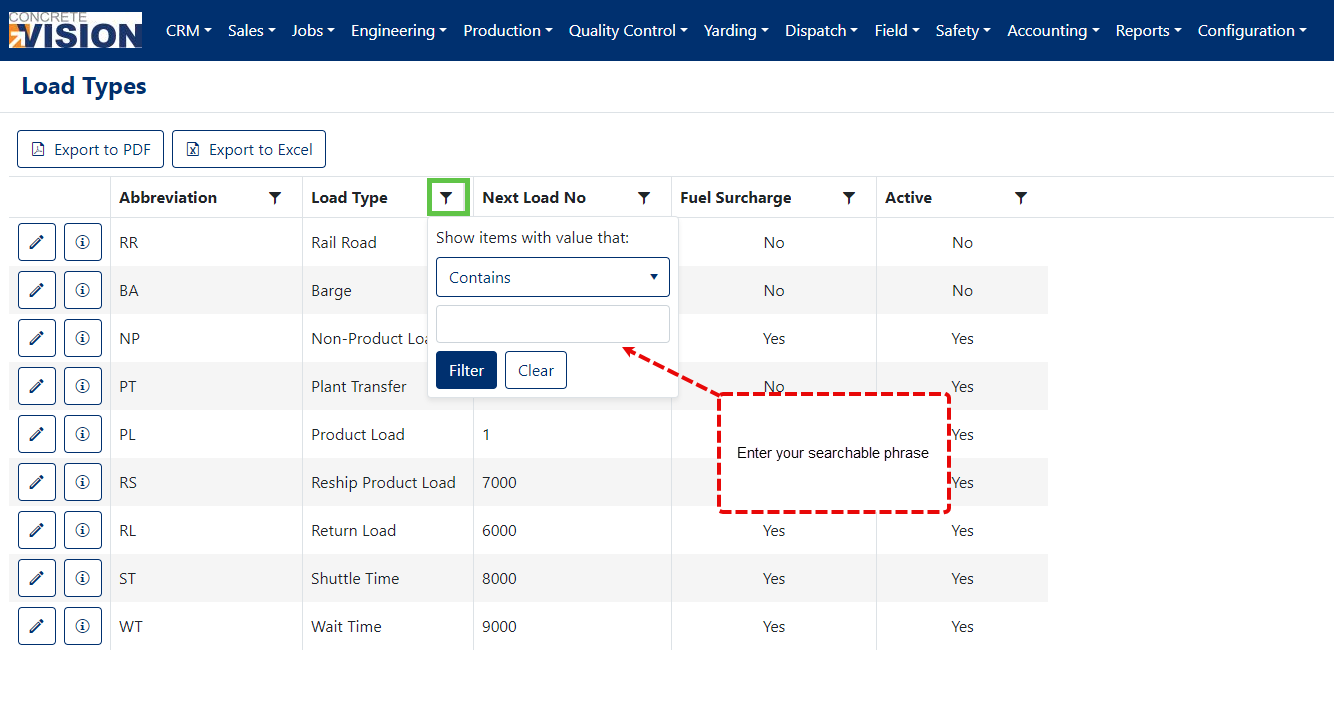
Figure 3
Editing a Load Type
Click on the pen icon (Green box in Figure 2) to open the Edit Modal window (see Figure 4)
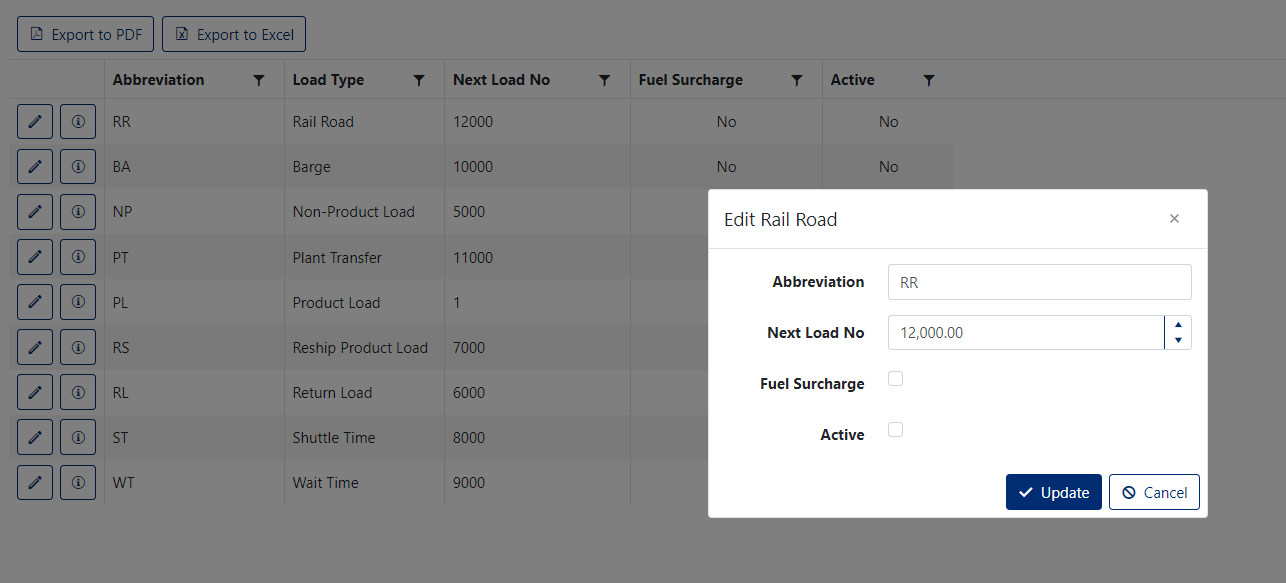 Figure 4
- Modify the Abbreviation for the Load Type. (Required Max Length 8)
- Modify the Next Load No for the Load Type. (Required)
- Set the Load Type to either require a Fuel Surcharge or not.
- Set the Load Type as Active or Inactive.
- Click on the [ √ update ] to add the changes to the Load Type.
Clicking on the information icon (Red box in Figure 2) will bring up potentially pertinent information about when the Load Type was created and modified (see Figure 5).
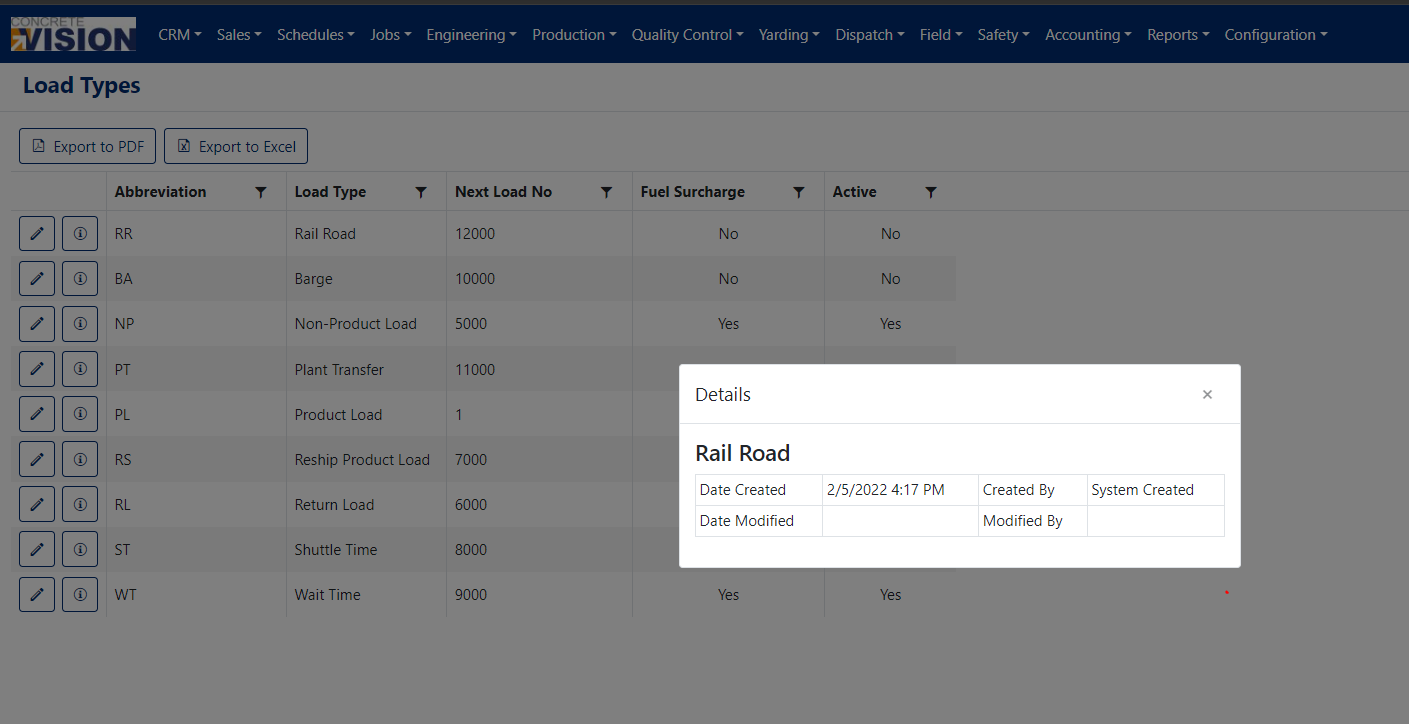
Figure 5
Exporting Load Types
- The "Export to PDF" and "Export to Excel" buttons at the top of the grid (Yellow box in Figure 2) will export the grid to a PDF file, or Excel file respectively.
Was this article helpful?
That’s Great!
Thank you for your feedback
Sorry! We couldn't be helpful
Thank you for your feedback
Feedback sent
We appreciate your effort and will try to fix the article