Overview
Equipment Codes allow you to define and manage the types of equipment used in your dispatch operations. These codes are used throughout the system to categorize and track equipment such as trucks, trailers, pumps, and other dispatch-related assets.
Accessing Equipment Codes
Navigate to: Configuration menu → Dispatch Setup → Equipment Codes (see Figure 1)
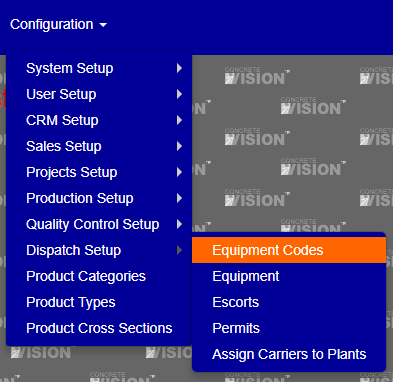
Figure 1
The Equipment Codes screen displays a list of all existing equipment codes with options to add, edit, or delete records (see Figure 2).
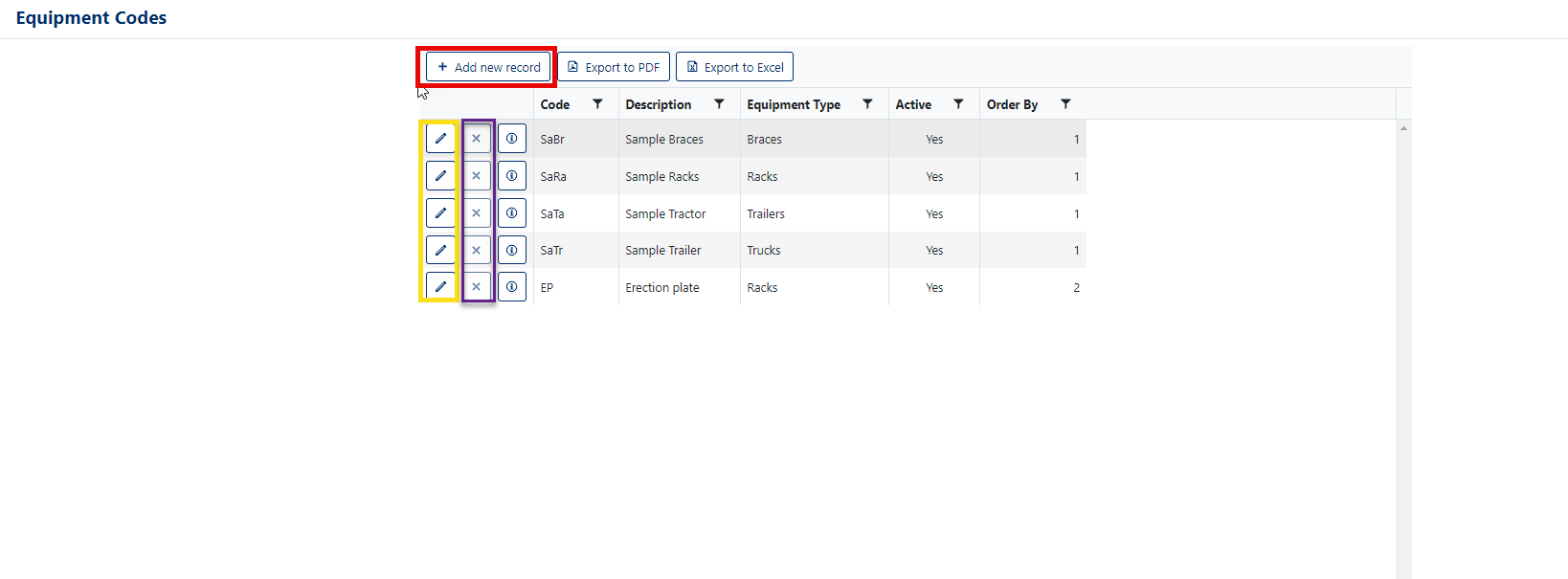
Figure 2
Field Reference
| Field | Required | Description |
|---|---|---|
| Code | Yes | A unique identifier for the equipment code (e.g., "TR" for Trailer, "PMP" for Pump) |
| Description | Yes | A descriptive name for the equipment code that appears throughout the system |
| Equipment Type | Yes | The category this equipment belongs to (e.g., Trucks, Trailers, Braces, Pumps) |
| Active | Yes | Controls whether this code is available for selection in the system (checked = active) |
| Order By | No | Determines the display order in dropdown lists (lower numbers appear first) |
Adding a New Equipment Code
Click the Add new record button (Red box, Figure 2)
The "Add New" dialog window opens with a blank form (Figure 3)
Fill in the required fields:
- Code: Enter a unique code
- Description: Enter a clear description
- Equipment Type: Select the appropriate category from the dropdown
- Active: This is checked by default (leave checked to make the code immediately available)
- Order By: This defaults to the next available number but can be customized to control sort order
Click the Save button (Green box, Figure 3) to create the record
The new Equipment Code will appear in the list
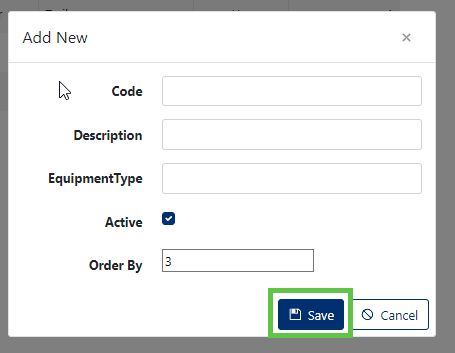
Figure 3
Editing an Existing Equipment Code
Click the pencil icon (Yellow box, Figure 2) next to the Equipment Code you want to edit
The "Edit" dialog window opens with the current values populated (Figure 4)
Modify any of the fields as needed:
- Update the Code if needed (ensure it remains unique)
- Change the Description to better reflect the equipment
- Select a different Equipment Type if necessary
- Check or uncheck Active to enable/disable the code
- Adjust the Order By value to change the display sequence
Click the Save button (Red box, Figure 4) to save your changes
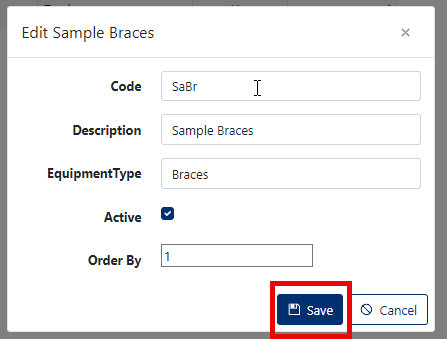
Figure 4
Note: Leaving the screen after making changes will not save your work unless you click the Save button. Changes are lost if you close the dialog or navigate away without saving.
Deleting an Equipment Code
Click the [X] delete button (Purple box, Figure 2) next to the Equipment Code you want to remove
A confirmation dialog appears asking: "Are you sure you want to delete this record?" (Figure 5)
Click [OK] to permanently delete the Equipment Code, or Cancel to abort the deletion
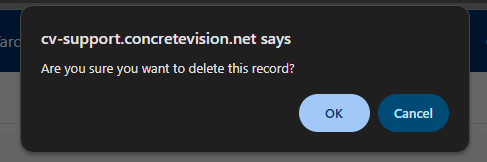
Figure 5
Note: Deleting an Equipment Code may affect existing records that reference this code. Consider marking codes as "Inactive" instead of deleting them if they're currently in use.
Was this article helpful?
That’s Great!
Thank you for your feedback
Sorry! We couldn't be helpful
Thank you for your feedback
Feedback sent
We appreciate your effort and will try to fix the article