Overview
Safety Form Submission pages allow employees to document and report equipment inspections directly to Safety Team members. These forms help maintain workplace safety by ensuring regular equipment checks and creating a documented trail of all safety observations. When a safety concern is identified, the form facilitates quick communication to the appropriate personnel for remediation.
Refer: Configuration menu→ Safety Setup → Safety Forms
Prerequisites
Important: You need to have a Safety team set up or at least 1 person configured for the Safety Module to work correctly.
Before submitting safety forms, ensure your organization has:
- Activated the desired Safety Forms in Configuration
- Assigned personnel to the Safety Team
- Set up appropriate equipment types and inspection criteria
Accessing Safety Forms
To Access a Safety Form:
- Navigate to the main menu bar
- Click on Safety (see Figure 1)
- Select the appropriate form from the dropdown menu:
- Behavioral Based Observations
- Near Miss Report
- SII Report
- MISC - Equipment Inspection
- PI / MH - Equipment Inspection
- BBO - Supervisor Report
- NMR - Supervisor Report
- MISC - Equipment Inspection - Supervisor Report
- PI / MH - Equipment Inspection - Supervisor Report
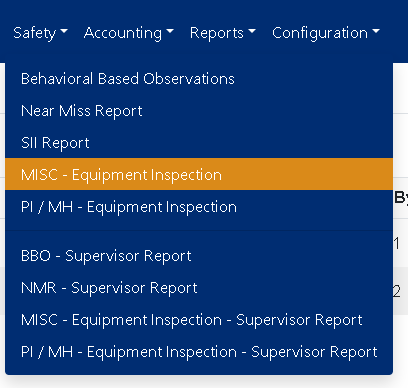
Figure 1
Understanding the Form Layout
Form Header
The form title indicates the type of inspection (e.g., "Miscellaneous Equipment Inspection")
Instructional Notice
Note: The form should be completed fully before submitting (Yellow box, Figure 2).
Required Fields
Fields marked with an asterisk (*) must be completed before submission. The form will not submit until all required fields are filled.
Completing a Safety Form
Follow these steps to complete and submit a safety inspection form:
Step 1: Enter Basic Information
Observer Name (Required)
- Enter your full name
- This identifies who performed the inspection
Misc Equipment Type (Required)
- Select from the dropdown menu (e.g., Conveyors, Mixers, Loaders)
- This determines which inspection criteria appear on the form
Date of Observation (Required)
- Click the calendar icon to select the date
- Use the clock icon if a specific time is needed
- Defaults to current date/time if not changed
Division (Required)
- Select the division where the equipment is located
- Options are based on your organization's structure
Location (Required)
- Select the specific location within the division
- This helps identify the exact equipment being inspected
Area (Optional)
- Provide additional location details if needed
- Example: "North Yard," "Production Floor 2"
Equipment Type
- Automatically populated based on Misc Equipment Type selection
- Shows the specific equipment category being inspected
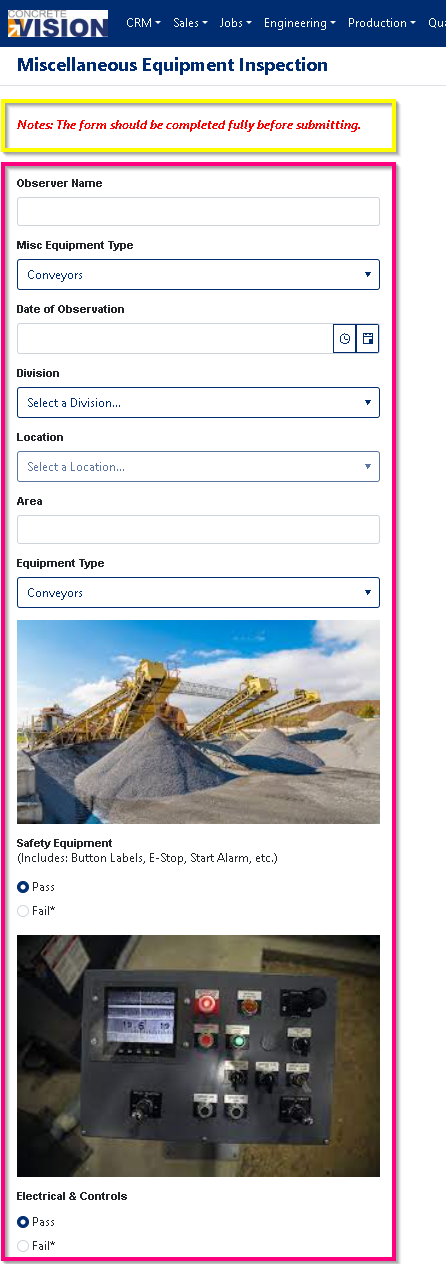
Figure 2
Step 2: Complete Inspection Checklist
The form will display inspection criteria specific to your selected equipment type. Common sections include:
Safety Equipment
- Includes: Button Labels, E-Stop, Start Alarm, etc.
- Select either Pass or Fail for each item
- A visual reference image may be provided
Electrical & Controls
- Inspects control panels, wiring, and safety switches
- Select Pass or Fail
Motor
- Checks motor condition and operation
- Select Pass or Fail
Rollers / Belt
- Examines moving parts for wear or damage
- Select Pass or Fail
Total Conveyor Assessment (or similar overall rating)
- Indicates the overall Pass/Fail status of the equipment
- Should reflect the most critical findings
Note: Report all fails to your manager and complete a work order request.
Step 3: Add Comments
Comments Section (Recommended for all Fails)
- Provide detailed explanations for any failed items
- Include specific observations
- Note any safety concerns or immediate hazards
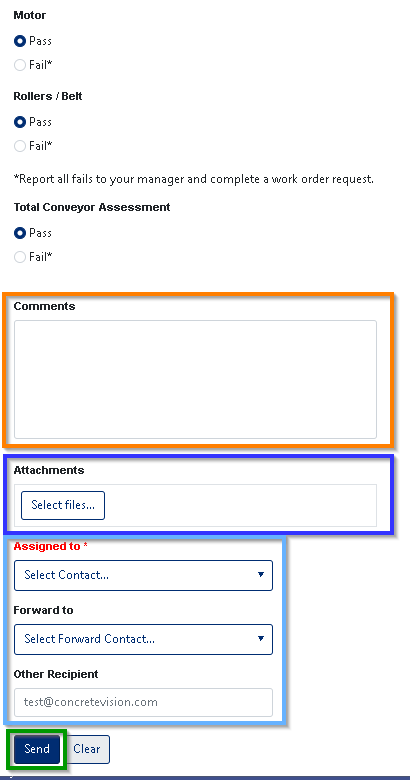
Figure 2
Step 4: Attach Supporting Documentation
Attachments Section (Recommended)
- Click [Select files...] to upload documents or images
- Attach photos showing:
- Failed equipment conditions
- Missing or damaged safety features
- Any hazards identified
- Supported file types: JPG, PNG, PDF
- Multiple files can be attached
Step 5: Select Recipients
Assigned to (Required)
- Select the primary person responsible for reviewing this inspection
- Typically a safety team member or supervisor
- This person will receive immediate notification
Forward to (Optional)
- Select additional people who should be informed
- Use for secondary reviewers or department managers
Other Recipient (Optional)
- Enter email addresses for external recipients
- Format: name@domain.com
- Separate multiple addresses with commas
Step 6: Submit the Form
- Review all entries for accuracy
- Click the [Send] button (Green box, Figure 2)
- Wait for confirmation message
- You will be automatically redirected to the main page upon successful submission
Alternative: Click [Clear] to reset the form if you need to start over (Figure 2).
Was this article helpful?
That’s Great!
Thank you for your feedback
Sorry! We couldn't be helpful
Thank you for your feedback
Feedback sent
We appreciate your effort and will try to fix the article