Overview
Safety Areas are location identifiers used throughout the system's safety forms to specify where incidents, inspections, or observations occur. Examples include Break Room, Loading Zone A, or Production Floor.
Safety Areas defined on this screen will be available as options in the Area dropdown for safety forms in CV. Properly configured Safety Areas streamline form submission and ensure consistent location tracking across all safety documentation.
Hierarchy Structure in Safety Forms:
- Safety Divisions (top level) contain multiple Safety Locations
- Safety Locations (middle level) contain multiple Safety Areas
- Safety Areas (bottom level) are the most specific location designations
Setting Up Safety Areas
Step 1: Navigate to Safety Areas
Access the Safety Areas configuration screen through: Configuration menu → Safety Setup → Safety Areas
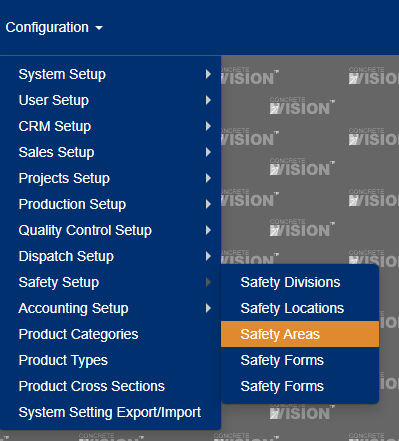
Figure 1
Step 2: Add a New Safety Area
- Click the "+ Add New Record" button at the top of the screen (Red box, Figure 2)
- A dialog window will appear with the following fields:
- Description: Enter a clear, descriptive name for the safety area
- Order By: Specify the display position in dropdown lists
- Active: Checked by default for new areas
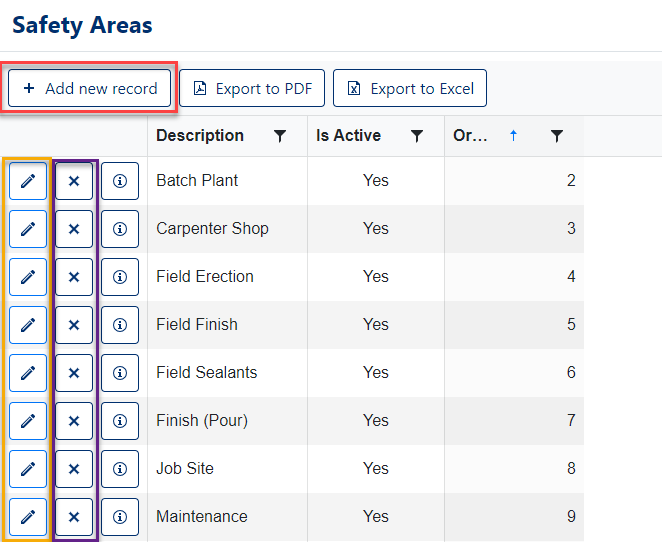
Figure 2
Step 3: Save Your New Safety Area
- Review the information you entered
- Click the Save button (Red box, Figure 3)
- Your new Safety Area will now appear in the grid
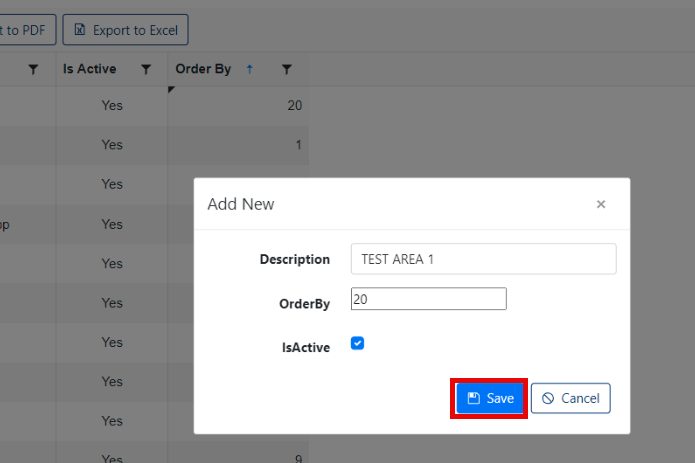
Figure 3
Step 4: Edit an Existing Safety Area
To modify an existing Safety Area:
- Click the pencil icon in the row of the area you want to edit (Yellow box, Figure 2)
- Update the desired fields in the dialog window
- Click Save to apply your changes (Green box in Figure 4)
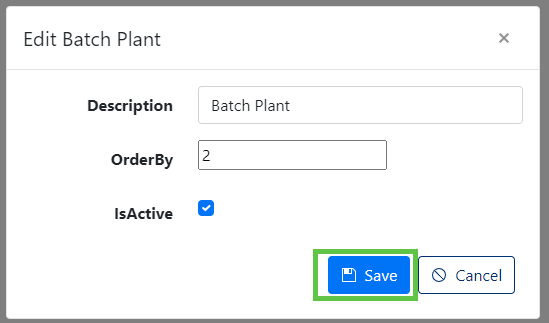
Figure 4
Step 5: Verify Availability
After saving, your new Safety Area will automatically appear in the dropdown menus of relevant safety forms, such as:
- Near Miss Reports
- Incident Reports
- Safety Inspections
- Other safety documentation
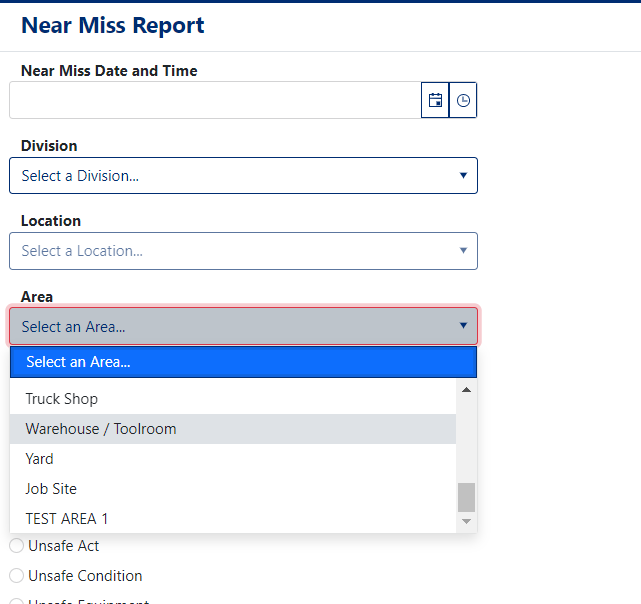
Figure 5
Deleting a Safety Area
Important: Only delete Safety Areas that are no longer needed and have not been used in existing records.
- Locate the Safety Area you wish to remove in the grid
- Click the 'X' button in the corresponding row (Purple box, Figure 2)
- A confirmation dialog will appear asking: "Are you sure you want to delete this record?"
- Click OK to confirm deletion, or Cancel to abort (see Figure 6)
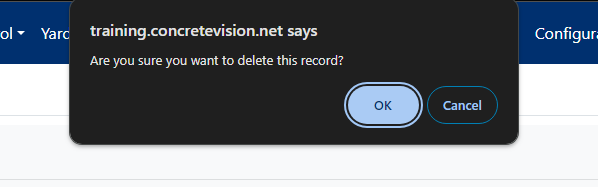
Figure 6
Best Practices
- Use clear, specific names that are easily understood by all employees (e.g., "Loading Dock - East" rather than "LD-E")
- Avoid creating duplicate areas with similar names that could cause confusion
- Review the Order By field to ensure areas appear in a logical sequence
- Deactivate instead of delete Safety Areas that have historical data by unchecking the "Active" box
- Regularly audit your Safety Areas to remove outdated locations and add new ones as your facility changes
Was this article helpful?
That’s Great!
Thank you for your feedback
Sorry! We couldn't be helpful
Thank you for your feedback
Feedback sent
We appreciate your effort and will try to fix the article