Overview
Safety Divisions are organizational units that help you group and manage Safety Locations within your safety management system. They filter and organize safety-related information, making it easier to track and report on safety metrics across different parts of your organization.
Safety Divisions defined on this screen will be available as options in the Divisions dropdown for safety forms in CV. Safety Divisions determine which Safety Locations populate the Location dropdown.
Hierarchy Structure in Safety Forms:
- Safety Divisions (top level) contain multiple Safety Locations
- Safety Locations (middle level) contain multiple Safety Areas
- Safety Areas (bottom level) are the most specific location designations
Accessing Safety Divisions
To access the Safety Divisions configuration screen:
- Navigate to the Configuration menu
- Select Safety Setup
- Click on Safety Division (Figure 1)
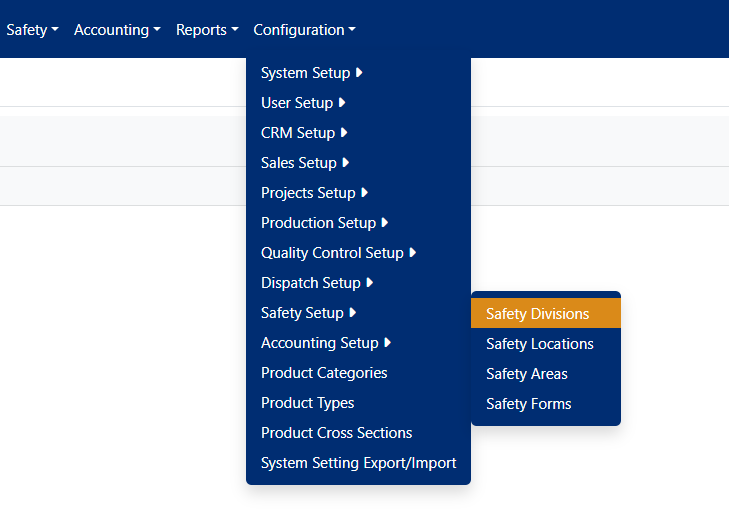
Figure 1
Managing Safety Divisions
The Safety Divisions screen displays all existing divisions in a sortable table with the following columns:
- Description: The name of the Safety Division
- Is Active: Whether the division is currently active
- Order By: The sort order for displaying divisions
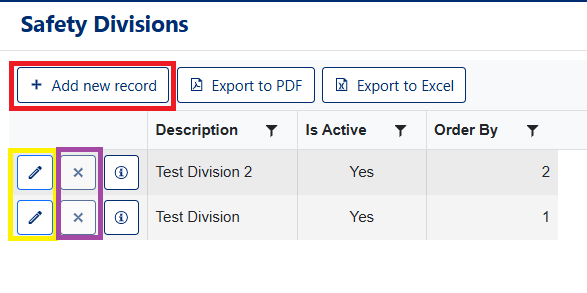
Figure 2
Creating a New Safety Division
To add a new Safety Division:
- Click the [+ Add new record] button (Red box, Figure 2)
- In the dialog that opens, enter the following information:
- Description: Enter a clear, descriptive name for the Safety Division
- Order By: Set the display order (lower numbers appear first)
- Is Active: Leave checked to make the division available for use (checked by default)
- Click Save to create the division (Red box, Figure 3)
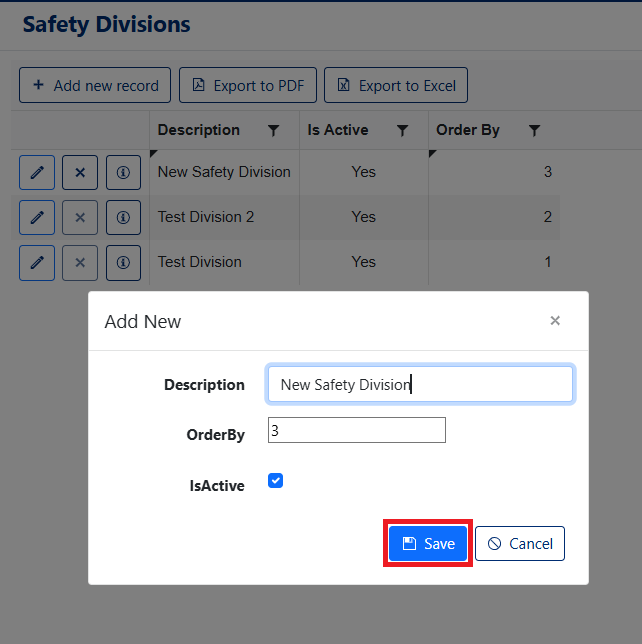
Figure 3
Editing an Existing Safety Division
To modify a Safety Division:
- Click the pencil icon (✏️) in the row of the division you want to edit (Yellow box, Figure 2)
- Update any of the following fields:
- Description: Change the division name
- Order By: Modify the display order
- IsActive: Toggle the active status
- Click Save to apply your changes (Green box, Figure 4)
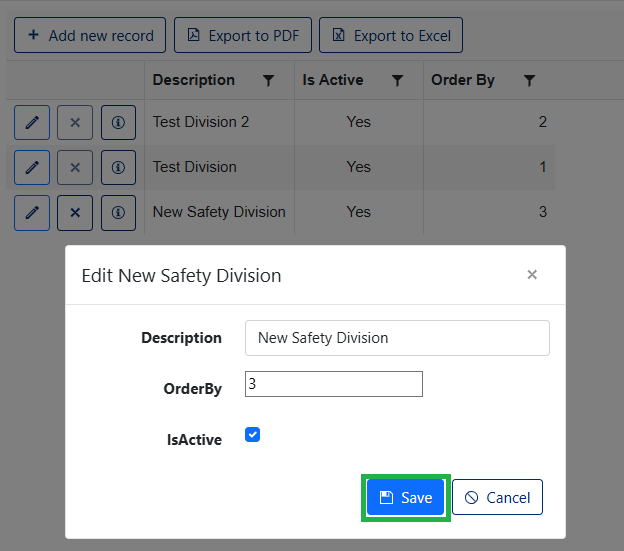
Figure 4
Note: Deactivating a Safety Division (unchecking Is Active) will hide it from most dropdown lists and forms, but existing records that reference it will remain unchanged.
Deleting a Safety Division
⚠️ Caution: Deleting a Safety Division is permanent and may affect existing safety records that reference it.
To delete a Safety Division:
- Click the X button in the row of the division you want to remove (Purple box, Figure 2)
- In the confirmation dialog, click OK to confirm the deletion (Figure 5)
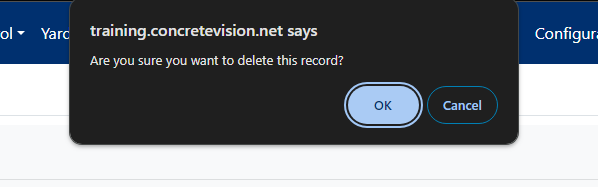
Figure 5
Before deleting a Safety Division, consider:
- Are there existing Safety Locations assigned to this division?
- Are there safety forms or records that reference this division?
- Would deactivating the division be more appropriate than deleting it?
Export Options
The Safety Divisions screen provides export functionality:
- Export to PDF: Generate a formatted PDF report of all Safety Divisions (Figure 2)
- Export to Excel: Download division data as a spreadsheet for further analysis (Figure 2)
Was this article helpful?
That’s Great!
Thank you for your feedback
Sorry! We couldn't be helpful
Thank you for your feedback
Feedback sent
We appreciate your effort and will try to fix the article