Definition: Behavior Based Safety Observations (BBSOs) are recorded observations to improve worker safety and reduce risk. BBSOs typically involve managers and other appointed observers watching tasks and operations while making notes and suggestions to improve safety.
Purpose: To report these observations.
Note: You need to have a Safety team setup or at least 1 person setup for the Safety Module to work correctly.
You access Behavior Based Observation screen from Safety menu > Behavior Based Observations shown below in Figure 1.

Figure 1
This should bring up a blank BBO form (see Figures 2,3 & 4)
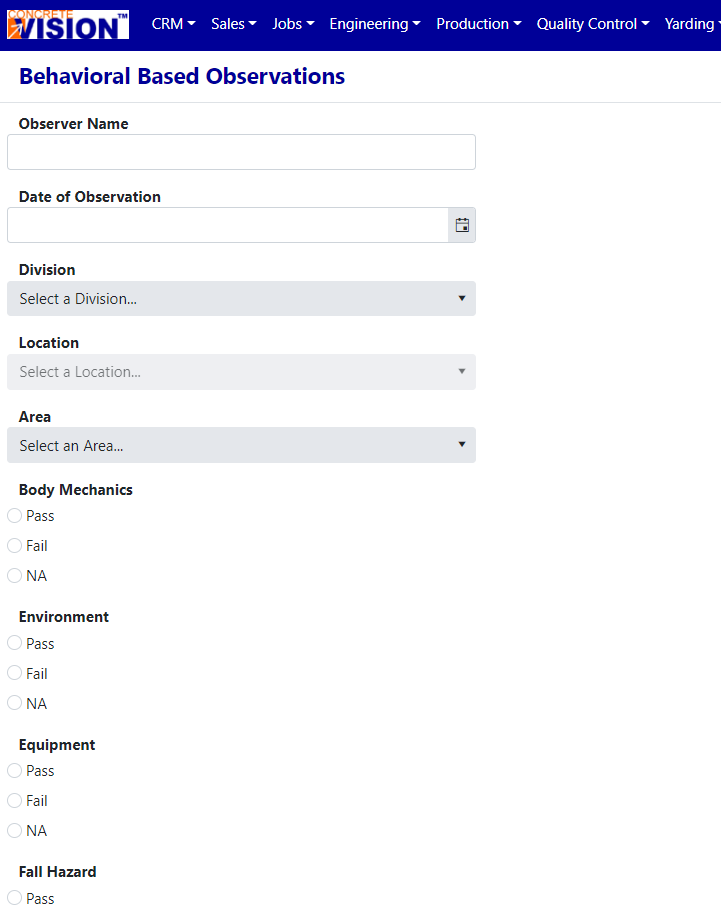
Figure 2
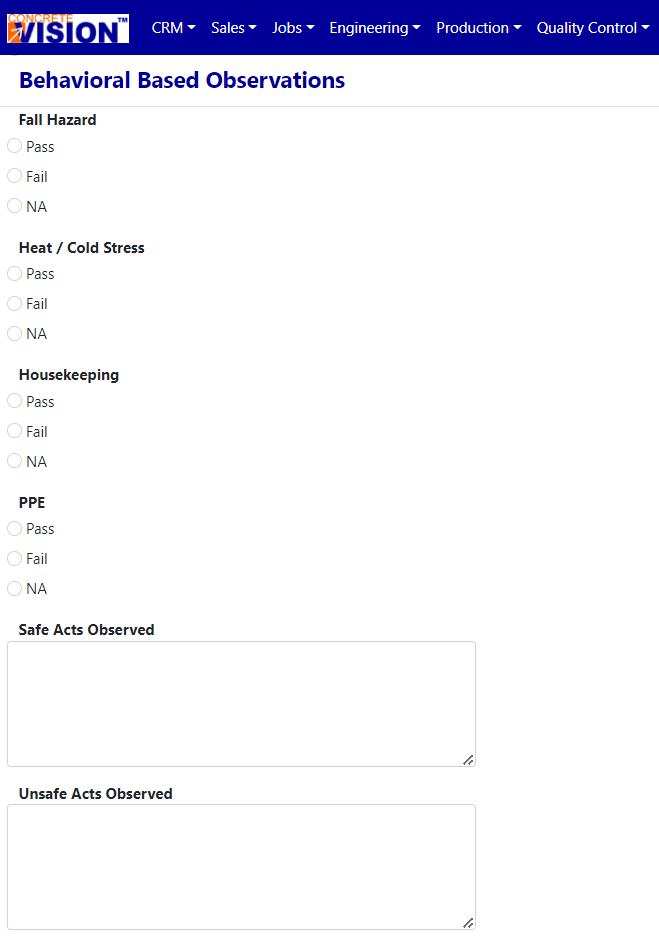
Figure 3
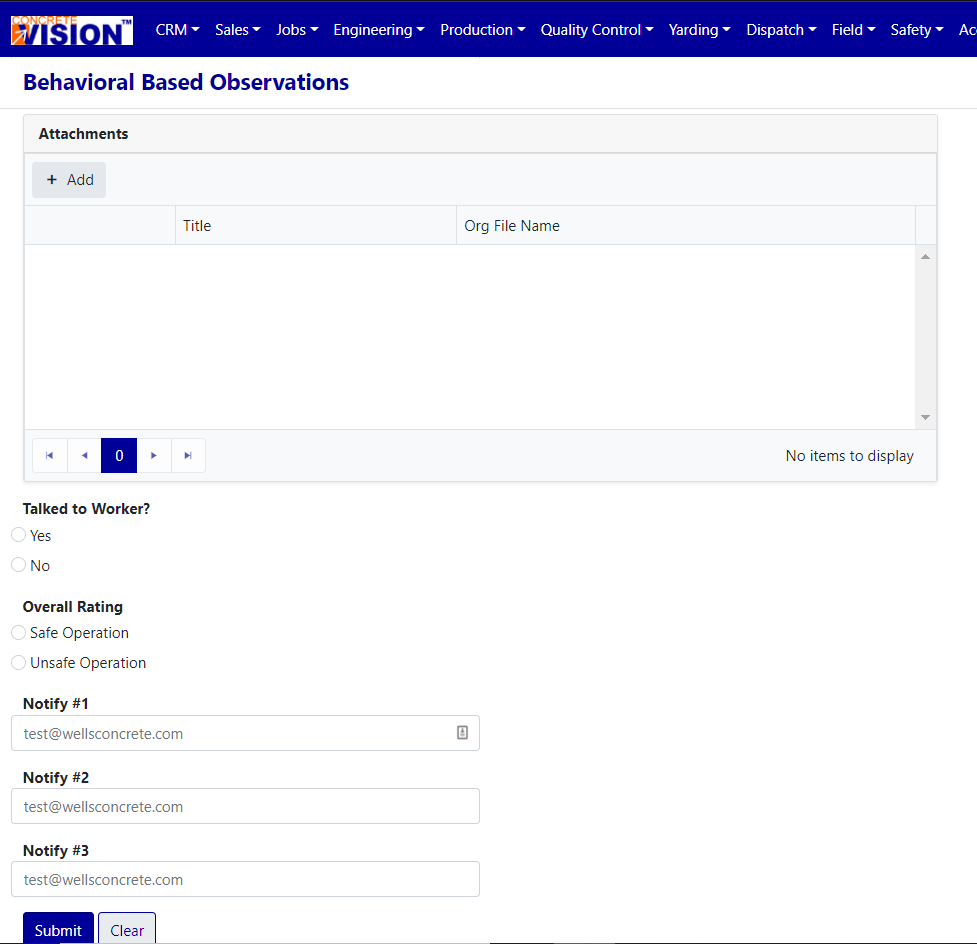
Figure 4
Proceed to fill out the form.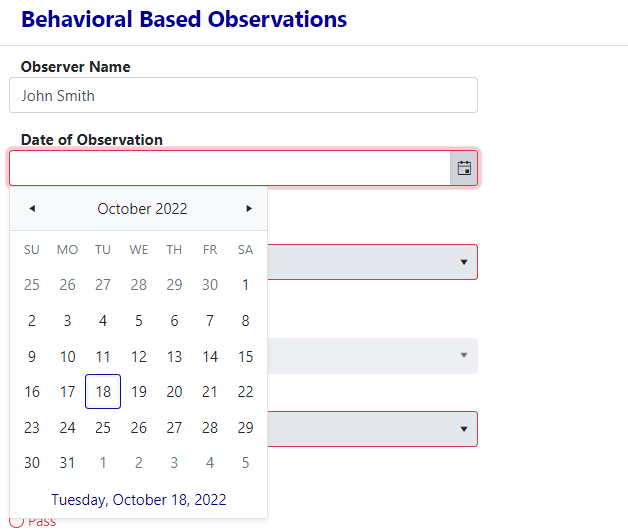
Figure 5
The Date of Observation dropdown will display a calendar when you click the icon. You can scroll by month or even year. (see Red box in Figure 5)
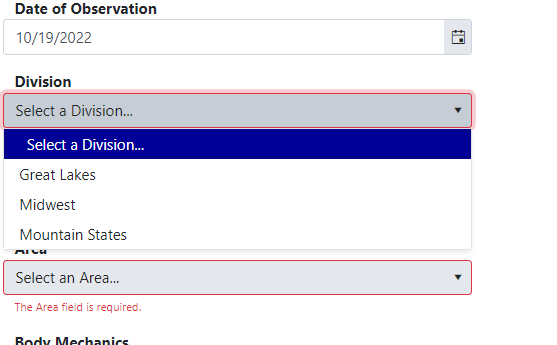
Figure 6
A selection on the Division dropdown (see Figure 6) must be made before a selection on the Location dropdown can be made. (see Figure 7).
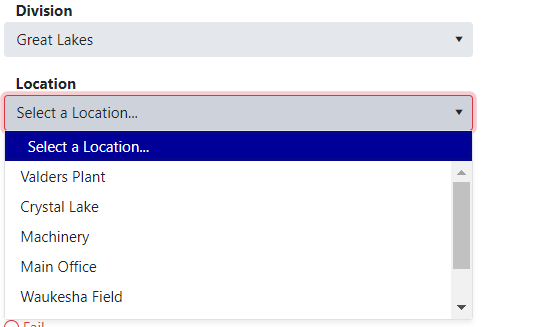
Figure 7
The Attachment field will let you add attachments to the BBO. (see Figure 8).
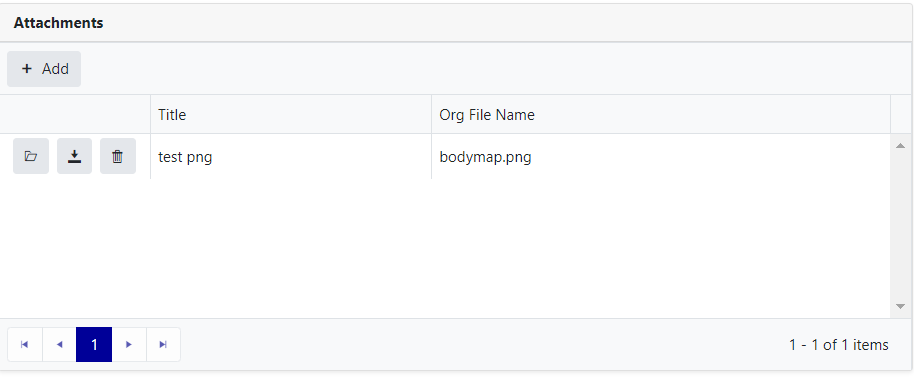
Figure 8
Action Description
 will open the attachment in a separate browser window.
 will download the attachment.
 will delete the attachment.
 will open a dialog to upload a new attachment


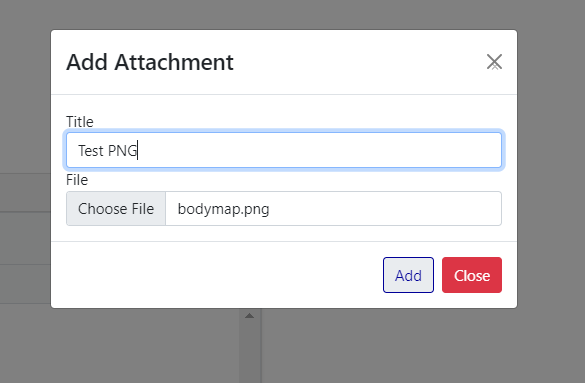
Figure 9
You can rename the file. (see Figure 9).
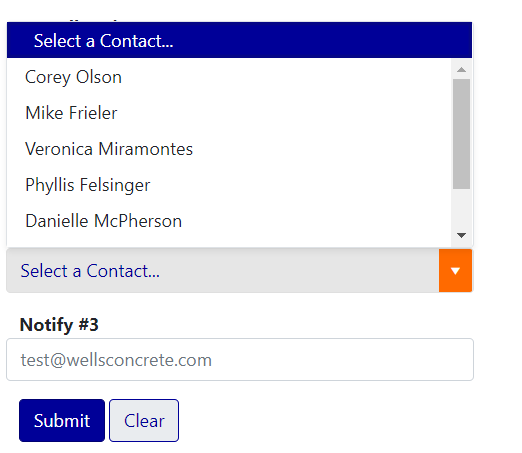
Figure 10
You can select 2 contacts from the list to receive a notification email that a BBO has been filled out. Also, you can type in an email for the third email. (see Figure 10).
Adding or Removing Contacts
You can add or remove contacts from the contact dropdown by visiting the Contact Dropdown Setup page in CRM Setup within the Configuration and editing the Safety Team role. (see Figure 11).
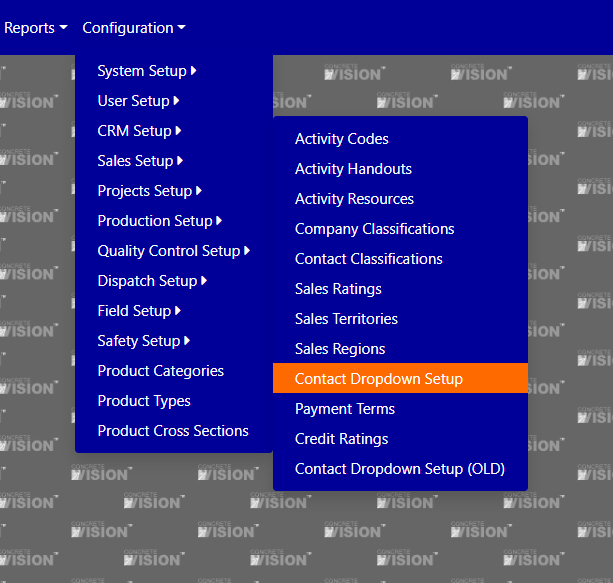
Figure 11
Once all the fields have been filled out, hit Submit
Wait half a second for the form to validate, then you should see a green success message.
If you don’t, a field may be invalid or needed. The page will scroll to the top so you should see which field needs fixing.
After a successful submission, you will be directed back to the same page, with a new blank form (to expedite use-cases where multiple forms are needed).
If you wish to view your just completed form, or any completed BBO…
Navigate to Safety menu > BBO Supervisor (assuming you have permissions). (see Figure 12).
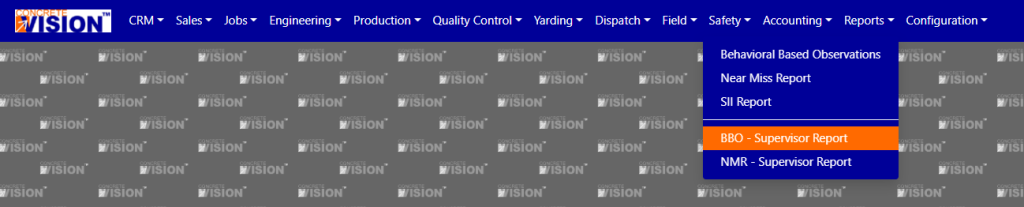
Figure 12
This should take you to a page with a grid of all the completed BBO’s.
The grid is filterable and sortable by different fields. (see Figure 13).

Figure 13
By default, it is sorted by Date of Observation with newest first. If you click the blue arrow, the sort will be reversed.
There are also actions the user can do on this Supervisor page.
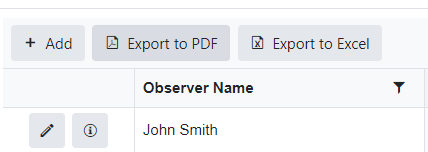
Figure 14
 will open BBO in Edit mode
 will open audit dialog (shows when BBO was created, modified, and by whom. see Figure 15).
 a new BBO (takes you to a Create page).


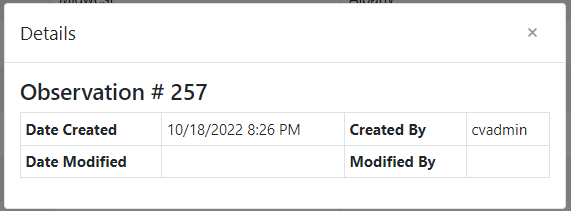
Figure 15
If you click the pencil icon, it will open the BBO in Edit mode
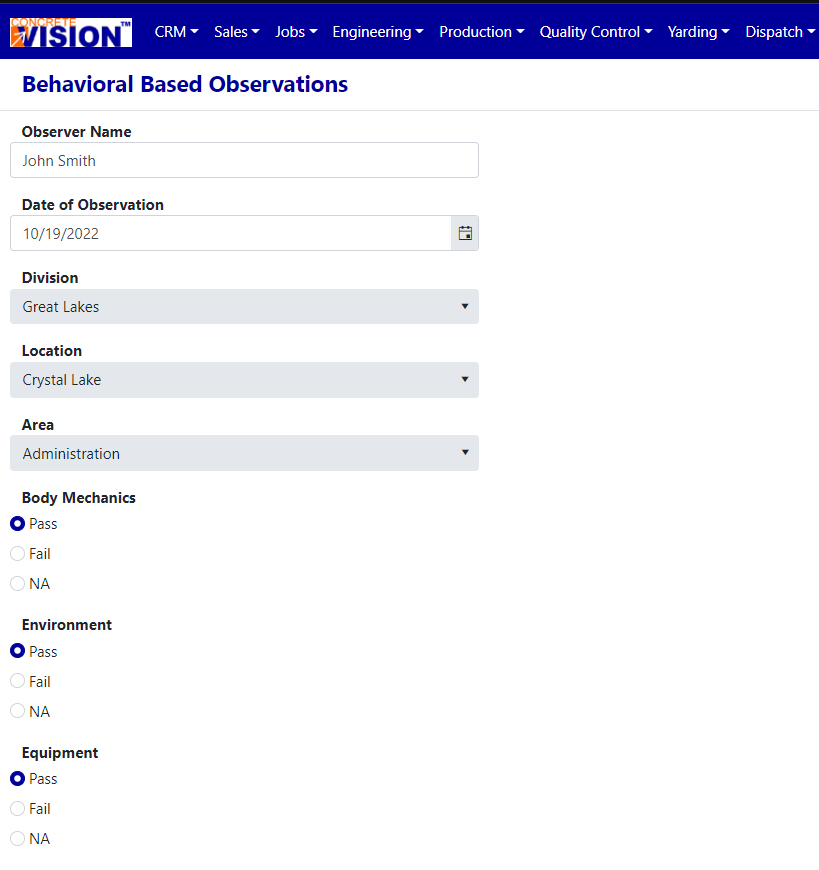
Figure 16
When you’ve made the changes you want to make, hit the Submit button, and you’ll be redirected back to the Supervisor page.
Was this article helpful?
That’s Great!
Thank you for your feedback
Sorry! We couldn't be helpful
Thank you for your feedback
Feedback sent
We appreciate your effort and will try to fix the article