Overview
The Production NCRs - Production Repair screen allows you to manage and track Non-Conformance Reports (NCRs) that are currently in production repair status. This feature helps you monitor quality issues and their resolution progress throughout the production process.
Accessing the Screen
To access the Production NCRs - Production Repair interface:
- Navigate to the Production menu
- Select Production NCRs - Production Repair from the dropdown menu (highlighted in orange in Figure 1)
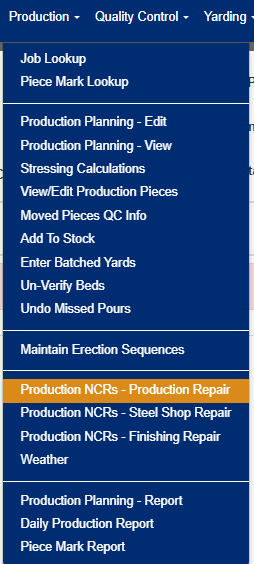
Figure 1
The main screen will display a list of all production NCRs currently in repair status, along with relevant details and action buttons.
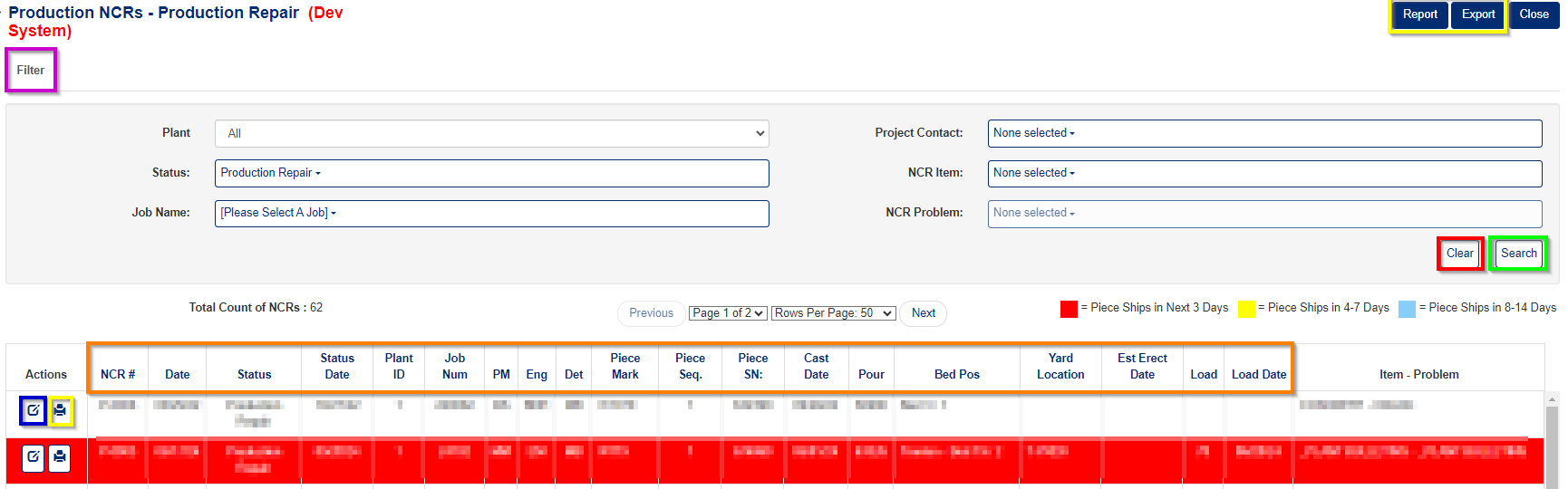
Figure 2
Working with Production Repair NCRs
Filtering and Searching NCRs
To narrow down the list of NCRs displayed on your screen:
- Access Filters: Click the Filter button (Purple box, Figure 2)
- Set Criteria: Adjust any of the filter inputs to specify your search parameters:
- Date ranges
- Job numbers
- NCR status
- Other relevant criteria
- Apply Search: Click the Search button (Green box, Figure 2) to display filtered results
- Reset Filters: Click Clear to restore the original filter settings (Red box, Figure 2)
Exporting and Printing Options
For the entire NCR list:
- Use the Report or Export buttons at the top of the screen (Yellow box, Figure 2)
- This generates a comprehensive list of all displayed NCRs
For individual NCRs:
- Click the Print icon next to the specific NCR you want to print (Yellow box in detail section of Figure 2)
- This creates a detailed report for that single NCR
Editing Production Repair NCRs
Opening the Edit Screen
- Locate the NCR you want to modify in the main list
- Click the Edit button next to the desired NCR (Blue box, Figure 2)
- The system will open the detailed edit screen (Figure 3)
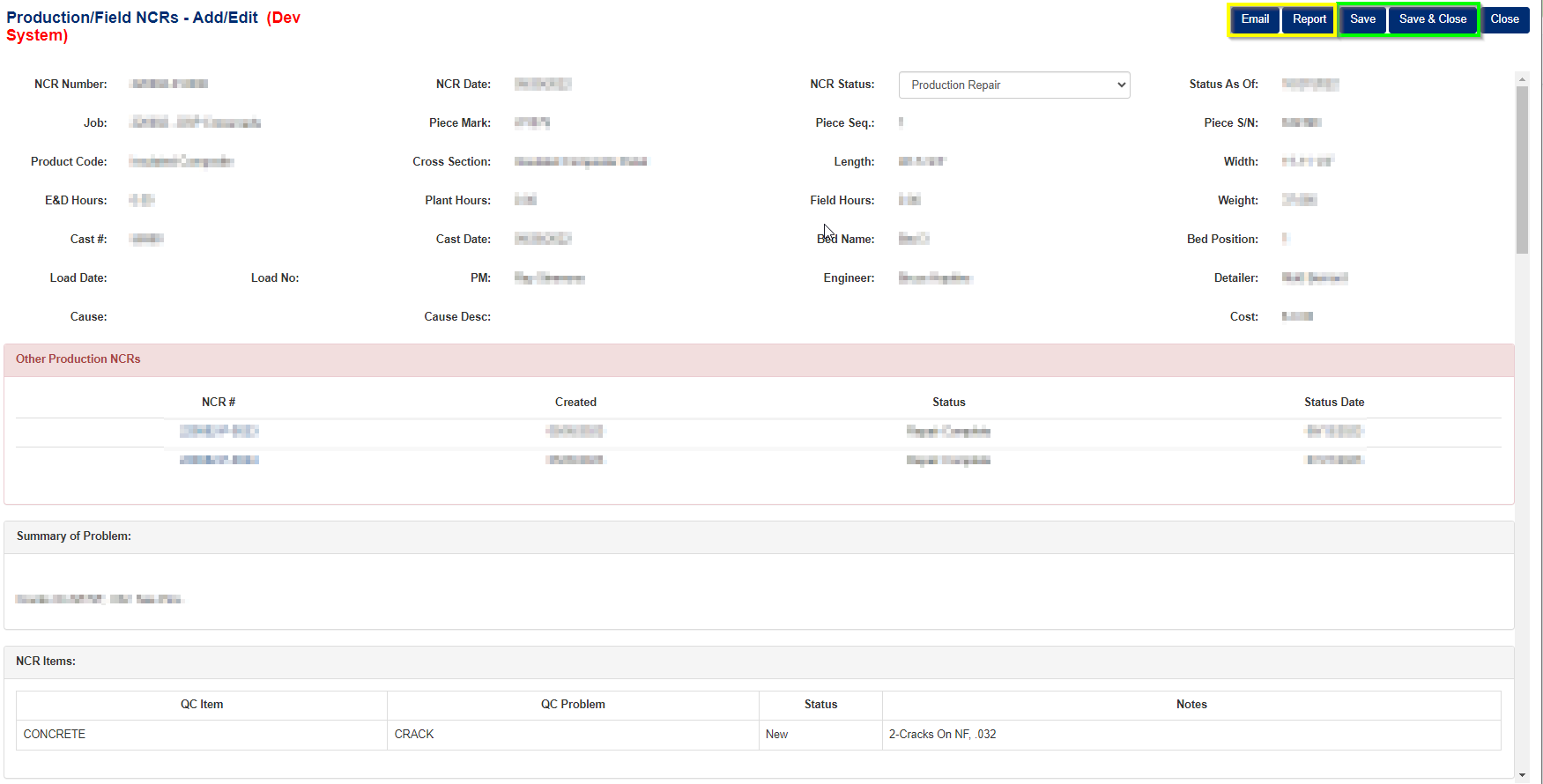
Figure 3
Available Edit Functions
Note: Edit permissions may vary based on your organization's settings. However, most users can typically:
- Add Attachments: Upload relevant documents, photos, or files (Orange box in Figures 4 & 5)
- Add Notes: Include comments, observations, or updates about the repair process
- Update Status: Change the NCR status once production repair is complete
- Modify Details: Update various fields as permitted by your access level
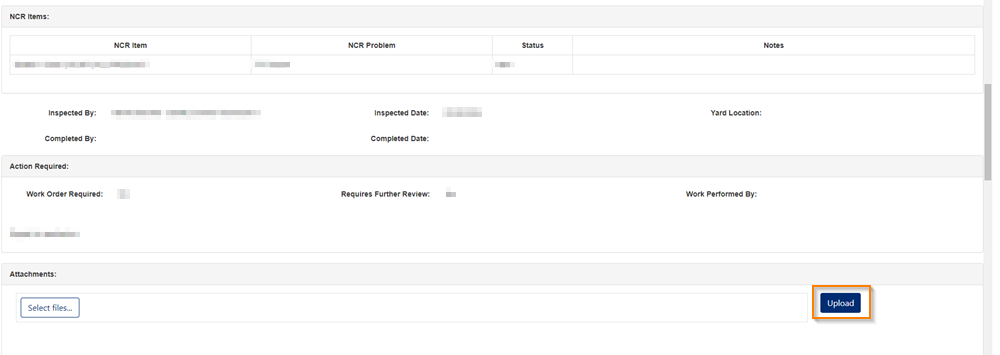
Figure 4
Managing Attachments and Notes
Adding Attachments (Figure 4):
- Click the attachment section to browse and upload files
- Supported file types typically include images, documents, and technical drawings
- Add multiple attachments as needed
Adding Notes (Figure 5):
- Use the notes section to document:
- Repair actions taken
- Quality observations
- Communication with team members
- Resolution status updates
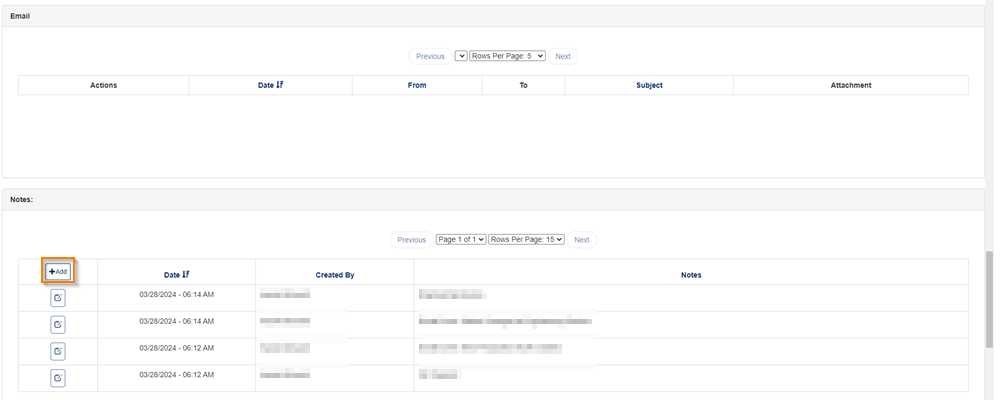
Figure 5
Saving Your Changes
After making modifications:
Save Options: Choose from the buttons at the top of the screen (Green box, Figure 3):
- Save: Saves changes and keeps the screen open for further editing
- Save & Close: Saves changes and returns to the main NCR list
Additional Actions (Yellow box, Figure 3):
- Email: Send the NCR details to relevant team members
- Report: Generate a printable report of the current NCR
Was this article helpful?
That’s Great!
Thank you for your feedback
Sorry! We couldn't be helpful
Thank you for your feedback
Feedback sent
We appreciate your effort and will try to fix the article