Overview
This guide explains how to manage Non-Conformance Reports (NCRs) that are currently in steel shop repair status. NCRs are quality control records that document production issues requiring correction. The Steel Shop Repair screen allows you to view, filter, edit, and track these reports throughout the repair process.
Accessing the Screen
To access the Steel Shop Repair NCR list:
- Navigate to the Production menu in the top navigation bar
- Select Production NCRs - Steel Shop Repair from the dropdown menu (see Figure 1)
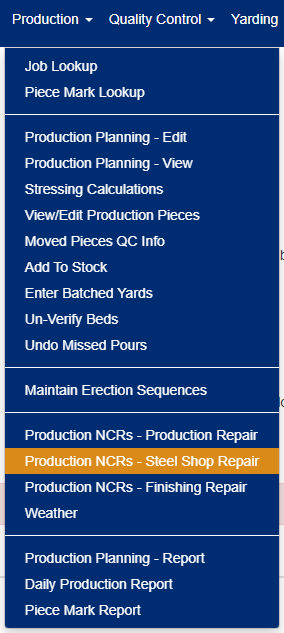
Figure 1
The main screen displays all production NCRs currently assigned to steel shop repair status (shown in Figure 2).
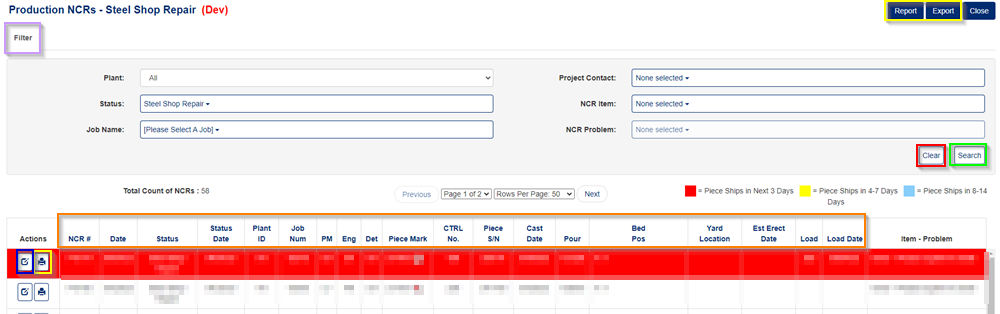
Figure 2
Filtering NCRs
To narrow down the list and find specific NCRs:
- Click the Filter button at the top of the screen (Purple box, Figure 2)
- Enter or select your search criteria:
- Plant
- Status
- Job Name
- Project Location
- NCR Item
- NCR Problem
- Date ranges
- And other available filters
- Click the Search button to apply your filters (Green box, Figure 2)
- Click Clear to reset all filters to their default values (Red box, Figure 2)
Tip: Use multiple filter criteria together for more precise results.
Exporting and Printing
Export or Print Multiple NCRs
To generate reports for multiple steel shop repair NCRs:
- Apply any desired filters to narrow your list
- Click either:
- Report button - generates a formatted report
- Export button - exports data to a file (typically Excel or CSV)
Both buttons are located at the top of the screen (Yellow box, Figure 2).
Print a Single NCR
To print an individual steel shop repair NCR:
- Locate the NCR in the list
- Click the Print icon next to that specific NCR (Yellow box in the detail section)
Editing a Steel Shop Repair NCR
Opening the Edit Screen
- Locate the NCR you want to edit in the main list
- Click the Edit button next to it (Blue box in Figure 2)
- The edit screen will open (shown in Figure 3)
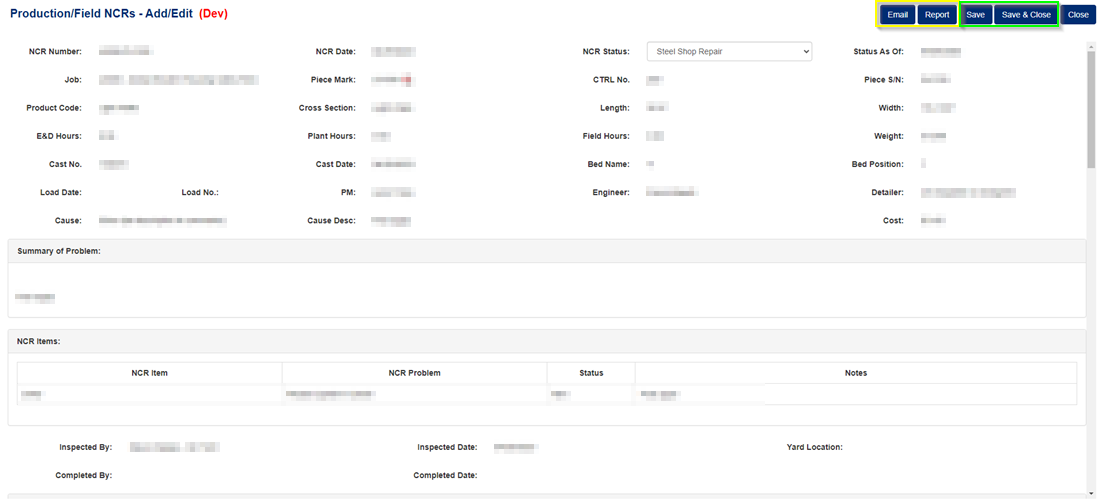
Figure 3
What You Can Edit
The edit screen has role-based permissions that vary by organization. Typically, you can:
- Add Attachments - Upload supporting documents, photos, or files (Orange box, Figure 4)
- Add Notes - Document observations, actions taken, or status updates (Orange box, Figure 5)
- Update Status - Change the NCR status once the steel shop repair is complete
- Modify Other Fields - Depending on your permissions, you may be able to update additional information
Managing Attachments
- Scroll to the Attachments section (Figure 4)
- Click Select Files button
- Choose files from your computer
- Click Upload to attach them to the NCR (Orange box, Figure 4)
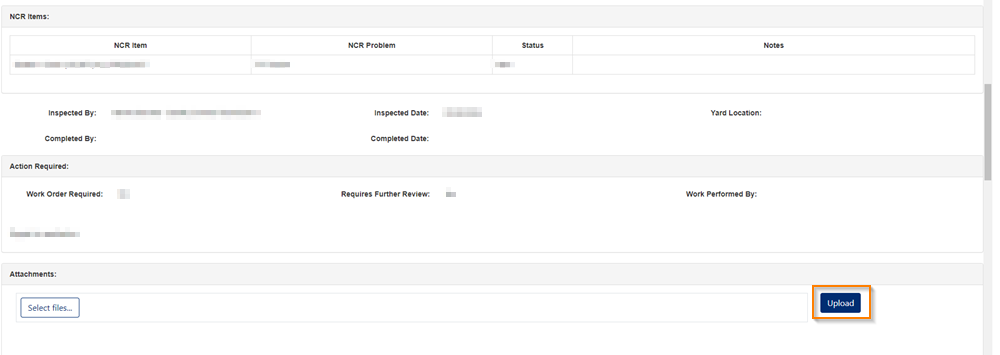
Figure 4
Adding Notes
- Scroll to the Notes section (Figure 5)
- Enter your note in the text field
- The note will be timestamped and attributed to your user account
- Previous notes are displayed chronologically below

Figure 5
Saving Your Changes
After making edits:
- Click Save to save and continue editing
- Click Save & Close to save and return to the main list (Green box, Figure 3)
Additional Actions
From the edit screen, you can also:
- Email - Send the NCR details to recipients (Yellow box, Figure 3)
- Print - Generate a printable version of the NCR (Yellow box, Figure 3)
Best Practices
- Document thoroughly - Add detailed notes about repair actions and outcomes
- Attach evidence - Include photos of the issue and completed repair
- Update status promptly - Keep NCR status current to maintain accurate tracking
- Review filters regularly - Use filters to monitor aging NCRs or specific problem areas
Was this article helpful?
That’s Great!
Thank you for your feedback
Sorry! We couldn't be helpful
Thank you for your feedback
Feedback sent
We appreciate your effort and will try to fix the article