Overview
The QC Pre-Pour Checklist screen is used to verify that the production bed is ready for the piece(s) to be produced and that any special requirements for the piece are met.
Accessing the Pre-Pour Checklist
The Pre-Pour Checklist is found through the QC Verification by Bed screen (Figure 2).
- Navigate to Quality Control > QC Verification by Bed from the main menu (Figure 1).
- On the QC Verification by Bed screen (Figure 2), click the name of the bed on the calendar to review. The QC Pre-Pour Checklist screen will appear (Figure 3).
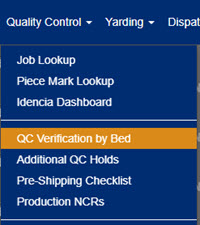
Figure 1
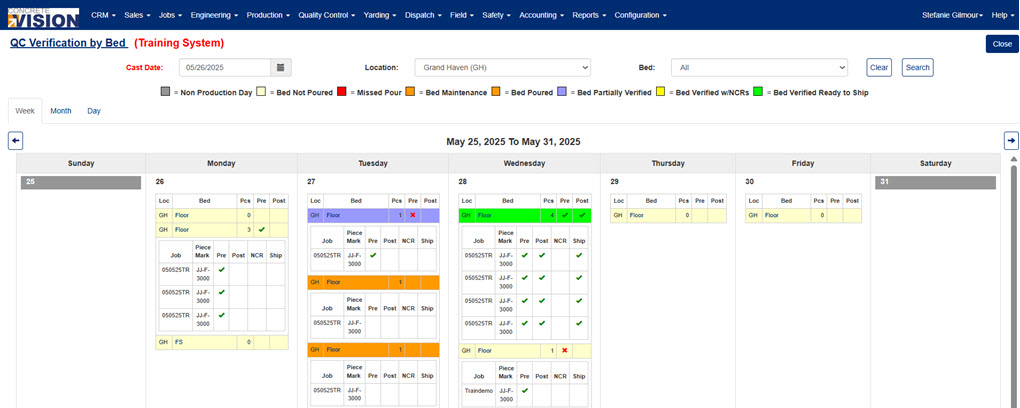
Figure 2
Completing a Pre-Pour Checklist
From the QC Pre-Pour Checklist screen (Figure 3):
Step 1: Create a Pre-Pour Checklist
The Pre-pour checklist must be created before it can be reviewed.
- Click the Restart icon (yellow box in Figure 3) next to the piece to review. This generates the pre-pour checklist.
- Alternately, click the Start All button (yellow arrow in Figure 3) to generate the pre-pour checklists for all pieces listed on the QC Pre-Pour Checklist screen.
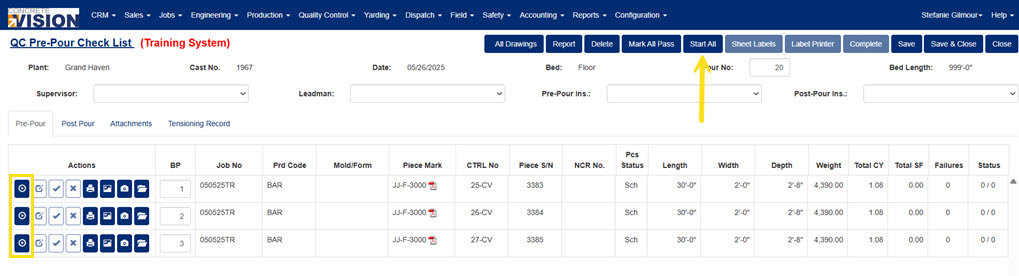
Figure 3
Step 2: Open a Checklist to Review
- Click on the Edit icon (green box in Figure 4) beside the piece to review. This opens the QC Pre-Pour - Piece Edit screen (Figure 5) and the pre-pour checklist for that piece.
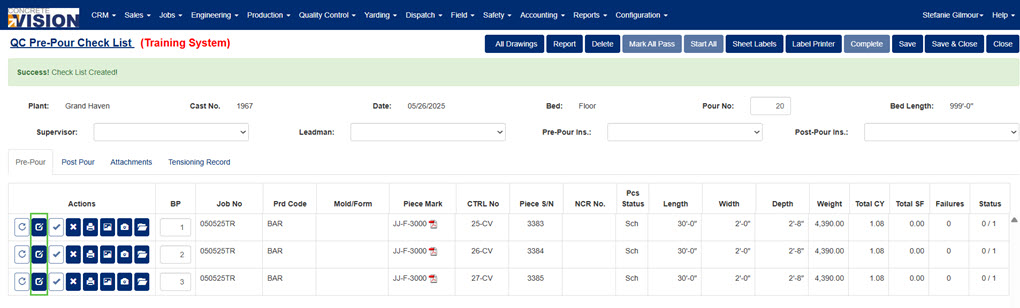
Figure 4
Step 3: Set Checklist Item Status
| Status | Description |
|---|---|
| Unchecked | Item has not yet been reviewed |
| NA | Item does not apply to this piece |
| Pass | Item has passed inspection |
| Fail | Item has NOT passed inspection |
| Fixed | A previously failed item has been corrected |
- Review the checklist, marking NA, Pass, Fail, Fixed as needed. Record any comments.
- To attach a photo to a checklist item, click the Picture button (black box in Figure 5).
- To view and annotate the piece mark drawing, click the PDF icon (pink box in Figure 5).
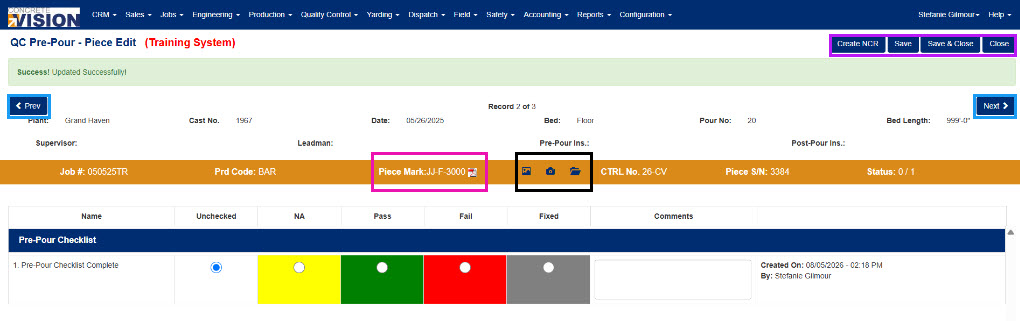
Figure 5
Step 4: Save Changes
After updating checklist item statuses, save your work using one of the following options (Purple box, Figure 5):
- Save – Saves changes and remains on the current record.
- Save & Close – Saves changes and returns to the checklist screen.
- Prev / Next – Saves changes and navigates to the previous or next piece record.
Note: The Prev and Next buttons (Blue box, Figure 5) navigate through all pieces currently displayed on the Pre-Pour Checklist screen.
Step 5: Mark the Checklist as Complete
After all checklist items have been reviewed and saved, return to the main Pre-Pour Checklist screen (Figure 6).
- Click the Checkmark button (Green box, Figure 6) next to the piece whose checklist is fully complete.
- Alternately, click the Complete button (green arrow in Figure 6) to mark all checklists on the bed complete.
- When prompted (Figure 7), click OK to confirm checklist completion.
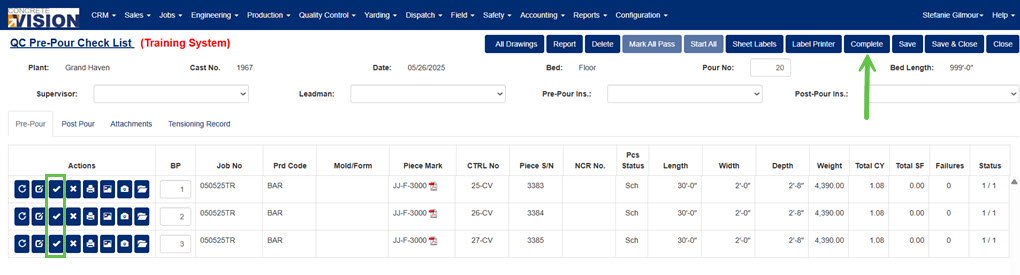
Figure 6
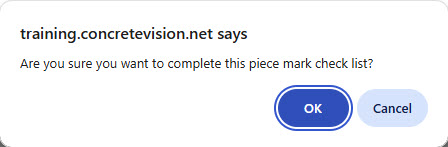
Figure 7
Delete a Pre-Pour Checklist
To delete a specific generated pre-pour checklist, click the Delete icon (red box in Figure 8) next to the piece on the QC Pre-Pour Check List screen. To delete all generated pre-pour checklist, click the Delete button (red arrow in Figure 8).
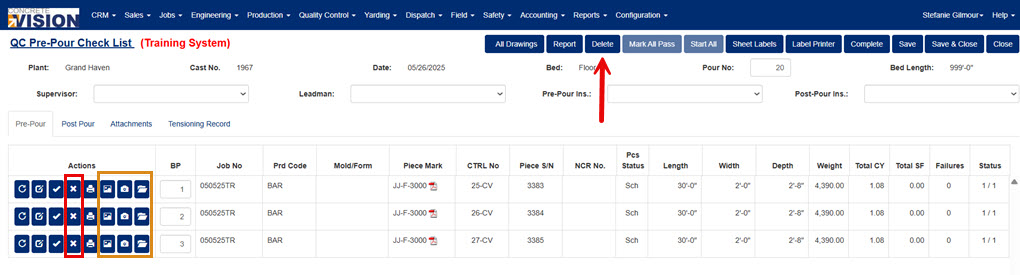 Figure 8
Working with Pictures with a Pre-Pour Checklist
Pictures can be taken, uploaded, and viewed with a piece's pre-pour checklist using the last three icons in each row (orange box in Figure 8). From left to right:
- Click the Photo icon beside a piece to upload a photo from a device to a checklist.
- Click the Camera icon beside a piece to load the camera on a device, take a photo, and upload it to a checklist.
- Click the Folder icon beside a piece to view the photos attached to a checklist.
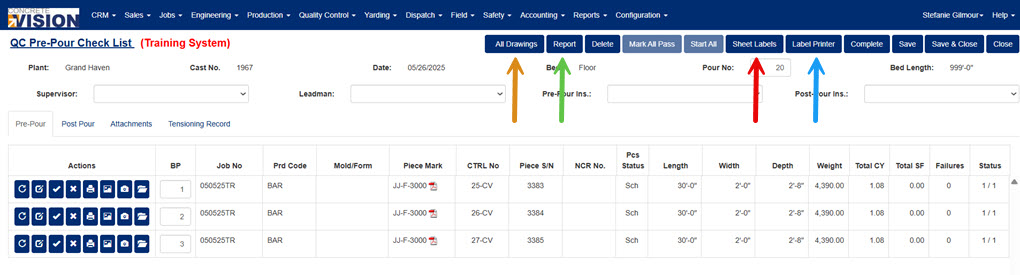
Figure 9
View & Annotate All Piece Mark Drawings
To view and annotate all piece mark drawings related to a bed, click the All Drawings button (orange arrow in Figure 9) on the QC Pre-Pour Checklist screen.
QC List(s) Bed Report
From the QC Pre-Pour Checklist screen:
- Click the Report button (green arrow in Figure 9).
- In the popup window, check what items to include in the report.
- Click the Report button in the popup window.
Create Labels for Pieces on Bed
From the QC Pre-Pour Checklist screen:
- Click the Sheet Label button (red arrow in Figure 9) to generate multiple labels on a sheet to be printed from an office printer.
- Click the Label Printer button (blue arrow in Figure 9) to generate individual labels to be printed on a label printer.
Editing Contacts, Bed Position, and Control Numbers
From the QC Pre-Pour Checklist screen:
- Edit the Supervisor, Leadman, Pre-pour Ins, Post-pour Ins contacts for the bed by selecting new options from the dropdowns.
- If the pre-pour checklist is not complete on a piece, the bed position (column BP) for the piece can be updated.
- If System Settings allow editing of control numbers at this stage in the job workflow, AND the pre-pour checklist is not complete on a piece, the control numbers (column CTRL No) can be updated.
Was this article helpful?
That’s Great!
Thank you for your feedback
Sorry! We couldn't be helpful
Thank you for your feedback
Feedback sent
We appreciate your effort and will try to fix the article