Prerequisites
- A Concrete Vision Enterprise license is required to complete the integration setup
- Contact your Idencia representative to get the integration credentials to complete the steps below.
Part 1: Configuring Concrete Vision
Enter Idencia Credentials
- Navigate to Configuration menu > System Setup > System Settings
- Select the 3rd Party Integration Settings from the list in the left column (Figure 1)
- Enter the URL for the Idencia API
- Enter the API Key for the Idencia API
- Click Save
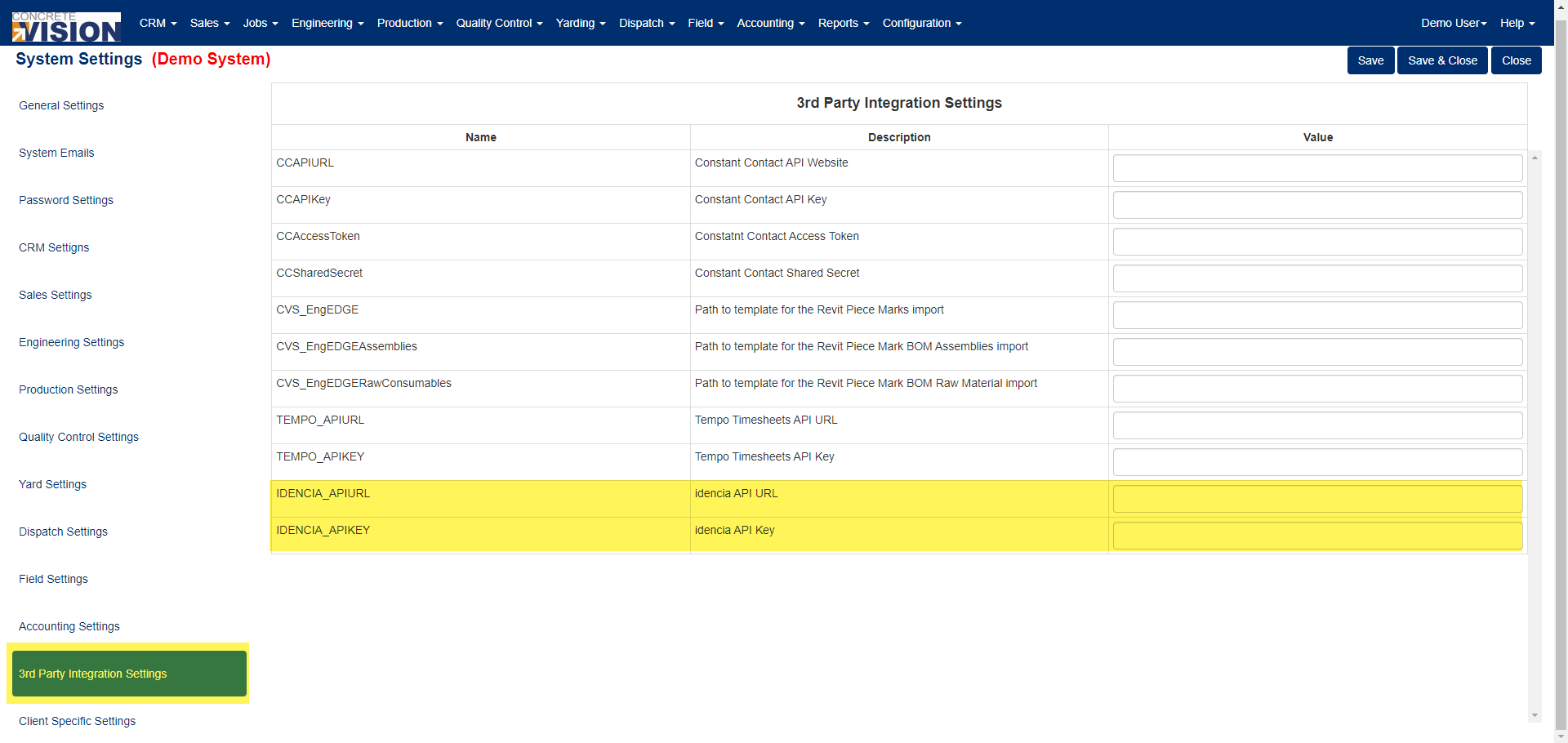
Figure 1
Part 2: Setting up Idencia Processes
Access the Processes Screen
- Sign in to the Idencia portal with a user account that has full administrative access
- Navigate to Setup > Processes
Create Required Processes
Create the following processes in Idencia using the exact names shown below. The checklist status will be synced back to the piece in Concrete Vision using these process names.
CV QC Pre Pour Check List
Keywords: QC, PRE, POURCV QC Post Pour Check List
Keywords: QC, POST, POURCV Shipping Load Check List
Keywords: SHIPPING, LOAD, VERIFY
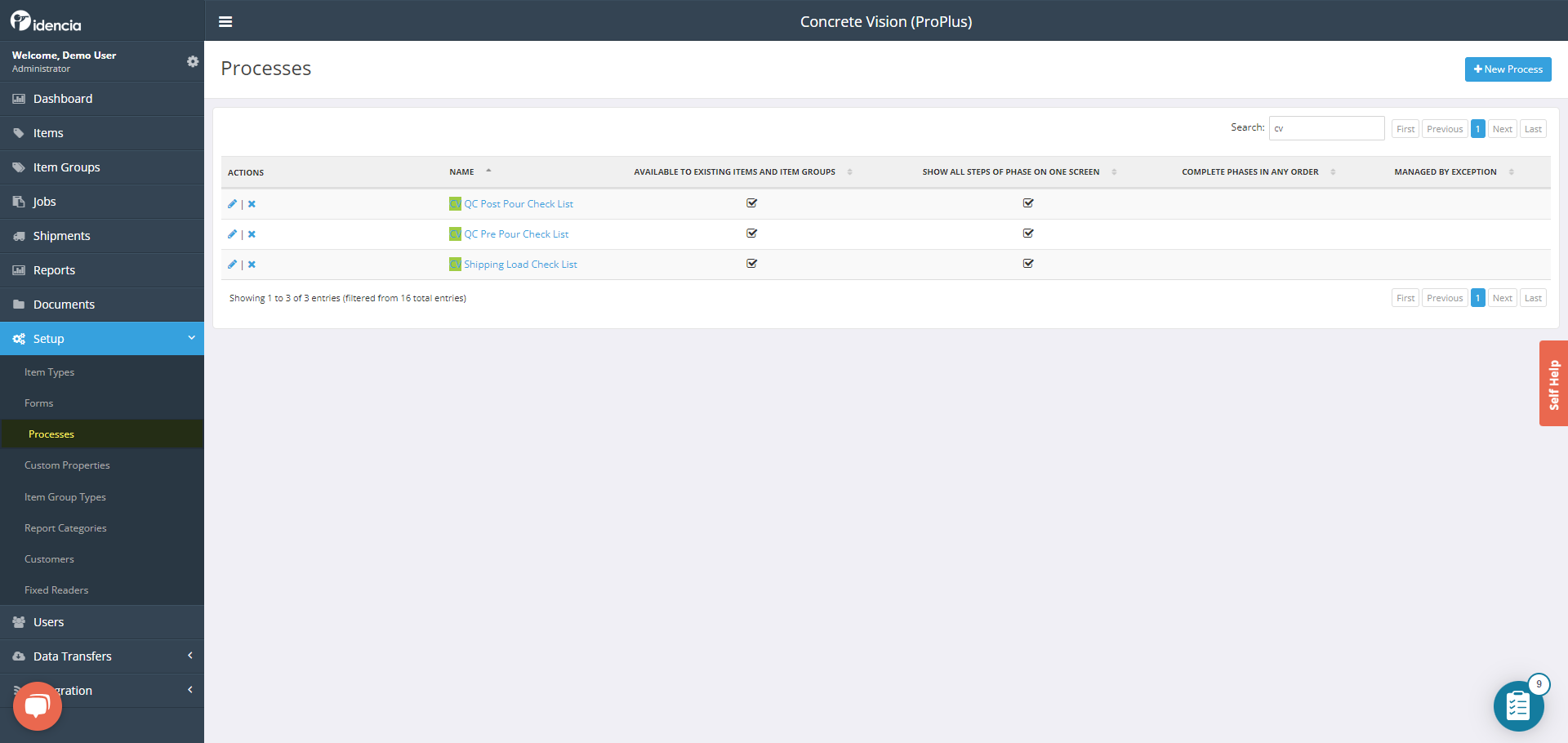
Figure 2
Configure Process Details
Refer to the Idencia documentation for detailed instructions on:
- Setting up phases for each process
- Configuring steps within each phase
- Customizing checklist parameters
Important Notes
- The checklist status will be synced back to the piece in Concrete Vision using these process names
- Ensure all process names match exactly as specified
- Any changes to process names will require reconfiguration of the integration
Support
For additional help with this integration, contact:
- Concrete Vision Support: helpdesk.concretevision.com
- Your Idencia representative
Was this article helpful?
That’s Great!
Thank you for your feedback
Sorry! We couldn't be helpful
Thank you for your feedback
Feedback sent
We appreciate your effort and will try to fix the article