Below is a step-by-step guide for setting up and understanding the functionality of multi-factor authentication (MFA) in Concrete Vision, intended for the Local Administrator.
Introduction
This document serves as a guide for Local Administrators to set up and comprehend the functionality of multi-factor authentication (MFA) within Concrete Vision. MFA provides an additional layer of Security by requiring users to provide a Secondary Authentication Code along with their password.
Available Authentication Methods
Concrete Vision offers Two Authentication methods for MFA:
- Authenticator App: Utilizing a mobile phone or tablet Authenticator app such as Google Authenticator or Microsoft Authenticator.
- Email: Access to the emails associated with the User account.
Preparation
Before enabling MFA, ensure the following requirements are met:
- Users have the ability to use MFA.
- User's email addresses are correct in the User Logins screen.
- Notify users in advance when planning to enable MFA on their accounts.
Concrete Vision MFA Configuration
Step 1 - Enable MFA at the Company Level
- Navigate to Configuration menu > System Setup > System Settings > Password Settings.
- Enable MFA by selecting "Yes" from the dropdown menu. (see Figure 1)
- Hit 'Save' or 'Save and close'. (see Figure 1)
Optional Setting: Delay MFA
The “Delay MFA” option determines the duration for which Concrete Vision will retain a user’s device key (held in a browser cookie). During this period, users can access the system without re-authenticating. After the specified number of days, user will be prompted to authenticate again.
- To enable the Delay MFA for all users, select the number of days from the dropdown menu. (see Figure 1)
- Hit 'Save' or 'Save and close'. (see Figure 1)
Administrator Reset for Delay MFA
Enabling the “Reset MFA” setting to “Yes” will require all users to re-authenticate, regardless of the current “Delay MFA” setting.
Note: It is advisable to perform this action when adjusting the “Delay MFA” value.
- To require all users to re-authenticate, select the "Yes" option from the dropdown menu. (see Figure 1)
- Hit 'Save' or 'Save and close'. (see Figure 1)
- You will be prompted to confirm that you wish to proceed with resetting all user MFA authentications.
- Click "Ok" to proceed with the reset or click "Cancel" to abort.
Note: Enabling MFA at the company level will not affect users initially. However, if MFA was previously enabled and then disabled, re-enabling it will automatically activate MFA for all previously enabled users.
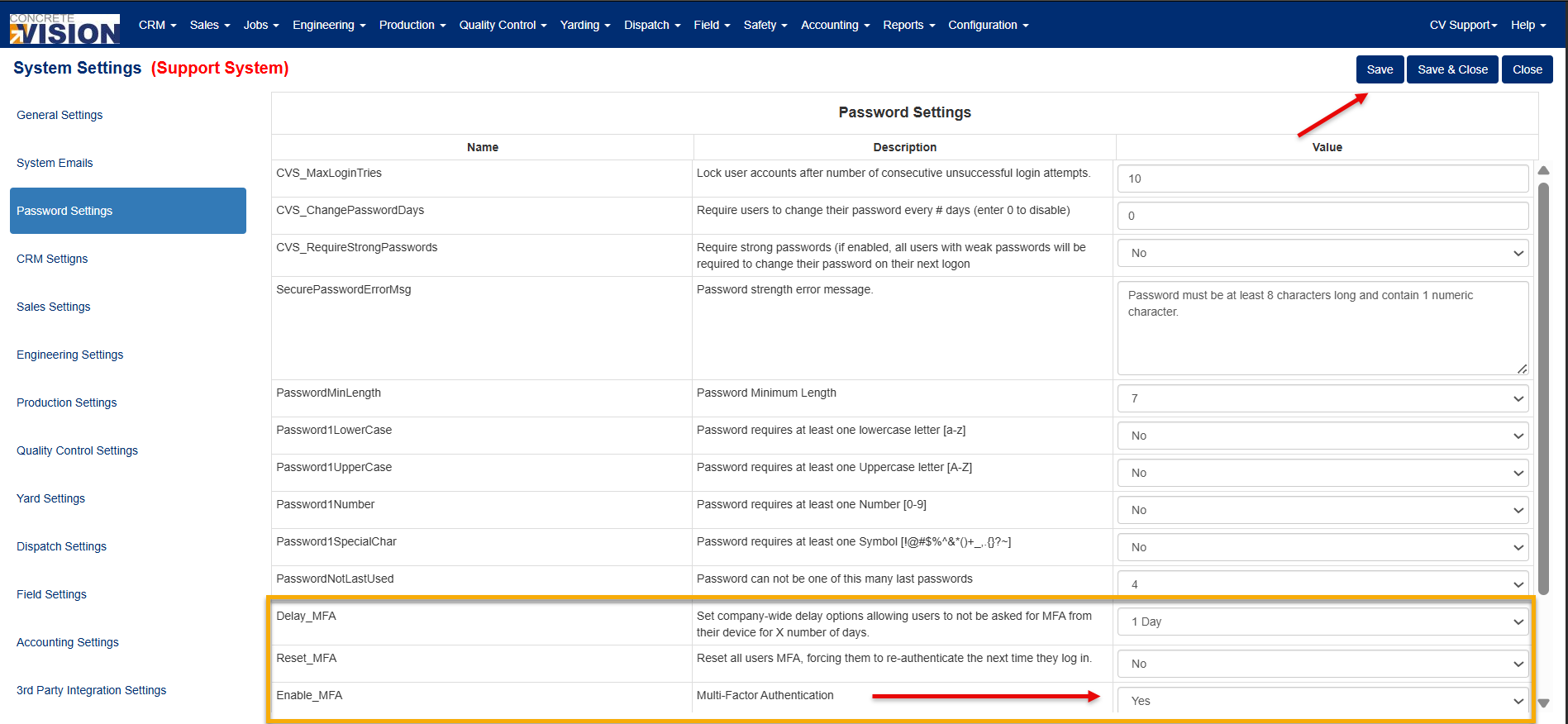
Figure 1
Step 2 - Enable MFA for Users
- Navigate to Configuration menu > User Setup > User Logins.
- Check the MFA Login checkbox for the user(s) you wish to enable MFA for.
If the MFA Concrete Vision feature is enabled, you will be able to maintain which users have this Security Feature Activated by using the MFA Login checkbox (Green box, Figure 2) When checked on, the User will be prompted to provide a Secondary Security Code before being allowed to enter Concrete Vision.
To see what the end user sees Refer: Logging In With MFA: (concretevision.com) (see the "Multi Factor Authentication" section)
Note: Once the checkbox is checked, the change takes effect immediately. No additional saving is required. Users with MFA enabled will be prompted to provide a Secondary Security Code during Login.
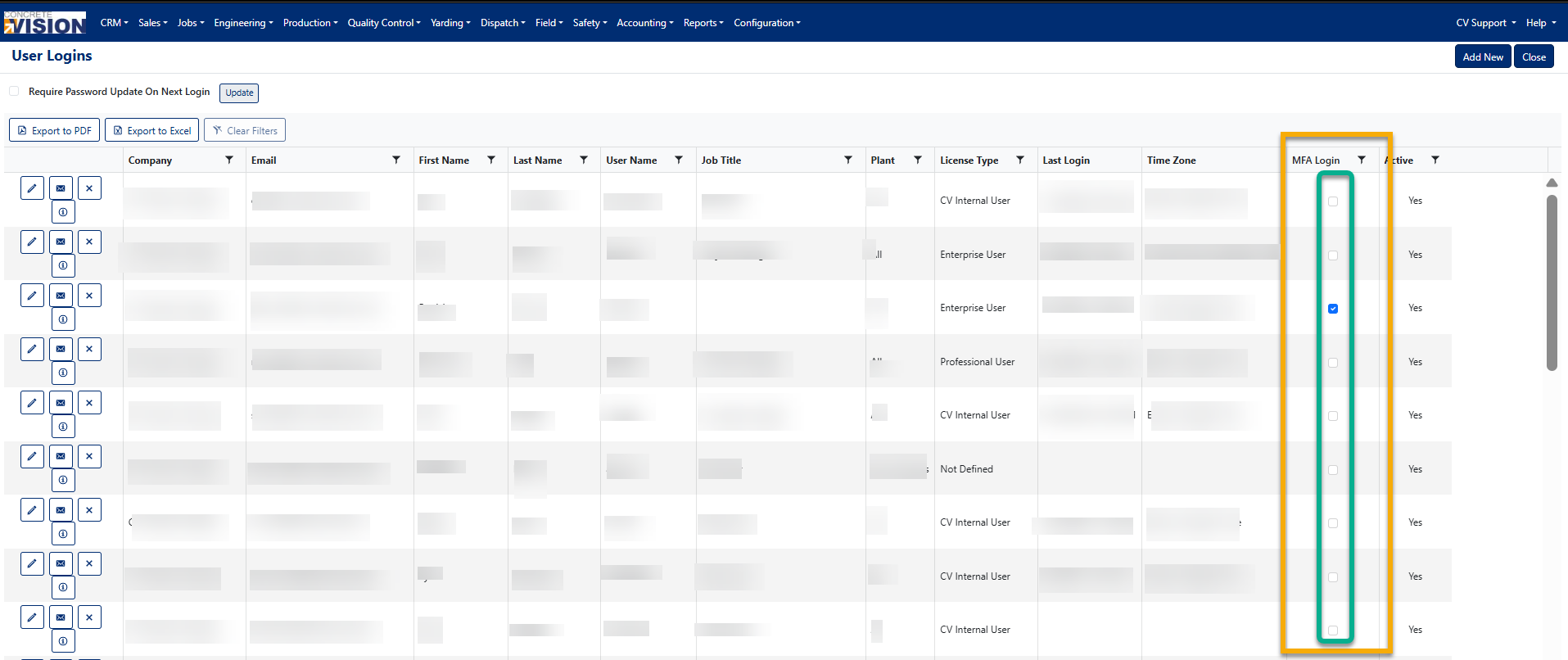
Figure 2
By following the above steps, local administrators can effectively set up and manage MFA within Concrete Vision, enhancing the Security of User accounts. For further assistance or inquiries, please refer to the Concrete Vision Support Team.
Modifying Password Requirements
In the event that updates are made to the Password Requirements in the Password Settings (Figure 1), the following steps are expected to occur for users.
1. The user navigates to the login page as normal.
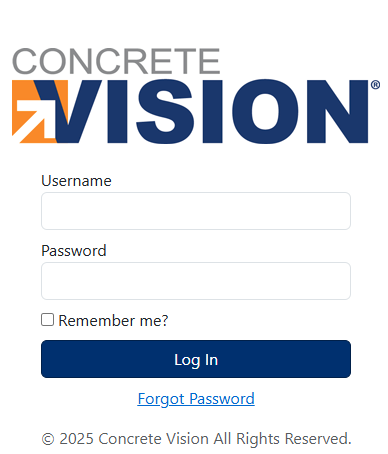
2. The user enters their existing username and password.
3. The user is directed to a password update screen that displays the requirements and prompts them to enter their Old Password, New Password, and Confirm Password.
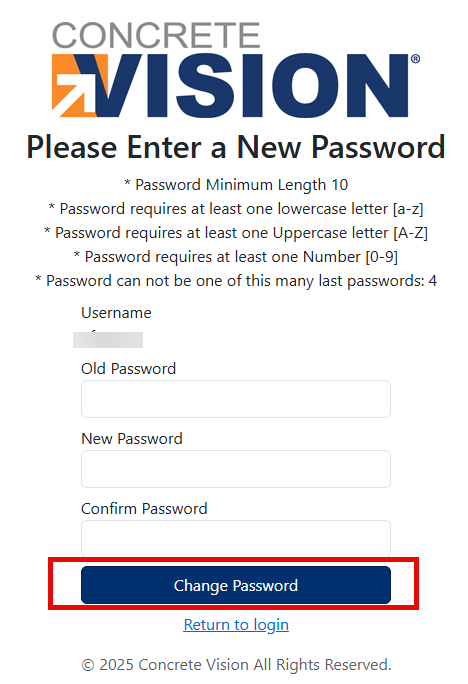
4. Upon successfully updating their password, the user selects 'Return to Login'.
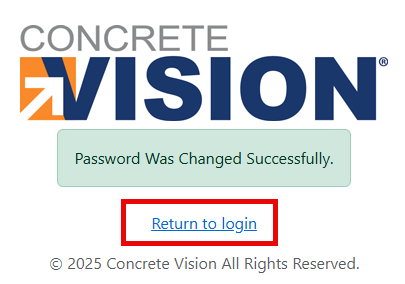
5. The user logs in with their username and newly created password, gaining access to the CV interface.
Was this article helpful?
That’s Great!
Thank you for your feedback
Sorry! We couldn't be helpful
Thank you for your feedback
Feedback sent
We appreciate your effort and will try to fix the article