As a Concrete Vision user, you can log in by launching an Internet browser and going to the address you have given for Concrete Vision by your System Administrator. A login screen will prompt you for your username and password (Figure 1)
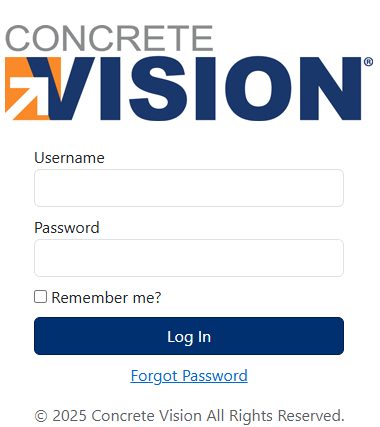
Figure 1
Enter the username and password assigned to you by your system administrator. Once you have successfully logged into Concrete Vision, the following main menu screen will be shown. The main menu (see Figure 6) displays all the possible modules available in Concrete Vision. Based on your permissions, you will only see some of these menus.
Multi Factor Authentication
After completing the initial login form, if the MFA Concrete Vision feature is enabled, you will be prompted to choose an authentication method (see Figure 2).
Note: You have five minutes to finish the login authentication process. (see countdown Figure 4 highlighted in yellow).
- Select from the two available authentication methods.
- Authenticator App (Using a mobile phone/tablet Authenticator app, such as Google Auth. & Microsoft Auth. )
- Email (you will need access to the emails for the account you're logging into).
- Submit your selection (Green box, Figure 2).
- If the Authenticator App was submitted as your selection:
- You will see a screen prompting you to scan the provided QR code (Blue box, Figure 3) with your mobile phone/tablet Authenticator app.
- Your Authenticator app will give you a 6-digit code for you to enter into the Login Authentication screen (Orange box, Figure 3).
- Once entered, click on the Authorize button (Green box, Figure 3).
- If successful, you will be logged into Concrete Vision, and the main menu screen will be shown (see Figure 6).
- If you are having trouble or need to use another Authenticator App:
- Click on the Reset link found underneath the [Authorize] button. This will generate you a new QR Code which you can scan with your App.
- If Email was submitted as your selection:
- An email will be sent to your email address on file.
- If after waiting 2-minutes, you have not received the email, please click on the Resend (Red box, Figure 4).
- Once you have received the email, enter the code provided into Enter Code box found on the Login Authentication screen (Orange box, Figure 4).
- Once entered, click on the Authorize button (Green box, Figure 4).
- If successful, you will be logged into Concrete Vision, and the main menu screen will be shown (see Figure 6).
- An email will be sent to your email address on file.
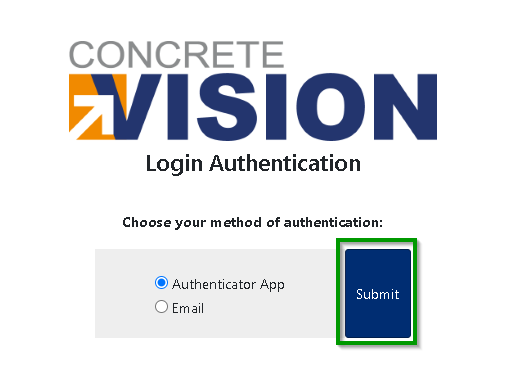 Figure 2
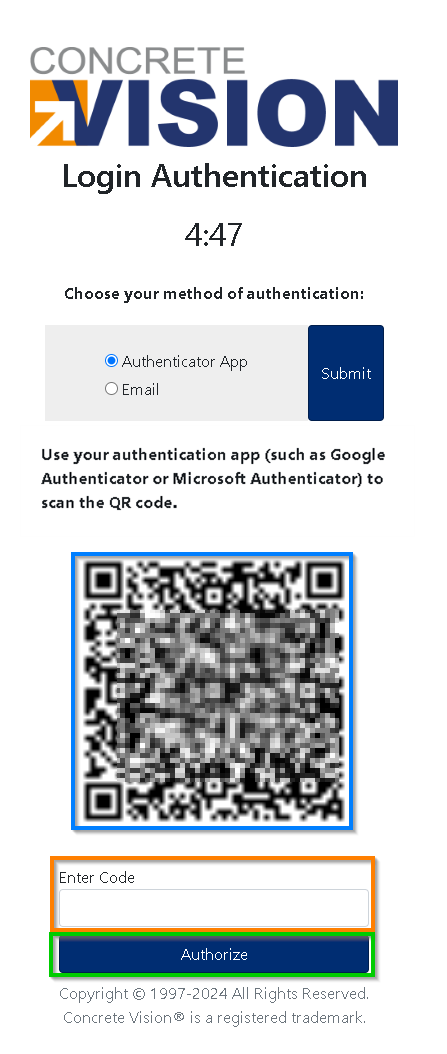
Figure 3
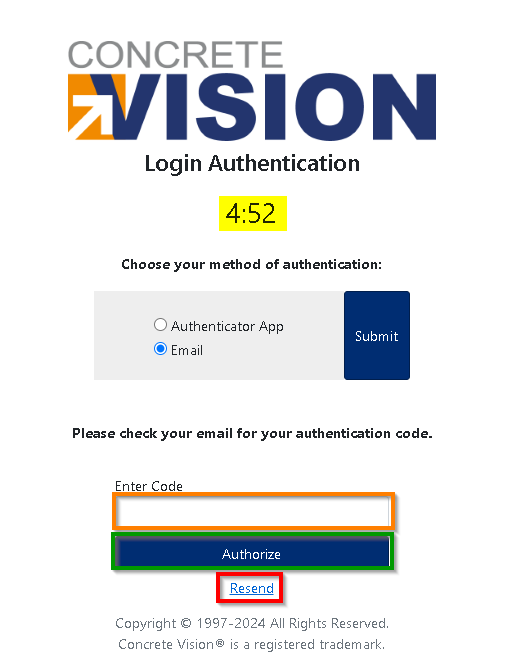
Figure 4
Multi Factor Authentication remember device option
If your system administrator permits, you will be able to have Concrete Vision remember your device effectively bypassing the need to authenticate for every login (Orange box, Figure 5).
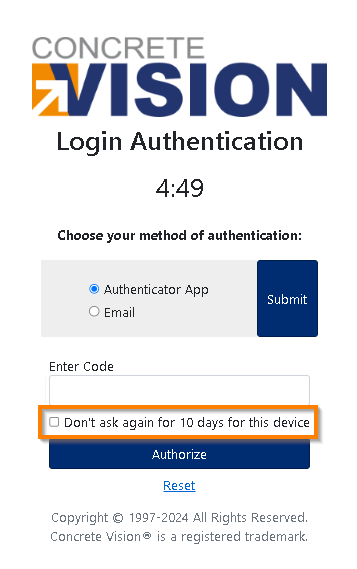
Figure 5
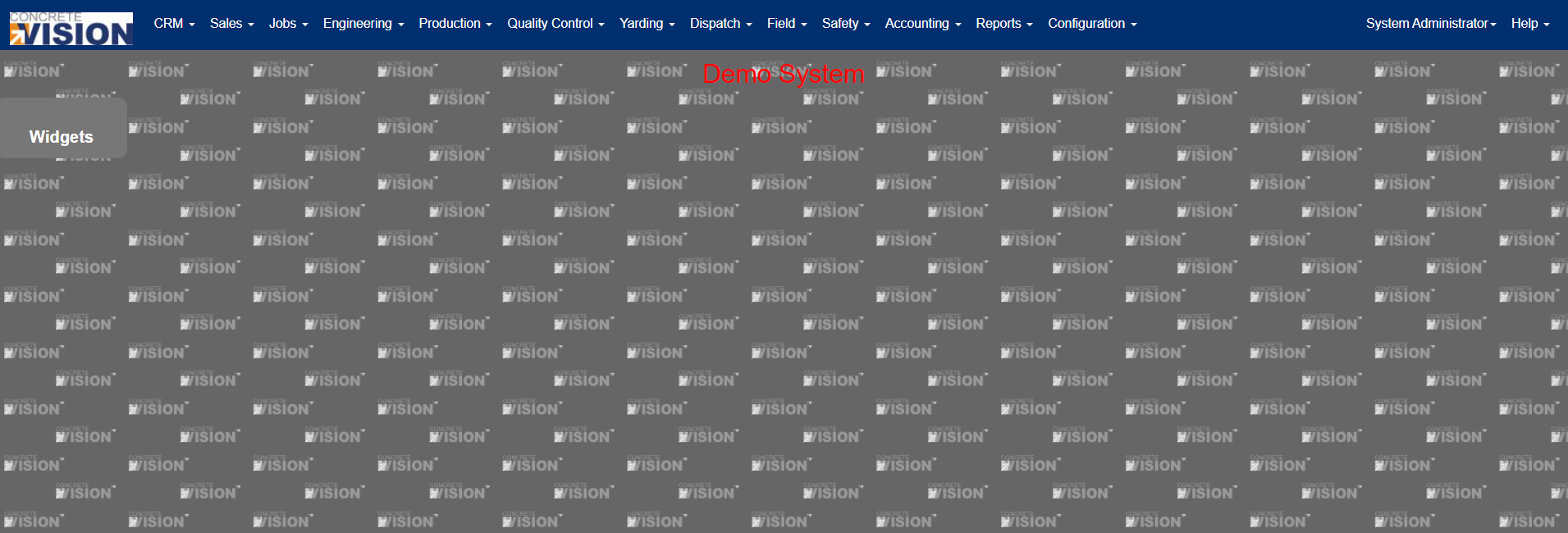
Figure 6
Was this article helpful?
That’s Great!
Thank you for your feedback
Sorry! We couldn't be helpful
Thank you for your feedback
Feedback sent
We appreciate your effort and will try to fix the article