Overview
The User Logins screen allows administrators to manage Concrete Vision users with capabilities to:
- Add new users
- Edit existing users
- Delete users
- Set user permissions
- Configure two-factor authentication
- Manage production planning options
- Set plant permissions
Accessing User Logins
- Navigate to the Configuration menu
- Select User Setup
- Click on User Logins
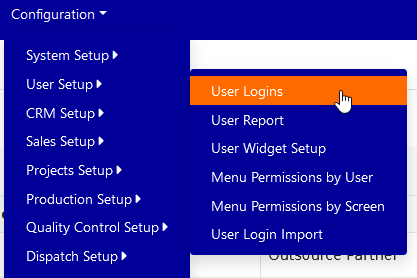 Figure 1
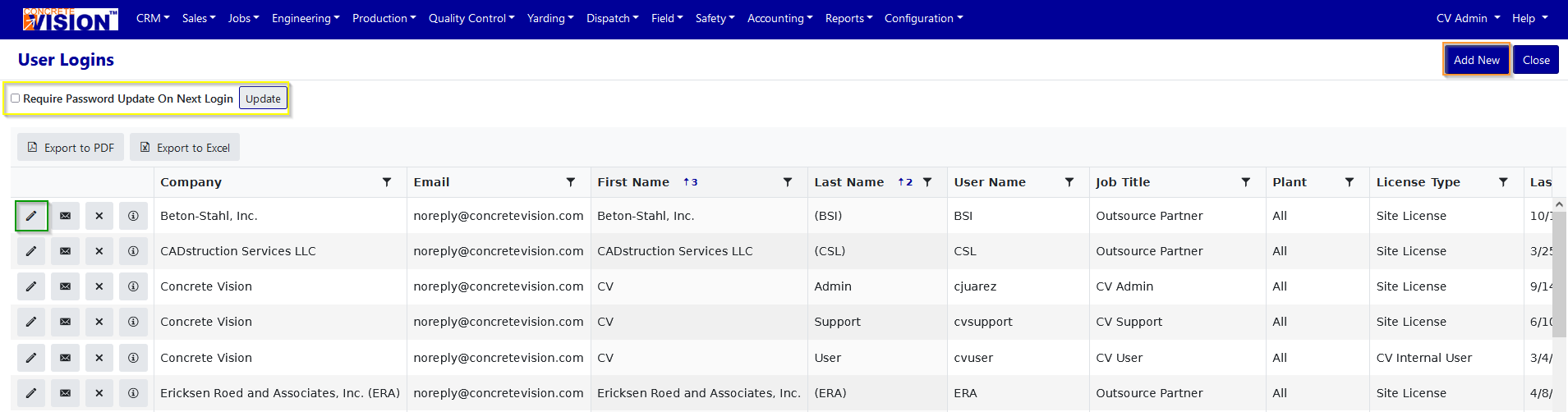
Figure 2
User Management Tasks
Creating a New User
- Click the Add New button (Figure 2 - orange outline)
- Complete all required fields in the "Add User" window: (Figure 3)
- Company
- Email (required)
- User Name (required)
- HR Employee ID
- Plant
- Time Zone
- License Type
- Click either Save or Save & Close to confirm. (Figure 3 - Blue outline)
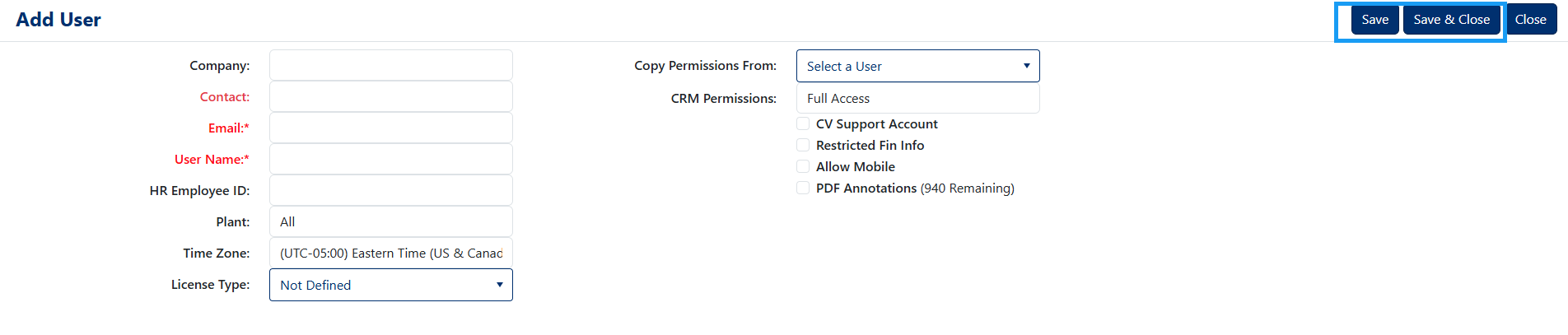
Figure 3
Editing an Existing User
- Locate the user in the list and click the Edit button (green square icon)
- Modify the desired fields in the user edit screen
- Click either Save or Save & Close to confirm changes
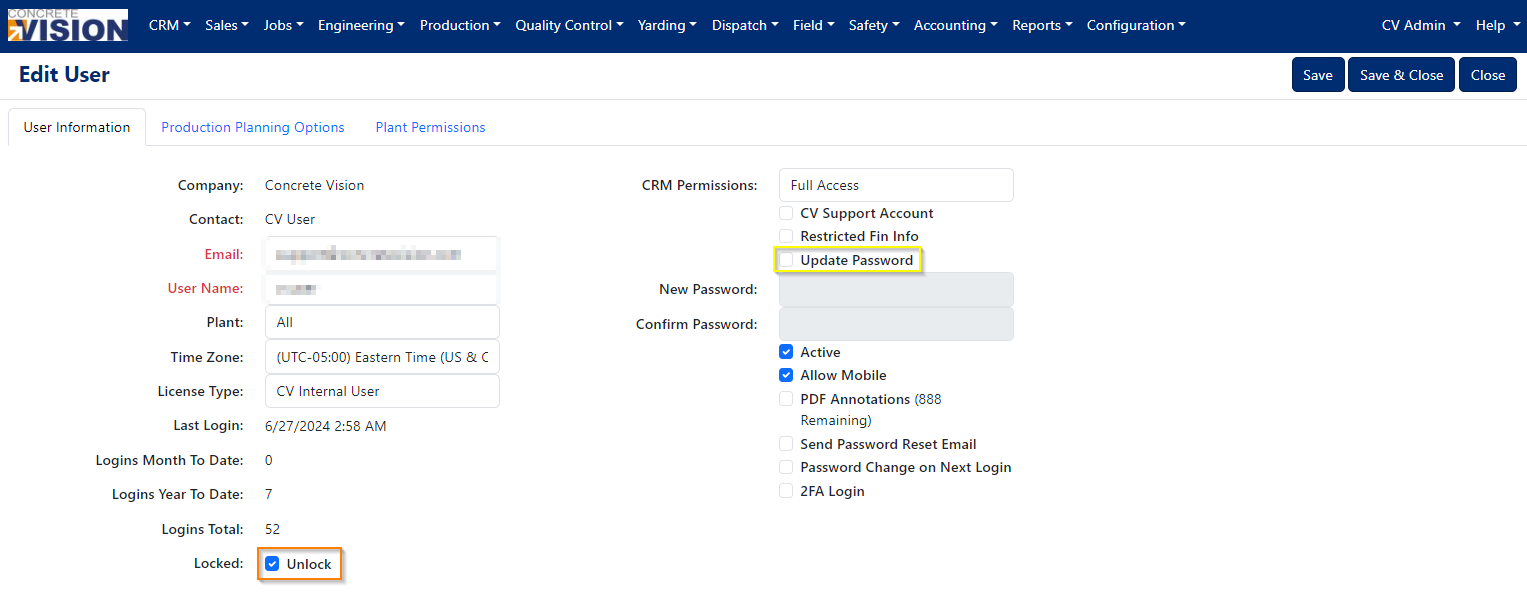
Figure 4
Updating a User's Password
- In the user edit screen, check the Update Password checkbox (Figure 4 - yellow outline)
- Enter the new password and confirm it in the password confirmation field
- Click either Save or Save & Close to apply the change. (Figure 4, top right)
Unlocking a Locked User Account
When a user has been locked due to multiple invalid login attempts:
- In the user edit screen, check the Unlock checkbox (Figure 4 - orange outline)
- Click either Save or Save & Close
- Upon successful save, the account will be unlocked and the user will be required to change their password at next login
Security Features
Multi-Factor Authentication (MFA)
If the MFA feature is enabled in Concrete Vision:
- In the user edit screen, locate the MFA Login checkbox (Figure 5 - green outline)
- Check this box to require the user to provide a secondary security code before accessing Concrete Vision
- Click either Save or Save & Close to apply the setting
For more information on the MFA login process, refer to: Logging In With MFA: (concretevision.com) and view the "Multi Factor Authentication" section
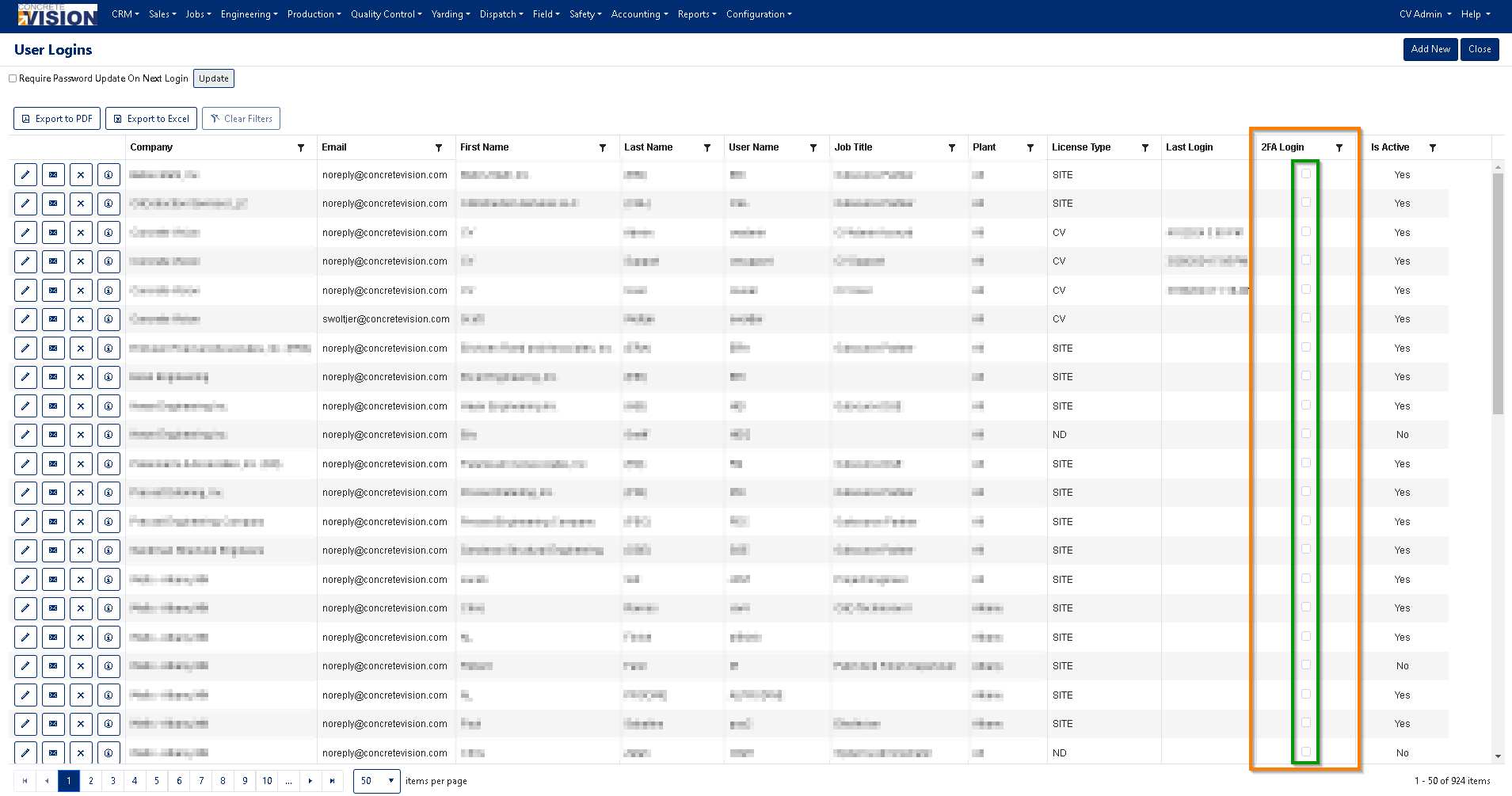
Figure 5
Advanced Configuration
Production Planning Bed Options
- In the user edit screen, click the Production Planning Options tab (Figure 6 - yellow outline)
- To add a bed:
- Select a bed from the dropdown
- Click Add if the bed is not already in the list (Figure 6 - orange outline)
- Configure display options:
- Cell Text settings (text shown on screen, blue outline - Figure 6)
- Hover Text settings (text shown when hovering, green outline - Figure 6)
- Click either Save or Save & Close to apply changes (Figure 6, top right)
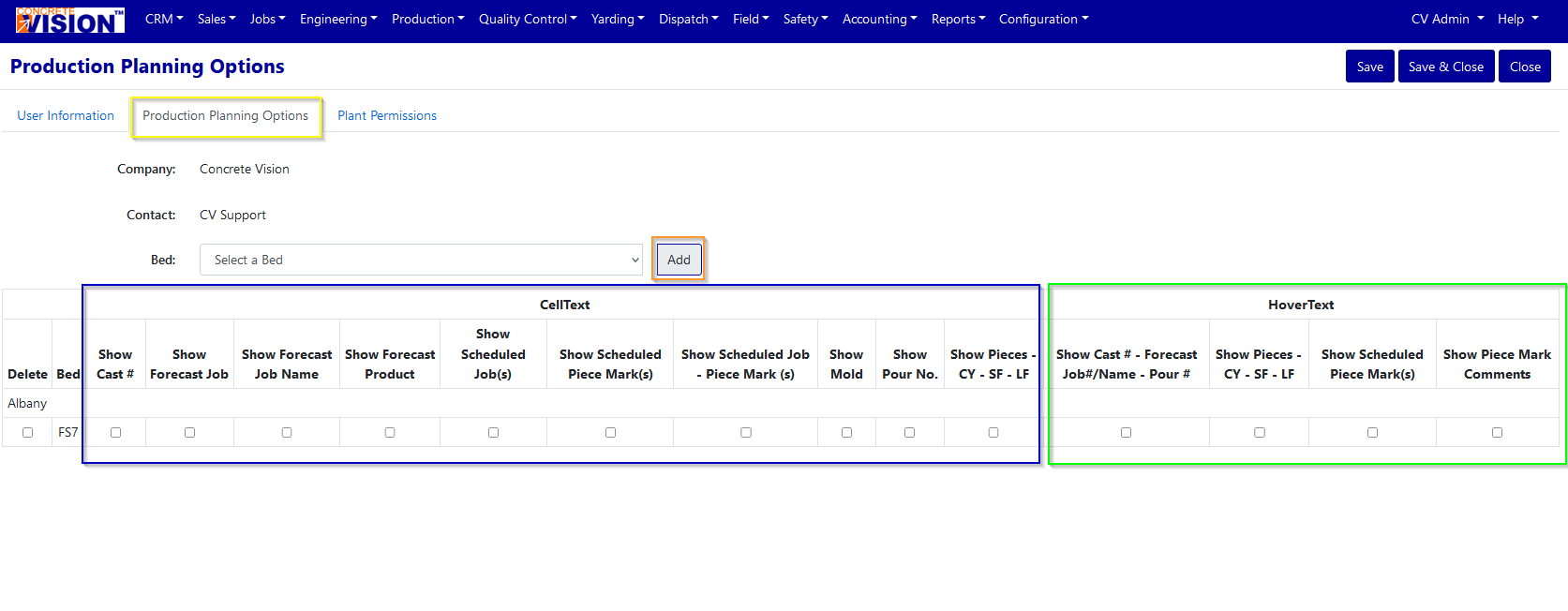
Figure 6
Plant Permissions
- In the user edit screen, click the Plant Permissions tab (Figure 7 - yellow outline)
- For each plant listed:
- Check the View permission box to grant viewing access
- Check the Edit permission box to grant editing access
- Click either Save or Save & Close to apply the permissions (Figure 7, top right)
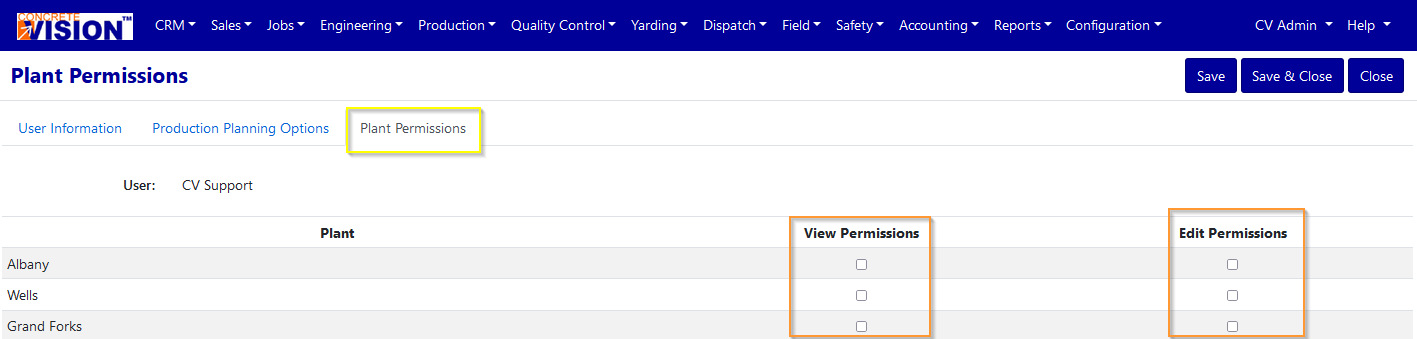
Figure 7
Tips for Administrators
- Always verify user settings after making changes
- Consider security implications when granting permissions
- Regular user account audits are recommended
- Document any special permission arrangements for reference
Was this article helpful?
That’s Great!
Thank you for your feedback
Sorry! We couldn't be helpful
Thank you for your feedback
Feedback sent
We appreciate your effort and will try to fix the article