Creating Reports
Report Generator can be accessed via Reports menu > Reports - Generator > Report Generator as seen in Figure 1.
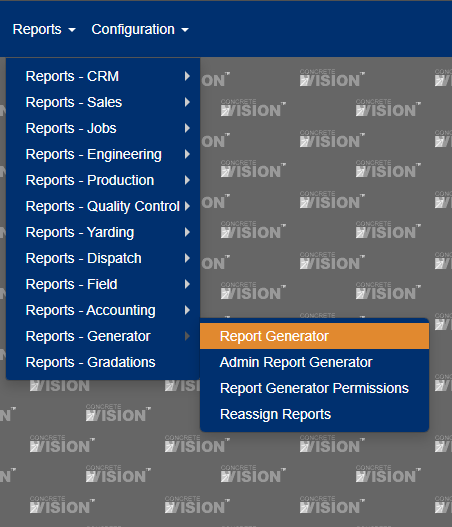
Figure 1
Add a New Report
- Click 'Add New'
- Give the report a name and description
- Click OK
Copy a report by clicking Save As…
Add Fields to Report
- Expand the view containing the fields you want to use in a report (see Figure 2). There are several predefined groups to choose from
- Check the fields you want to include
- Click the Add Columns icon to add the fields to the report
- Fields can be renamed in the title section Selected Columns area
- When a report is created, changes are saved automatically
- Columns can also be added whit the [Add new column] link in the Selected Columns panel
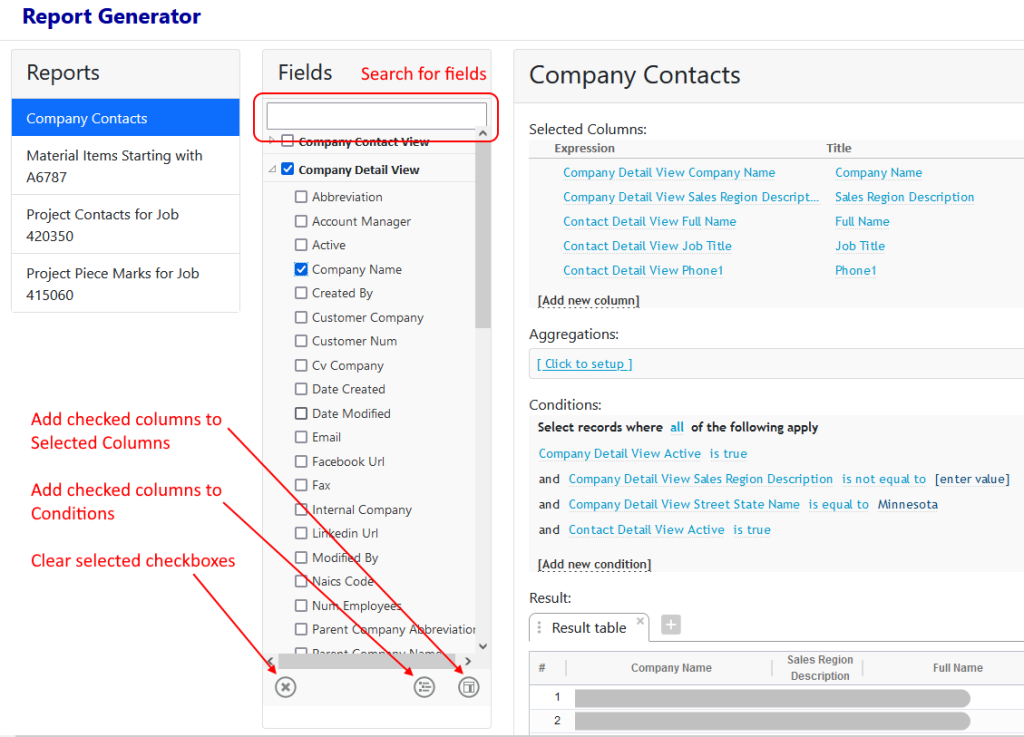
Figure 2
Field Options
- Rearrange columns by dragging and dropping (see Figure 3)
- Click the Up/Down arrows to sort
- Format numbers, dates, and times
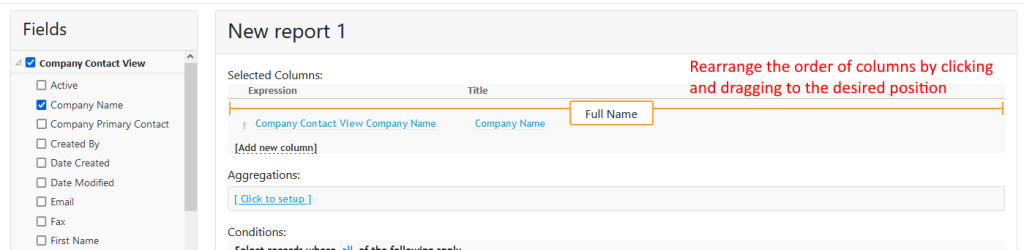
Figure 3
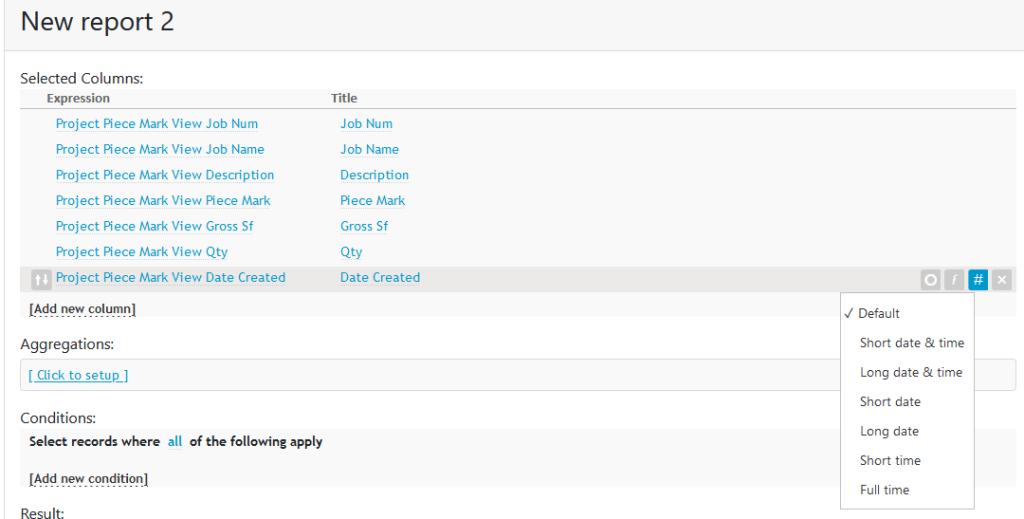
Figure 4
Aggregations
- Click the link “Click to setup” (see Figure 4)
- Toggle Enable Aggregation (see Figure 5)
- Check the fields for which you want an aggregate
- The green overlapping square icon indicates a group (see Figure 5)
- If you group on a field, the aggregate will be applied to each unique instance
- The purple Epsilon offers a choice of aggregations. Some are only available for numeric fields (see Figure 6)
- Sum
- Count
- Distinct Count
- Minimum
- Average
- Minimum
- Maximum
- Optionally toggle Show record count for groups and/or Show grand total (see Figure 7)
- The green overlapping square icon indicates a group (see Figure 5)
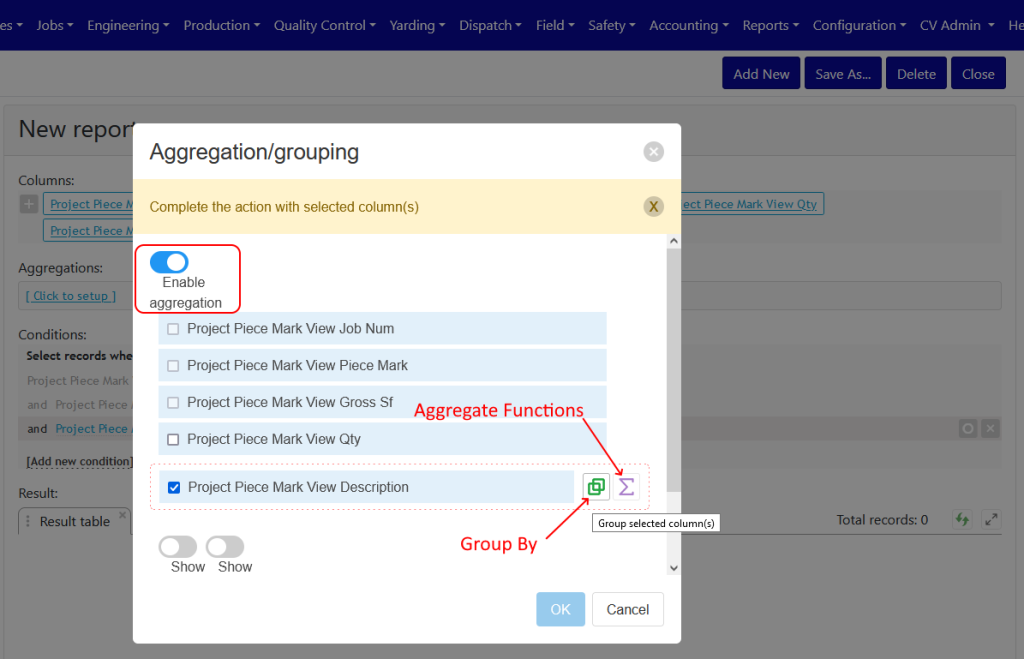
Figure 5
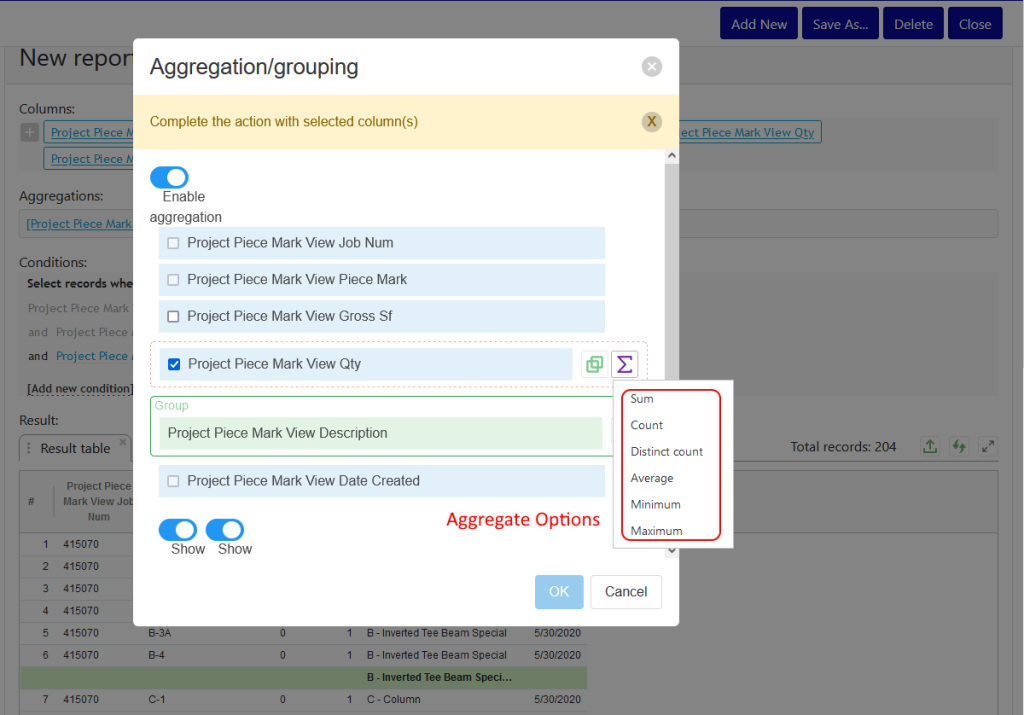
Figure 6
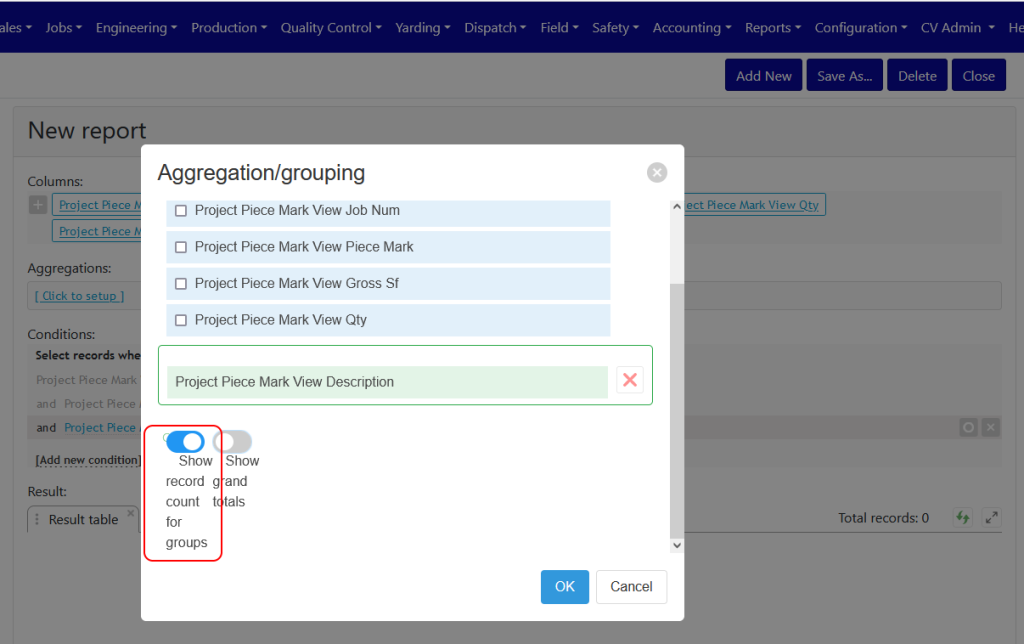
Figure 7
Conditions
This is where you filter for the values you want to see.
- Click 'Add new condition'
- Select or search for the field you want to filter by. Only add fields from the same group you added to the report
- Choose the filter type. Options include: (see Figures 8 & 9)
- Starts with
- Contains
- Is equal to
- Is in list
- Does not start with
- Does not contain
- Is not equal to
- Is not in list
- In sub query
- Not in sub query
- Conditions can be toggled off or on with the O icon on the far right
- Conditions can be removed with the X icon on the far right (see red highlighted box in Figure 10)
- Add as many filters as needed
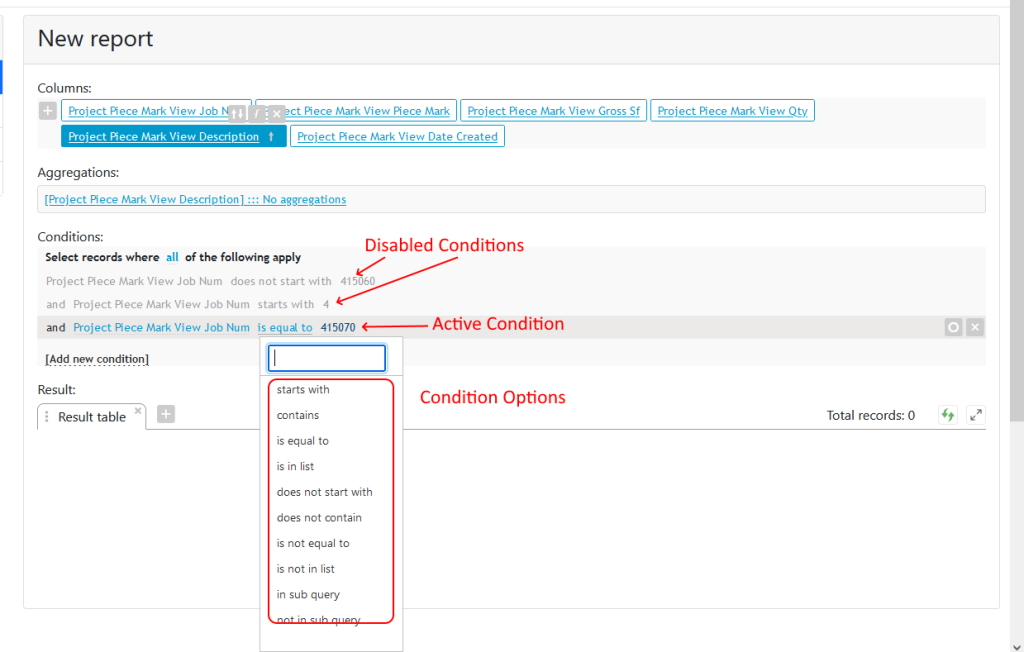
Figure 8
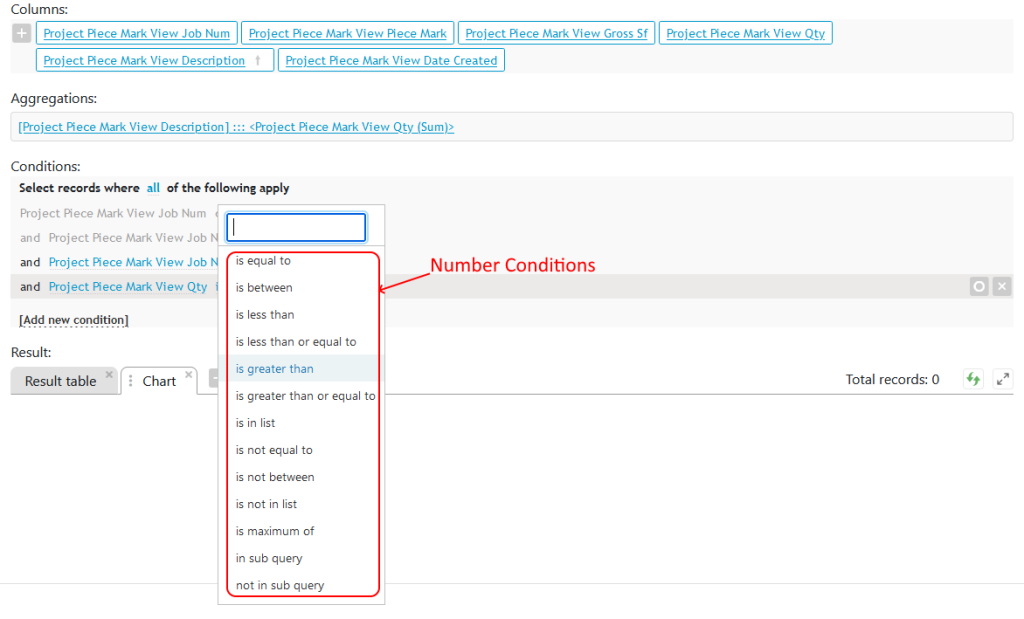
Figure 9
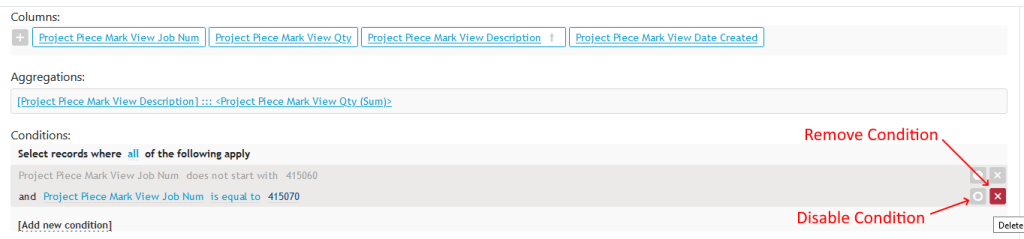
Figure 10
Results
- Click the green arrows icon to 'Refresh' your results (see Figure 11)
- Click the + icon to add a chart or pivot table
- Export results with the green up arrow icon (see Figure 11). The export formats are
- CSV
- Excel
- HTML (Excel Compatible)
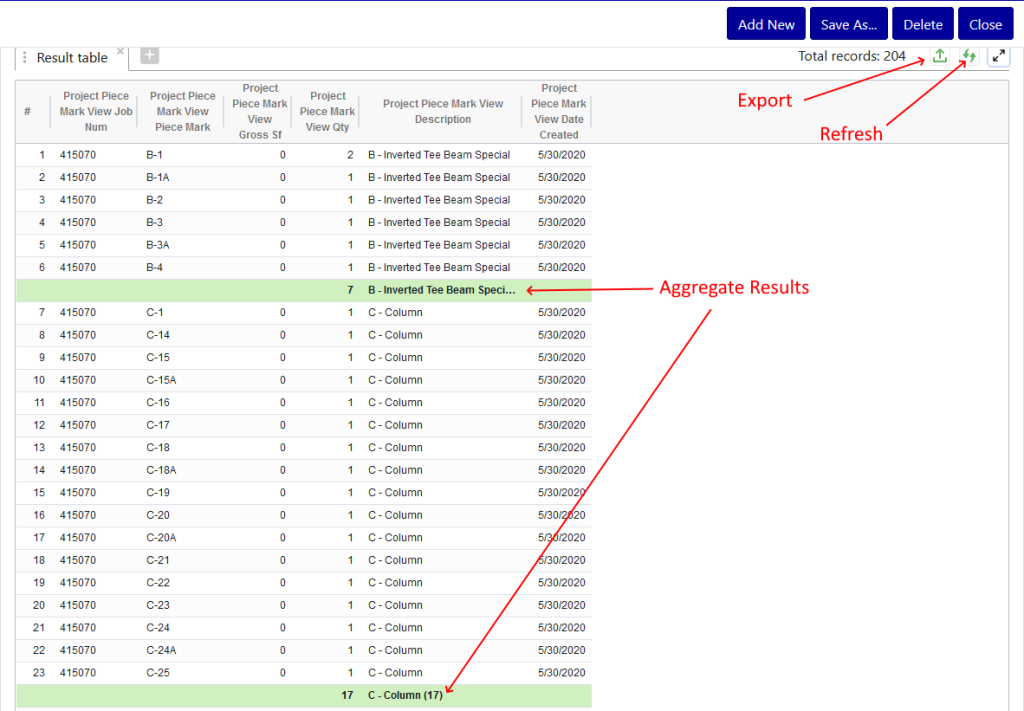
Figure 11
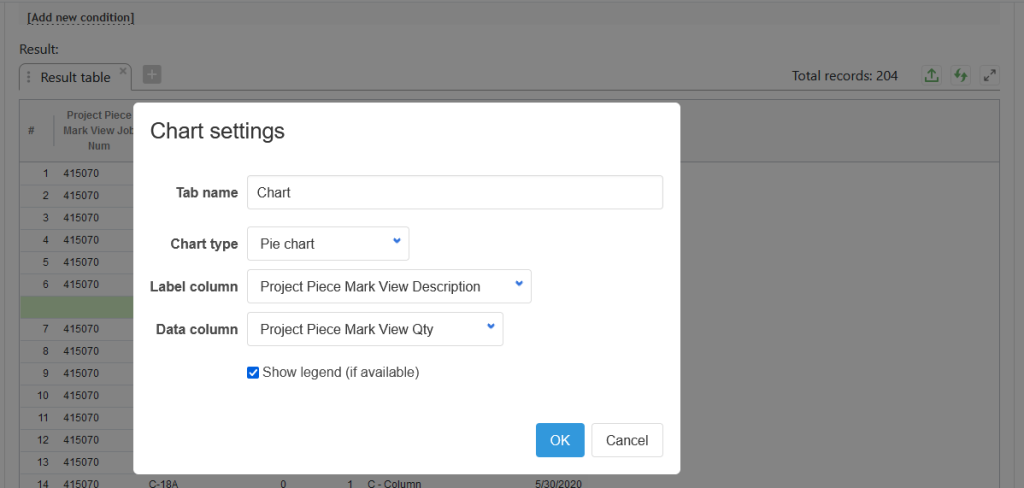
Figure 12
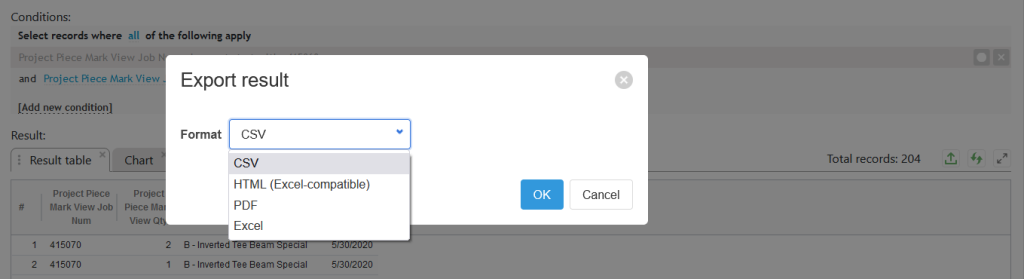
Figure 13
Share a Report
- Click on the Reports menu, select Report - Generator and then select Report Generator Permissions (see Figure 14)
- All the reports that you have created will be displayed (see Figure 15)
- Click the pencil icon to edit the report details
- Search for user names in the User List
- Continue adding names until all relevant users have been selected
- Click the Update button
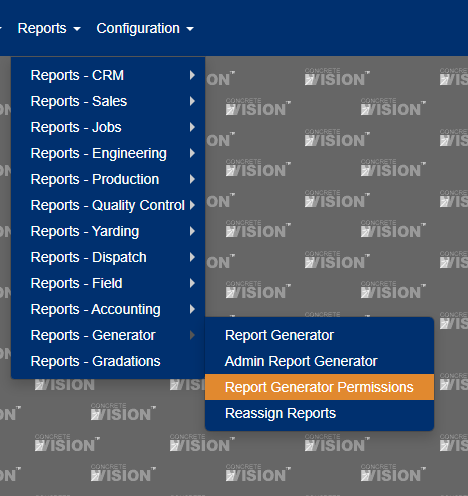
Figure 14
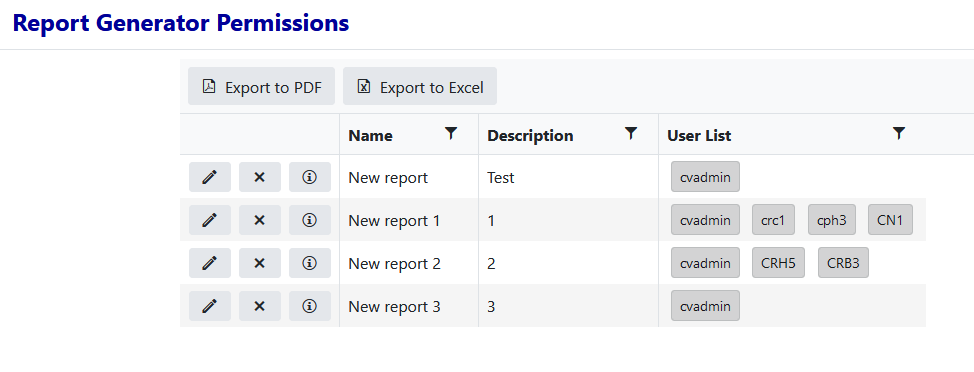
Figure 15
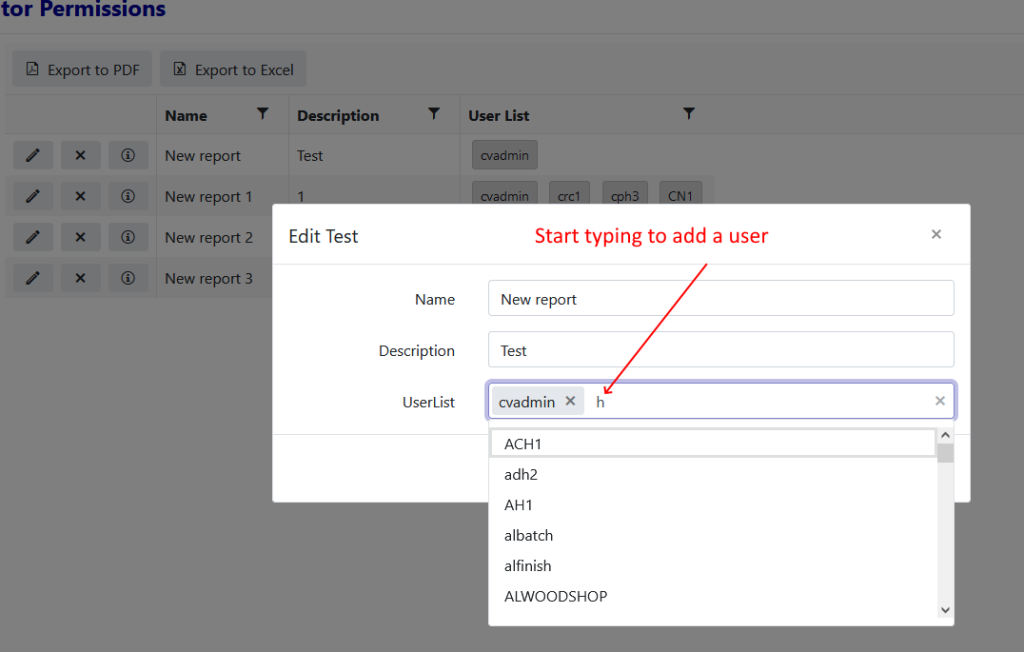
Figure 16
Delete a Report
Reports can be deleted from the Report Generator page or the Report Generator Permissions page.
- On the Report Generator page, select the report you want to delete from the left hand menu. Click the 'Delete' button on the right side of the screen.
- On the Report Generator Permissions page, click the X icon to the left of the report you want to delete.
Reassign Reports
Reports can be reassigned to another user. Access the Reassign Reports screen from Reports > Reassign Reports (see Figure 17)
Click the transfer icon to show the Reassign Reports Dialog (see Figure 18). You will be shown who owns the report and how many other reports they own. You can reassign this single report or reassign all of this user’s reports to another user (see Figure 19).
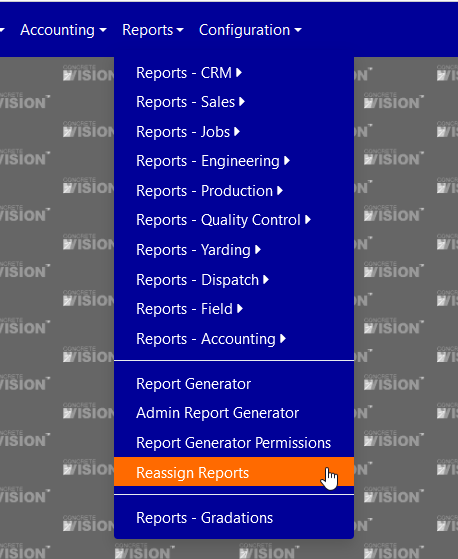
Figure 17
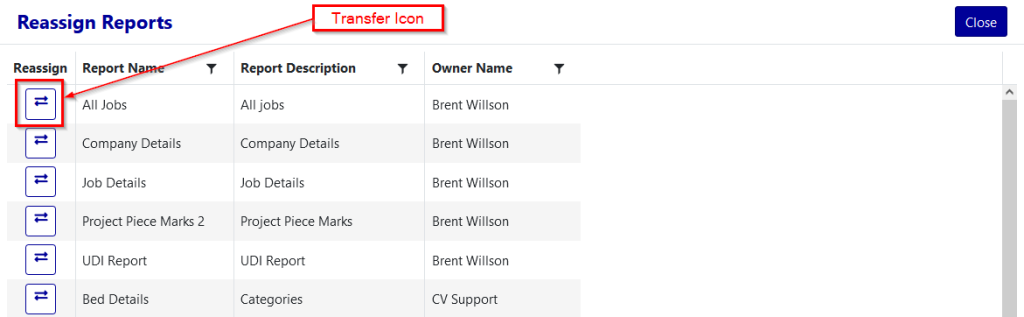
Figure 18
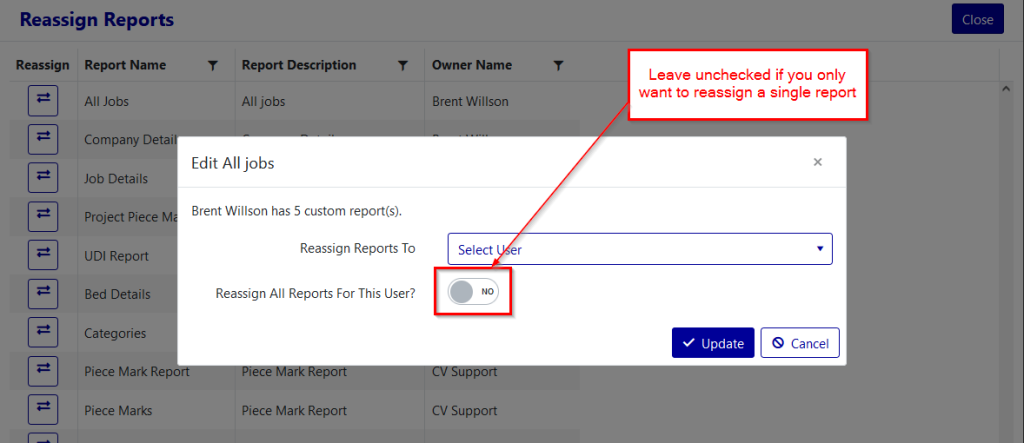
Figure 19
Deleting Users
If you are deleting a user that has created reports, you will be prompted to reassign them before you can delete them. If a report has been shared with a user that you are deleting, those shared reports will be copied to the new assignee unless that report has already been shared with that user.
Access the User Logins screen from the Configuration > User Setup > User Logins link (see Figure 20).
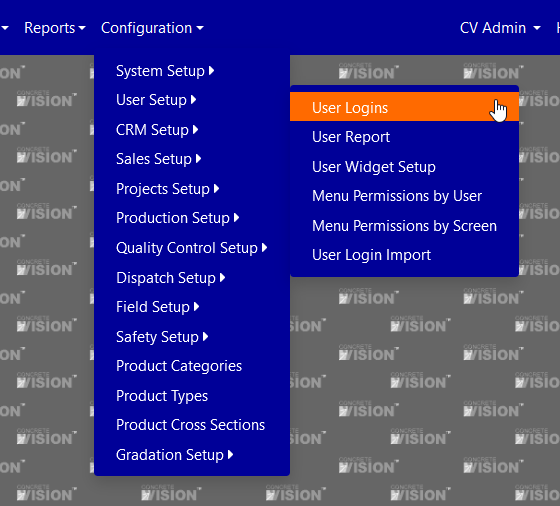
Figure 20
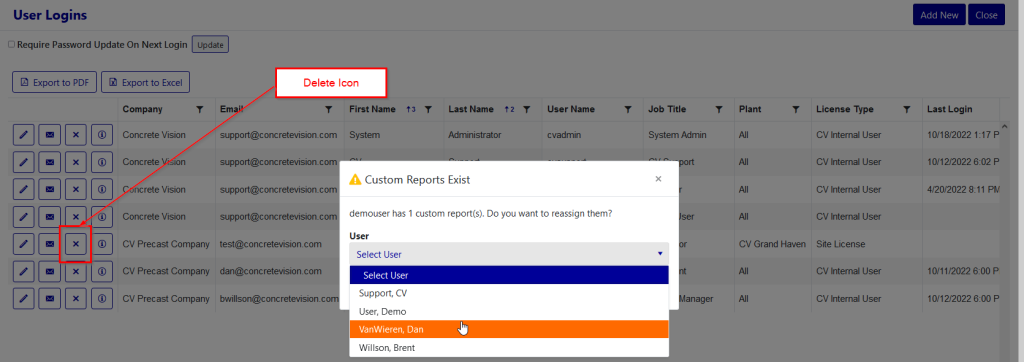
Figure 21
Was this article helpful?
That’s Great!
Thank you for your feedback
Sorry! We couldn't be helpful
Thank you for your feedback
Feedback sent
We appreciate your effort and will try to fix the article