The Scheduled Production Report is used to display and export the plant(s) Scheduled Production within a given date range and filterable by fields such as by plant, job and bed. Giving you the option to generate customized summary or detailed Scheduled Production reports.
You access Scheduled Production Report from the Reports menu > Reports - Production > Scheduled Production (Figure 1) or from the Production Menu > Production Planning > Scheduled Production button at the top right of your screen (Figure 1a).
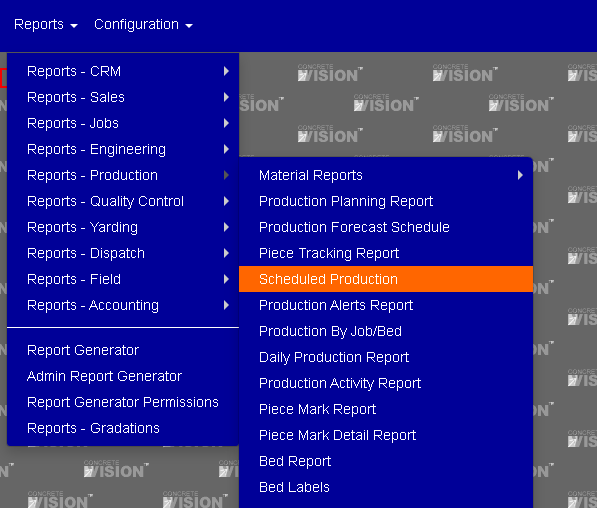
Figure 1

Figure 1a
Filtering & Customizing:
Customizing your Scheduled Production Report is done by clicking on the Filter button (see Figure 2 green top left) opening the Filter items section.
Specify the filters you would like to use to customize the report then click on the Search button (see Figure 2 green bottom right).
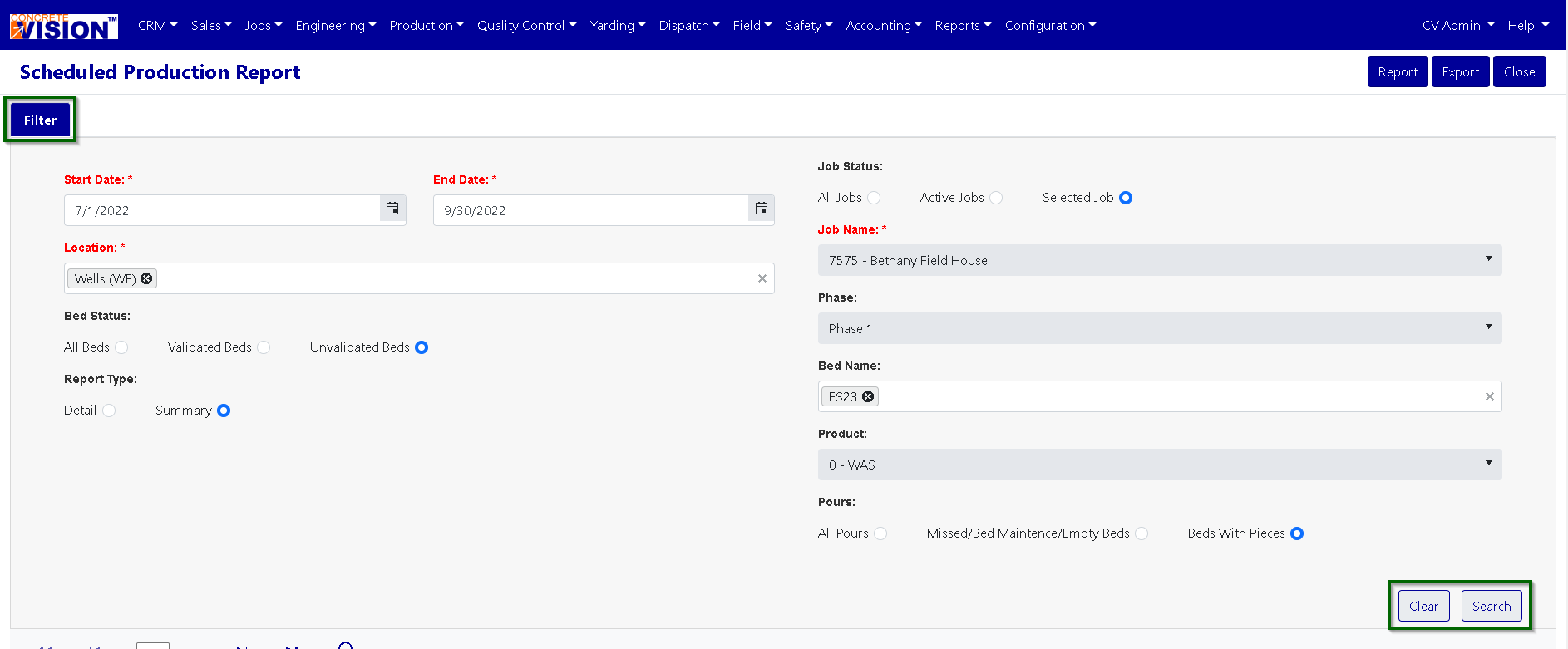
Figure 2
Navigating Report:
To review your report, use the navigation buttons seen in Figure 3.
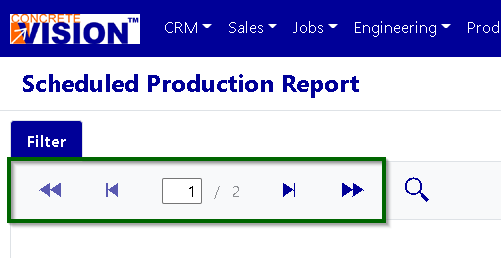
Figure 3
Exporting:
Once you have the report you need, you can either download the report as a PDF by clicking the Report button found at the top right of the screen (see Figure 4).
Or you can Export the report to an Excel spreadsheet by clicking the Export button found at the top right of the screen (see Figure 4).

Figure 4
Was this article helpful?
That’s Great!
Thank you for your feedback
Sorry! We couldn't be helpful
Thank you for your feedback
Feedback sent
We appreciate your effort and will try to fix the article