Overview
The Production Forecast Schedule is a visual planning tool that displays the production timeline for multiple beds at a manufacturing facility. It provides a comprehensive view of scheduled jobs, their status, and key production metrics.
Accessing the Production Forecast Schedule
Navigate to Reports menu > Reports - Production > Production Forecast Schedule (Figure 1)
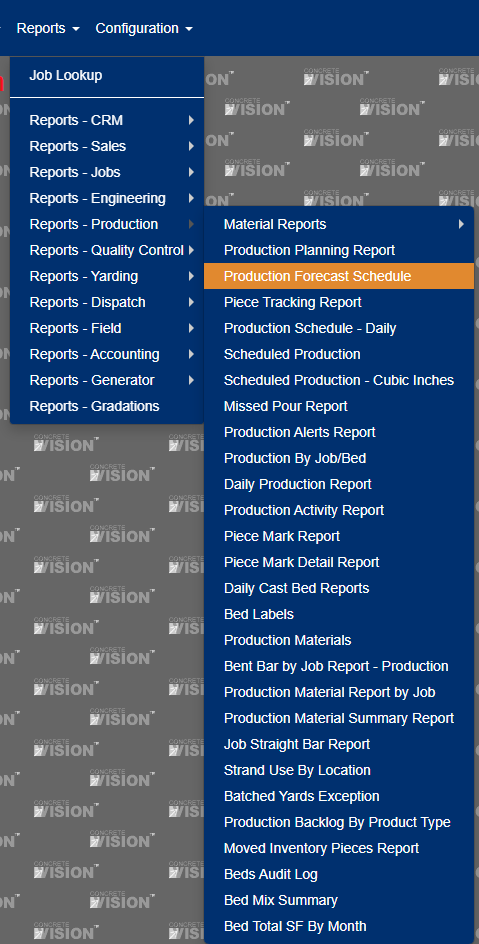
Figure 1
Report Layout
Header Controls
- Start Date: Select the beginning date for the forecast period
- Plant: Choose the facility location (e.g., Grand Rapids)
- Beds: Toggle between viewing all beds or only scheduled beds
- Show Weekends: Option to include/exclude weekend dates
- Date Range: Displays the current viewing period
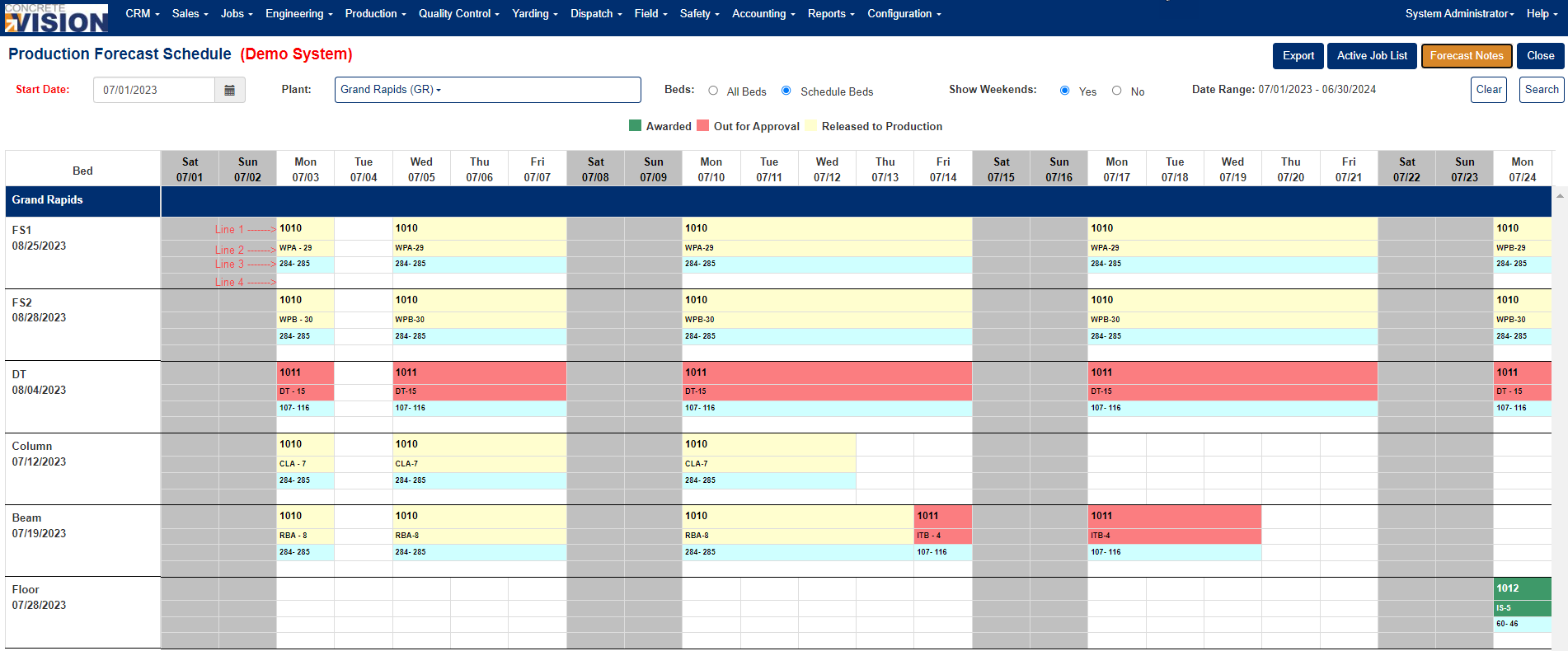
Figure 2
Column Structure
The schedule displays dates across the top, organized by day of the week and date. Each column represents one production day (Figure 2)
Row Structure
Each row represents a specific bed at the facility, identified by:
- Bed Name: The identifier for the production bed (e.g., FS1, FS2, DT)
- Start Date: The date when the bed becomes available or production begins
Cell Information
Each cell in the schedule contains up to four lines of information:
Line 1: Job Number
The unique identifier for the production job (e.g., 1010, 1011, 1012)
Line 2: Product Code - Consecutive Pour Days
- Product Code: Abbreviated product identifier (e.g., WPB-28, CLA-7, RBA-8)
- Consecutive Pour Days: Number of consecutive days this product has been or will be poured (indicated after the dash)
Line 3: Estimate Pieces - Actual Pieces
- Estimate: The planned number of pieces to produce
- Actual: The actual number of pieces produced (displayed after production)
- Format: "284-285" indicates 284 estimated and 285 actual pieces
Line 4: Bed Comment
Additional notes or identifiers related to the specific bed or production run (e.g., DT-15, ITB-4)
Color Coding
The schedule uses three color codes to indicate production status:
- Green (Awarded): Jobs that have been awarded and are confirmed for production
- Red (Out for Approval): Jobs pending approval or requiring attention
- Yellow (Released to Production): Jobs that have been released and are ready for production
- Light Blue: Jobs that have Estimated pieces
Key Features
- Multi-week view: Visualize production across multiple weeks
- Bed utilization: Quickly identify which beds are scheduled and which are available
- Status tracking: Monitor job approval and production status at a glance
- Production continuity: Track consecutive pour days for quality and efficiency management
Was this article helpful?
That’s Great!
Thank you for your feedback
Sorry! We couldn't be helpful
Thank you for your feedback
Feedback sent
We appreciate your effort and will try to fix the article