Overview
The System Status Setup screen allows you to customize the appearance of your system by configuring font and background colors for various status indicators, including Job Phase Status, Job Status, and Piece Status. These color configurations are reflected throughout the application, including on important reports such as the Production Forecast Schedule.
Accessing the Screen
To access the System Status Setup screen:
- Click on the Configuration menu in the main navigation
- Select System Setup from the dropdown submenu
- Choose the System Status Setup option
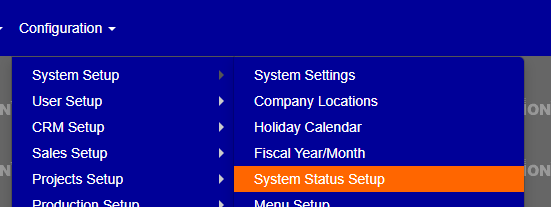 Figure 1
Customizing Status Colors
Viewing Current Configuration
When you first open the System Status Setup screen, you'll see a list of all available status types with their current color configurations. Each row displays:
- Status Type (Job Phase, Job Status, or Piece Status)
- Status Description
- Current background color
- Current font color
Editing Colors
To modify the colors for any status:
- Locate the status you wish to modify in the list
- Click the pencil icon (edit button) in the row of that status (Figure 2 - Green box)
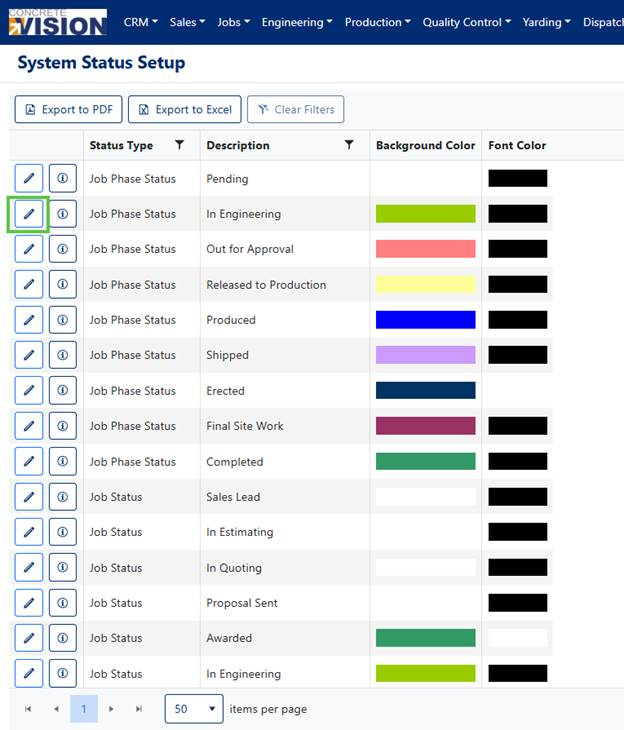 Figure 2
 - Use the color selector dropdown menus to choose your preferred colors:
- Click the down arrow next to the background or font color field. (Figure 3 - Green box)
- Select your desired color from the palette.
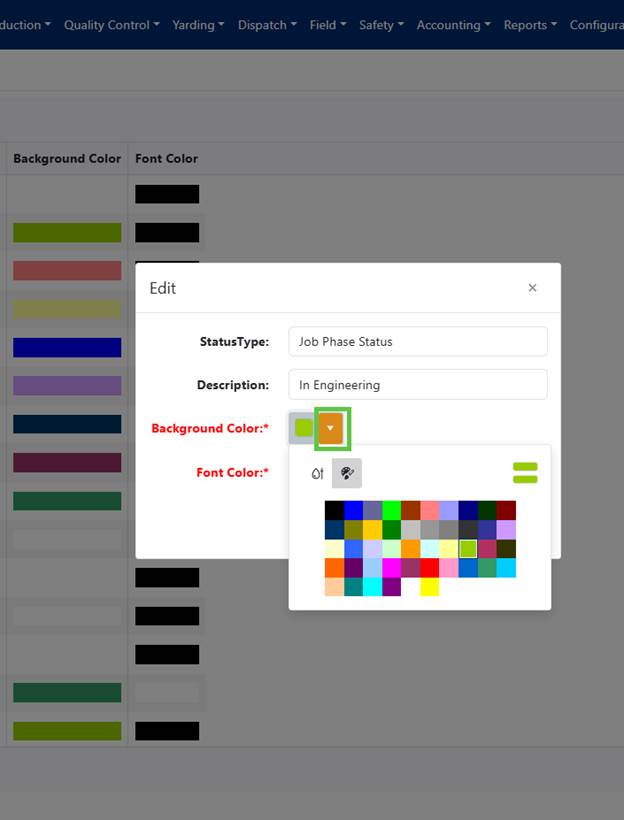 Figure 3
Saving Changes
After selecting your preferred colors:
- Click the down arrow again if the action buttons are not visible
- Click the Save button to apply your changes or Cancel to discard them. (Figure 4)
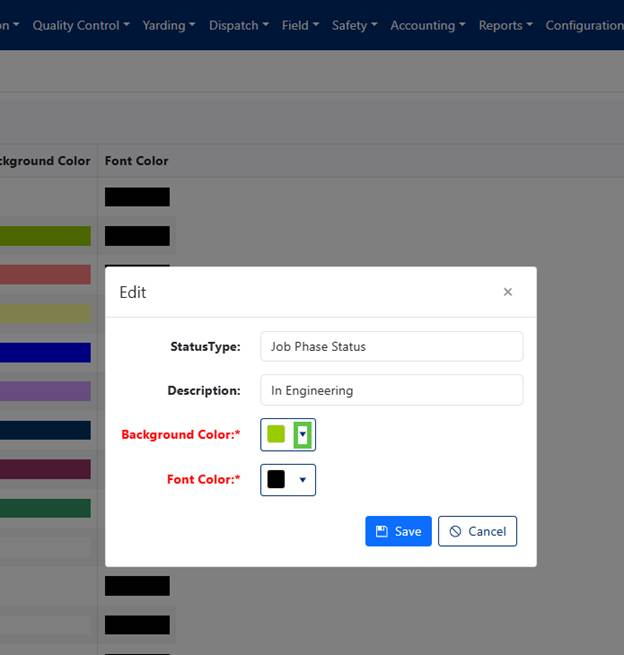 Figure 4
Best Practices
- Choose color combinations with sufficient contrast for readability
- Maintain consistency in your color scheme across similar status types
- Consider using color psychology principles (e.g., red for alerts, green for completion)
- Test your selected colors on various reports before finalizing
Was this article helpful?
That’s Great!
Thank you for your feedback
Sorry! We couldn't be helpful
Thank you for your feedback
Feedback sent
We appreciate your effort and will try to fix the article