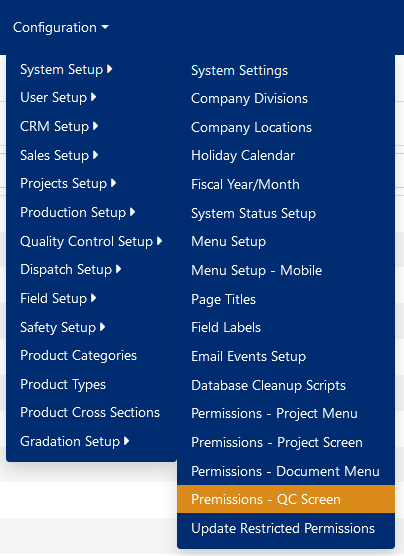
You access the QC Screen Permissions Setup Screen from the Configuration > System Setup > Permissions - QC Screen, as shown below:
The QC Permissions setup screen shown in figure 2, lists the various QC screens available. Each "Filename" is a different screen within the system, with distinct permissions. The "fqNCR.cfm" file for example contains the permissions for the "Production NCR" screen (Quality Control > Production NCRs).
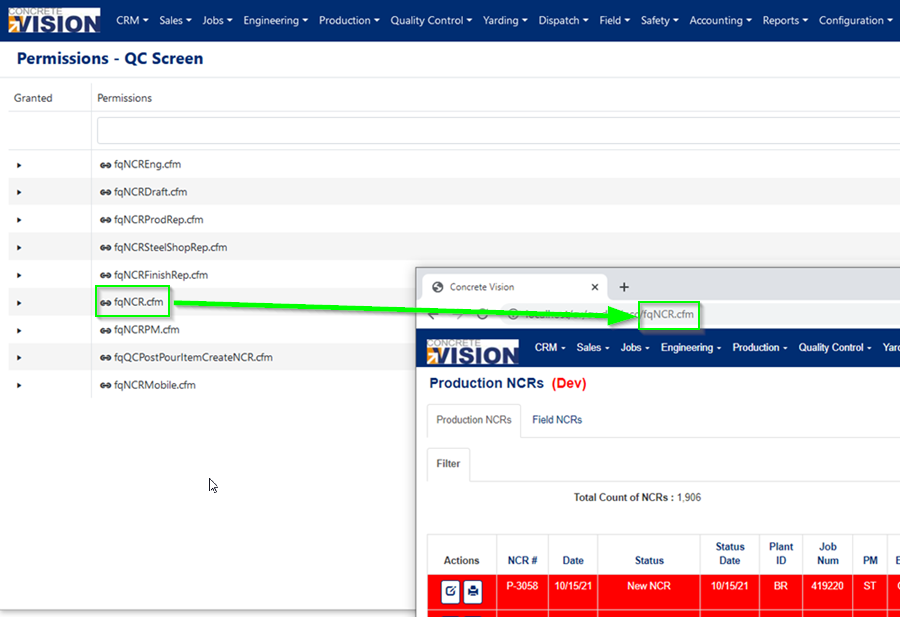
Figure 2
The first permission group, "Filter Status Field List" (marked with the green rectangles in figure 3), allows you to limit the statuses the user is allowed to see/filter by on the list screen.
The second permission group, "Filter Status Field Selected" (marked with the blue rectangle in figure 3), allows you to specify what filters are selected by default.
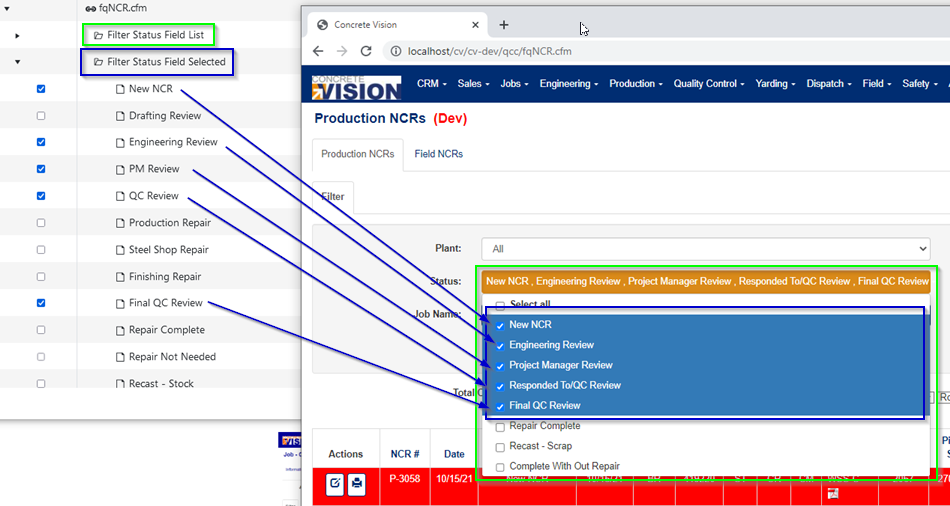
Figure 3
The 3rd permission group, "Edit Screen Status Options" (marked with the green rectangle in figure 4), allows you to specify what statuses the user has access to for a particular QC screen.
The 4th permission group, "Edit Screen Editable Field List" (marked with the blue rectangle in figure 4), allows you to specify which fields are editable to the user, such as the "NCR Date", or which actions the user is allowed to perform, such as "Convert to Field NCR", on the add/edit screen.
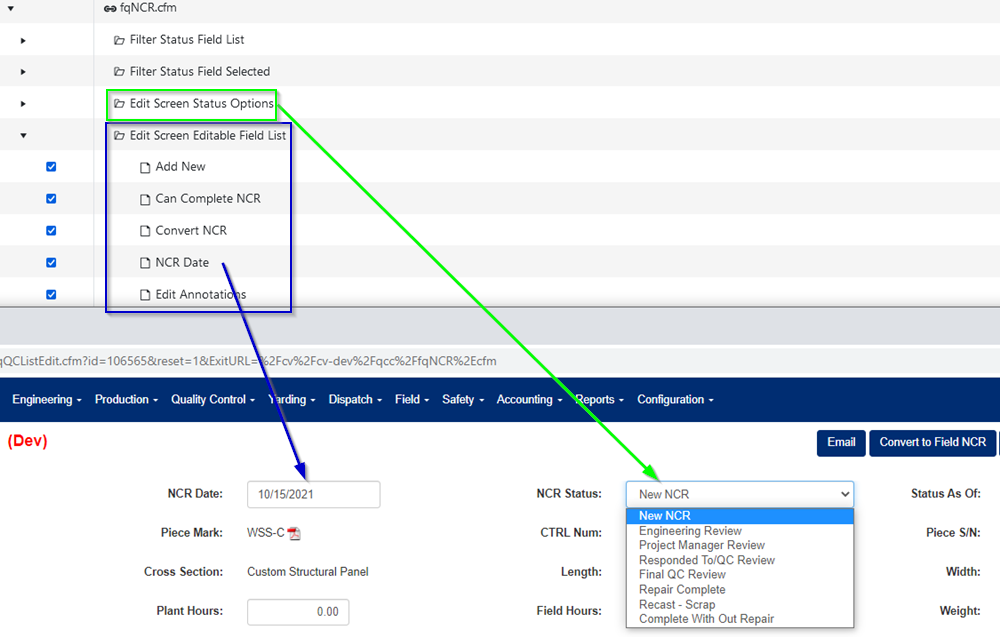
Figure 4
Was this article helpful?
That’s Great!
Thank you for your feedback
Sorry! We couldn't be helpful
Thank you for your feedback
Feedback sent
We appreciate your effort and will try to fix the article