The States module is where states are defined and managed. These defined states are used throughout the Concrete Vision application as options which can be selected. Example uses for these defined states include adding locations for contacts, plants and project contacts.
You access the States screen from the Configuration > System Setup menu, shown in Figure 1 below.
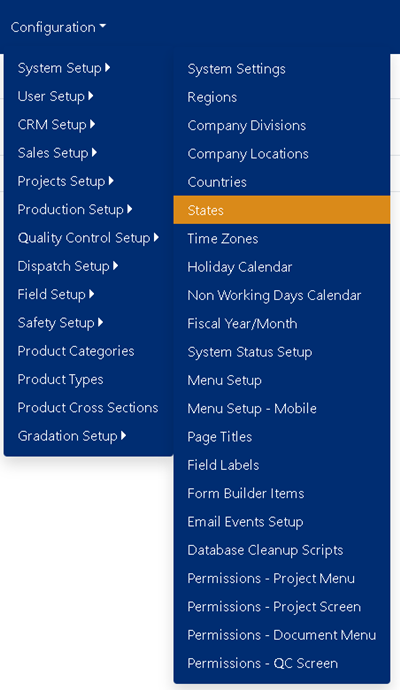
Figure 1
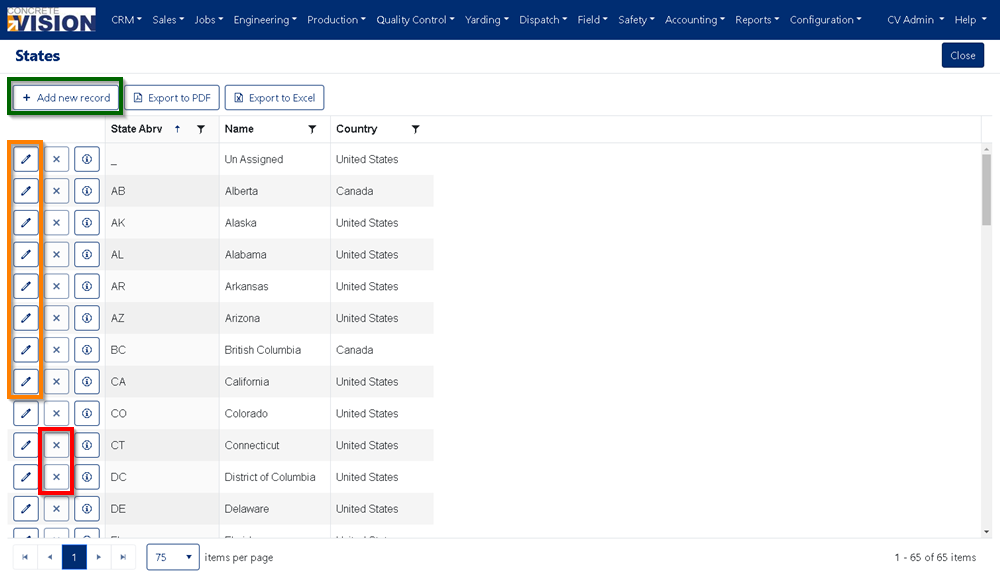
Figure 2
Add State
Click the "Add new record" button from the main States screen (see the Green box in Figure 2) to open the State Add Item window (see Figure 3).
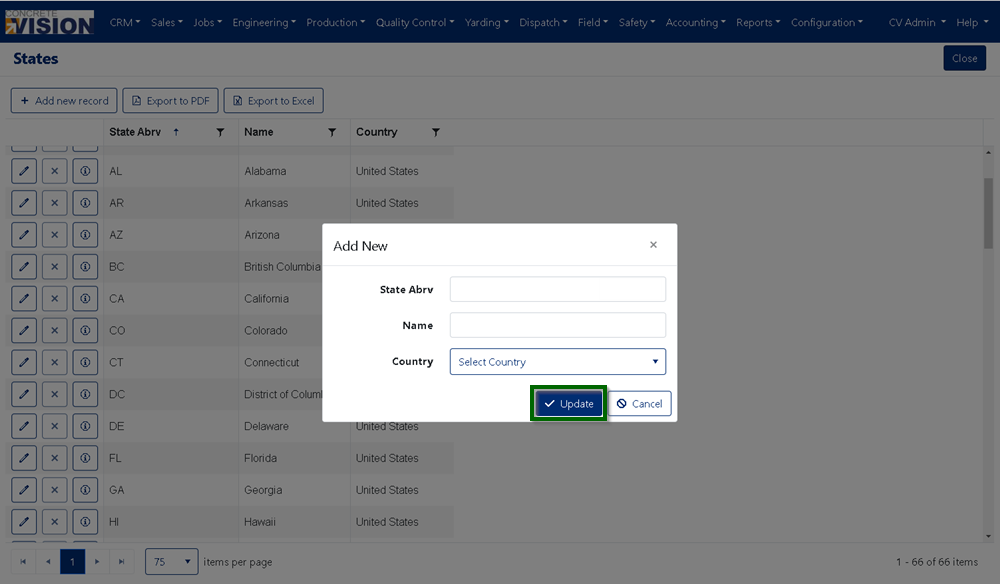
Figure 3
- Enter a State Abbreviation. (Character Max: 2)
- Enter a Name. (Character Max: 50)
- Specify the Country of origin.
- Click on the “Update” button to Add the new State (see the Green box in Figure 3).
Edit State
Click on the “Edit” button to the left the State you’d like to edit (see the Orange box in Figure 2) this will bring up the Edit Item window (see Figure 4).
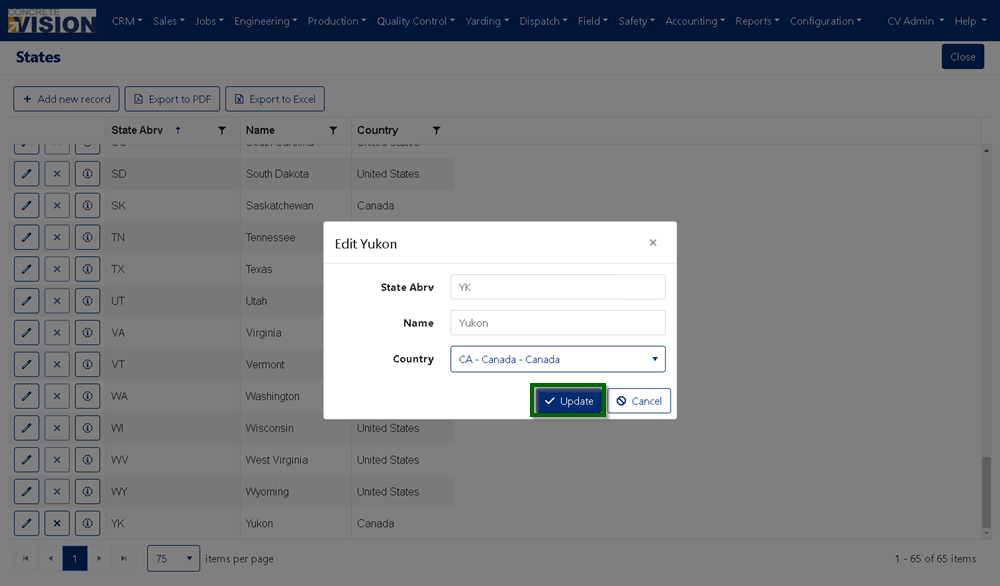
Figure 4
- You can change the State's Abbreviation. (Character Max: 2)
- You can change the State's Name. (Character Max: 50)
- Modify the Country of origin..
- Click on the “Update” button to Add the new State (see the Green box in Figure 4).
Remove State

Figure 5
- Click the "Delete" button in the corresponding row of the State you wish to remove (see Red box in Figure 5). Please note: You cannot delete a State if it is in use
- Click "OK" in the dialogue box that appears to confirm you wish to delete the record.
Was this article helpful?
That’s Great!
Thank you for your feedback
Sorry! We couldn't be helpful
Thank you for your feedback
Feedback sent
We appreciate your effort and will try to fix the article